
1. Introduction
This manual provides detailed instructions for the setup, operation, and maintenance of your SNOODU Keyboard Case for the Samsung Galaxy Tab S11 2025 11-inch. Please read this manual thoroughly before using the product to ensure proper functionality and to maximize your user experience.
2. Compatibility
This keyboard case is specifically designed for the Samsung Galaxy Tab S11 2025 11-inch tablet. It is compatible with models SM-X730 and SM-X736B.
To verify your device model, navigate to "Settings" > "About Tablet" on your device.
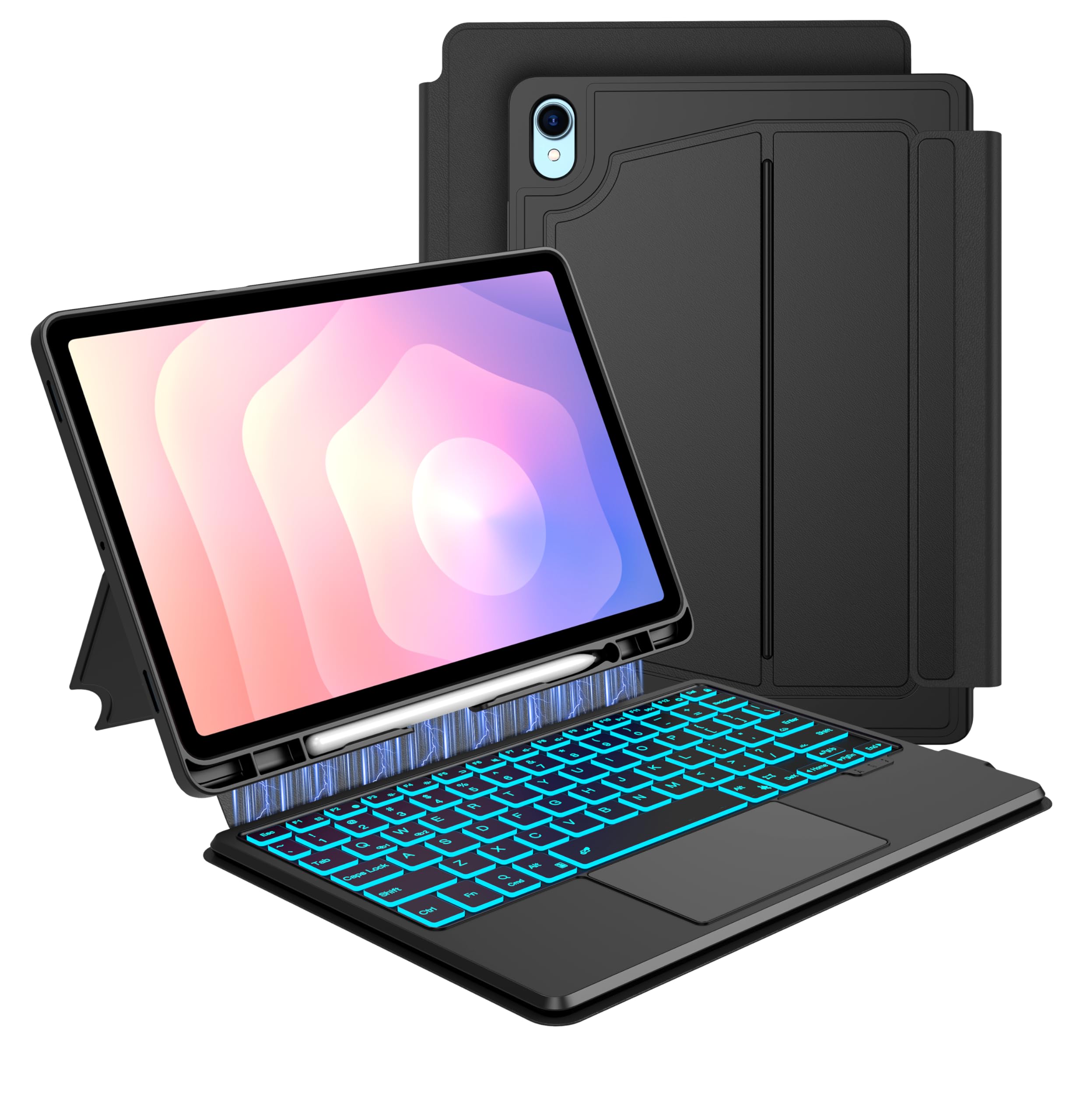
Figure 2.1: Compatibility check for Samsung Galaxy Tab S11 2025 11-inch (Models SM-X730/SM-X736B).
The tablet and S Pen are not included with this product.
3. Product Overview and Features
The SNOODU Keyboard Case offers a versatile solution for your Samsung Galaxy Tab S11 2025 11-inch, combining protection with enhanced productivity features.

Figure 3.1: Key features of the SNOODU Keyboard Case.
Key Features:
- 7-Color Backlit Keyboard: Offers 7 color options and 3 brightness modes for comfortable typing in various lighting conditions.
- Multi-Touch Trackpad: Integrated trackpad supports various gestures for navigation, clicking, scrolling, and swiping, eliminating the need for an external mouse.
- One-Click DEX Mode Key: Dedicated key to instantly switch your tablet into Samsung DeX mode for a desktop-like experience.
- Magnetic Detachable Design: The keyboard and protective case can be separated, allowing for flexible use in typing, reading, viewing, or sketching modes.
- Dual Wireless Channels: Connects to up to two devices (tablet/phone) simultaneously, with easy switching between them.
- Unique Stylus Holder: A precise cut-out slot on the back cover securely stores your S Pen, ensuring the case remains flat on a surface.
- Smart Protection & Multi-View Angles: Made from durable leather, the case provides 360° protection. Multiple viewing angles are supported for various activities.
- AI Key Design: Enables one-touch access to AI functions for increased efficiency.
- Auto Sleep/Wake Function: Automatically puts your tablet to sleep when closed and wakes it upon opening, conserving battery life.
4. Setup and Connection
4.1 Powering On/Off
- To power on the keyboard, toggle the power switch to the "ON" position.
- To power off the keyboard, toggle the power switch to the "OFF" position.
4.2 Bluetooth Pairing
- Ensure the keyboard is powered on.
- Press and hold the Fn + C keys simultaneously for 3 seconds. The Bluetooth indicator light will begin blinking, indicating it is ready for pairing.
- On your Samsung Galaxy Tab S11, go to "Settings" > "Connected devices" > "Bluetooth".
- Select "Wireless Keyboard" from the list of available devices to connect.
- Once connected, the Bluetooth indicator light on the keyboard will stop blinking.
4.3 Charging the Keyboard
Connect the provided USB-C charging cable to the keyboard's charging port and to a USB power source. The charging indicator light will illuminate during charging and turn off when fully charged.

Figure 4.1: Keyboard charging via USB-C port.
5. Operating Instructions
5.1 Keyboard Backlight Control
- To turn the keyboard backlight on/off: Press Fn + Light Bulb Key.
- To change backlight color (7 colors available): Press Fn + RGB Key.
- To adjust backlight brightness (3 levels): Press Fn + Shift.

Figure 5.1: Keyboard backlight controls.
5.2 Multi-Touch Trackpad Usage
The integrated trackpad supports various gestures for efficient navigation:
- Click: Single tap with one finger.
- Scroll: Drag two fingers up or down.
- Zoom: Pinch in or out with two fingers.
- Home: Swipe up with three fingers.
To disable/enable the trackpad: Press Fn + Spacebar.

Figure 5.2: Multi-touch trackpad gestures.
5.3 Media and Function Keys
The keyboard includes dedicated function keys and media controls:
- Brightness Up/Down: Press Fn + Brightness Up/Down keys.
- Volume Up/Down: Press Fn + Volume Up/Down keys.
- Mute: Press Fn + Mute key.
- Play/Pause: Press Fn + Play/Pause key.
- Next/Previous Song: Press Fn + Next/Previous Song keys.
Video 5.1: Demonstration of keyboard media and function keys, including brightness, volume, and track control.
5.4 One-Click DEX Mode
To activate Samsung DeX mode, simply press the Fn + DeX keys. This transforms your tablet interface into a desktop-like environment, enhancing productivity.

Figure 5.3: Activating Samsung DeX mode.
5.5 Detachable Design and Viewing Angles
The keyboard is magnetically detachable from the case, allowing you to use the tablet independently or in various configurations. The case also supports multiple viewing angles for optimal comfort during typing, reading, viewing, or sketching.

Figure 5.4: Magnetic detachable design and versatile usage modes.
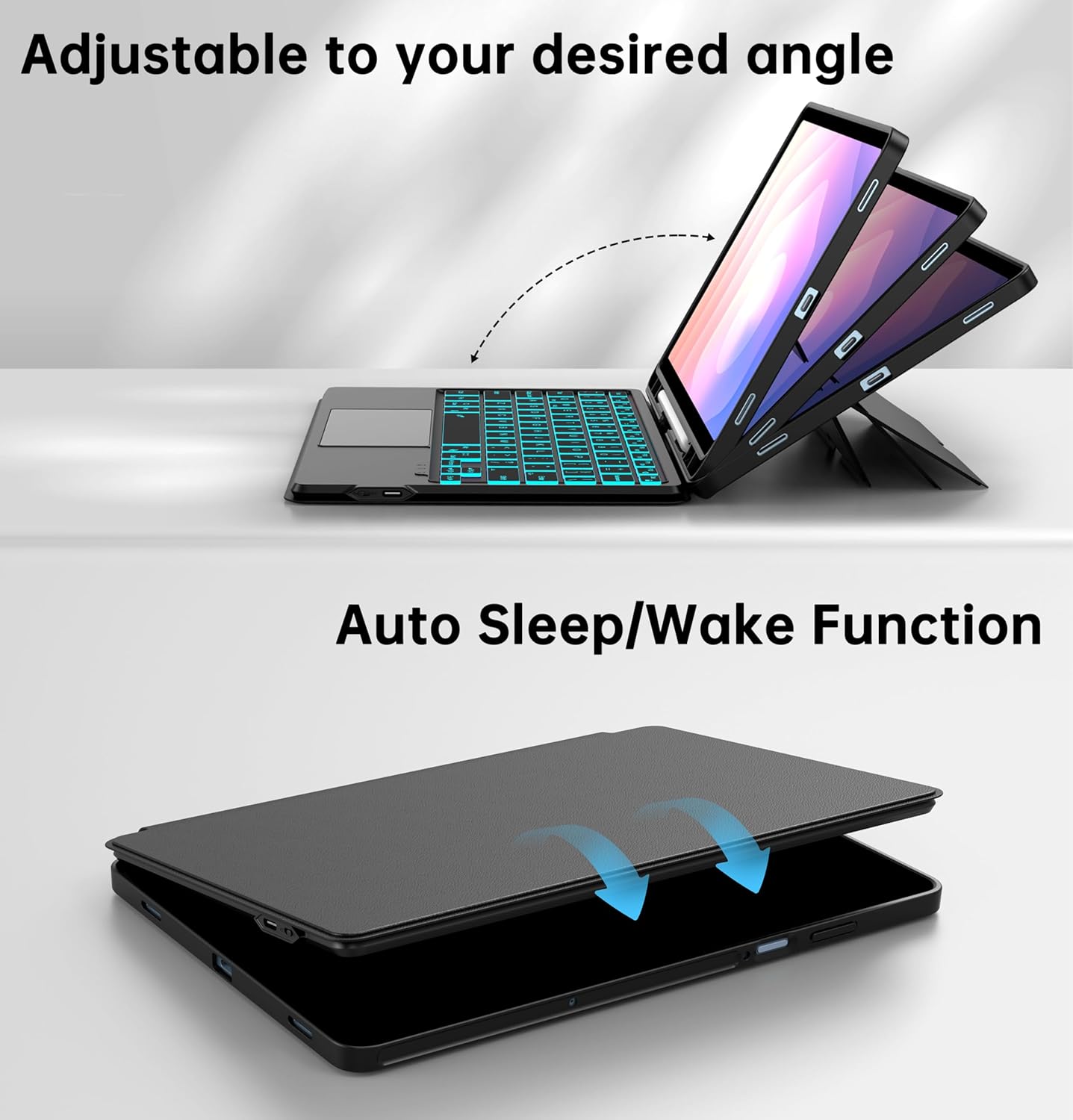
Figure 5.5: Adjustable viewing angles and Auto Sleep/Wake function.
5.6 Stylus Holder
The case features a dedicated slot on the back to securely store your S Pen. This design ensures the pen is always accessible and prevents the case from wobbling when placed on a flat surface.
6. Maintenance
- Cleaning the Case: Wipe the leather case with a soft, damp cloth. Avoid harsh chemicals or abrasive cleaners.
- Cleaning the Keyboard: Use a soft, dry cloth to clean the keyboard surface. For stubborn dirt, a slightly damp cloth can be used, ensuring no moisture enters the keys.
- Storage: When not in use for extended periods, store the keyboard case in a cool, dry place.
- Battery Care: To prolong battery life, avoid fully discharging the keyboard battery frequently. Charge it regularly.
7. Troubleshooting
7.1 Keyboard Not Connecting via Bluetooth
- Ensure the keyboard is powered on and fully charged.
- Make sure Bluetooth is enabled on your Samsung Galaxy Tab S11.
- Re-enter pairing mode on the keyboard by pressing Fn + C for 3 seconds.
- Forget the device on your tablet's Bluetooth settings and attempt to pair again.
- Restart both your tablet and the keyboard.
7.2 Keyboard Backlight Not Working
- Ensure the keyboard is powered on.
- Press Fn + Light Bulb Key to toggle the backlight.
- Adjust brightness levels using Fn + Shift.
- If the battery is low, the backlight may not function. Charge the keyboard.
7.3 Trackpad Not Responding
- Ensure the trackpad is enabled by pressing Fn + Spacebar.
- Check Bluetooth connection status.
- Restart the keyboard and tablet.
8. Specifications
| Item Model Number | for Samsung Galaxy Tab S11 2025 11-inch |
| Brand | SNOODU |
| Compatible Devices | Tablet, for Samsung Galaxy Tab S11 2025 11-inch (Model: SM-X730/SM-X736B) |
| Connectivity Technology | Bluetooth |
| Keyboard Description | Multi Functional |
| Special Feature | Backlit, Hotkeys and Media Keys, Portable, Rechargeable, Trackpad |
| Keyboard Backlighting Color Support | RGB (7 Colors) |
| Style | Classic |
| Material | Leather (case) |
| Item Weight | 1.46 pounds |
| Package Dimensions | 11.18 x 8.39 x 1.22 inches |
| Batteries | 1 AAAA batteries required (included) |
9. Warranty and Support
9.1 Warranty Information
This product comes with a standard manufacturer's warranty. Please refer to the product packaging or the seller's website for specific warranty terms and conditions.
9.2 Customer Support
For any questions, technical assistance, or support regarding your SNOODU Keyboard Case, please contact the seller or manufacturer directly through the platform where the product was purchased. You may also visit the SNOODU store for more information: SNOODU Store.