
1. Introduction
Thank you for choosing the MCHOSE ACE 68 Mechanical Gaming Keyboard. This 60% compact keyboard is engineered for high-performance gaming, featuring Hall Effect magnetic switches, Rapid Trigger technology, adjustable actuation, and an 8000Hz polling rate for ultra-low latency. This manual will guide you through the setup, operation, and maintenance of your new keyboard to ensure optimal performance.
2. What's in the Box
- MCHOSE ACE 68 Mechanical Gaming Keyboard
- USB Cable (Type-C)
- Keycap & Switch Puller
- 2 x Replacement Switches
- Dust Cover
- User Manual (this document)
3. Setup
3.1 Hardware Connection
- Connect the provided USB Type-C cable to the port on the MCHOSE ACE 68 keyboard.
- Plug the other end of the USB cable into an available USB port on your computer (PC, Laptop, Gaming Console, PS5, XBOX).
- The keyboard will be automatically recognized by your operating system.
3.2 Software Installation (M HUB Web Driver)
For advanced customization and optimal performance, it is recommended to use the MCHOSE M HUB web driver.
- Open your web browser and navigate to the MCHOSE official website: https://www.mchose.com.cn.
- Select your preferred language from the options provided on the website.
- Click on the 'Enter M HUB WEB' button.
- On the M HUB page, click on the image corresponding to the 'Ace 68' keyboard to enter its configuration interface.

Image: Step 1 - Webpage input for MCHOSE HUB web driver.

Image: Step 2 - Language selection and entering M HUB WEB.
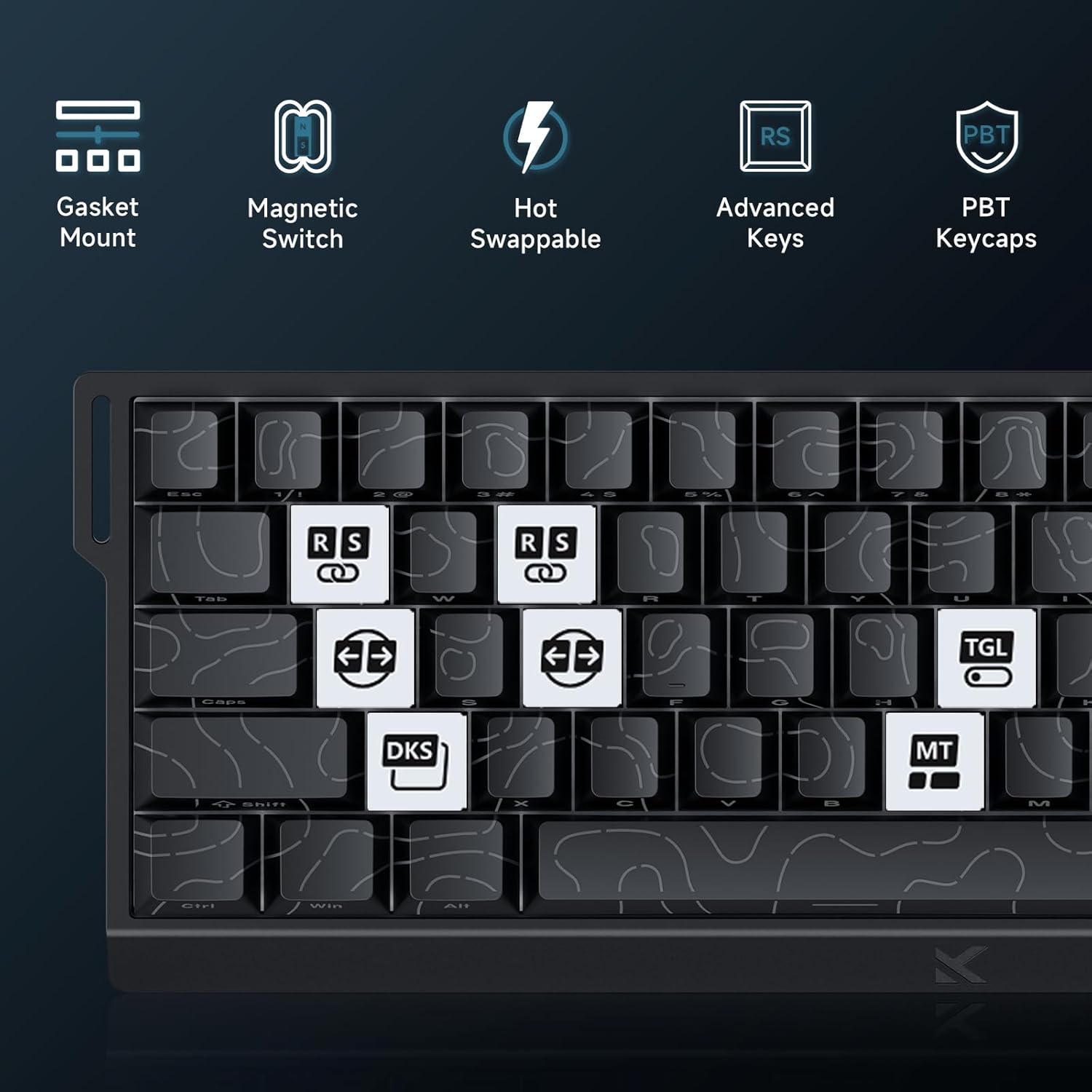
Image: Step 3 - Selecting the Ace 68 device within the M HUB web interface.
4. Operating Instructions
4.1 Polling Rate and Latency
The MCHOSE ACE 68 features an 8000Hz polling rate and a 128K scan rate, resulting in an ultra-low 0.1ms latency. This ensures rapid and precise input registration.

Image: Visual representation of 8000Hz Polling Rate and 0.1ms Report Rate, highlighting fast actuation and response time.
4.2 Rapid Trigger and Adjustable Actuation
The keyboard's magnetic switches allow for dynamic actuation and deactivation points, eliminating traditional input latency.
- Rapid Trigger: Keys activate when pressed and deactivate when released, without a fixed reset point. This allows for faster repeated inputs.
- Adjustable Actuation: Customize the actuation point of each key from 0.1mm to 4.0mm using the M HUB software. This provides precise control over key sensitivity.

Image: Comparison of Rapid Trigger (dynamic reset) versus traditional fixed actuation/reset points.
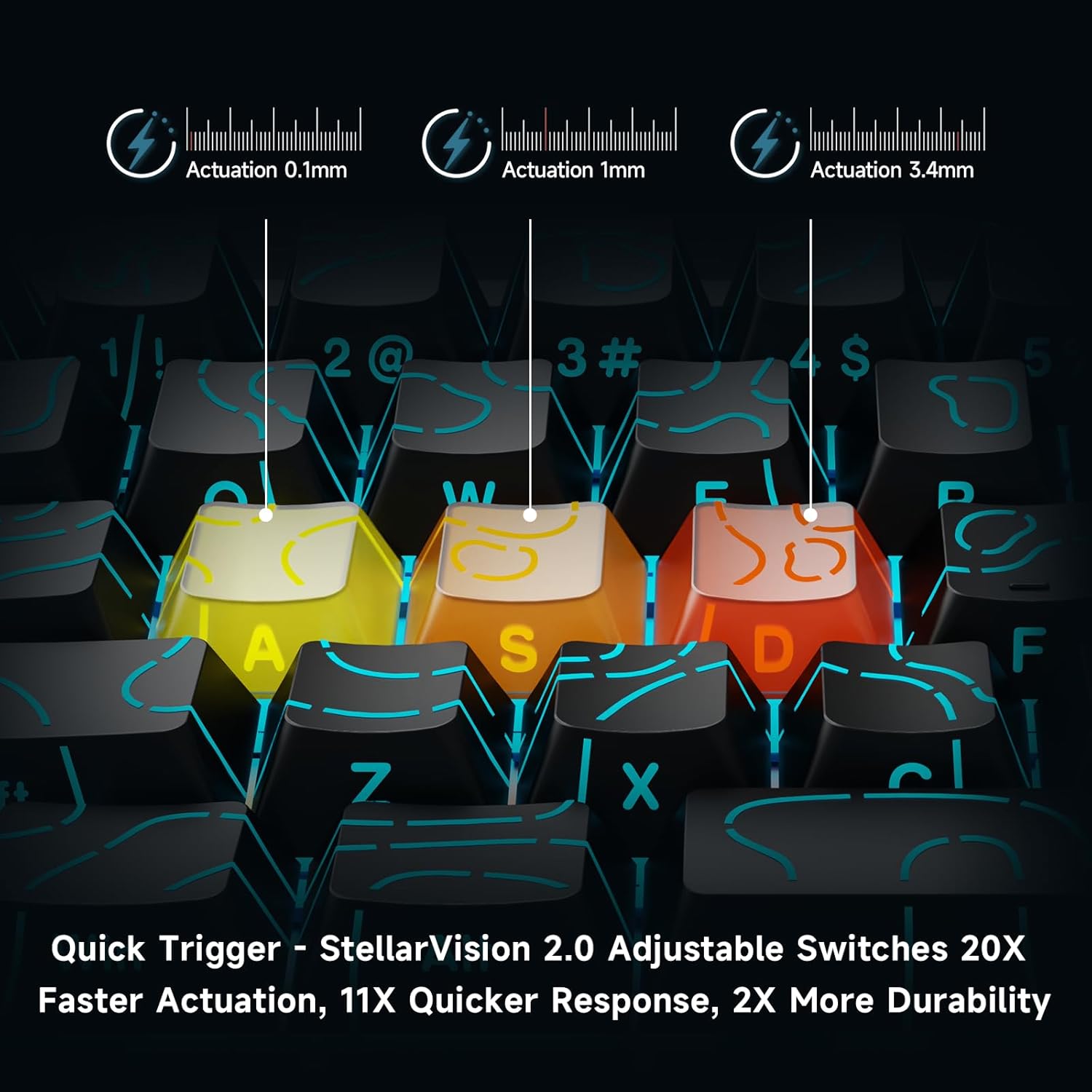
Image: Visual demonstration of adjustable actuation points (0.1mm, 1mm, 3.4mm) for StellarVision 2.0 switches.
4.3 Advanced Key Functionality (M HUB Software)
The M HUB software allows for advanced customization of key behavior:
- RS (Rappy Snappy): Monitors at least two selected keys and activates the key pressed the furthest. When both are at the same depth, it uses your selected SOCD resolution. This enhances movement in games.
- SOCD (Simultaneous Opposing Cardinal Directions): When opposing direction keys (e.g., Left + Right) are pressed together, you can set it to neutralize, prioritize the last-pressed, or hold the first-pressed direction.
- DKS (Dynamic Key Press): Map up to four separate actions along a single key's travel at actuation, bottom-out, first release, and full release for complex macros or multi-stage commands.
- MT (Mod-Tap): Assign a key to send one keycode on a quick tap and a different (usually modifier) code when held, blending typing and modifier layers seamlessly.
- TGL (Toggle): Turn any key into an on/off switch-press once to latch the output; press again to cancel. A hold still provides momentary behavior.

Image: Overview of key features including Advanced Keys (RS, DKS, TGL, MT).

Image: Diagram explaining the concept of 4-in-1 Action Keys, allowing multiple actions per key based on press depth.
4.4 RGB Lighting Customization
The MCHOSE ACE 68 features customizable RGB backlighting with 16.8 million colors and 22+ dynamic lighting effects.
- FN Key Combinations: Use the Function (FN) key in combination with other keys to adjust lighting effects directly on the keyboard.
- M HUB Software: For full customization, including per-key lighting and advanced effects, use the M HUB web driver.

Image: FN key combinations for adjusting RGB lighting effects, brightness, and speed.

Image: The MCHOSE ACE 68 keyboard displaying various preset RGB lighting effects.
5. Maintenance
5.1 Cleaning
- Disconnect the keyboard from your computer before cleaning.
- Use a soft, dry cloth to wipe down the keycaps and keyboard body.
- For deeper cleaning, use a can of compressed air to remove dust and debris from between the keycaps.
- Avoid using harsh chemicals or abrasive materials, as these can damage the keyboard's finish or keycap legends.
5.2 Keycap and Switch Replacement
The MCHOSE ACE 68 features hot-swappable magnetic switches, allowing for easy replacement without soldering.
- Use the provided keycap puller to gently remove the desired keycap.
- Use the provided switch puller to carefully extract the magnetic switch from its socket.
- Align the pins of the new switch with the holes on the PCB and press firmly until it clicks into place.
- Place the keycap back onto the new switch.

Image: Diagram showing the hot-swappable PCB, pre-lubed magnetic switch, plate-mounted stabilizers, hot-swap socket, and north-facing per-key LEDs.
6. Troubleshooting
- Keyboard Not Responding:
- Ensure the USB cable is securely connected to both the keyboard and the computer.
- Try connecting the keyboard to a different USB port on your computer.
- Test the keyboard on another computer to rule out system-specific issues.
- Input Lag or Dropped Inputs:
- Ensure the M HUB web driver is installed and updated to the latest version.
- Check the polling rate setting in the M HUB software; ensure it is set correctly for your needs.
- If 'Berserk Mode' is enabled in the M HUB software, be aware that while it offers maximum accuracy, it may impact stability with mixed switch configurations. Try disabling it if issues persist.
- Ensure no other software or background processes are interfering with keyboard input.
- RGB Lighting Not Working/Incorrect:
- Check FN key combinations for lighting control (refer to section 4.4).
- Verify lighting settings within the M HUB software.
- Ensure the keyboard firmware is up to date.
- Keys Not Actuating Correctly:
- Check the adjustable actuation settings for the specific key in the M HUB software.
- If a switch feels faulty, consider replacing it using the provided spare switches and switch puller (refer to section 5.2).
7. Specifications
| Feature | Detail |
|---|---|
| Model Number | MCHOSE ACE 68 |
| Keyboard Layout | 60% Compact (61 Keys) |
| Switch Type | TTC Dragon Lord Magnetic Switches (Hall Effect) |
| Actuation Range | 0.1mm - 4.0mm (Adjustable) |
| Polling Rate | 8000Hz |
| Report Rate | 0.1ms |
| Keycaps | PBT Keycaps, Cherry Profile, Shine-through legends |
| Backlighting | RGB (16.8 Million Colors, 22+ Effects) |
| Connectivity | Wired (USB-C) |
| Compatible Devices | PC, Laptop, Gaming Console, PS5, XBOX |
| Product Dimensions | 12.6"L x 4.56"W x 1.54"H (32cm x 11.7cm x 3.9cm) |
| Item Weight | 2.55 pounds (1.16 kg) |
| Special Features | Rapid Trigger, Adjustable Actuation, Hot-Swappable Switches, Programmable Keys, Gasket Mount |
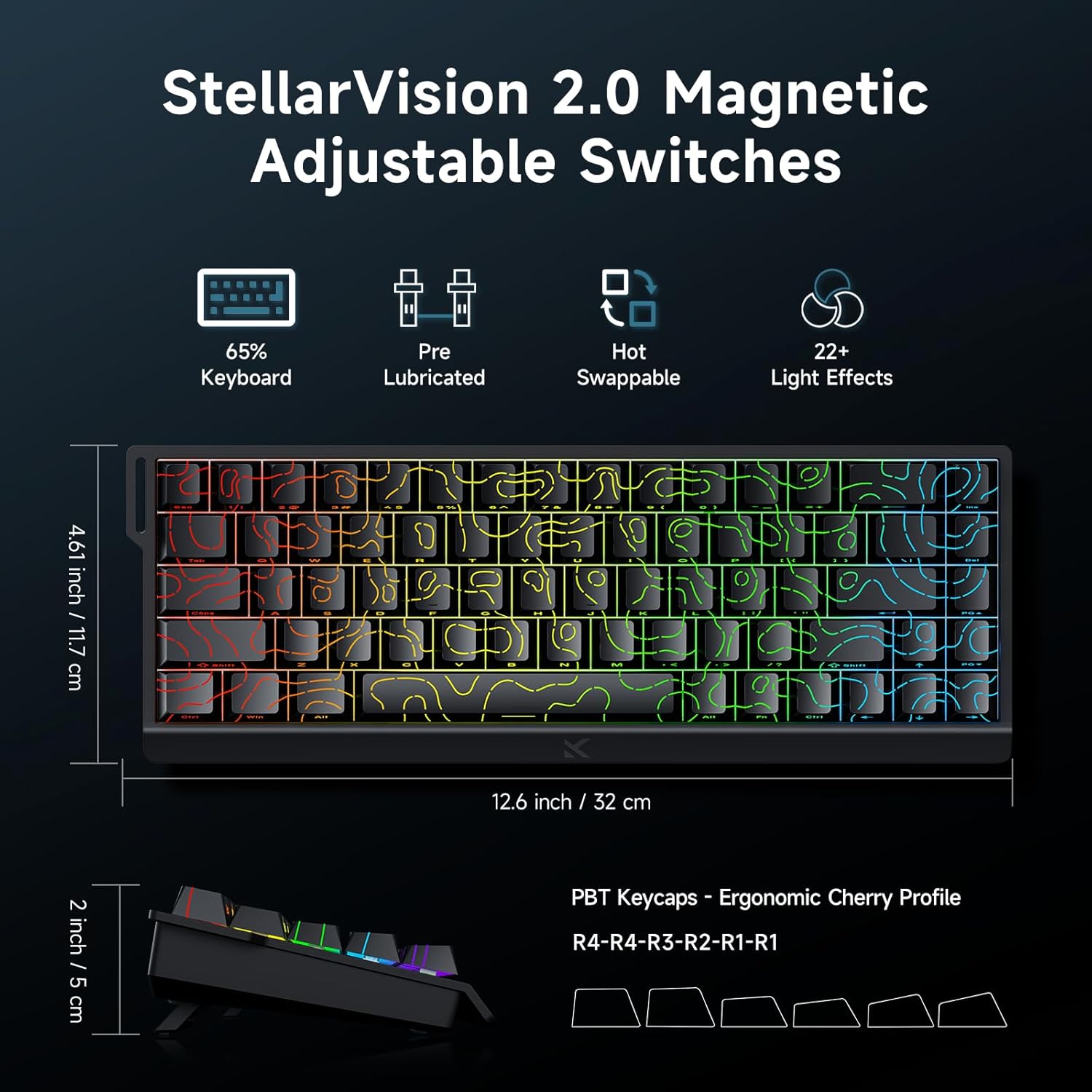
Image: MCHOSE ACE 68 keyboard with dimensions (12.6 inches / 32 cm length, 4.61 inches / 11.7 cm width, 2 inches / 5 cm height) and key features like StellarVision 2.0 Magnetic Adjustable Switches, pre-lubricated, hot-swappable, and 22+ light effects.

Image: Detailed specifications of the Uranus Magnetic Switch eSports, including switch type, actuation range (0.1-3.4mm), lifespan (100 Million Clicks), sensitivity (0.005mm), total travel (3.4mm), and trigger pressure (32 +/- 5 gf).
8. Warranty and Support
MCHOSE products are designed for durability and performance. For warranty information, technical support, or further assistance, please visit the official MCHOSE website or contact their customer service directly. Keep your purchase receipt for warranty claims.
Official Website: https://www.mchose.com.cn


