
1. Introduction
The Patriot P410 500GB NVMe PCIe Gen4 x4 M.2 2280 Solid State Drive (SSD) is designed to deliver high-speed performance and reliable efficiency for your computing needs. Featuring sequential read speeds of up to 5,000MB/s and sequential write speeds of up to 2,300MB/s, this SSD significantly reduces load times and enhances system responsiveness. Its energy-efficient design contributes to extended laptop battery life, and its compact M.2 2280 form factor ensures seamless integration into most mainstream PCs, laptops, and compatible gaming consoles like the PS5.
2. Safety Information
- Always handle the SSD by its edges to avoid touching the gold connector pins or components.
- Ensure your system is powered off and unplugged before installation to prevent electrical shock or damage to components.
- Use appropriate anti-static precautions (e.g., an anti-static wrist strap) to prevent electrostatic discharge (ESD) damage.
- Do not attempt to disassemble or modify the SSD. This will void the warranty.
- Keep the SSD away from moisture, extreme temperatures, and strong magnetic fields.
3. Package Contents
Your Patriot P410 SSD package should contain the following:
- Patriot P410 500GB NVMe PCIe Gen4 M.2 SSD
- Quick Installation Guide (if included in retail packaging)
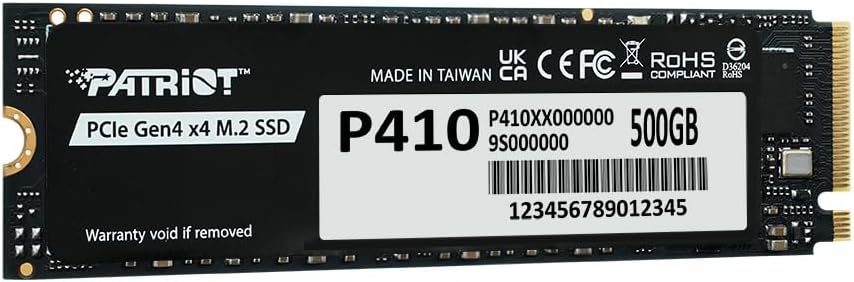
Image 1: Top view of the Patriot P410 500GB NVMe PCIe Gen4 M.2 SSD, showing the Patriot logo, P410 model number, and 500GB capacity label.
4. Setup and Installation
4.1. PC/Laptop Installation
- Prepare Your System: Power off your computer and disconnect the power cable. Open the computer case or access panel for your laptop's M.2 slot.
- Locate M.2 Slot: Identify an available M.2 slot on your motherboard. It typically has a small screw stand-off at the end.
- Insert the SSD: Gently insert the Patriot P410 SSD into the M.2 slot at a 30-degree angle. The gold contacts should slide smoothly into the slot.
- Secure the SSD: Once fully seated, push the SSD down towards the motherboard and secure it with the small screw provided with your motherboard or laptop.
- Close System: Reassemble your computer and reconnect the power cable.
4.2. PS5 Installation
The Patriot P410 SSD is compatible with PlayStation 5 consoles. For detailed installation instructions specific to the PS5, please refer to the official PlayStation support documentation or the PS5 console's user manual. Ensure the SSD meets all PS5 requirements, including the M.2 2280 form factor and PCIe Gen4 x4 interface.
4.3. Initializing and Formatting the SSD
After physical installation, the SSD needs to be initialized and formatted before use. This process varies slightly depending on your operating system:
- Windows: Open Disk Management (right-click Start button > Disk Management). Locate the unallocated drive, right-click it, and select "Initialize Disk." Choose GPT (GUID Partition Table) for modern systems. Then, right-click the unallocated space again, select "New Simple Volume," and follow the wizard to format it (NTFS recommended).
- macOS: Open Disk Utility (Applications > Utilities > Disk Utility). Select the new SSD from the sidebar, click "Erase," choose a name, format (APFS recommended), and scheme (GUID Partition Map).
- Linux: Use tools like GParted or the
fdisk/mkfscommands in the terminal to partition and format the drive.

Image 2: Angled view of the Patriot P410 500GB NVMe PCIe Gen4 M.2 SSD, highlighting its compact M.2 2280 form factor and connector pins.
5. Operating
Once installed, initialized, and formatted, your Patriot P410 SSD operates like any other storage drive. You can use it for:
- Operating System Drive: Install your operating system (Windows, macOS, Linux) for faster boot times and overall system responsiveness.
- Gaming Drive: Store games to significantly reduce load times and improve gaming experience.
- Application Drive: Install frequently used applications for quicker launch times.
- Data Storage: Use it for general file storage, including documents, photos, and videos.
No specific drivers are typically required for NVMe SSDs as they are generally supported by modern operating systems. Ensure your motherboard BIOS/UEFI is updated to the latest version for optimal compatibility and performance.
6. Maintenance
- Firmware Updates: Periodically check the Patriot Memory website for any available firmware updates for your P410 SSD. Firmware updates can improve performance, stability, and compatibility.
- TRIM Command: Ensure your operating system has TRIM enabled. TRIM helps maintain the performance and longevity of SSDs by allowing the OS to inform the SSD which data blocks are no longer in use and can be wiped internally. Modern operating systems typically enable TRIM by default.
- Avoid Overfilling: While SSDs perform well even when nearly full, maintaining some free space (e.g., 10-15%) can help sustain optimal performance.
- Data Backup: Regularly back up important data to another storage device. While SSDs are reliable, no storage device is immune to failure.
- Physical Cleaning: The SSD itself generally does not require physical cleaning. If dust accumulates in your system, ensure proper airflow to prevent overheating of components.
7. Troubleshooting
7.1. SSD Not Detected
- Check Physical Connection: Ensure the SSD is properly seated in the M.2 slot and secured.
- BIOS/UEFI Settings: Enter your system's BIOS/UEFI settings. Verify that the M.2 slot is enabled and configured correctly (e.g., NVMe mode). Some motherboards may disable certain SATA ports when an M.2 drive is used.
- Initialize Disk: For new installations, ensure the SSD has been initialized and formatted in Disk Management (Windows) or Disk Utility (macOS).
- Motherboard Compatibility: Confirm your motherboard supports NVMe PCIe Gen4 M.2 SSDs.
7.2. Slow Performance
- Check PCIe Slot: Ensure the SSD is installed in a PCIe Gen4 x4 compatible M.2 slot. Using a Gen3 slot or a slot with fewer lanes will limit performance.
- TRIM Status: Verify that TRIM is enabled for your operating system.
- Firmware: Check for and install any available firmware updates for the SSD.
- System Resources: Ensure your system has sufficient RAM and CPU resources, as these can impact overall storage performance.
- Temperature: Monitor the SSD's temperature. Excessive heat can lead to thermal throttling and reduced performance. Ensure adequate airflow in your system.
7.3. Operating System Not Booting from SSD
- Boot Order: Check your BIOS/UEFI settings to ensure the Patriot P410 SSD is set as the primary boot device.
- OS Installation: Verify that an operating system has been correctly installed on the SSD.
- Boot Mode: Ensure your BIOS/UEFI is configured for the correct boot mode (UEFI for modern OS installations).
8. Specifications
| Feature | Specification |
|---|---|
| Model Number | P410P500GM28H |
| Capacity | 500GB |
| Interface | NVMe PCIe Gen4 x4 |
| Form Factor | M.2 2280 |
| Sequential Read Speed (CDM) | Up to 5,000MB/s |
| Sequential Write Speed (CDM) | Up to 2,300MB/s |
| Total Bytes Written (TBW) | 160TB |
| Dimensions (LxWxH) | 0.87 x 3.15 x 0.15 inches (22 x 80 x 3.8 mm) |
| Item Weight | 0.705 ounces (20 grams) |
| Compatibility | Windows 7/8.0/8.1/10/11, PS5, MacOS |
| Operating Temperature | 0°C to 70°C |
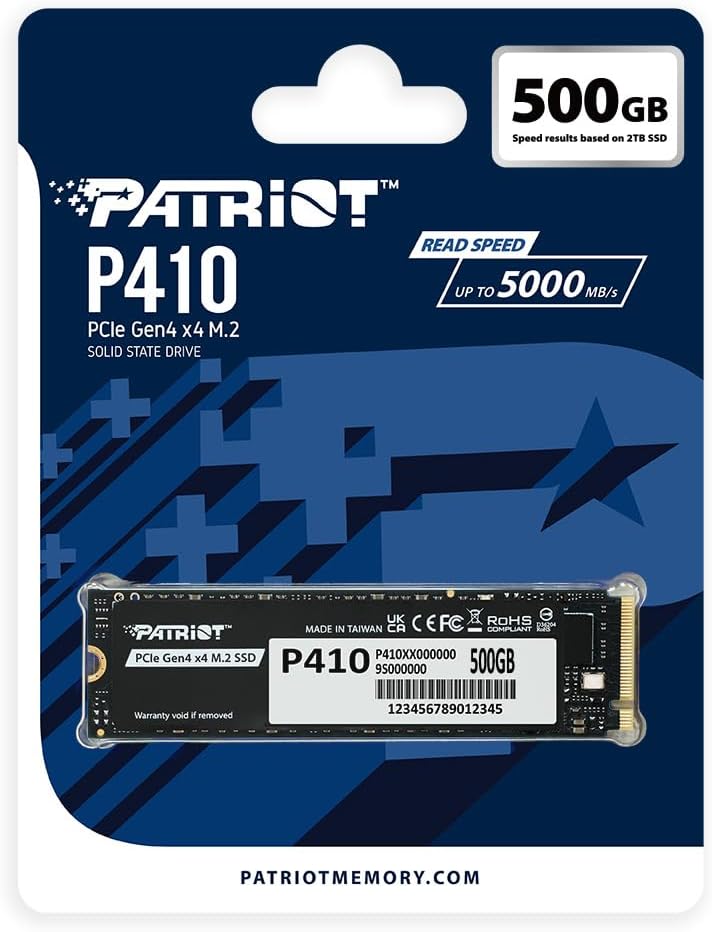
Image 3: Retail packaging for the Patriot P410 500GB SSD, highlighting key features like 500GB capacity and read speed up to 5000 MB/s.
9. Warranty and Support
The Patriot P410 SSD comes with a 5-Year Limited Warranty. For detailed warranty terms and conditions, please refer to the official Patriot Memory website or the warranty information included with your product.
For technical support, product information, or warranty claims, please contact Patriot Memory using the information below or visit their official website:
- Official Product Page: https://www.patriotmemory.com/products/patriot-p410-pcie-gen4x4-nvme-m-2-ssd
- USA Office: Patriot Memory, Inc., 2925 Bayview Drive, Fremont, CA 94538, U.S.A. Tel: +1(510)979-1021, Fax: +1(510)979-1386, Email: sales@patriotmemory.com
- Asia Office: Patriot Memory, Inc., 8F, No. 150, Jan 1st Rd., Zhonghe District, New Taipei City, 23511 Taiwan, R.O.C. Tel: +886-2-8226-0333, Fax: +886-2-8226-0339, Email: tw.sales@patriotmemory.com
- Europe Office: Patriot Memory, B.V., Immerburcht 50-192, 3447 GS Nieuwegein, The Netherlands. Tel: +31(0)10-2931-250, Fax: +31(0)10-2931-251, Email: eusales@patriotmemory.com

Image 4: Warranty information, contact details for Patriot Memory offices (USA, Asia, Europe), and compliance logos (UKCA, CE, FCC, RoHS).
10. Compliance Information
This device complies with relevant international standards and regulations, including:
- UKCA: United Kingdom Conformity Assessed
- CE: Conformité Européenne (European Conformity)
- FCC: Federal Communications Commission
- RoHS: Restriction of Hazardous Substances
For more detailed compliance information, please refer to the official Patriot Memory website.