Introduction
This manual provides essential information for the safe and efficient use of your Samsung QN65Q6FAAFXZA 65-inch Q6F Series QLED 4K UHD AI Smart Tizen TV. Please read these instructions thoroughly before operating the television and retain them for future reference.
The Samsung Q6F Series QLED TV features a Q4 Lite Processor with AI Upscaling for enhanced visuals, 100% Color Volume with Quantum Dot technology for vibrant colors, and Quantum HDR with HDR10+ for improved contrast. It operates on the Tizen OS, offering access to a wide range of content and smart features.
Important Safety Information
- Do not expose this apparatus to rain or moisture.
- Do not block any ventilation openings. Install in accordance with the manufacturer's instructions.
- Do not install near any heat sources such as radiators, heat registers, stoves, or other apparatus (including amplifiers) that produce heat.
- Protect the power cord from being walked on or pinched.
- Only use attachments/accessories specified by the manufacturer.
- Refer all servicing to qualified service personnel.
What's in the Box
Upon unpacking, ensure all items listed below are present and undamaged:
- Samsung Q6F Series QLED 4K UHD AI Smart Tizen TV (2025)
- User Manual
- Power Cable
- Remote Control
- TV Stand Components

Image: The Samsung Q6F Series QLED 4K UHD AI Smart Tizen TV, accompanied by its remote control, power cable, and stand components.
Setup
1. Physical Assembly (Stands)
Carefully place the TV screen-down on a soft, flat surface to prevent damage. Attach the stand components to the designated slots on the bottom of the TV using the provided screws. Ensure the stands are securely fastened.
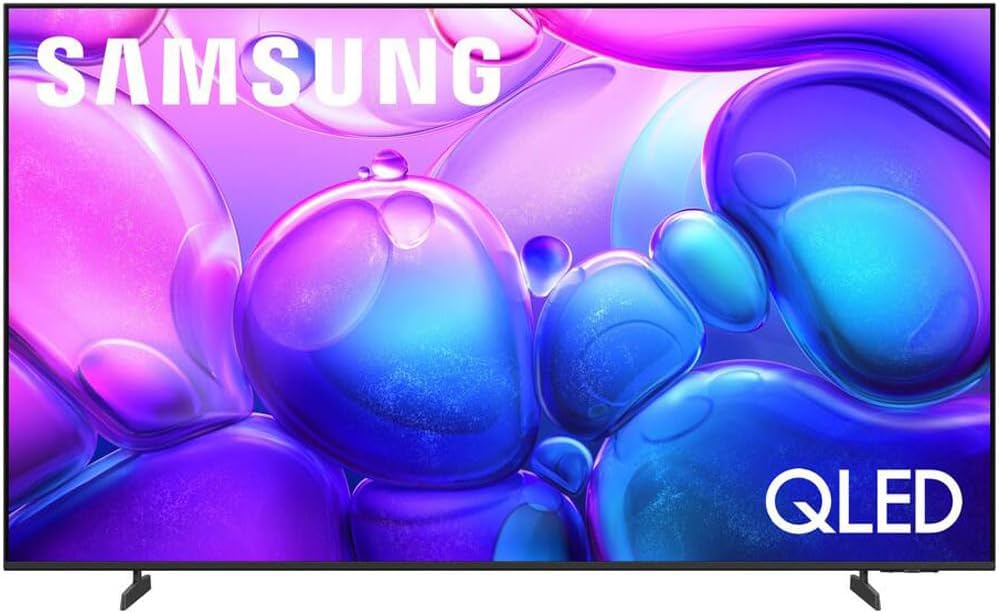
Image: Front view of the Samsung Q6F Series QLED TV, showcasing the attached stand legs providing stable support.

Image: Side profile of the Samsung Q6F Series QLED TV, illustrating its slim design and the securely attached stand.
2. Connections
Connect the power cable to the TV's power input and then to a wall outlet. For external devices like Blu-ray players or gaming consoles, use HDMI cables. For internet access, connect an Ethernet cable to the LAN port or connect wirelessly during initial setup.

Image: A detailed view of the rear connection panel of the Samsung Q6F Series QLED TV, showing HDMI, USB, and Ethernet ports.
3. Initial Power On & Smart Setup
Once powered on, follow the on-screen instructions to complete the initial setup. This includes selecting your language, connecting to a Wi-Fi network, and configuring the Tizen Smart Hub. You will be guided through setting up your Samsung account and accessing various streaming services.
Operating Your TV
Smart Hub & Tizen OS
The Tizen Smart Hub provides intuitive access to live TV, streaming apps, and connected devices. Navigate using the remote control to browse content, customize your home screen, and manage settings.
Picture Settings
Your Q6F Series QLED TV offers advanced picture technologies:
- Q4 Lite Processor with AI Upscaling: Automatically enhances content to near 4K resolution, optimizing visuals and color.
- 100% Color Volume with Quantum Dot: Delivers over a billion shades of accurate, vibrant colors that remain true at any brightness level.
- Quantum HDR with HDR10+: Reveals fine details in both the darkest and brightest scenes, providing a more dynamic and lifelike image.
- Motion Xcelerator Technology: Ensures smooth motion and reduces blur in fast-paced scenes, ideal for sports and gaming.

Image: A Samsung QLED TV screen showing a vibrant scene, highlighting the 100% Color Volume with Quantum Dot technology.

Image: A close-up of the Samsung Q4 Lite Processor chip, illustrating its advanced technology for optimizing and upscaling content to 4K resolution.
Sound Settings
Experience immersive audio with:
- Object Tracking Sound Lite: Audio moves dynamically with the action on screen, creating a more engaging experience.
- Q-Symphony: When paired with a compatible Samsung soundbar, the TV and soundbar speakers work in harmony to deliver a richer, more enveloping surround sound.
Voice Assistants
Your TV supports various voice assistants for convenient control. Use your remote's voice command button to search for content, adjust settings, or control smart home devices.
Maintenance
Cleaning the TV
To clean the screen, gently wipe it with a soft, lint-free cloth. For stubborn marks, lightly dampen the cloth with water or a specialized screen cleaner. Avoid using harsh chemicals or abrasive materials. For the TV frame, use a soft, dry cloth.
Care and Handling
Avoid placing heavy objects on the TV. Do not expose the TV to direct sunlight or extreme temperatures. Ensure proper ventilation around the TV to prevent overheating.
Troubleshooting
No Power
- Check if the power cable is securely connected to both the TV and the wall outlet.
- Verify that the wall outlet is functioning by plugging in another device.
No Picture/Sound
- Ensure the correct input source is selected on the TV.
- Check all HDMI or other audio/video cables for secure connections.
- If using external audio devices, ensure they are powered on and correctly configured.
Remote Control Not Working
- Replace the batteries in the remote control.
- Ensure there are no obstructions between the remote and the TV's sensor.
Specifications
| Feature | Detail |
|---|---|
| Brand | Samsung |
| Model Number | E1SAMQN65Q6F |
| Screen Size | 64.5 Inches |
| Display Technology | QLED |
| Resolution | 4K |
| Refresh Rate | 60 Hz |
| Aspect Ratio | 16:9 |
| Product Dimensions | 8.7"D x 56.9"W x 34.7"H |
| Item Weight | 32 Pounds |
| Connectivity Technology | Bluetooth |
| Special Features | 100% Color Volume with Quantum Dot, Motion Xcelerator, Object Tracking Sound Lite, Q4 Lite Processor |
Warranty and Support
Your Samsung Q6F Series QLED TV includes a standard manufacturer's protection. Additionally, this product comes with an exclusive 26-month extended protection plan.
For technical support, troubleshooting assistance, or warranty claims, please refer to the contact information provided in your product's warranty card or visit the official Samsung support website.
Online resources, FAQs, and software updates are also available through the Samsung support portal.


