
1. Introduction
Thank you for choosing the NUTROMO Blu-ray DVD Player EVP-102. This player is designed to provide high-quality video and audio playback for your home entertainment system. It supports Blu-ray discs (Region A/1) and standard DVDs (region-free), along with various media files via USB. Please read this manual thoroughly before operating the device to ensure proper use and to maximize your viewing experience.
2. Safety Information
- Power Supply: Use only the specified power supply. Ensure the voltage matches your local power supply before connecting.
- Ventilation: Do not block ventilation openings. Allow adequate space around the player for proper airflow to prevent overheating.
- Water and Moisture: Do not expose the player to rain, moisture, or liquids. Keep it away from sources of water.
- Cleaning: Disconnect the power cord before cleaning. Use a soft, dry cloth. Do not use liquid or aerosol cleaners.
- Servicing: Do not attempt to service this product yourself. Refer all servicing to qualified service personnel.
- Disc Handling: Handle discs by their edges. Avoid touching the playing surface. Keep discs clean and free from scratches.
3. Package Contents
Verify that all items are present in the package:
- NUTROMO Blu-ray DVD Player EVP-102
- Remote Control
- HDMI Cable
- AV Cable
- Instruction Manual

Image: Remote control, HDMI cable, and AV cable included with the player.
4. Product Overview
The NUTROMO EVP-102 is a versatile media player designed for ease of use and high-quality entertainment.
Front Panel
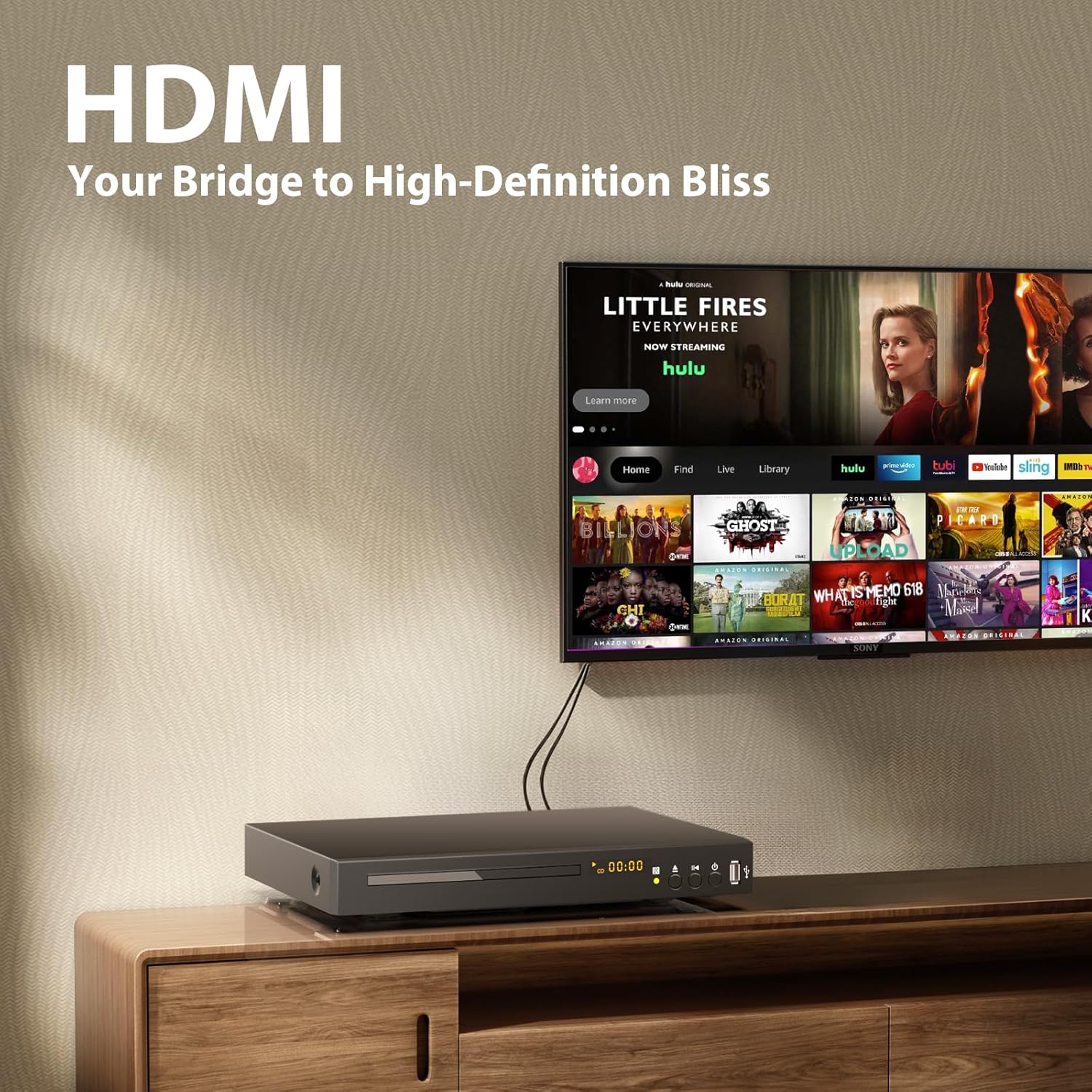
Image: Front panel of the Blu-ray DVD player, featuring the disc tray, digital display, power button, play/pause, stop, eject buttons, and a USB port.
- Disc Tray: Insert Blu-ray or DVD discs here.
- Display: Shows playback status, time, and other information.
- Control Buttons: Power, Play/Pause, Stop, Eject.
- USB Port: Connect USB flash drives for media playback.
Rear Panel

Image: Rear panel of the Blu-ray DVD player, highlighting the HDMI output, AV (RCA) outputs (red, white, yellow), and Coaxial audio output.
- HDMI Output: Connects to your TV or receiver for high-definition video and audio.
- AV Output (RCA): Connects to older TVs or audio systems using composite video and stereo audio.
- Coaxial Output: Provides digital audio output to compatible audio receivers.
- Power Input: Connect the power cord here.
5. Setup
5.1 Connecting to a TV
Choose one of the following connection methods based on your TV's available inputs:
HDMI Connection (Recommended for HD)
For the best picture and sound quality, use an HDMI cable.
- Connect one end of the HDMI cable to the HDMI OUT port on the player.
- Connect the other end of the HDMI cable to an HDMI IN port on your TV.
- Select the corresponding HDMI input on your TV using its remote control.

Image: The Blu-ray DVD player connected to a television via an HDMI cable, illustrating a typical setup.
AV Connection (for Standard Definition)
Use the AV cables for older TVs that do not have an HDMI input.
- Connect the yellow plug of the AV cable to the VIDEO OUT (yellow) port on the player.
- Connect the red and white plugs to the AUDIO OUT R (red) and AUDIO OUT L (white) ports on the player, respectively.
- Connect the other ends of the AV cables to the corresponding VIDEO IN and AUDIO IN ports on your TV.
- Select the corresponding AV input on your TV.

Image: A diagram illustrating the connection of the player to a TV using an HDMI cable for high-definition output.
5.2 Power Connection
Connect the power cord to the POWER INPUT on the rear of the player and then plug it into a wall outlet.
5.3 Remote Control Setup
Insert two AAA batteries (not included) into the remote control, ensuring correct polarity.
5.4 Initial Power On
Press the POWER button on the front panel or the remote control to turn on the player. The display will show "HI" then "LOAD" or "NO DISC".
Video: An overview of the NUTROMO Blu-ray DVD Player, demonstrating its compact size, various ports, and basic functionality. This video is provided by JRIHZ CineTech.
6. Operating Instructions
6.1 Playing Discs
- Press the EJECT button (▲) on the front panel or remote to open the disc tray.
- Place a Blu-ray or DVD disc gently into the tray with the label side facing up.
- Press the EJECT button again to close the tray. The player will automatically load the disc.
- Playback should begin automatically. If a menu appears, use the remote's arrow keys and OK button to navigate.

Image: The Blu-ray DVD player showcasing its compatibility with various disc formats including Blu-ray, DVD, VCD, and CD.
6.2 USB Media Playback
The player supports media playback from USB flash drives (up to 128GB).
- Insert a USB flash drive into the USB port on the front panel.
- The player should automatically detect the USB device and display a media browser.
- Use the remote control to navigate through folders and select your desired video, audio, or image files.
- Press OK to start playback.

Image: The Blu-ray DVD player with a USB flash drive connected, demonstrating its USB 2.0 compatibility for playing various media files.
6.3 Advanced Features
- Region A/1 Blu-ray & Region-Free DVD: Plays Blu-ray discs from Region A/1 and standard DVDs from any region.
- 1080p Full HD Upscaling: Enhances standard DVD content to near 1080p quality via HDMI.
- Dolby Digital TrueHD/DTS-HD: Supports advanced audio formats for immersive sound.
- PAL/NTSC Conversion: Built-in system for compatibility with different video standards.
Video: A short promotional video highlighting the portability and convenience of the Blu-ray DVD player for on-the-go entertainment. This video is provided by JRIHZ CineTech.
7. Maintenance
- Cleaning the Player: Use a soft, dry cloth to wipe the exterior of the player. Do not use abrasive cleaners or solvents.
- Cleaning Discs: Wipe discs from the center outwards with a soft, lint-free cloth. Do not use harsh chemicals.
- Storage: Store the player in a cool, dry place away from direct sunlight and extreme temperatures.
8. Troubleshooting
If you encounter issues, refer to the following common problems and solutions:
| Problem | Possible Solution |
|---|---|
| No power | Check if the power cord is securely connected to the player and the wall outlet. Try a different outlet. |
| No picture | Ensure the HDMI or AV cables are correctly connected. Verify the TV input is set to the correct source. |
| No sound | Check audio cable connections. Ensure TV/receiver volume is up and not muted. Verify audio settings on the player. |
| Disc not playing | Check if the disc is clean and free from scratches. Ensure it is inserted correctly. Verify disc format compatibility. |
| Remote control not working | Check and replace batteries. Ensure there are no obstructions between the remote and the player's sensor. |
If the problem persists, please contact customer support.
9. Specifications
| Feature | Detail |
|---|---|
| Brand | NUTROMO |
| Model | EVP-102 |
| Media Type | Blu-Ray Disc, DVD, CD |
| Resolution | 1920x1080 (1080p Full HD) |
| Audio Output Mode | Surround |
| Supported Audio Format | Dolby TrueHD, DTS-HD |
| Connector Type | HDMI, AV (RCA), Coaxial |
| Connectivity Technology | HDMI |
| Total HDMI Ports | 1 |
| Special Feature | Compact, USB Playback (Max 128G USB Flash Drive), PAL/NTSC conversion |
| Item Weight | 3.23 pounds |
| Package Dimensions | 11.5 x 11.25 x 3.5 inches |
10. Warranty and Support
10.1 Warranty Information
This NUTROMO Blu-ray DVD Player EVP-102 comes with a standard manufacturer's warranty. Please refer to the warranty card included in your package for specific terms and conditions, including coverage duration and claim procedures.
10.2 Customer Support
For technical assistance, troubleshooting, or warranty inquiries, please contact NUTROMO customer support through the retailer where you purchased the product or visit the official NUTROMO website for contact details.