
1. Introduction
This manual provides detailed instructions for the setup, operation, and maintenance of your AOC AC310 4K USB Webcam. Please read this guide thoroughly to ensure optimal performance and longevity of your device.
2. Product Overview
The AOC AC310 is a high-performance 4K Ultra HD webcam designed for clear video communication. It features a built-in noise-reducing microphone, automatic light correction, a wide field of view, and a physical privacy cover for enhanced security. Its plug-and-play functionality and universal compatibility make it suitable for various applications and devices.
What's in the Box:
- AOC AC310 Webcam
- USB Type-A to Type-C Adapter

Figure 2.1: AOC AC310 4K USB Webcam and included adapters.
3. Setup
3.1 Physical Installation
The AOC AC310 webcam offers multiple installation options for versatility:
- On a Monitor or Laptop: Unfold the flexible clip/stand and place the webcam securely on top of your monitor or laptop screen. Adjust the angle to ensure stability.
- On a Desk: Fold the clip/stand to create a stable base and place the webcam on your desk.
- On a Tripod: The webcam features a standard tripod thread on its base, allowing it to be mounted on a tripod for more flexible positioning.

Figure 3.1: Various installation methods for the webcam.
3.2 Connection
The AOC AC310 is a plug-and-play device, requiring no additional drivers for most operating systems. Connect the webcam to your computer using the integrated USB cable. An included USB Type-A to Type-C adapter ensures compatibility with both USB-A and USB-C ports.
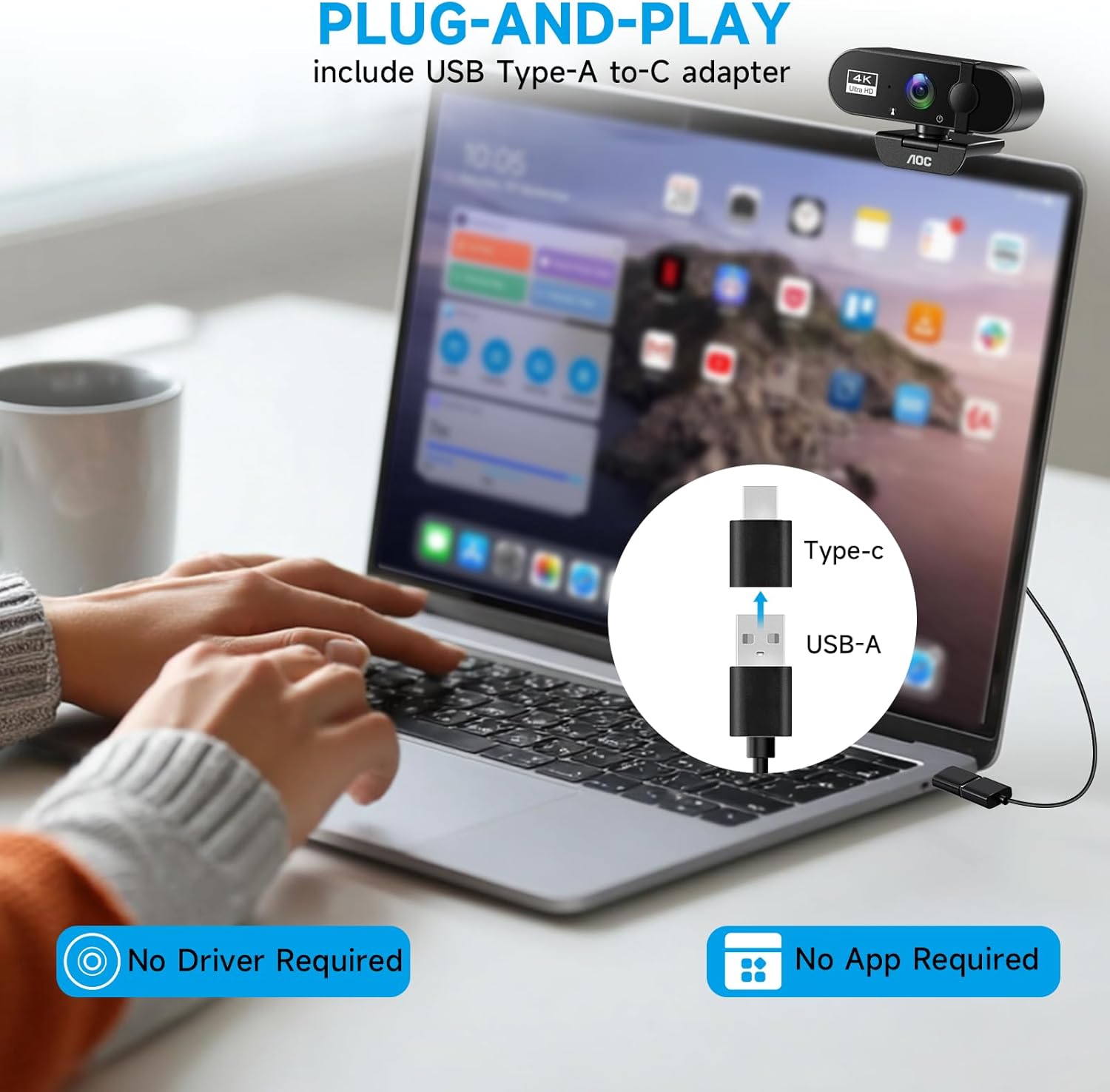
Figure 3.2: Plug-and-play connection with USB-A to USB-C adapter.
3.3 Software Setup
Once connected, your computer should automatically recognize the webcam. You may need to select the AOC AC310 as your preferred camera and microphone in your video conferencing or recording software settings.
- Windows: Navigate to Start > Camera > Video settings. For optimal 4K resolution, select 2160P 16:9 30FPS. Note that some applications may automatically default to 1080p or a lower resolution if 4K is not supported.
- macOS: Go to Apple menu > System Preferences > Security & Privacy > Camera. Ensure the camera is enabled for the desired applications. The default resolution on macOS is 1080p and cannot be changed by the system.

Figure 3.3: Operating system specific setup for 4K resolution.
4. Operating Instructions
4.1 Privacy Cover
The webcam includes a physical sliding lens cover. Slide the cover to the left to expose the lens for use, and slide it to the right to cover the lens when not in use, ensuring your privacy.
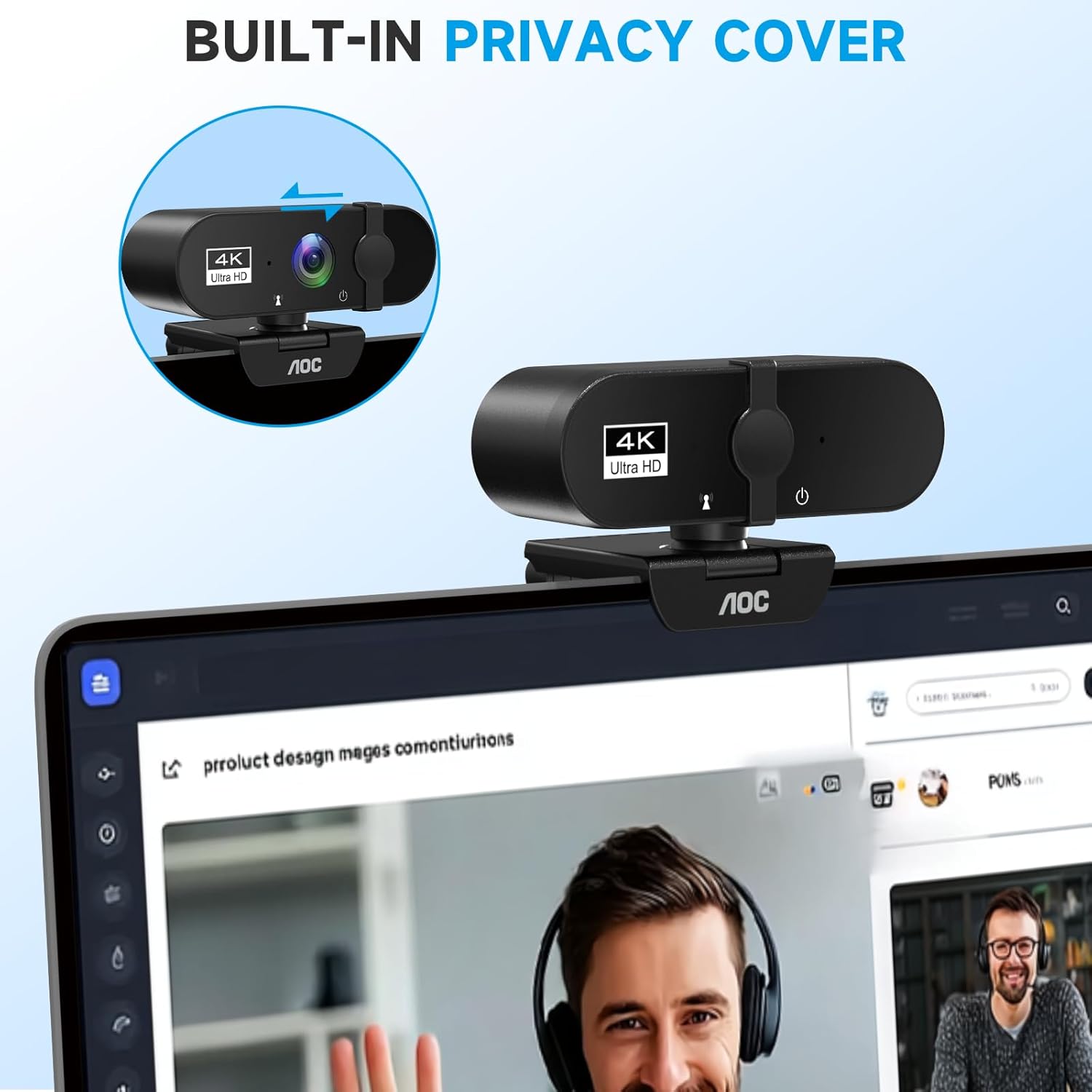
Figure 4.1: Built-in privacy cover mechanism.
4.2 Camera Adjustments
The webcam offers 180° tilt and 360° swivel rotation, allowing you to achieve the perfect angle for your video calls or recordings. The 90° field of view captures a wide area, ideal for group meetings or showing your surroundings.

Figure 4.2: Multi-angle adjustment capabilities.
4.3 Integrated Features
- Built-in Microphone: The integrated microphone features noise-reducing technology to ensure clear audio during your calls.
- Automatic Light Correction: The camera intelligently adjusts video brightness to optimize your appearance, even in challenging lighting conditions.
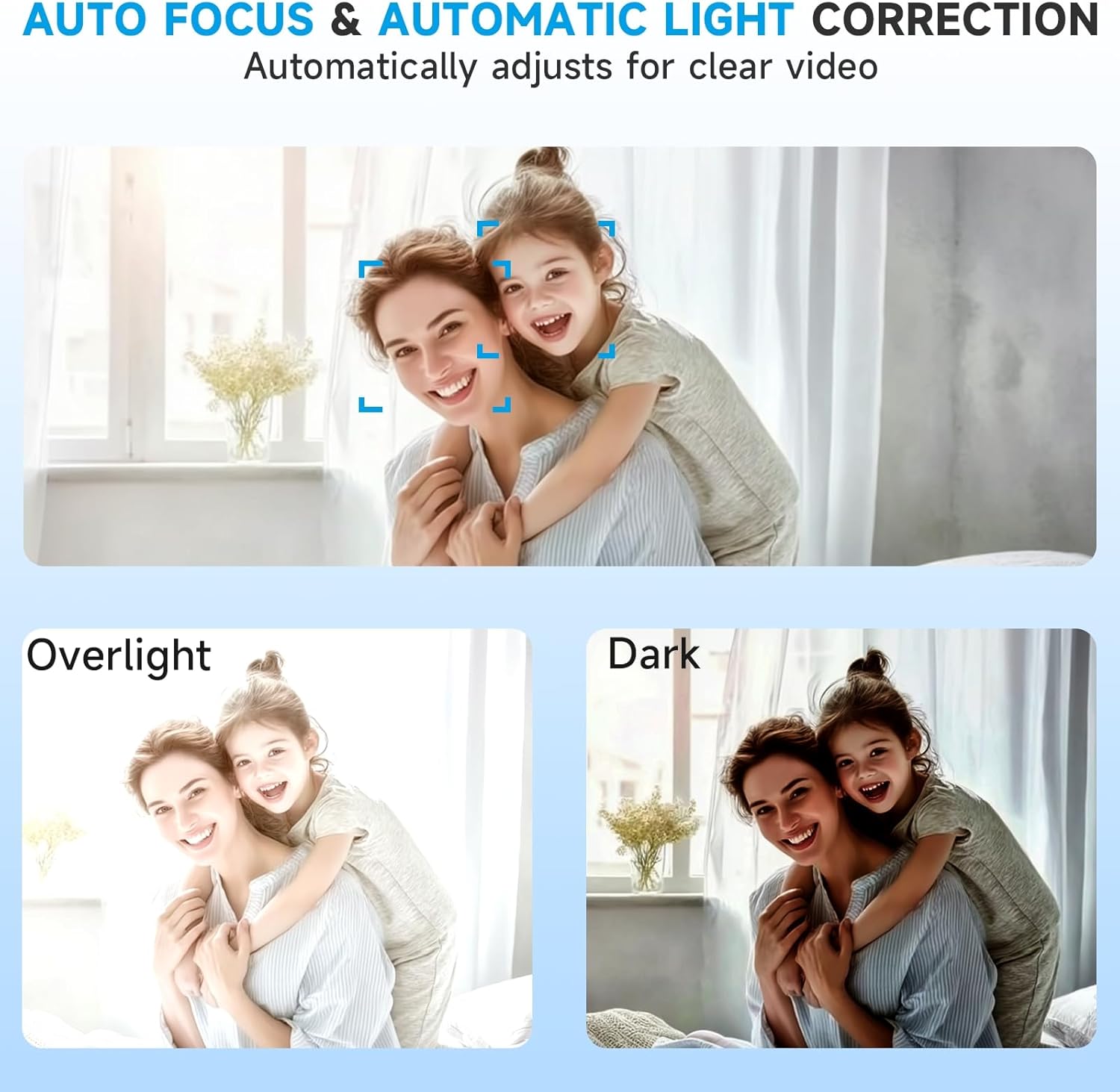
Figure 4.3: Auto focus and automatic light correction in action.
4.4 Compatibility
The AOC AC310 webcam is compatible with major platforms such as Zoom, Microsoft Teams, Skype, and Facetime, making it suitable for various uses including online meetings, teaching, streaming, and video calls.

Figure 4.4: Wide compatibility across various applications.
4.5 Product Video Overview
Video 4.5: An official product video from AOC showcasing the features and functionality of the 4K webcam.
5. Maintenance
To maintain the performance and appearance of your webcam, follow these guidelines:
- Cleaning the Lens: Use a soft, lint-free cloth specifically designed for optics to gently wipe the lens. Avoid abrasive materials or harsh chemicals.
- Cleaning the Body: Wipe the webcam's body with a soft, dry cloth. Do not use liquid cleaners directly on the device.
- Storage: When not in use, especially for extended periods, store the webcam in a clean, dry place. Ensure the privacy cover is closed to protect the lens from dust and scratches.
6. Troubleshooting
6.1 Camera Not Detected
- Check Connection: Ensure the USB cable is securely plugged into both the webcam and your computer's USB port. Try a different USB port.
- Adapter Check: If using the USB-C adapter, ensure it is firmly connected.
- Restart Computer: A simple restart can often resolve detection issues.
- OS Settings: Verify that the camera is enabled in your operating system's privacy settings (refer to Section 3.3).
6.2 Poor Video Quality
- Lighting: Ensure adequate lighting in your environment. The automatic light correction works best with some ambient light.
- Software Resolution: Check the video resolution settings within your application (e.g., Zoom, Teams). While the webcam supports 4K, some software or operating systems (like macOS) may default to 1080p or lower. Adjust settings to the highest available resolution for best quality.
- Internet Connection: A stable and fast internet connection is crucial for high-quality video streaming.
6.3 Microphone Not Working
- OS Sound Settings: Check your computer's sound input settings to ensure the AOC AC310 microphone is selected as the default input device.
- Application Settings: Verify that the correct microphone is selected within your video conferencing or recording application.
- Volume Levels: Ensure microphone volume is not muted or set too low in both OS and application settings.
7. Specifications
| Feature | Detail |
|---|---|
| Brand Name | AOC |
| Model Number | AC310 |
| Item Weight | 3.5 ounces |
| Product Dimensions | 2.5 x 2.5 x 3.5 inches |
| Color | Black |
| Video Resolution | 4K Ultra HD (2160P 30FPS on Windows, 1080p default on macOS) |
| Field of View (FOV) | 90° / 99° |
| Connectivity | USB Type-A (with USB Type-C adapter included) |
| Special Features | Built-in Microphone with Noise Cancellation, Automatic Light Correction, Physical Sliding Privacy Cover, Plug & Play, 180° Tilt, 360° Swivel |
| Photo Sensor Technology | CCD |
| Maximum Focal Length | 30 |
| Maximum Aperture | 2.8 f |
8. Warranty and Support
For warranty information and technical support, please refer to the official AOC website or the documentation included with your product packaging. You may also contact AOC customer service directly for assistance.


