
jumper Ezbook P1

jumper Ezbook P1 17.6-inch Laptop User Manual
Model: Ezbook P1
1. Introduction
This manual provides essential information for setting up, operating, maintaining, and troubleshooting your new jumper Ezbook P1 laptop. Please read this guide thoroughly to ensure optimal performance and longevity of your device. The jumper Ezbook P1 is designed for productivity and entertainment, featuring a large 17.6-inch display, a powerful Intel N95 processor, and Windows 11 operating system.

Image 1.1: The jumper Ezbook P1 laptop, showcasing its large display and sleek design.
2. Getting Started (Setup)
2.1 Unpacking and Initial Inspection
Carefully remove the laptop and all accessories from the packaging. Verify that all components are present:
- jumper Ezbook P1 Laptop
- Power Adapter
- User Manual (this document)
Inspect the laptop for any physical damage. If any damage is found or components are missing, contact customer support immediately.
2.2 Connecting the Power Adapter
Before first use, ensure the laptop is fully charged. Connect the power adapter to the DC charging port on the laptop and then plug the adapter into a power outlet. The charging indicator light will illuminate.
2.3 First Boot and Windows 11 Setup
Press the power button to turn on the laptop. The system will guide you through the initial Windows 11 setup process. Follow the on-screen instructions to configure language, region, network connection, and user account settings.
3. Operating Your Laptop
3.1 Keyboard and Touchpad
The laptop features a full-sized keyboard with a numeric keypad for efficient data entry. The keyboard is backlit, allowing for comfortable typing in low-light conditions. To activate or adjust the backlight, press Fn + F5.
The integrated touchpad supports multi-touch gestures for navigation. Refer to Windows settings for customizing touchpad sensitivity and gestures.

Image 3.1: The laptop's backlit keyboard with a dedicated numeric keypad.
3.2 Display
The Ezbook P1 is equipped with a 17.6-inch Full HD (1920x1200) IPS display, offering wide viewing angles and accurate color reproduction (100% sRGB). The screen also features anti-glare technology to reduce reflections and eye strain.
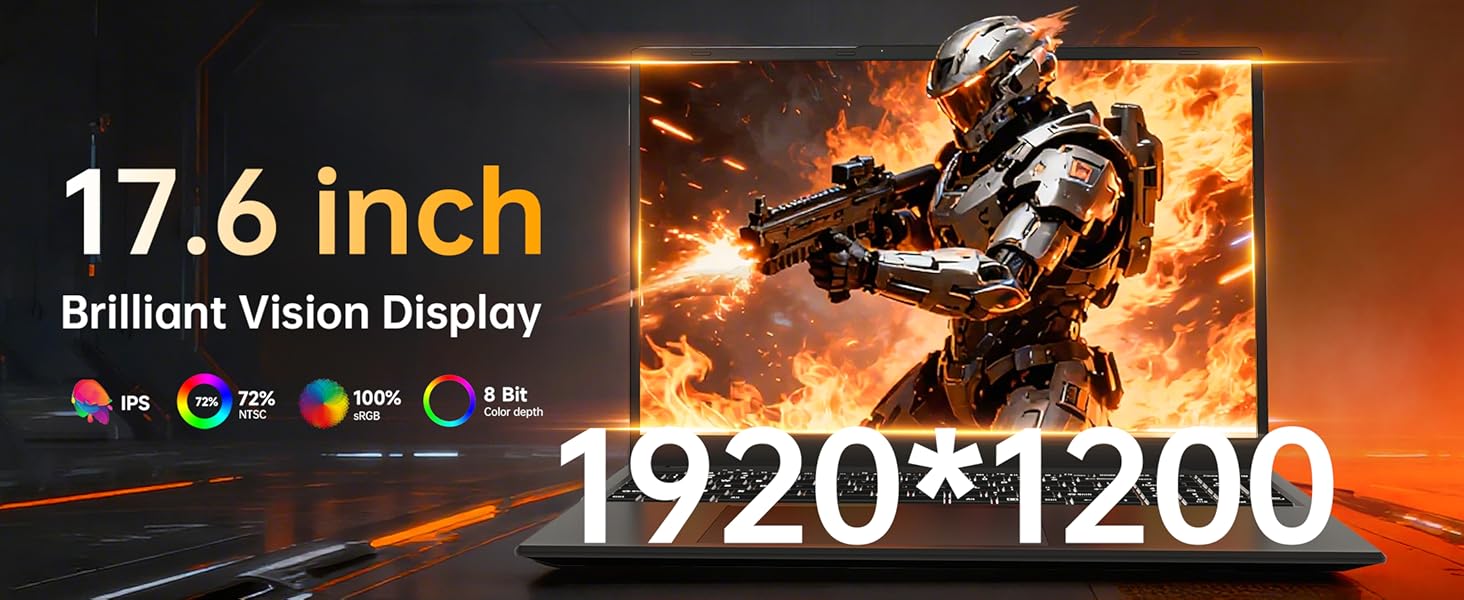
Image 3.2: Illustration of the anti-glare, eye-protection screen technology.
3.3 Ports and Connections
The laptop provides various ports for connecting peripherals and external devices:
- USB 3.0 Ports (x3): For connecting USB devices like mice, keyboards, and external storage.
- HDMI Port: For connecting to external monitors or projectors.
- Type-C Port: A full-featured port supporting data transfer, video output, and Power Delivery (PD) fast charging.
- 3.5mm Headphone Jack: For audio output to headphones or external speakers.
- TF Card Slot: For expanding storage with a microSD card (up to 1TB).
- DC Charging Port: Dedicated port for the included power adapter.

Image 3.3: Overview of the laptop's various input/output ports.
3.4 Wireless Connectivity
- Wi-Fi 6: Provides faster and more reliable wireless internet connectivity.
- Bluetooth 5.2: For connecting wireless peripherals such as headphones, mice, and keyboards.
3.5 Webcam and Audio
The integrated webcam is suitable for video calls and online meetings. A physical webcam shield is included for privacy. Slide the cover to open or close the camera lens. The laptop also features stereo speakers and a digital microphone for clear audio communication.
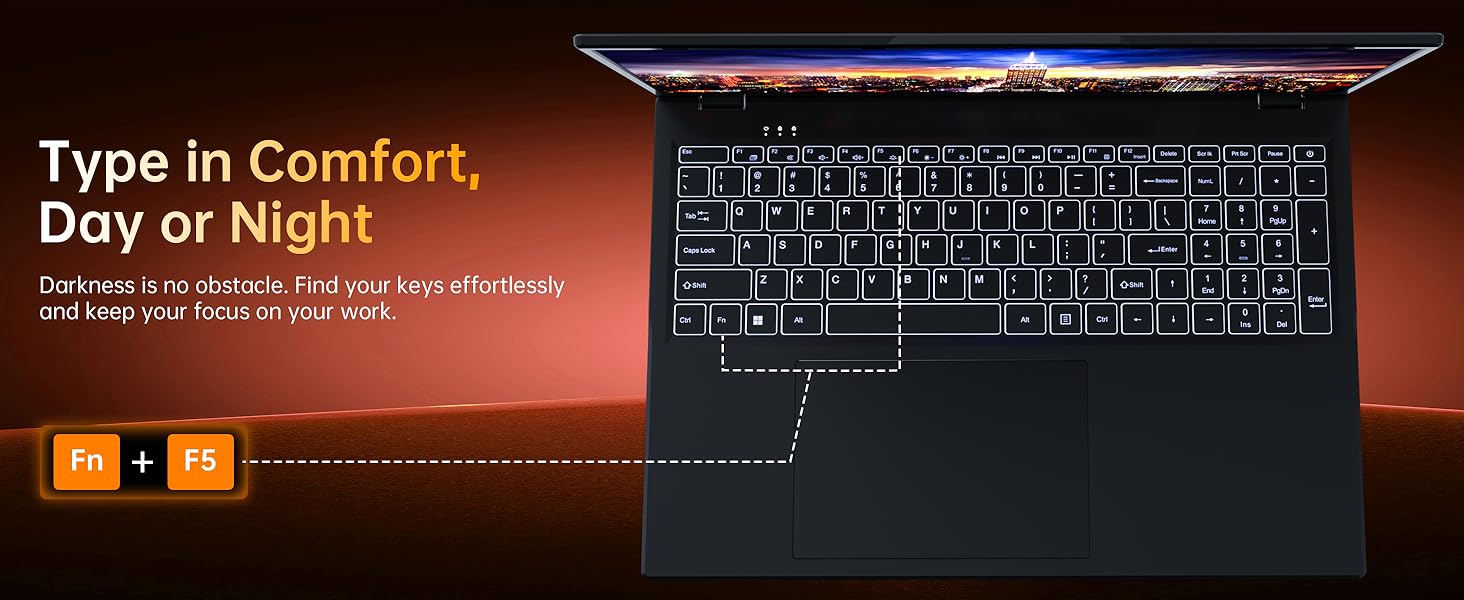
Image 3.4: The laptop's webcam with an integrated privacy switch.
4. Power Management
The Ezbook P1 is equipped with a 7000mAh battery, providing extended usage time. It supports PD fast charging via the Type-C port in addition to the dedicated DC charging port.
- Charging: Connect the power adapter to either the DC port or the Type-C port (with a compatible PD charger, not included) to charge the battery.
- Battery Life: Battery life varies based on usage. To optimize battery life, adjust screen brightness, close unused applications, and utilize power-saving modes in Windows settings.

Image 4.1: The laptop's 7000mAh battery and dual charging options.
5. Maintenance
5.1 Cleaning Your Laptop
- Screen: Use a soft, lint-free cloth lightly dampened with water or a screen cleaner. Do not spray liquid directly onto the screen.
- Keyboard and Casing: Use a soft, dry cloth. For stubborn dirt, a slightly damp cloth with mild soap solution can be used, ensuring no liquid enters the device.
- Vents: Periodically clean the ventilation openings with compressed air to prevent dust buildup, which can affect cooling performance.
5.2 Software Updates
Regularly check for and install Windows updates to ensure your system has the latest security patches and performance improvements. Go to Settings > Windows Update.
6. Troubleshooting
| Problem | Possible Solution |
|---|---|
| Laptop does not power on. | Ensure the power adapter is securely connected and the outlet is functional. The battery might be completely drained; allow it to charge for at least 30 minutes before attempting to power on again. |
| Screen is blank or black. | Check if the laptop is powered on. Try adjusting the screen brightness. If an external monitor is connected, ensure the display output is correctly configured (Fn + F10 or Windows P key). |
| Wi-Fi connection issues. | Verify Wi-Fi is enabled in Windows settings. Restart your router and the laptop. Ensure you are within range of the Wi-Fi network and have the correct password. |
| Keyboard or touchpad not responding. | Restart the laptop. Check Windows settings for touchpad and keyboard drivers. Ensure no external devices are interfering. |
| System is slow or unresponsive. | Close unnecessary applications. Check Task Manager for processes consuming high CPU/RAM. Ensure sufficient free storage space. Run a system scan for malware. |
7. Specifications
| Feature | Detail |
|---|---|
| Model Name | Ezbook P1 |
| Display Size | 17.6 Inches |
| Screen Resolution | 1920 x 1200 pixels (FHD IPS, 100% sRGB) |
| Processor | Intel N95 (up to 3.4 GHz) |
| RAM | 16GB DDR5 |
| Storage | 640GB SSD (512GB SSD + 128GB eMMC), expandable via TF card |
| Graphics Coprocessor | Intel UHD Graphics |
| Operating System | Windows 11 Home |
| Wireless Connectivity | Wi-Fi 6, Bluetooth 5.2 |
| Ports | 3x USB 3.0, 1x HDMI, 1x Full-featured Type-C, 1x 3.5mm Audio Jack, 1x TF Card Slot, 1x DC Charging Port |
| Battery | 7000mAh |
| Weight | 3.67 pounds (approx. 1.66 kg) |
| Dimensions (LxWxH) | 14.37 x 9.61 x 0.79 inches |
| Special Features | Backlit Keyboard, Webcam Privacy Shield, Office 365 (12-month subscription included) |
8. Warranty and Support
8.1 Warranty Information
jumper laptops come with a one-year warranty from the date of purchase. This warranty covers manufacturing defects. Please retain your proof of purchase for warranty claims.
8.2 Customer Support
For any product-related issues, technical assistance, or warranty inquiries, please contact jumper customer support:
- Email: service@jumper-customersupport.com
- Online: Log in to your Amazon buyer account, find your order, and click "Get Product Support."
Our support team aims to assist you within 24 hours.

Image 8.1: Contact information for jumper customer support.
Related documentsEzbook P1


Ask a question about this manual
Ask about setup, troubleshooting, compatibility, parts, safety, or missing instructions. Manuals+ will review the question and use this page’s manual context to help answer it.