
1. Introduction
Thank you for choosing the JUFLSKY Smart Clock Camera Q10-bk. This device combines a functional alarm clock with advanced security camera features, offering 2K HD video, dual-band WiFi connectivity, two-way audio, and intelligent motion detection. This manual will guide you through the setup, operation, and maintenance of your new smart clock camera.
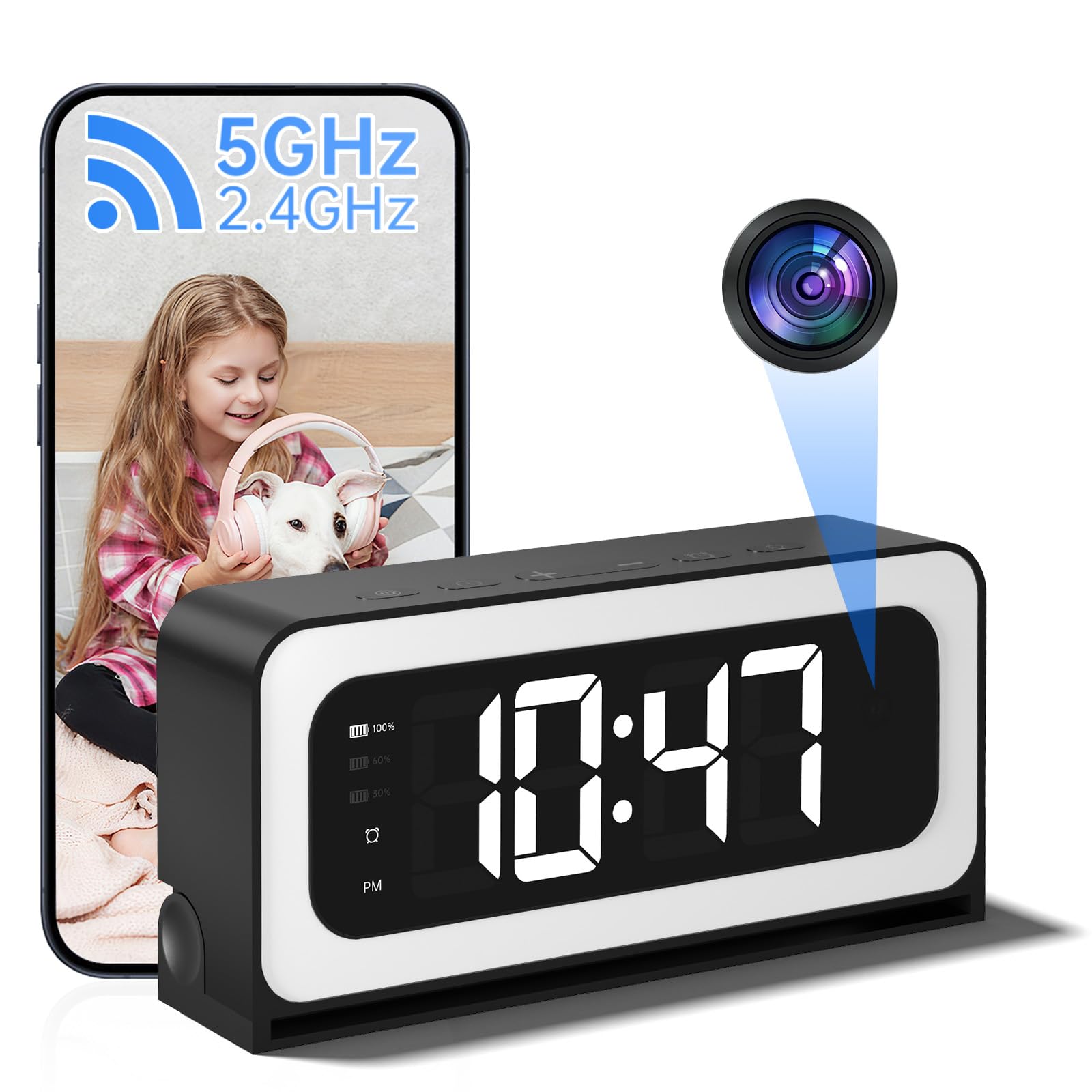
Image 1.1: JUFLSKY Smart Clock Camera Q10-bk.
2. Product Overview
2.1 Key Features
- 2K Full HD Video: Captures crystal-clear Ultra HD video with sharp details and vibrant colors.
- Color Night Vision: Advanced low-light imaging technology provides continuous, true-color vision day and night.
- Dual Band Connectivity: Supports both 2.4GHz and 5GHz WiFi for stable and fast connections.
- AI Human Detection and Motion Tracking: Utilizes AI algorithms to recognize human movement and send timely alerts.
- Smart Security & Night Light Function: Monitors for abnormal dynamics and provides soft, adjustable illumination.
- Two-Way Audio: Built-in microphone and speaker for clear communication.
- Large Battery Life: 5200mAh battery capacity for extended operation (up to 12 hours).
- Flexible Storage: Supports local SD card storage (up to 128GB, not included) and optional cloud storage (subscription required).
2.2 What's in the Box
- Smart Clock Camera (Q10-bk)
- USB Charging Cable
- Power Adapter
- User Manual

Image 2.1: Components included with the Smart Clock Camera and initial setup overview.
3. Setup Guide
3.1 Physical Setup
- Insert SD Card (Optional): Locate the SD card slot on the side of the device. Gently insert a microSD card (up to 128GB, not included) until it clicks into place.
- Connect to Power: Connect the USB charging cable to the camera and the power adapter, then plug the adapter into a wall outlet. The device will power on automatically.

Image 3.1: The Smart Clock Camera displaying battery level and time.
3.2 App Download and Registration
The camera operates with the WESECUU app. You can download it from your device's app store or by scanning the QR code provided in the manual or on the device itself. Alternatively, visit http://www.dvr163.com/download/indexm.php.
- Download App: Search for "WESECUU" in the App Store (iOS) or Google Play Store (Android) and download the application.
- Register Account: Open the WESECUU app. Allow necessary permissions (e.g., local network access, location, notifications). Click 'Register' and follow the prompts to create an account using your email or phone number.
- Login: After successful registration, log in to your account.
3.3 Network Configuration
Follow these steps to connect your camera to your home WiFi network:
- Add Device: In the WESECUU app, click on "+ Add device". The app will search for nearby devices.
- Select Device: Once your camera (e.g., "JX-01") appears, click "Add This Device".
- Choose WiFi: Select your 2.4GHz or 5GHz WiFi network and enter your WiFi password. Confirm the details and proceed.
- Configure: The app will begin configuring the device. This process may take 1-2 minutes. Do not disconnect the network during this time.
- Permissions: Allow microphone access for two-way intercom functionality.
- Name Device: Give your device a name (e.g., "Living Room", "Office").
- Alert Settings: Turn on "Motion Detection Alert" and "APP push alert message" for optimal security.
- Completion: The camera is now successfully connected and ready for use.
Video 3.1: Official JUFLSKY video demonstrating the setup and network configuration process for the Smart Clock Camera.
4. Operation
4.1 Basic Clock Functions

Image 4.1: Diagram showing the location of buttons and ports on the Smart Clock Camera.
- Time Indicator Light Adjustment: In normal mode, a single click of the "-" button adjusts the time indicator light with three levels: dim, bright, or off.
- Night Light Function: A single press of the night light button adjusts the night light with three levels: dim, bright, or off.
- Setting Alarm:
- Long press the alarm button to turn on the alarm and enter the alarm time setting. Use the "+" or "-" buttons to adjust the hour.
- Press the alarm button again; the minutes will flash. Use the "+" or "-" buttons to adjust the minutes.
- Press the alarm button again; the snooze time will flash (5-60 minutes).
- Press the alarm button again to end the settings.
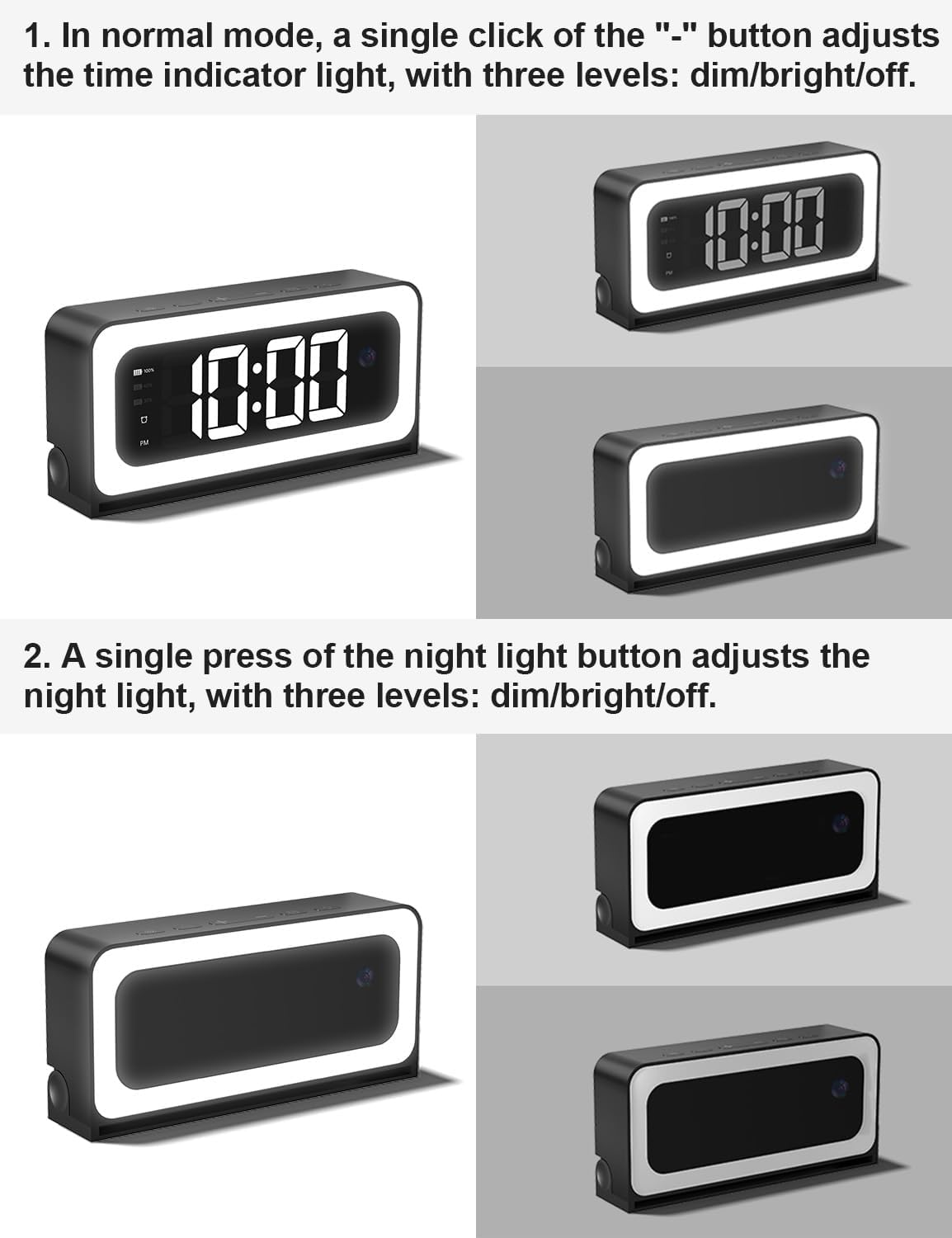
Image 4.2: Visual guide for adjusting the night light and time indicator brightness.

Image 4.3: Instructions for setting the alarm and adjusting brightness.
4.2 App Functions
- Live Viewing: Open the WESECUU app and select your device to view live 2K HD video footage.
- Two-Way Talk: Use the microphone icon in the app to speak through the camera's speaker and listen through its microphone.
- Motion Detection Alerts: Receive instant notifications on your smartphone when human motion is detected.
- Playback: Access recorded footage from your SD card or cloud storage through the app.

Image 4.4: Remote access and live video viewing through the WESECUU app.

Image 4.5: Demonstrating the two-way voice function for communication.
5. Features in Detail
5.1 2K Full HD Video & Color Night Vision
The camera provides 2K (2048x1080p) resolution for clear and detailed surveillance. Its advanced Black Light Night Vision technology ensures that even in low-light conditions, you get full-color video, not just black and white, for better identification and monitoring.

Image 5.1: Day vision and Blacklight Color Night Vision capabilities.

Image 5.2: Visual comparison of 2K HD resolution from the camera versus standard 1080P.
5.2 Dual Band WiFi Connectivity
The camera supports both 2.4GHz and 5GHz WiFi networks, offering flexibility and reliability. The 2.4GHz band provides wider coverage, while the 5GHz band offers faster speeds for smoother live streaming and quicker data transfer.

Image 5.3: The camera's dual-band 2.4GHz and 5GHz WiFi connectivity.
5.3 AI Human Detection and Motion Tracking
Equipped with artificial intelligence, the camera can distinguish human shapes from other movements, reducing false alarms. When motion is detected, it sends immediate alerts to your connected device, allowing you to view live footage promptly.

Image 5.4: AI Human Detection feature with motion tracking and alert notification.
5.4 Storage Options (SD Card / Cloud)
The camera offers versatile storage solutions:
- Local SD Storage: Supports up to a 128GB microSD card (not included) for continuous recording and local playback without a subscription.
- Cloud Storage: An optional subscription service allows you to securely store and remotely access recorded footage through the app, providing automatic video backup and remote playback.

Image 5.5: Details on local microSD card storage and optional cloud storage plans.
6. Maintenance
- Cleaning: Use a soft, dry cloth to clean the camera lens and exterior. Avoid abrasive cleaners or solvents.
- Software Updates: Regularly check the WESECUU app for firmware updates to ensure optimal performance and security.
- Battery Care: For optimal battery life, avoid extreme temperatures and fully charge the device before extended periods of non-use.
- Resetting the Device: If the device malfunctions or you need to reconfigure it, locate the reset button (often a small pinhole) and press and hold it for 3-8 seconds until the device resets.
7. Troubleshooting
| Problem | Possible Cause | Solution |
|---|---|---|
| Device fails to connect to WiFi or connection fails. |
|
|
| No live video feed. |
|
|
| Motion detection alerts not received. |
|
|
| SD card not recording. |
|
|
8. Specifications
| Feature | Detail |
|---|---|
| Model Name | Q10-bk |
| Brand | JUFLSKY |
| Indoor/Outdoor Usage | Indoor |
| Connectivity Technology | Wi-Fi (2.4G & 5G) |
| Video Capture Resolution | 2K (Effective Video Resolution: 1080p, Effective Still Resolution: 2 MP) |
| Special Feature | Night Vision (Color Night Vision), Two-Way Talk, Human Motion Detection, Alarm, Night Light |
| Power Source | AC (with built-in 5200mAh rechargeable battery) |
| Controller Type | Mobile App (WESECUU) |
| Mounting Type | Wall Mount (though designed as a clock, this might be a generic spec) |
| Viewing Angle | 120 Degrees |
| Night Vision Range | 32 Feet |
| Frame Rate | 30fps |
| Material | Plastic |
| Item Dimensions (L x W x H) | 10 x 1 x 1 inches |
| Item Weight | 12 ounces |
| Flash Memory Type | SD (up to 128GB) |
| Video Encoding | H.264 |
| Alert Type | Motion Only (Human Motion Detection) |
9. Warranty and Support
For technical assistance or warranty inquiries, please contact our support team:
- Email: serviceus@wesecuu.net
Please provide your product model (Q10-bk) and a detailed description of your issue for faster service.