Introduction
Welcome to your new JUEDUR R500 Android 15 Tablet. This manual provides essential information for setting up, operating, maintaining, and troubleshooting your device. Please read it thoroughly to ensure optimal use and longevity of your tablet.
What's in the Box
- 10.1 inch Tablet
- Premium EVA protective Case
- Charging Adapter with Type C Cable
- 3-layer Screen Protector
- User Manual
Setup
Initial Setup
- Power On: Press and hold the power button until the JUEDUR logo appears.
- Language Selection: Follow on-screen prompts to select your preferred language.
- Wi-Fi Connection: Connect to a stable 5G+2.4G Wi-Fi network.
- Google Account: Sign in with your Google account or create a new one.
- Parental Controls: Utilize Family Link for managing app access and usage limits, ensuring a safe environment for children.
Inserting a MicroSD Card (Optional)
The tablet supports up to 1TB TF card expansion. Locate the card slot on the side of the device. Gently insert the MicroSD card until it clicks into place. This expands your storage for games, movies, photos, and files.
Operating Your Tablet
Basic Navigation
The JUEDUR R500 tablet runs on the latest Android 15 system, offering an intuitive user experience.
- Touch Gestures: Tap to select, swipe to scroll, and pinch to zoom.
- Home Screen: Access your installed applications and widgets.
- Notifications: Swipe down from the top of the screen to view notifications.
- Quick Settings: Swipe down again from the top for quick access to Wi-Fi, Bluetooth, and other settings.
Split-Screen Functionality
To use split-screen, open an app, then swipe up from the bottom of the screen to reveal the recent apps. Tap the app icon at the top of the app's card and select "Split screen." Choose a second app to use simultaneously for enhanced multitasking.
Gemini AI Integration
Your tablet features Gemini AI, designed as a truly modern, multi-modal AI. It seamlessly understands and combines text, images, audio, and video, allowing for more sophisticated and context-aware tasks, such as creating presentations from video lectures.
Widevine L1 Support
The tablet supports Widevine L1, enabling you to smoothly watch copyrighted content such as FHD and UHD content on popular streaming platforms like Netflix, Prime Video, and Hulu, providing a safer, higher-quality viewing experience.
Key Features
- Android 15 OS + Gemini AI: Powered by the latest Android 15 system, enhancing performance, efficiency, privacy controls, and security. Gemini AI is designed for multi-modal tasks, combining text, images, audio, and video.
- Large Storage + Octa-core CPU: Comes with 30GB (8GB physical + 22GB virtual) RAM for smooth operation and faster capabilities. Features 128GB internal storage, expandable up to 1TB via TF card. A 2.0 GHz octa-core processor ensures excellent performance for demanding tasks.
- HD Eyes Protection Screen + Widevine L1: Features a 10-inch HD IPS display with 1280x800 resolution for truer colors and clearer images. Widevine L1 support allows for smooth FHD and UHD streaming on major platforms.
- EVA Case + Parental Control: Includes a 360° rotatable folding shock-proof EVA case for perfect protection and comfortable viewing. Parents can manage the tablet via Family Link for app access and usage limits.
- 8000mAh Battery + 5G Wi-Fi: A large 8000mAh battery provides extended usage and standby time, charging via USB Type-C. Supports dual-band 5G+2.4G WiFi and Bluetooth 5.0 for stable wireless connections and faster transmission.
Product Images
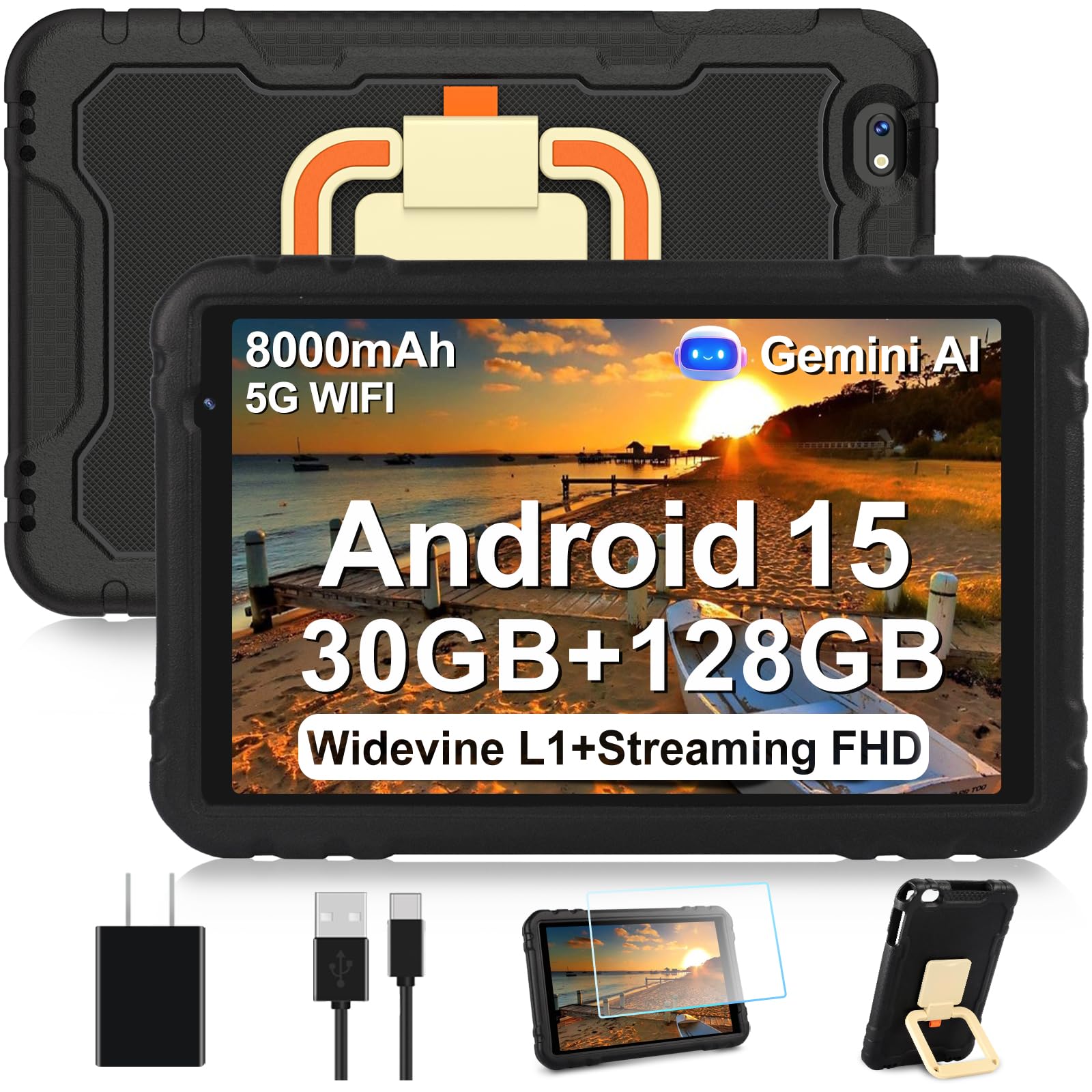
Main product image of the JUEDUR R500 tablet.

Diagram illustrating the Octa-core CPU and large storage capabilities.

Visual representation of the latest Android 15 OS features, including security and parental control.

Image highlighting Widevine L1 support for streaming and high-speed 5G+2.4G Wi-Fi connectivity.

Detailed view of the multifunctional drop-proof EVA case with 360° swivel and anti-fall features.

An overview of the tablet's key specifications including display size, RAM, ROM, and battery capacity.

The tablet being used for learning, travel, watching videos, and video calls, showcasing its versatility.
Product Videos
This video demonstrates the features of the Android 15 Tablet with its shockproof case, highlighting its 30GB RAM and 128GB storage.
Specifications
| Standing screen display size | 10.1 Inches |
| Max Screen Resolution | 1280x800 Pixels |
| Processor | 2 GHz |
| Card Description | Integrated |
| Average Battery Life (in hours) | 8 Hours |
| Brand | JUEDUR |
| Series | R500 |
| Item model number | R500 |
| Operating System | Android 15 |
| Item Weight | 1.65 pounds |
| Product Dimensions | 10.6 x 6.8 x 0.9 inches |
| Item Dimensions LxWxH | 10.6 x 6.8 x 0.9 inches |
| Color | Black |
| Processor Brand | Unisoc |
| Flash Memory Size | 127.99 GB |
| Batteries | 1 A batteries required. (included) |
| Model Name | R500 |
| Memory Storage Capacity | 128 GB |
| Screen Size | 10.1 Inches |
| Display Resolution Maximum | 1280x800 Pixels |
Maintenance
Cleaning
Use a soft, lint-free cloth to clean the screen and body of your tablet. Avoid using harsh chemicals or abrasive materials, as these can damage the device's surfaces.
Battery Care
To prolong the life of your 8000mAh battery, avoid exposing the tablet to extreme temperatures (hot or cold). It is also recommended to avoid fully discharging the battery frequently. Charge the device using the provided USB Type-C cable and adapter.
Software Updates
Regularly check for and install system updates to ensure your tablet has the latest features, optimal performance, and security patches. You can usually find updates in the tablet's settings menu under "System" or "About tablet."
Troubleshooting
Common Issues
- Tablet not turning on: Ensure the battery is sufficiently charged. Connect the tablet to the charger and try powering it on again after a few minutes.
- Slow performance: Close unused applications running in the background. Clear the cache of frequently used apps. If the issue persists, restart the tablet.
- Wi-Fi connection issues: Restart both your tablet and your Wi-Fi router. Verify that the Wi-Fi password is correct in the tablet's settings.
- App crashes: Try clearing the app's cache and data through the tablet's app settings. If the problem continues, uninstall and then reinstall the problematic application.
For further assistance with any issues not covered here, please refer to the official JUEDUR support channels.
Warranty and Support
Your JUEDUR R500 tablet comes with a standard manufacturer's warranty. Please refer to the warranty card included in your package for specific details on coverage, terms, and conditions, and how to claim support. For technical assistance, product inquiries, or to access additional resources, please visit the official JUEDUR website or contact their customer service department using the contact information provided in your product documentation.


