
1. Introduction
The Yeiwenl TPM 2.0 Module (MS-4462) is a hardware security component designed to enhance the security of your computer system. A Trusted Platform Module (TPM) provides hardware-based security functions, including secure key storage, cryptographic operations, and platform integrity verification. This module is essential for enabling certain operating system features, such as Windows 11's security requirements, and protecting your data from unauthorized access.
This manual provides comprehensive instructions for the proper installation, configuration, and use of your TPM 2.0 module.
2. Product Overview
The Yeiwenl TPM 2.0 Module (MS-4462) is a compact 12-1 pin SPI interface module. It integrates an Infineon SLB9670 TPM 2.0 chip, offering robust hardware security capabilities. Its design ensures compatibility with specific MSI motherboard series.
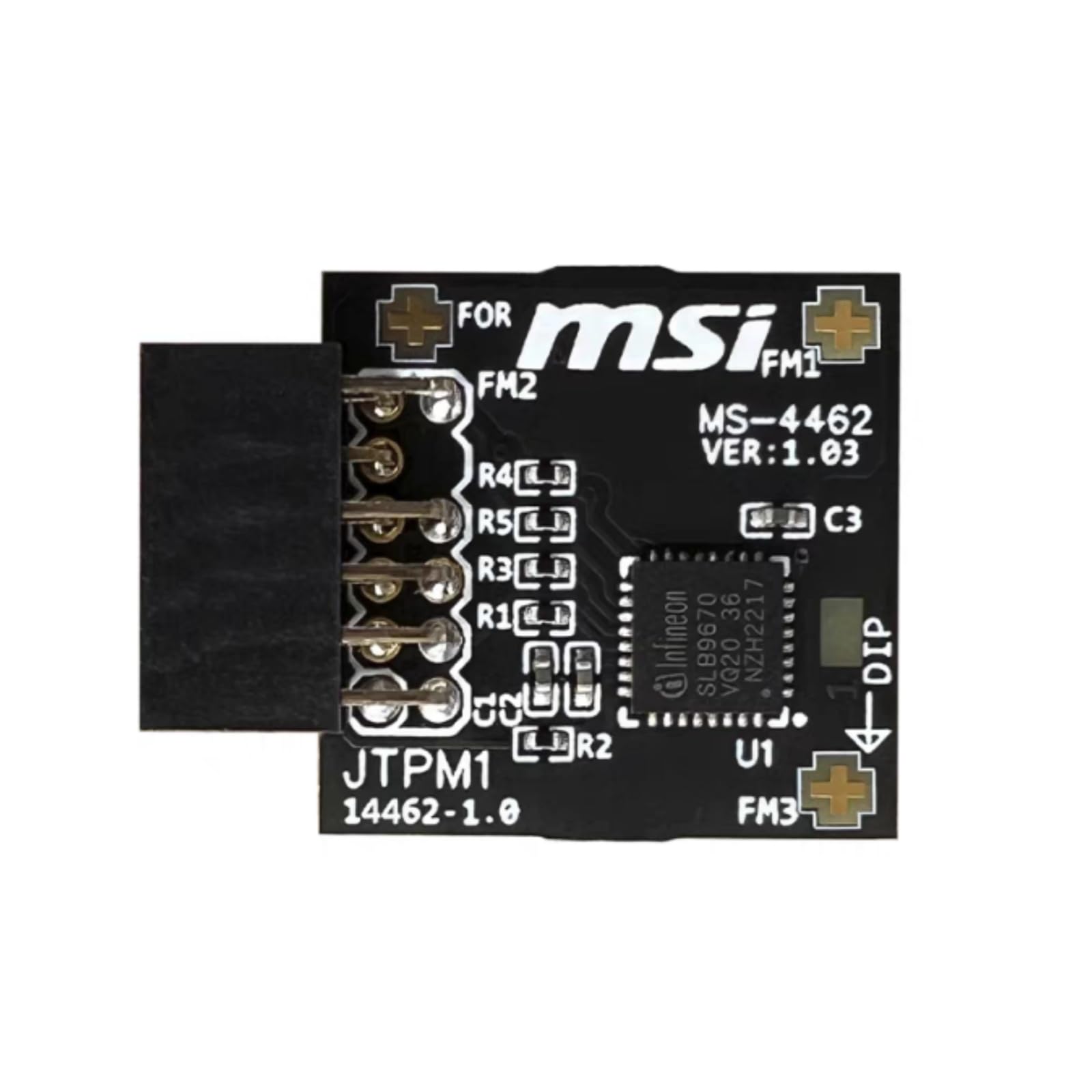
Figure 1: Front and back view of the Yeiwenl TPM 2.0 Module (MS-4462). The front shows the JTPM1 header and the Infineon chip, while the back displays regulatory markings.
- Interface: SPI (Serial Peripheral Interface)
- Pin Configuration: 12-1 Pin
- Dimensions: Approximately 20mm x 25mm
- Chipset: TPM2.0 (Infineon SLB9670)
3. Compatibility
This TPM 2.0 module is specifically designed for use with a range of MSI motherboards. Before installation, verify your motherboard's compatibility to ensure proper function.
Compatible MSI Motherboard Series:
- Intel Series: 400, 500, 600, and 700 series motherboards.
- AMD Series: A520, B550, WRX80, X570S, B650, and X670 series motherboards.
Important: Always consult your motherboard's official manual to locate the correct TPM header (often labeled JTPM1) and confirm its pin configuration (12-1 pin) before purchasing or installing this module.
4. Installation (Setup)
Follow these steps carefully to install the TPM 2.0 module onto your MSI motherboard.
- Power Off and Disconnect: Completely shut down your computer. Disconnect the power cable from the power supply unit.
- Open Computer Case: Remove the side panel of your computer case to access the motherboard.
- Locate TPM Header: Identify the TPM header on your MSI motherboard. It is typically a 12-1 pin connector and may be labeled as 'JTPM1' or similar. Refer to your motherboard manual for its exact location.
- Align and Insert Module: Carefully align the Yeiwenl TPM 2.0 module with the TPM header on the motherboard. The 12-1 pin configuration means one pin slot on the header will be blocked or missing, corresponding to a missing pin on the module. Ensure correct orientation to avoid damage. Gently press the module into the header until it is securely seated. Do not force it.
- Close Case and Reconnect Power: Once the module is securely installed, replace the computer case side panel and reconnect the power cable.

Figure 2: Detail of the 12-1 pin connector on the TPM module, illustrating the keying for correct installation.
5. Enabling TPM in BIOS (Operating)
After physical installation, you must enable the TPM module in your motherboard's BIOS/UEFI settings.
- Enter BIOS/UEFI: Power on your computer and repeatedly press the designated key (commonly Del, F2, F10, or F12) during startup to enter the BIOS/UEFI setup utility. The specific key varies by motherboard model.
- Locate TPM Settings: Navigate through the BIOS/UEFI menus to find the TPM settings. These are often located under sections like 'Security', 'Boot', 'Advanced', or 'Peripherals'. Look for options such as 'Trusted Platform Module', 'TPM Device', 'Security Device Support', or 'Intel Platform Trust Technology (PTT)' / 'AMD fTPM'.
- Enable TPM: Set the TPM option to 'Enabled' or 'Discrete TPM'. If you see both 'Discrete TPM' and 'Firmware TPM (fTPM)', select 'Discrete TPM' as you have installed a physical module.
- Save and Exit: Save your changes and exit the BIOS/UEFI setup. Your computer will restart.
Note: Some motherboards may require a BIOS update to fully support or properly recognize a TPM 2.0 module. Check your motherboard manufacturer's website for the latest BIOS versions and update instructions if you encounter issues.
6. Troubleshooting
If you encounter issues after installing the TPM module, consider the following troubleshooting steps:
- Module Not Detected:
- Ensure the module is correctly and firmly seated in the JTPM1 header.
- Verify that the TPM option is enabled in your motherboard's BIOS/UEFI settings as described in Section 5.
- Check your motherboard manual for any specific requirements or jumper settings related to the TPM header.
- Consider updating your motherboard's BIOS to the latest version.
- Windows 11 Upgrade Issues:
- After enabling TPM in BIOS, ensure 'Secure Boot' is also enabled in BIOS/UEFI, as this is another Windows 11 requirement.
- Run the PC Health Check app from Microsoft to confirm all Windows 11 compatibility requirements are met.
- Verify that your system drive is formatted as GPT (GUID Partition Table) and not MBR (Master Boot Record), as GPT is required for Secure Boot.
- System Instability:
- If your system becomes unstable after installation, remove the TPM module and test if stability returns. This can help determine if the module is faulty or incompatible.
- Double-check that your motherboard model is listed as compatible.
7. Specifications
| Feature | Detail |
|---|---|
| Model Number | MS-4462 |
| Brand | Yeiwenl |
| Chipset Type | TPM2.0 (Infineon SLB9670) |
| Interface | SPI |
| Pin Configuration | 12-1 Pin |
| Dimensions | 20mm x 25mm (approx.) |
| Compatible Devices | MSI Motherboards (Intel 400/500/600/700 series, AMD A520/B550/WRX80/X570S/B650/X670 series) |
| Platform Support | Windows 11 (requires TPM 2.0) |
| Package Contents | 1x Yeiwenl TPM 2.0 Module (MS-4462) |
8. Warranty and Support
For warranty information and technical support, please refer to the documentation provided with your purchase or contact the manufacturer directly. Keep your proof of purchase for warranty claims.
For further assistance, you may also visit the Yeiwenl official website or contact their customer service department.