Introduction
This manual provides detailed instructions for setting up, operating, and maintaining your Canupdog 21.5 Inch Digital Calendar. This device is designed to be a central hub for managing family schedules, tasks, meal plans, and sharing memories through its interactive display.
1. Setup
1.1 Initial Device Setup
- Power On: Plug in your eCalendar. The device must remain plugged in to function.
- Language Selection: Choose your preferred language from the on-screen options.
- Wi-Fi Connection: Connect the device to your home Wi-Fi network (2.4/5GHz).
- Time Zone & City: Select your correct time zone and city.
- Account Registration: Enter your 6-digit activation code to register an account and log in.
1.2 Mounting Options
The Canupdog Digital Calendar offers versatile placement options:
- Desk Stand: Utilize the included stand for stable placement on a desk, counter, or shelf.
- Wall Mount: The device supports both vertical and horizontal wall mounting. All necessary hardware for wall installation is included.
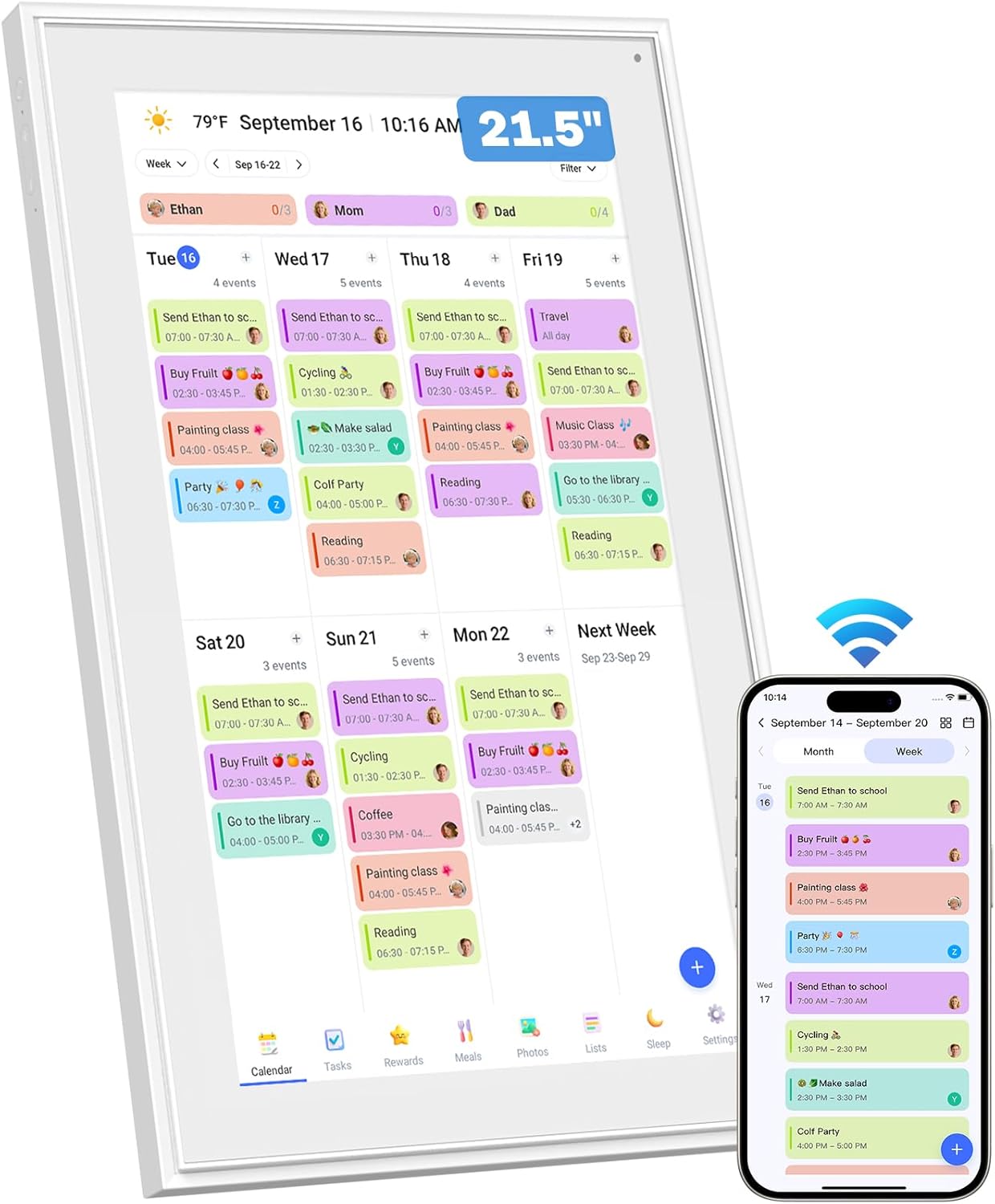
Figure 1: Canupdog 21.5 Inch Digital Calendar displaying a weekly schedule, alongside a smartphone showing the companion app. The calendar is shown in portrait orientation.

Figure 2: The digital calendar displayed in both desktop stand and wall-mounted configurations, illustrating its versatility.
2. Operating Instructions
2.1 Calendar Management
- Wi-Fi Sync: The calendar automatically syncs with popular calendar services like Google, iCloud, Outlook, Cozi, and Yahoo via Wi-Fi (2.4/5GHz). Events update in real-time across all connected devices.
- Viewing Modes: Easily switch between month, week, and day views using the intuitive touchscreen interface.
- Adding/Editing Events: Events can be added or edited directly on the touchscreen or through the dedicated eCalendar mobile application.
- User Profiles: Assign unique colors and labels to each family member for personalized event tracking and clear visual organization.

Figure 3: The digital calendar demonstrating real-time synchronization of events, tasks, rewards, meal planning, and photos across multiple devices.

Figure 4: Illustration of the digital calendar's seamless auto-sync capabilities with Google Calendar, iCloud Calendar, Yahoo Calendar, Outlook Calendar, and Cozi Calendar.
2.2 Task & Reward System
- Chore Chart: Create and assign household chores to family members.
- Rewards: Implement a task rewards system to motivate completion of chores and foster good habits.

Figure 5: The interactive chore chart feature, showing tasks and a reward system designed to engage children.
2.3 Meal Planner & Shopping Lists
- Meal Planning: Plan daily or weekly meals directly on the calendar.
- Shopping Lists: Automatically generate shopping lists based on your meal plans, accessible via the app.

Figure 6: The meal planner interface, allowing users to plan meals and generate shopping lists.
2.4 Digital Photo Frame
- Photo/Video Upload: Upload thousands of photos and videos to the device's built-in storage via the companion app.
- Slideshow Mode: When idle, the calendar can function as a digital photo frame, displaying automatic slideshows of your uploaded memories.
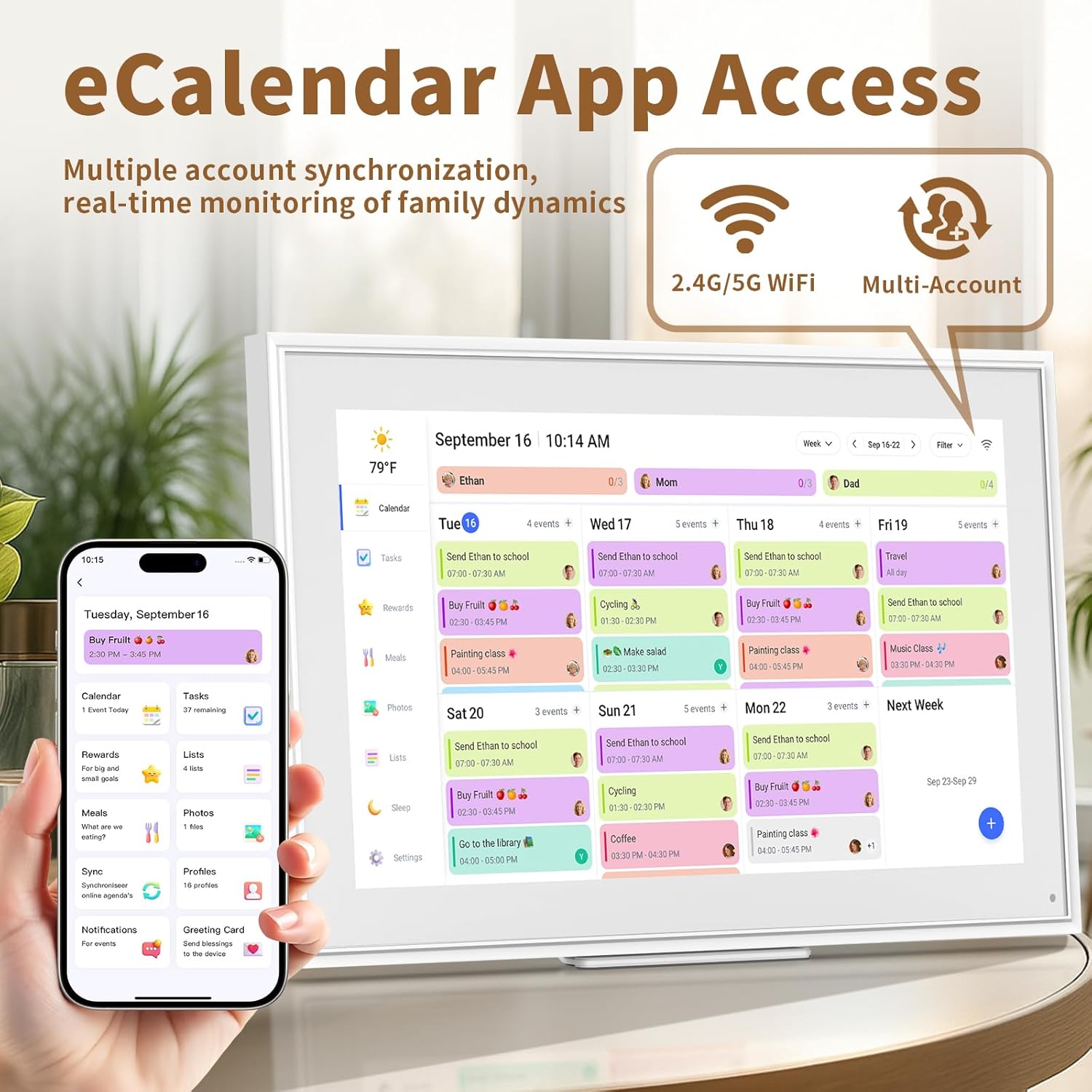
Figure 7: The digital calendar functioning as a photo frame, showcasing shared family moments.
2.5 Additional Features
- Sleep Mode: Schedule automatic turn-off and turn-on times for the device to conserve energy and avoid disturbances.
- Weather Forecast: Displays current temperature and forecasts for your selected location.
- Notifications: Receive timely reminders for events and tasks.
3. Maintenance
- Cleaning: Use a soft, dry cloth to clean the screen and device exterior. Avoid abrasive cleaners or solvents.
- Software Updates: The device receives regular software updates for new features and performance improvements. Ensure your device is connected to Wi-Fi to receive these updates.
4. Troubleshooting
- Calendar Synchronization Issues:
- Ensure the device is connected to a stable Wi-Fi network.
- Verify that the correct calendar accounts (Google, iCloud, Outlook, etc.) are linked and authorized within the eCalendar app.
- Check the "Sync" section in the app to initiate a manual sync if needed.
- Tasks Not Updating:
- Confirm that tasks are correctly assigned to profiles in the eCalendar app.
- Ensure the device has an active internet connection for real-time updates.
- Device Not Powering On:
- Verify that the power adapter is securely plugged into both the device and a working electrical outlet.
- Ensure the power button on the device is pressed.
5. Specifications
| Brand | Canupdog |
| Model Number | 21.5inch White |
| Screen Size | 21.5 Inches |
| Display Resolution | 1920x1080P IPS |
| Mounting Type | Desk & Wall Mount |
| Material | Plastic |
| Product Dimensions | 21.5"W x 13"H |
| Item Weight | 11.18 pounds |
6. Warranty & Support
For warranty information and customer support, please refer to the warranty card included in your product packaging or visit the official Canupdog website.
7. Official Product Videos
7.1 Canupdog 15.6 Inch Smart Digital Calendar
Video Description: This video provides an overview of the 15.6 Inch Smart Digital Calendar, highlighting its key features and functionality. It demonstrates the calendar interface and various modes of operation.


