
1. Product Overview
The ZBARK 10.25 inch Android 13 Touch Screen Car Stereo is designed to upgrade the in-car entertainment and navigation system for compatible Lexus RX models. It features a large IPS touch screen, an Android 13 operating system, and integrated wireless CarPlay and Android Auto functionalities. This unit provides enhanced connectivity and a modern user interface for a superior driving experience.
Key features include:
- 10.25 inch IPS touch screen with 1920*720 resolution
- Android 13 operating system
- 8GB RAM and 64GB internal storage for fast response
- Wireless and wired CarPlay/Android Auto support
- Compatibility with Siri, maps, music, and other applications
- Support for original and aftermarket reverse cameras, 360° cameras
- iPhone AirPlay and Android AutoLink for screen mirroring
2. Compatibility
This car stereo is compatible with Lexus RX Q8Z Series models manufactured between 2009 and 2014. It requires the original premium factory system and specifically supports models with freestanding screens. Before purchasing and installing, it is crucial to verify your car's system version against the provided compatibility images.

Image 2.1: Visual guide for checking car compatibility. The 'Elegant version' with a freestanding screen is compatible, while 'Classic version', 'Low configuration', and 'High configuration' models are not compatible.

Image 2.2: Another view emphasizing the need to check your car's version before purchase, highlighting compatible and incompatible dashboard configurations.
3. What's in the Box
The product package includes the main head unit, necessary wiring harnesses, and accessories for installation and connectivity. Please ensure all components are present before beginning installation.
- Main 10.25 inch Android 13 Head Unit
- RCA cable
- USB cables
- GPS antenna
- Microphone
- Power harness
- Other necessary wiring and mounting accessories

Image 3.1: An overview of the main head unit and included accessories, including various cables and mounting hardware.

Image 3.2: Detailed view of the 10.25-inch screen dimensions and the various accessories included in the package.
4. Installation
Installation of this car stereo requires careful attention and may involve removing parts of your vehicle's dashboard. It is strongly recommended to seek professional installation to avoid damage to the original car wiring or the unit itself. The installation process does not damage the original car wiring when performed correctly.
4.1 Pre-Installation Steps
- Verify Compatibility: Double-check your vehicle's model and system version against the compatibility requirements (refer to Section 2).
- Disconnect Battery: Before starting any electrical work, disconnect the vehicle's negative battery terminal to prevent short circuits.
- Gather Tools: Ensure you have the necessary tools for dashboard removal and wiring connections.
4.2 Wiring Diagram
Refer to the wiring diagram below for proper connection of the head unit to your vehicle's electrical system. Incorrect wiring can lead to malfunctions or damage.
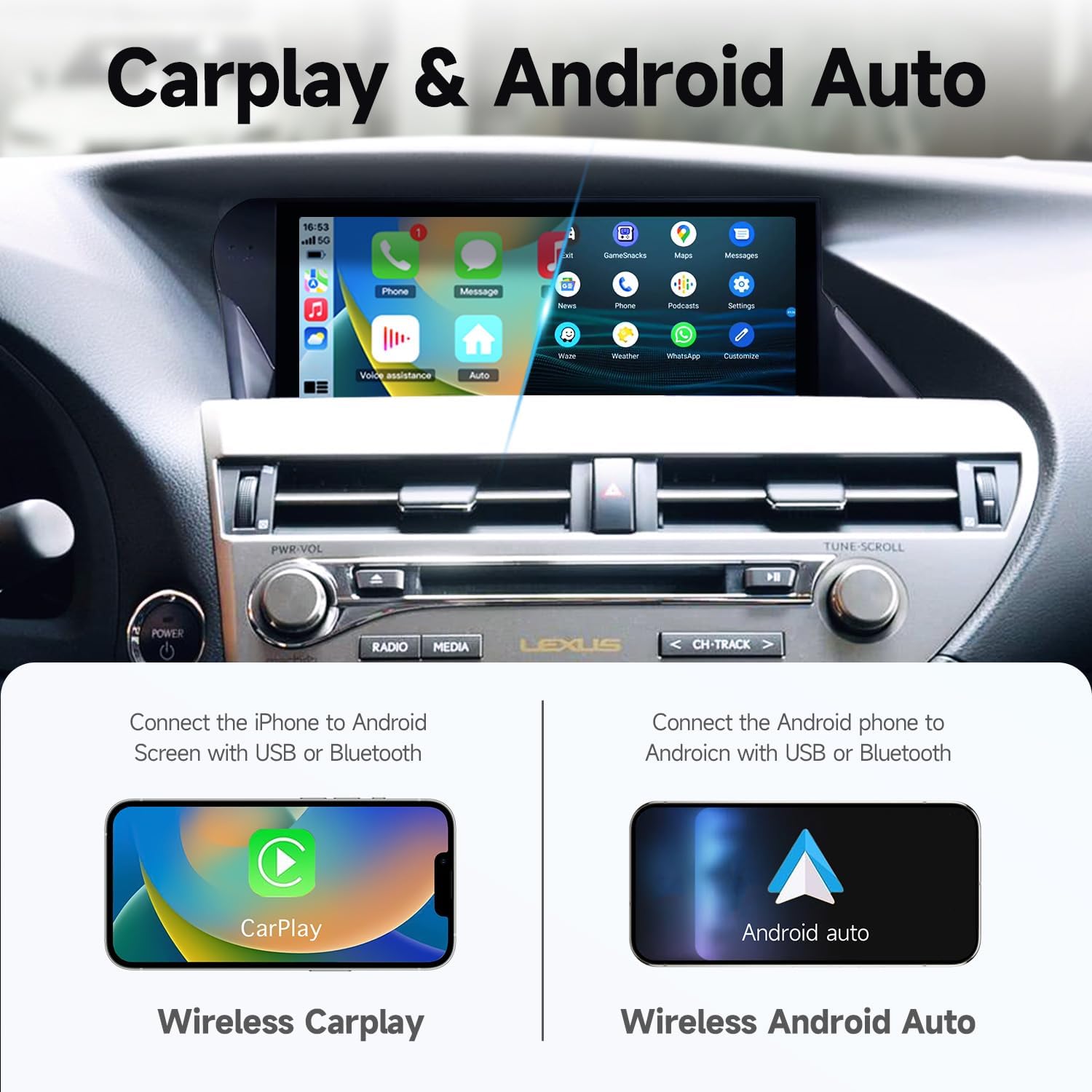
Image 4.1: Detailed wiring diagram showing connections for power, speakers, USB, GPS, and other accessories.
Image 4.2: A combined view of the wiring diagram and the various accessories, illustrating how they connect to the main unit.
4.3 Post-Installation Check
After completing the wiring and mounting the unit, reconnect the battery. Before reassembling the dashboard, test all functions of the stereo, including audio, touch screen response, CarPlay/Android Auto, and camera inputs. If any issues arise, refer to the Troubleshooting section or contact support.

Image 4.3: A visual comparison of the Lexus RX dashboard before and after the installation of the ZBARK 10.25 inch car stereo.
5. Setup and Operating
5.1 Initial Power On
Once installed and powered on, the unit will boot into the Android 13 interface. Follow any on-screen prompts for initial setup, such as language selection and time zone.
5.2 Wireless CarPlay & Android Auto
The unit supports both wireless and wired CarPlay/Android Auto. To connect:
- For Wireless Connection: Ensure Bluetooth and Wi-Fi are enabled on your smartphone. On the car stereo, navigate to the CarPlay or Android Auto application. Follow the on-screen instructions to pair your phone via Bluetooth first, which will then establish a Wi-Fi connection for the full CarPlay/Android Auto experience.
- For Wired Connection: Connect your smartphone to the stereo using a USB cable. The system should automatically detect and launch CarPlay or Android Auto.
Once connected, you can access navigation, music, calls, messages, and other compatible apps directly from the stereo's touch screen or via voice commands (Siri/Google Assistant).

Image 5.1: Display of the CarPlay and Android Auto interfaces on the 10.25-inch screen, showing how to connect an iPhone or Android phone.

Image 5.2: Illustrates the wireless connectivity for both CarPlay and Android Auto, highlighting the seamless integration with smartphone features.
5.3 Screen Mirroring (AirPlay/AutoLink)
The unit supports iPhone AirPlay and Android AutoLink for screen mirroring. This allows you to display your smartphone's screen directly onto the car stereo, enabling navigation, video viewing, and other content.
5.4 General Operation
- Touch Screen: Navigate through menus and applications using the responsive touch screen.
- Steering Wheel Controls: The unit is designed to integrate with your vehicle's original steering wheel controls for convenient operation (if supported by your vehicle's system).
- Voice Control: Utilize Siri (for CarPlay) or Google Assistant (for Android Auto) for hands-free control of various functions.
6. Specifications
| Feature | Specification |
|---|---|
| Brand | ZBARK |
| Model Number | B0FPX4RTCC |
| Screen Size | 10.25 inches |
| Resolution | 1920*720 |
| Operating System | Android 13 |
| RAM | 8GB |
| Storage | 64GB |
| Connectivity Technology | Bluetooth, Wi-Fi |
| Controller Type | iOS, Android, Siri |
| Compatible Devices | Smartphone, Tablet, Personal Computer, Camera |
| Audio Output Mode | Stereo |
| Built-In Media | RCA cable, USB |
| Item Weight | 13.6 ounces |
7. Maintenance
To ensure the longevity and optimal performance of your ZBARK car stereo, follow these general maintenance guidelines:
- Screen Cleaning: Use a soft, lint-free cloth specifically designed for electronics to clean the touch screen. Avoid abrasive cleaners or harsh chemicals.
- Software Updates: Periodically check for and install any available software updates to ensure the system runs efficiently and securely.
- Avoid Extreme Temperatures: Do not expose the unit to extreme heat or cold for extended periods, as this can affect its electronic components.
- Gentle Handling: Avoid applying excessive force to the touch screen or physical buttons.
8. Troubleshooting
If you encounter issues with your ZBARK car stereo, please refer to the following common troubleshooting tips:
- No Power: Check all power connections and fuses. Ensure the vehicle's battery is properly connected and charged.
- No Audio: Verify speaker connections. Check volume settings on both the stereo and your connected smartphone. Ensure the correct audio source is selected.
- Touch Screen Unresponsive: Try restarting the unit. If the issue persists, a factory reset might be necessary (consult support before performing a factory reset).
- CarPlay/Android Auto Connection Issues: Ensure Bluetooth and Wi-Fi are enabled on your phone. Try forgetting the device on both the phone and the stereo, then re-pairing. Check USB cable integrity for wired connections.
- Camera Not Displaying: Verify camera connections and ensure the camera is powered correctly. Check settings within the stereo for camera input.
For issues caused by incorrect wiring or settings, or if the problem persists after troubleshooting, please contact ZBARK customer support for assistance.
9. Warranty & Support
The ZBARK 10.25 inch Android 13 Touch Screen Car Stereo comes with a 1-year warranty from the date of purchase. This warranty covers manufacturing defects and malfunctions under normal use.
For technical support, warranty claims, or any questions regarding the product, please contact ZBARK customer service. When contacting support, please have your product model number (B0FPX4RTCC) and purchase details available.
Contact Information: Please refer to your purchase documentation or the official ZBARK website for the most current customer support contact details.