
Introduction
Thank you for choosing the LiNKFOR USB Gaming Microphone ULK113. This microphone is designed to provide clear audio for gaming, streaming, podcasting, and online communication. It features dynamic RGB lighting, one-tap noise cancellation, reverb effects, real-time gain control, and zero-latency monitoring. This manual will guide you through the setup, operation, and maintenance of your new microphone.
Package Contents
Please ensure all items are present before proceeding with the setup:
- LiNKFOR USB Gaming Microphone
- Desktop Stand
- Shock Mount
- Pop Filter
- USB-C to USB-A Cable
- USB-A to USB-C Adapter

Image: All components included in the LiNKFOR USB Gaming Microphone package.
Setup Instructions
- Assemble the Desktop Stand: Screw the microphone stand pole into the weighted base until secure.
- Attach the Shock Mount: Screw the shock mount onto the top of the stand pole.
- Insert the Microphone: Gently place the LiNKFOR USB Gaming Microphone into the shock mount. Ensure it is seated securely.
- Attach the Pop Filter: Clip the pop filter onto the shock mount, positioning it in front of the microphone's grille.
- Connect to Device:
- Connect the USB-C end of the provided cable to the USB-C port on the microphone.
- Connect the USB-A end of the cable to an available USB port on your PC, PS4/PS5, or Mac.
- For Android devices with OTG support, use the included USB-A to USB-C adapter to connect the microphone cable to your phone.
- Plug & Play: The microphone is plug-and-play, requiring no additional drivers for most compatible operating systems. Your device should automatically recognize the microphone.
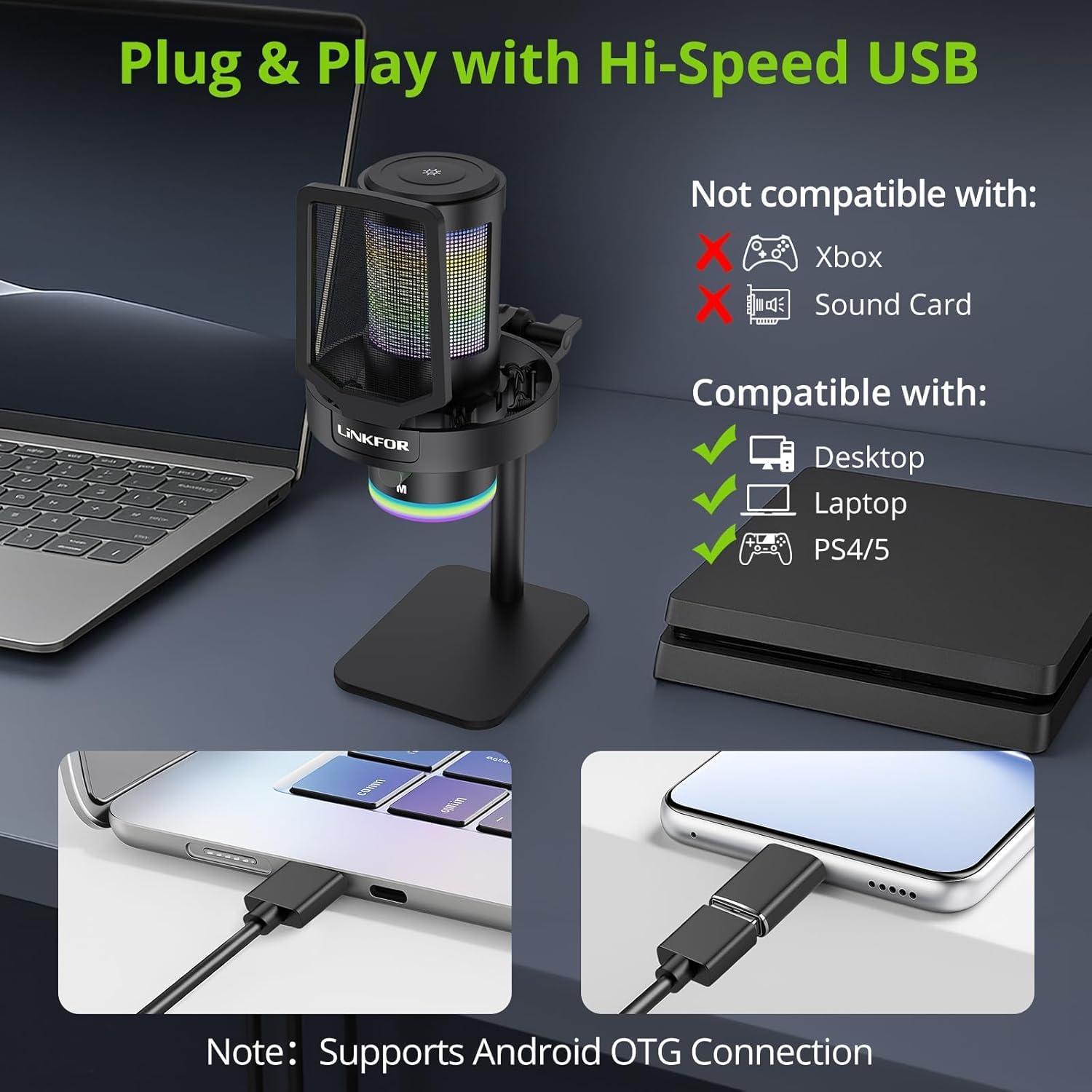
Image: The LiNKFOR USB Gaming Microphone connected to a laptop, demonstrating its plug-and-play functionality.
Video: An overview of the LiNKFOR USB Gaming Microphone, demonstrating its features and ease of use.
Operating Instructions
1. Dynamic RGB Lights & Touch Control
- Change RGB Modes: Touch the top of the microphone to cycle through various vibrant RGB lighting modes or solid colors.
- Turn Lights Off: Long-press the top of the microphone to turn off the RGB lights.
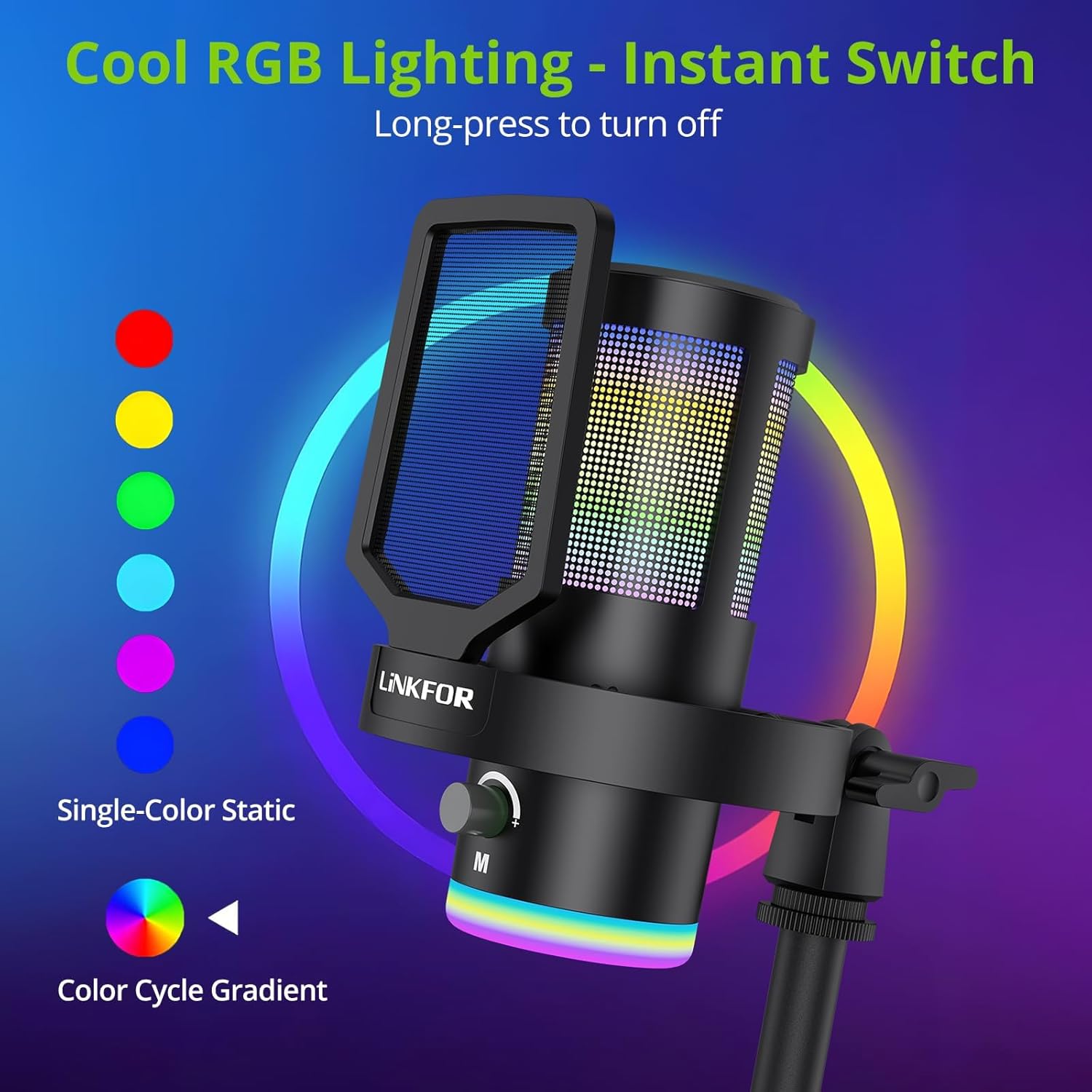
Image: The microphone showcasing its dynamic RGB lighting effects.
2. Studio Voice Clarity + One-Tap Noise Cancellation
- The professional cardioid capsule captures your voice clearly.
- Activate Noise Cancellation: Use the dedicated one-tap smart noise cancellation feature to reduce background sounds like fan noise, AC hum, or keyboard clicks.

Image: Visual representation of the microphone's noise reduction capabilities.
3. Reverb Effects & Real-Time Gain Control
- Reverb Button: Use the dedicated reverb button to add depth to your audio.
- Gain Knob: Adjust the gain knob to fine-tune the input volume in real-time, preventing audio clipping or low volume during live sessions.
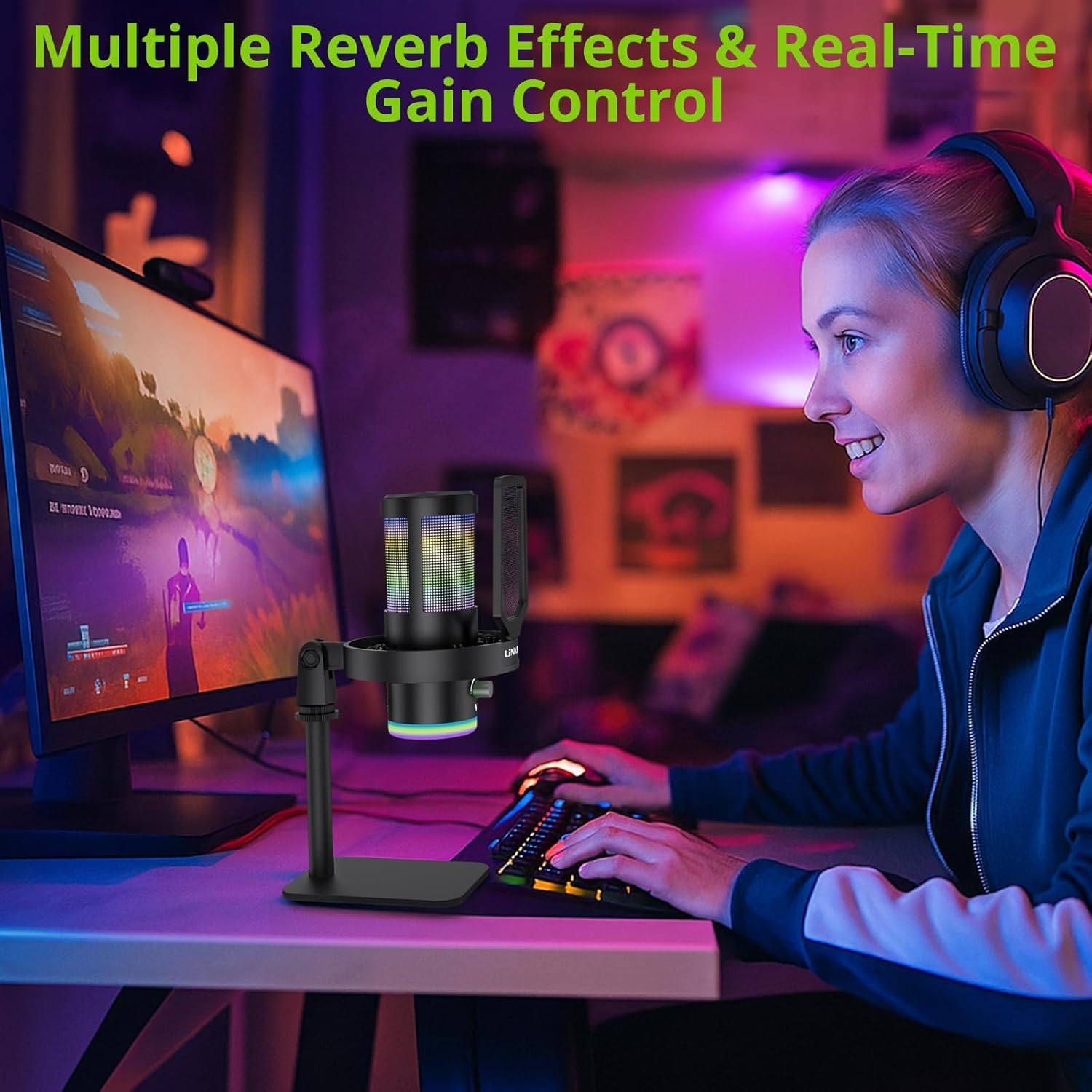
Image: A user operating the microphone with its reverb and gain control features.
4. Instant Mute + Zero-Delay Monitoring
- Mute Button: A touch-sensitive mute button allows for instant silencing of the microphone.
- 3.5mm Headphone Jack: Plug in headphones to the 3.5mm jack for real-time, zero-latency monitoring of your audio. A dedicated volume dial controls headphone output.
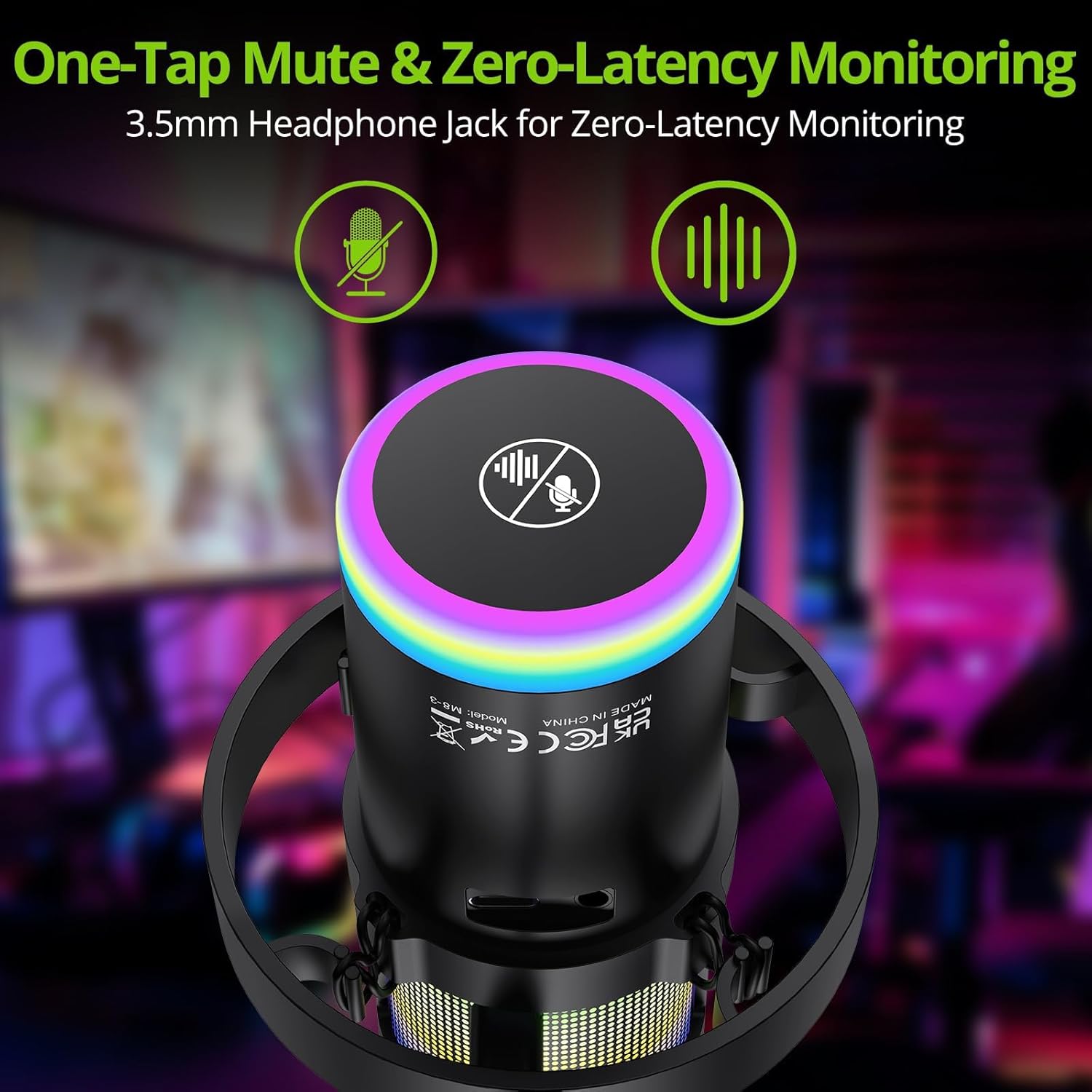
Image: Close-up of the microphone's top, highlighting the mute button and headphone jack for monitoring.
5. Controls Overview

Image: A detailed diagram illustrating the various controls on the LiNKFOR USB Gaming Microphone, including the RGB lighting touch control, 3.5mm headphone jack, USB-C port, and volume/mode knob.
Compatibility
The LiNKFOR USB Gaming Microphone is designed for broad compatibility:
- Compatible with: PC (Windows), Mac, PS4, PS5, Android (OTG-capable phones).
- Not Compatible with: Xbox, dedicated sound cards (may interfere with plug-and-play functionality).
Maintenance
- Cleaning: Use a soft, dry cloth to clean the microphone's exterior. Do not use liquid cleaners or solvents.
- Storage: Store the microphone in a cool, dry place away from direct sunlight and extreme temperatures when not in use.
- Handling: Avoid dropping the microphone or subjecting it to strong impacts, as this may damage internal components.
Troubleshooting
| Problem | Possible Cause | Solution |
|---|---|---|
| No sound output from microphone | Incorrect device selection; loose cable connection; microphone muted. | Check your device's sound settings to ensure the LiNKFOR microphone is selected as the input device. Reconnect the USB cable. Ensure the microphone is not muted (check the mute button/indicator). |
| RGB lights not working | Lights turned off; power issue. | Touch the top of the microphone to cycle through lighting modes. Long-press to turn them on/off. Ensure the microphone is properly connected and receiving power. |
| Audio is distorted or too quiet | Gain setting too high/low; microphone too close/far from source. | Adjust the gain knob on the microphone. Check your device's input volume settings. Position the microphone appropriately (typically 6-12 inches from the sound source). |
| Headphone monitoring not working | Headphones not properly connected; headphone volume too low. | Ensure headphones are fully plugged into the 3.5mm jack. Adjust the headphone volume dial on the microphone. |
Specifications
| Feature | Detail |
|---|---|
| Model Number | ULK113 |
| Connectivity Technology | USB Type-C |
| Microphone Type | Condenser, Cardioid |
| Signal-to-Noise Ratio | 85 dB |
| Special Features | RGB Lighting, Noise Cancellation, Mute Button, Volume Control, Headphone Jack, Reverb Effects |
| Compatible Devices | PC, PS4/PS5, Mac, Android (OTG) |
| Item Weight | 1.14 pounds |
| Product Dimensions | 7.28 x 4.53 x 4.33 inches |
| Material | Plastic |
Warranty & Support
For warranty information or technical support, please refer to the official LiNKFOR website or contact their customer service. Keep your purchase receipt for any warranty claims.
You can visit the LiNKFOR Store on Amazon for more information and support resources.