1. Introduction
This manual provides essential information for the safe and optimal use of your Samsung 50" Class Crystal UHD U7900F (2025) 4K Smart TV. This television features a vibrant 4K HDR10+ display, powered by a Crystal Processor 4K for enhanced visuals, and integrates the Tizen OS 6.5 for smart functionality. It includes features such as Motion Xcelerator, Bluetooth connectivity, and voice control compatibility with Bixby, Alexa, and Google Assistant. Please read this manual thoroughly before operating your TV and retain it for future reference.
2. Important Safety Information
To reduce the risk of electric shock, fire, or injury, always follow these basic precautions:
- Power: Ensure the TV is connected to a power outlet with the correct voltage. Do not overload power outlets.
- Ventilation: Do not block ventilation openings. Allow adequate space around the TV for proper airflow.
- Cleaning: Unplug the TV before cleaning. Use a soft, dry cloth. Never use liquid cleaners or aerosol sprays.
- Water and Moisture: Do not expose the TV to rain or moisture. Do not place objects filled with liquids, such as vases, on the TV.
- Mounting: Follow all instructions when mounting the TV to a wall or placing it on a stand to prevent injury.
3. What's in the Box
Verify that all components are present:
- Samsung 50" Class Crystal UHD U7900F (2025) 4K Smart TV
- Remote Control
- Power Cable
- Wall Mount
- User Manual (this document)
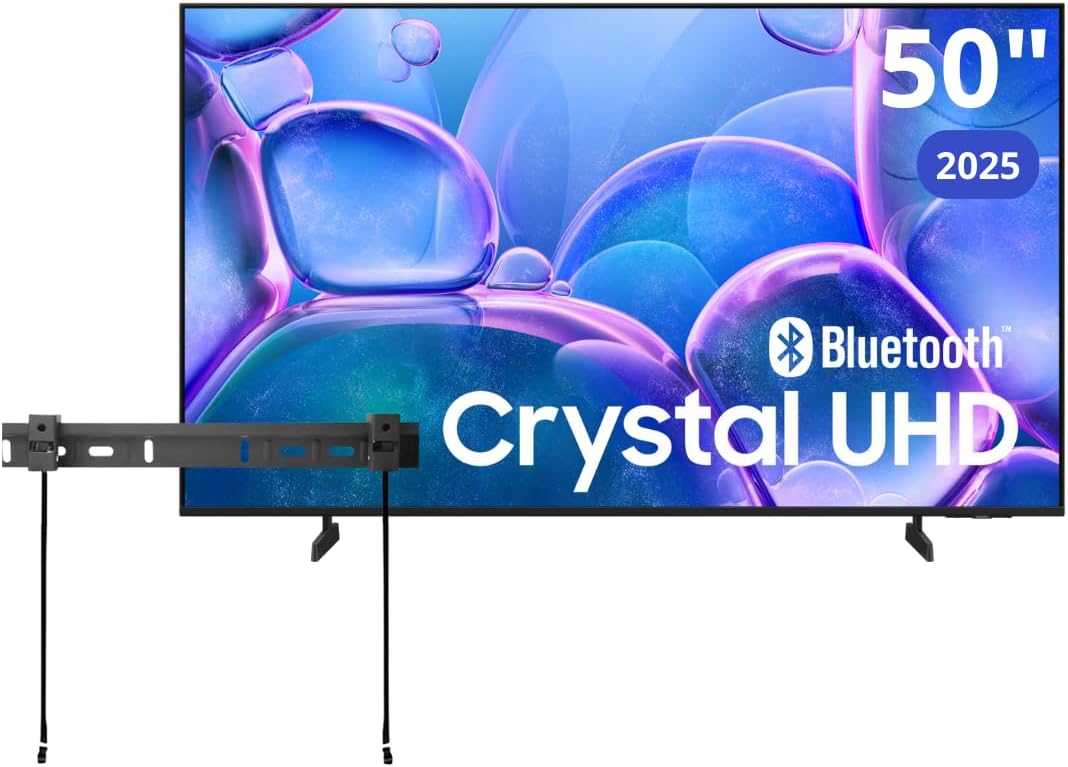
Image: The Samsung 50-inch Crystal UHD U7900F television displayed alongside its included wall mount bracket.
4. Setup
4.1 Physical Setup
Your TV can be placed on a stand or mounted on a wall. Ensure the TV is placed on a stable, level surface or securely mounted to a wall according to the provided instructions.
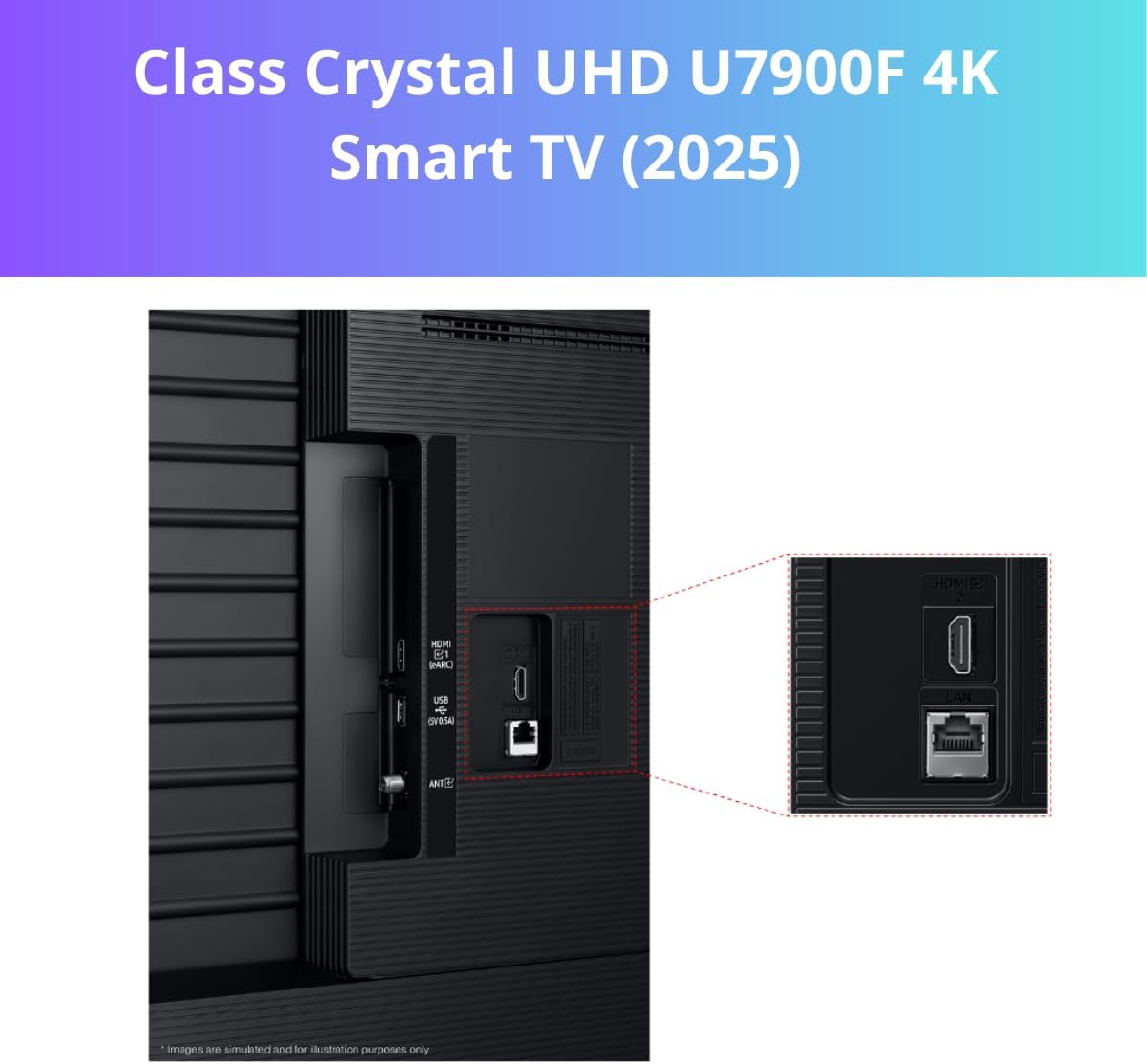
Image: A side view of the Samsung Crystal UHD television, showcasing its slim profile when placed on its included stand.
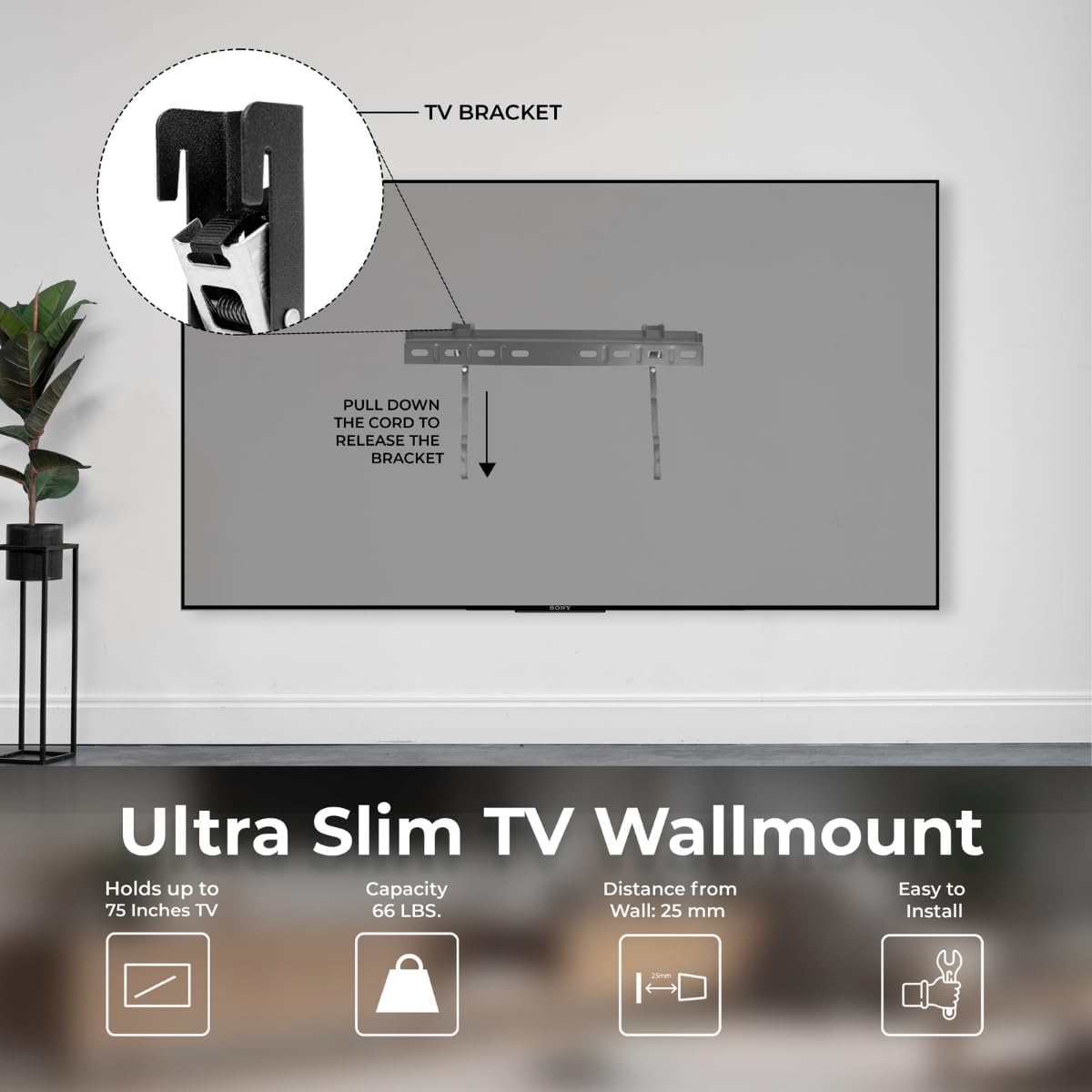
Image: The rear view of the Samsung Crystal UHD television, highlighting the textured back panel and central mounting area.
Wall Mounting
The TV comes with a wall mount. For wall mounting, ensure you use appropriate hardware and follow the instructions provided with the wall mount. It is recommended to have professional assistance for wall mounting to ensure safety and proper installation.

Image: A diagram illustrating the installation of an ultra-slim TV wall mount, showing how to attach the bracket to the TV and wall, and how to release it using a pull cord.
4.2 Connecting Devices
Connect your external devices to the TV's ports. Ensure the TV is unplugged before making any connections.
- Power Cable: Connect the power cable to the TV and then to a wall outlet.
- HDMI Devices: Use HDMI cables to connect devices like Blu-ray players, game consoles, or set-top boxes. The TV features HDMI 2.1 (4K@120Hz, eARC) and two HDMI 2.0 ports.
- USB Devices: Connect USB storage devices for media playback.
- Ethernet: For a stable internet connection, connect an Ethernet cable from your router to the TV's LAN port.

Image: A detailed view of the connectivity ports on the back of the Samsung TV, including HDMI, USB, and Ethernet ports.
4.3 Initial Power On and Smart Setup
After connecting all necessary cables, plug in the TV and press the power button on the remote control. The TV will guide you through the initial setup process, which includes:
- Language selection
- Network connection (Wi-Fi or Ethernet)
- Samsung account login (optional, but recommended for full smart features)
- Channel scanning (for antenna/cable connections)
5. Operating Your TV
5.1 Using the Remote Control
The remote control allows you to navigate the TV's interface, adjust settings, and access smart features. Familiarize yourself with the buttons for power, volume, channel, home, and navigation.
5.2 Smart TV Features (Tizen OS 6.5)
Your Samsung TV runs on Tizen OS 6.5, providing access to a wide range of smart features and applications. The Smart Hub is your central point for accessing streaming services, live TV, and connected devices.
- App Access: Easily download and manage your favorite streaming applications.
- Voice Control: Use Bixby, Amazon Alexa, or Google Assistant for hands-free control of your TV and smart home devices.
- SmartThings Integration: Connect and control compatible smart home devices directly from your TV.
- Multi View: Display multiple content sources simultaneously on the screen.

Image: The Samsung Smart TV interface displaying a grid of various streaming applications and content options, highlighting the 'Endless Free Content' feature with over 2,700 free channels and 400+ Samsung TV Plus premium channels.
5.3 Picture and Sound Settings
Customize your viewing and listening experience through the TV's settings menu.
- Picture Modes: Select from various preset picture modes (e.g., Standard, Dynamic, Movie) or customize settings like brightness, contrast, and color. The Crystal Processor 4K enhances detail and color accuracy, while HDR10+ provides a wider range of colors and contrast.
- Sound Modes: Adjust audio settings, including sound modes (e.g., Standard, Adaptive Sound) and equalizer settings. The TV features 20W speakers with Object Tracking Sound Lite.
- Motion Xcelerator: This feature enhances motion clarity, especially for fast-moving scenes in sports or action movies, by boosting the 60Hz native refresh rate.
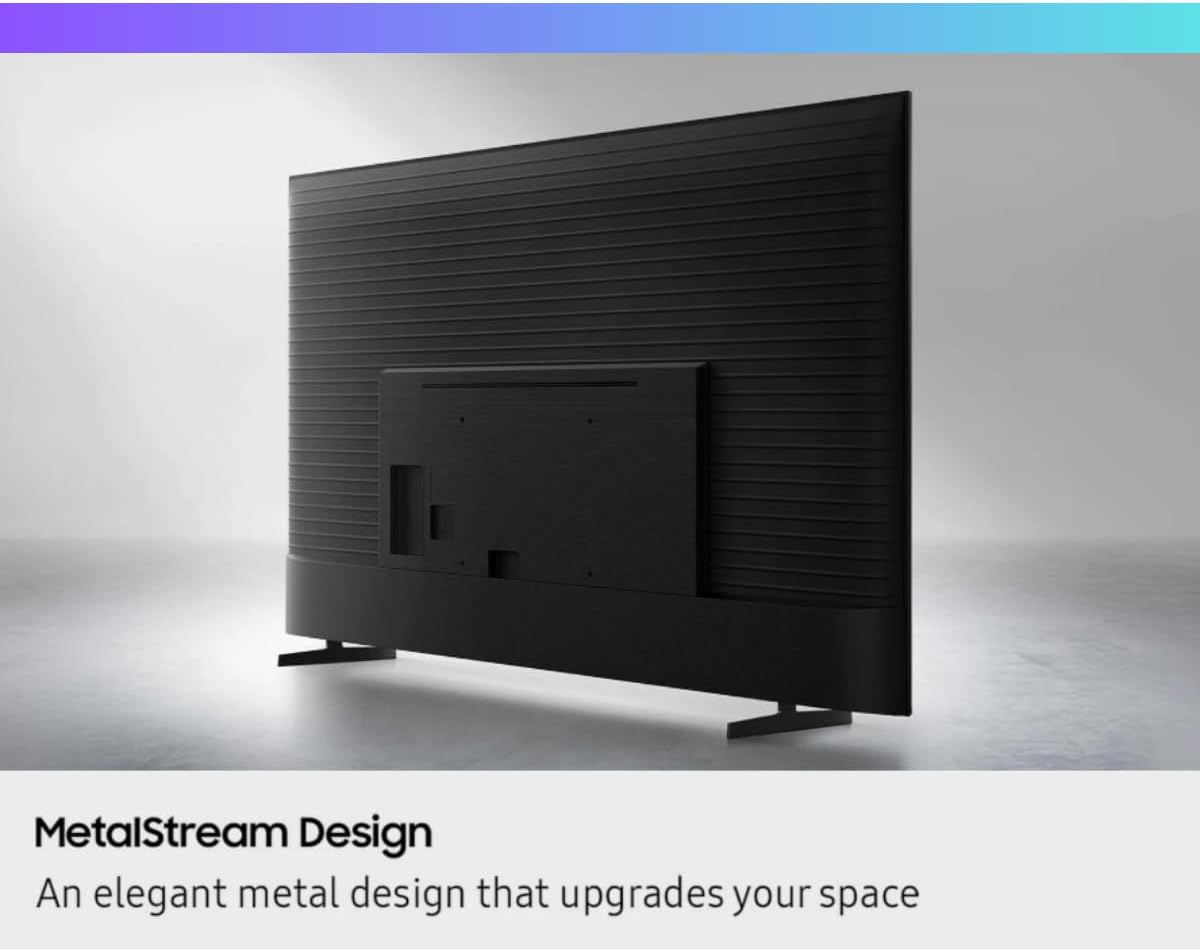
Image: A close-up view of the Samsung Crystal Processor 4K chip, emphasizing its role in 3D color mapping and upscaling for a clear picture.
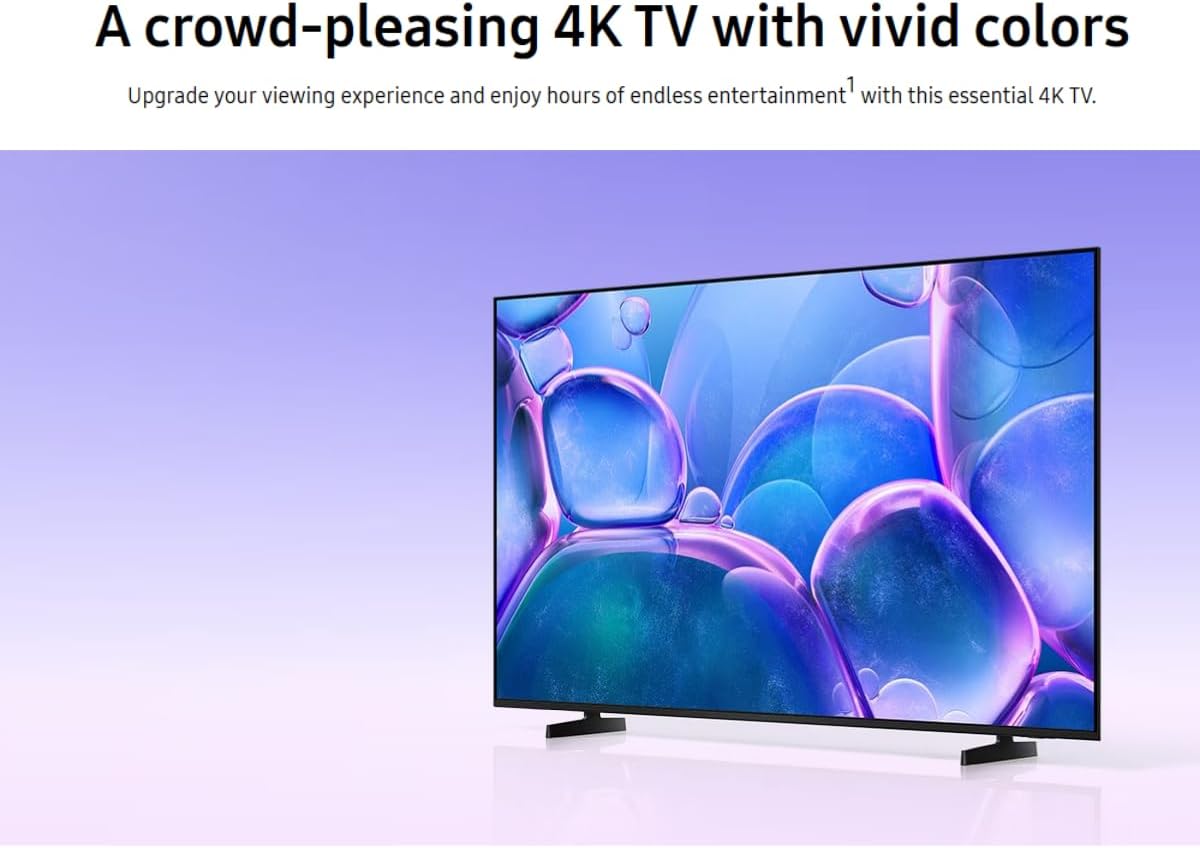
Image: A visual representation of a motocross rider in motion, illustrating how Motion Xcelerator 60Hz, Film Mode, AI Upscale, and Color Booster contribute to a clear picture and smooth motion in games and sports.
5.4 Samsung Gaming Hub
The Samsung Gaming Hub provides a centralized platform for accessing cloud gaming services and connected consoles. It supports features like Auto Low Latency Mode (ALLM) and Variable Refresh Rate (VRR) via HDMI 2.1 for a smoother gaming experience.
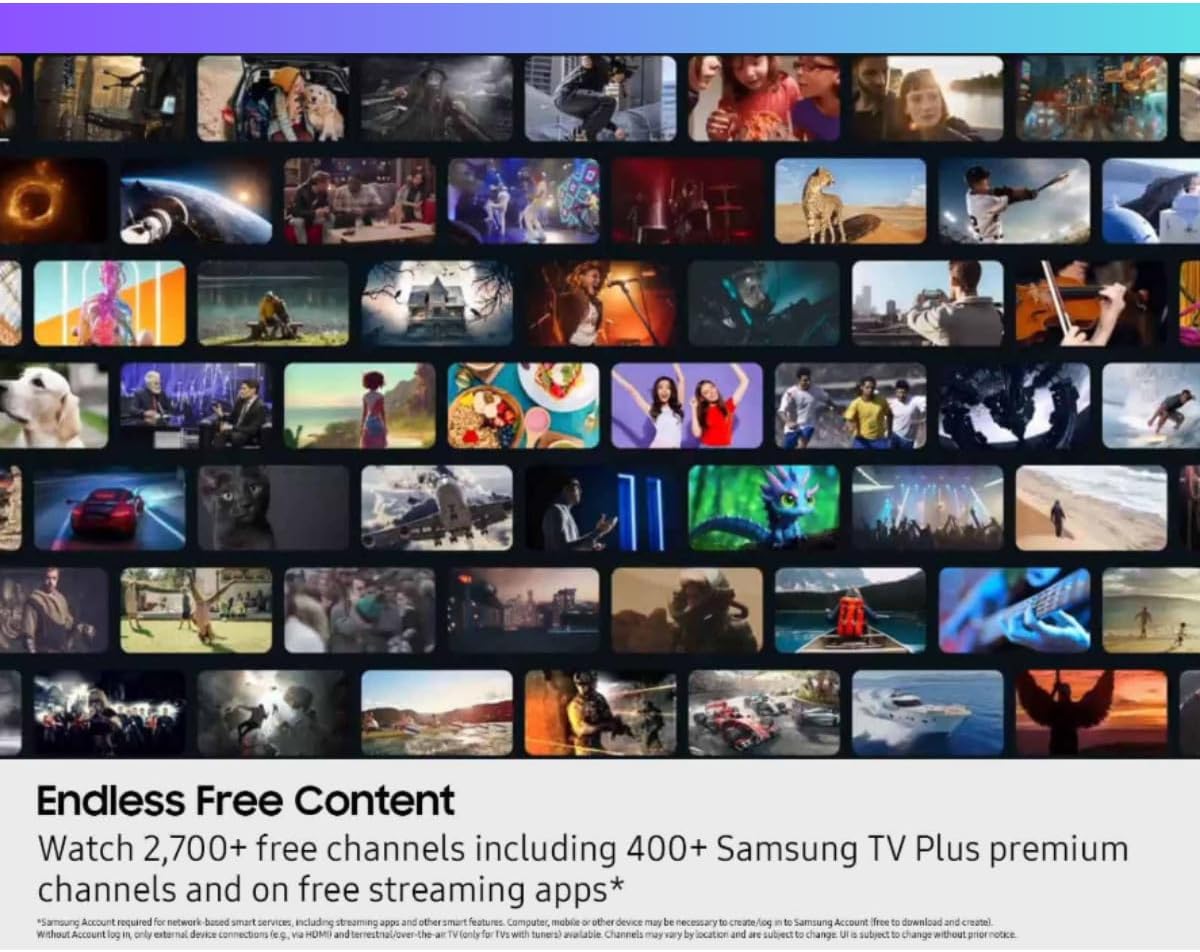
Image: The Samsung Gaming Hub interface, showcasing a selection of game titles and integrated platforms like Xbox, GeForce Now, and Twitch, accessible directly from the TV.
5.5 Ambient Mode+
When the TV is off, Ambient Mode+ can transform the screen into a decorative feature. Choose from customizable art galleries, display useful information, or blend the TV into its surroundings by matching the wall color.
6. Maintenance
- Cleaning the Screen: Gently wipe the screen with a soft, lint-free cloth. For stubborn marks, lightly dampen the cloth with water. Avoid harsh chemicals.
- Cleaning the TV Body: Use a soft, dry cloth to wipe the TV's frame and back.
- Software Updates: Ensure your TV's software is up to date for optimal performance and security. You can usually check for updates in the TV's settings menu.
7. Troubleshooting
If you encounter issues with your TV, refer to the following common problems and solutions:
- No Power: Check if the power cable is securely connected to both the TV and the wall outlet. Ensure the outlet is functional.
- No Picture/Sound: Verify that the correct input source is selected. Check all cable connections (HDMI, antenna). Restart connected devices.
- Remote Control Not Working: Replace the batteries. Ensure there are no obstructions between the remote and the TV's sensor.
- Network Connection Issues: Restart your router and modem. Check Wi-Fi password. If using Ethernet, ensure the cable is properly connected.
- Picture Quality Issues: Adjust picture settings. Ensure the content source is high quality.
For more complex issues, consult the Samsung support website or contact customer service.
8. Specifications
| Feature | Specification |
|---|---|
| Brand | Samsung |
| Model | U7900F |
| Screen Size | 50 Inches (127 cm) |
| Display Technology | LED |
| Resolution | 4K UHD (3840 x 2160) |
| Refresh Rate | 60 Hz (Native) |
| HDR Support | HDR10+ |
| Processor | Crystal Processor 4K |
| Operating System | Tizen OS 6.5 |
| Connectivity | Bluetooth, Ethernet, Wi-Fi (Dual-band Wi-Fi 5, Bluetooth 5.2) |
| HDMI Ports | 1x HDMI 2.1 (4K@120Hz, eARC), 2x HDMI 2.0 |
| USB Ports | Yes |
| Speaker Output | 20W with Object Tracking Sound Lite |
| Dimensions (WxHxD) | 47.4" x 29.9" x 5.6" (approx.) |
| Item Weight | 31 Pounds |
| Special Features | Smartphone Remote App, Ambient Mode+, Gaming Hub |
9. Warranty and Support
For warranty information, please refer to the documentation provided with your purchase or visit the official Samsung support website. As this product is renewed, specific warranty terms may vary. For technical assistance, troubleshooting guides, or to contact customer service, please visit www.samsung.com/us/support/.