
1. Introduction
Thank you for choosing the KQC Portable Monitor K156-1. This manual provides essential information for setting up, operating, and maintaining your new portable display. Please read this manual thoroughly before use to ensure proper functionality and to maximize your experience.

Image 1.1: KQC Portable Monitor K156-1, showcasing its 15.6-inch FHD 1080P IPS HDR display.
2. Product Overview
2.1 Key Features
- Display: 15.6-inch Full HD (1920x1080) IPS panel with HDR support and a 178° wide viewing angle.
- Eye Care: Features low blue light technology to reduce eye strain during extended use.
- Connectivity: Equipped with two USB-C ports and one Mini HDMI port for versatile device connections.
- Portability: Ultra-slim design, weighing approximately 2.2 pounds (1.37 lbs as per some images), making it easy to transport.
- Integrated Stand: Built-in adjustable kickstand allows for flexible viewing angles from 0 to 100 degrees.
- Audio: Dual built-in speakers provide audio output.
- Mounting: VESA mountable for alternative setup configurations.

Image 2.1: The KQC Portable Monitor K156-1 showcasing its 1080P FHD IPS HDR panel for true-to-life visuals.

Image 2.2: Comparison highlighting the KQC monitor's superior color depth, contrast ratio (1000:1), 178° view angle, 250 Nits brightness, 16.7 million colors, and 72% sRGB.
2.2 Monitor Components
Familiarize yourself with the ports and buttons on your KQC Portable Monitor:

Image 2.3: Side view of the KQC Portable Monitor K156-1, illustrating the Mini HDMI port, Full Function USB-C Port (for power, video, audio), 3.5mm Headphone Jack, Power Button, Brightness +/- Button, Volume +/- Button, and OSD Button.
- Mini HDMI Port: For video and audio input from devices supporting HDMI.
- Full Function USB-C Port (x2): Supports power, video, and audio transmission via a single USB-C cable for compatible devices (e.g., Thunderbolt 3/4).
- 3.5mm Headphone Jack: For connecting external headphones or speakers.
- Power Button: To turn the monitor on/off.
- Brightness +/- Buttons: To adjust screen brightness.
- Volume +/- Buttons: To adjust speaker volume.
- OSD Button: To access and navigate the On-Screen Display menu for advanced settings.
3. Setup Instructions
3.1 Initial Placement
Unfold the integrated kickstand on the back of the monitor to position it at your desired viewing angle. The stand supports angles from 0 to 100 degrees.

Image 3.1: The KQC Portable Monitor K156-1 highlighting its ultra-thin (0.4 inches) and lightweight (1.37 pounds) design, along with the adjustable kickstand and VESA mount compatibility.
3.2 Connecting to Devices
The KQC Portable Monitor offers flexible connectivity options:
- USB-C Connection (Single Cable): If your device (laptop, smartphone, Switch) has a full-featured USB-C port (supporting DisplayPort Alternate Mode and power delivery), you can connect the monitor using a single USB-C to USB-C cable. This cable will provide both power and display signal.
- Mini HDMI Connection: For devices with an HDMI output (e.g., PS, Xbox, PC, older laptops), connect the monitor using a Mini HDMI to HDMI cable. In this setup, the monitor will require external power via a USB-C power adapter (5V/2A recommended) connected to one of the monitor's USB-C ports.
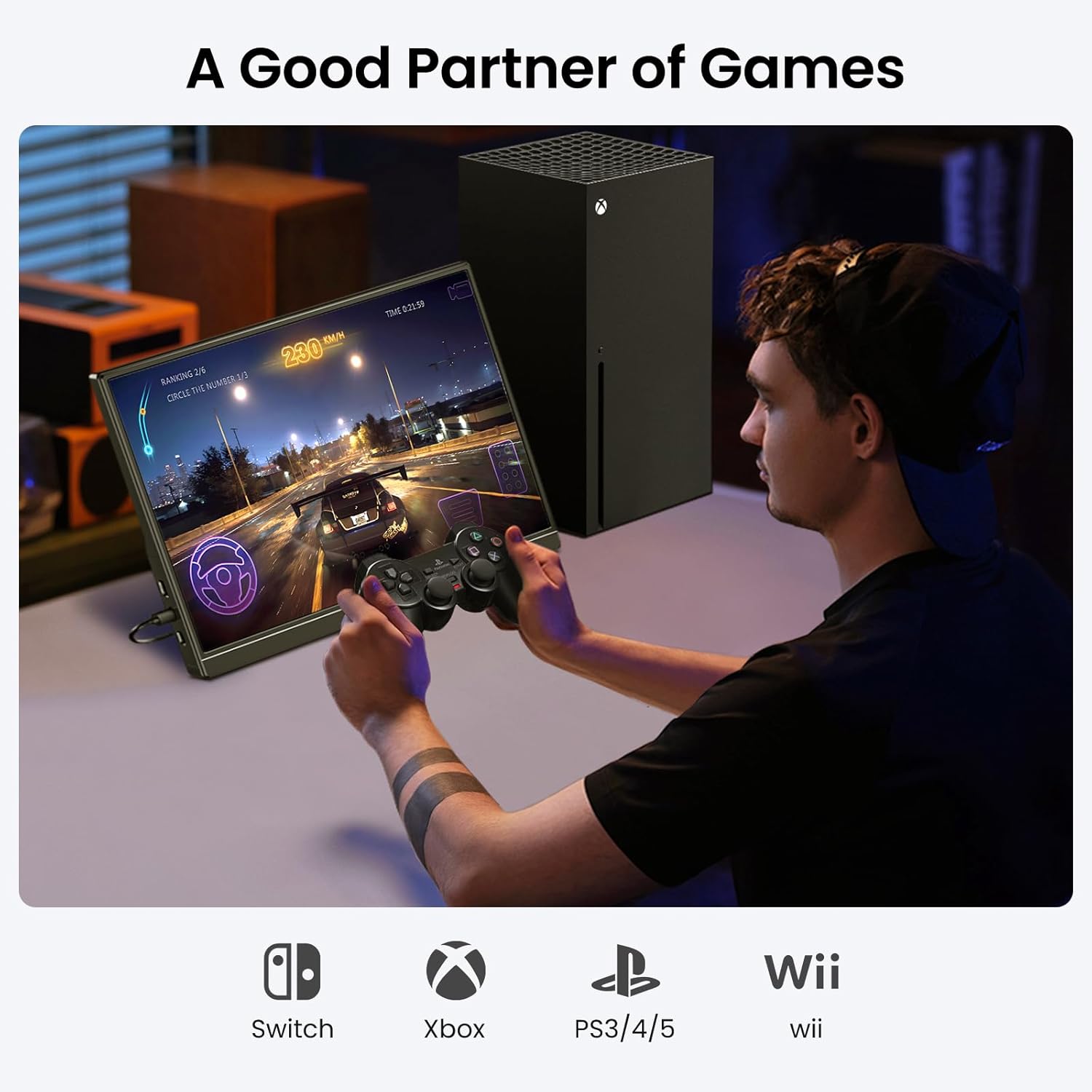
Image 3.2: Diagram illustrating connection methods: USB Type-C for single-cable connection (power, video, audio) and USB-A & HDMI for devices requiring separate power.
After connecting, power on the monitor using the Power Button. Your device should automatically detect the external display. If not, you may need to adjust display settings on your source device.
4. Operating Instructions
4.1 Display Modes
The monitor supports various display modes to suit your needs:
- Extend Mode: Expands your desktop across both screens, providing more workspace.
- Duplicate Mode (Copy Mode): Mirrors your primary screen's content onto the portable monitor.
- Second Screen Mode: Displays content only on the portable monitor, turning off the primary screen.
These modes can typically be configured through your operating system's display settings (e.g., Windows Display Settings, macOS System Preferences).
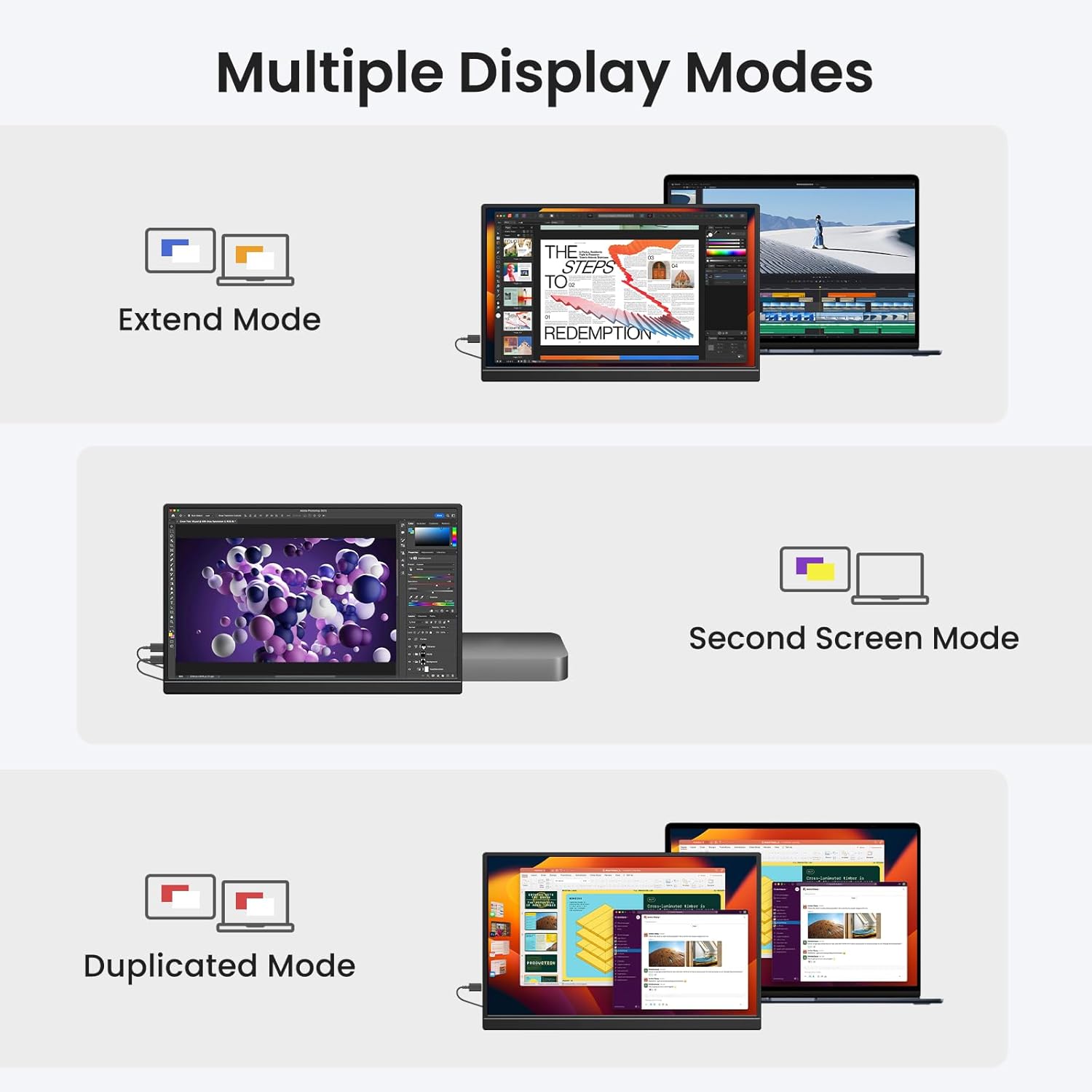
Image 4.1: Visual representation of Extend Mode, Second Screen Mode, and Duplicated Mode for enhanced productivity.
4.2 On-Screen Display (OSD) Menu
Press the OSD Button to access the monitor's settings menu. Use the Brightness +/- and Volume +/- buttons to navigate and adjust settings such as:
- Brightness and Contrast
- Color Temperature
- HDR Mode (On/Off)
- Aspect Ratio
- Input Source Selection
- Volume Control
4.3 Orientation
The screen can be used in both landscape and portrait orientations. Adjust the orientation through your connected device's display settings.
5. Connectivity and Compatibility
The KQC Portable Monitor is designed for broad compatibility:
- Laptops & Mac: Connect via USB-C (full-featured) or Mini HDMI.
- Smartphones: Compatible with many Android phones supporting DisplayPort Alternate Mode via USB-C.
- Gaming Consoles: Connects to PlayStation (PS), Xbox, and Nintendo Switch via Mini HDMI.
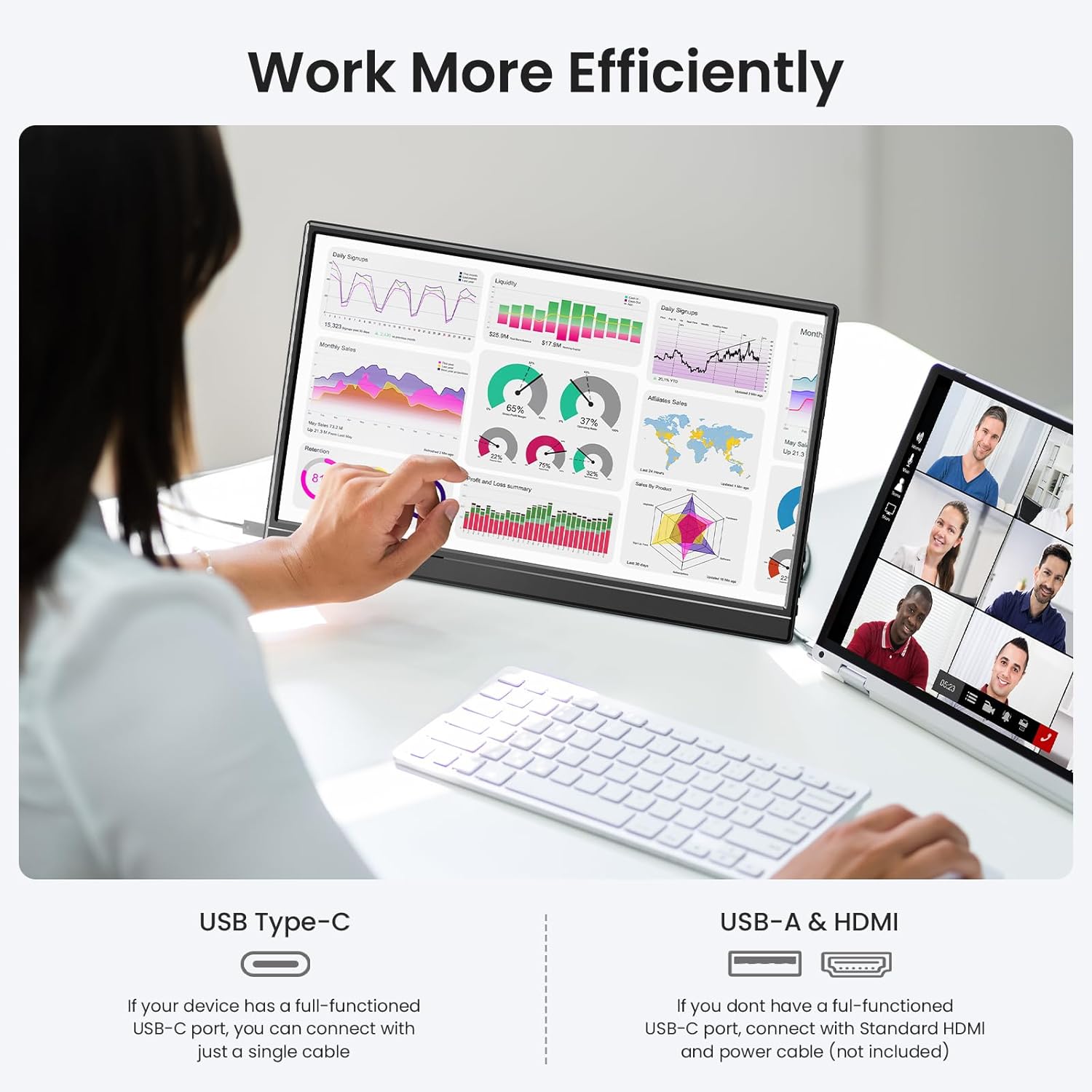
Image 5.1: The KQC Portable Monitor K156-1 serving as a gaming display for an Xbox, also compatible with Switch, PS3/4/5, and Wii.
6. Maintenance
6.1 Cleaning the Screen
To clean the screen, gently wipe it with a soft, lint-free cloth. For stubborn marks, slightly dampen the cloth with water or a non-abrasive screen cleaner. Avoid using harsh chemicals or abrasive materials.
6.2 General Care
- Avoid exposing the monitor to extreme temperatures, direct sunlight, or high humidity.
- Do not place heavy objects on the monitor.
- Store the monitor in a protective sleeve or case when traveling to prevent scratches and damage.
7. Troubleshooting
If you encounter issues with your KQC Portable Monitor, refer to the following common problems and solutions:
- Monitor does not power on or stay on: Ensure the monitor is receiving sufficient power. If using Mini HDMI, connect a 5V/2A (or higher) power adapter to one of the USB-C ports. If using USB-C, ensure your source device's USB-C port supports power delivery.
- No signal:
- Verify that the cables are securely connected to both the monitor and the source device.
- Check the input source setting in the OSD menu to ensure the correct input (USB-C or HDMI) is selected.
- Ensure your source device's display output is enabled and configured correctly.
- No sound from monitor speakers:
- Increase the monitor's volume using the Volume + button.
- Check your source device's audio output settings to ensure audio is being sent to the portable monitor.
- Ensure no headphones are connected to the 3.5mm jack, which would mute the internal speakers.
- Image is distorted or flickering:
- Try a different cable.
- Adjust the resolution or refresh rate on your source device.
- Ensure the monitor is receiving stable power.
8. Specifications
| Feature | Specification |
|---|---|
| Model Number | K156-1 |
| Screen Size | 15.6 Inches |
| Panel Type | IPS |
| Resolution | 1920 x 1080 (FHD 1080p) |
| Aspect Ratio | 16:9 |
| Screen Surface | Matte |
| Contrast Ratio | 1000:1 |
| Viewing Angle | 178° |
| Brightness | 250 Nits |
| Connectivity | 2x Full Function USB-C, 1x Mini HDMI, 1x 3.5mm Audio Jack |
| Product Dimensions | 14.21 x 0.63 x 10.12 inches |
| Item Weight | 2.2 pounds |
| Manufacturer | KQC |
9. Warranty and Support
KQC products are designed for reliability and performance. For information regarding warranty coverage, technical support, or service inquiries, please refer to the warranty card included with your product or visit the official KQC website. Please retain your proof of purchase for warranty claims.


