
1. Introduction
The BAOFENG UV-5R Mini is a compact, dual-band walkie-talkie designed for reliable communication. It features app programming, frequency copying, NOAA weather alerts, and adjustable power output. This manual provides essential information for the safe and efficient use of your radio.
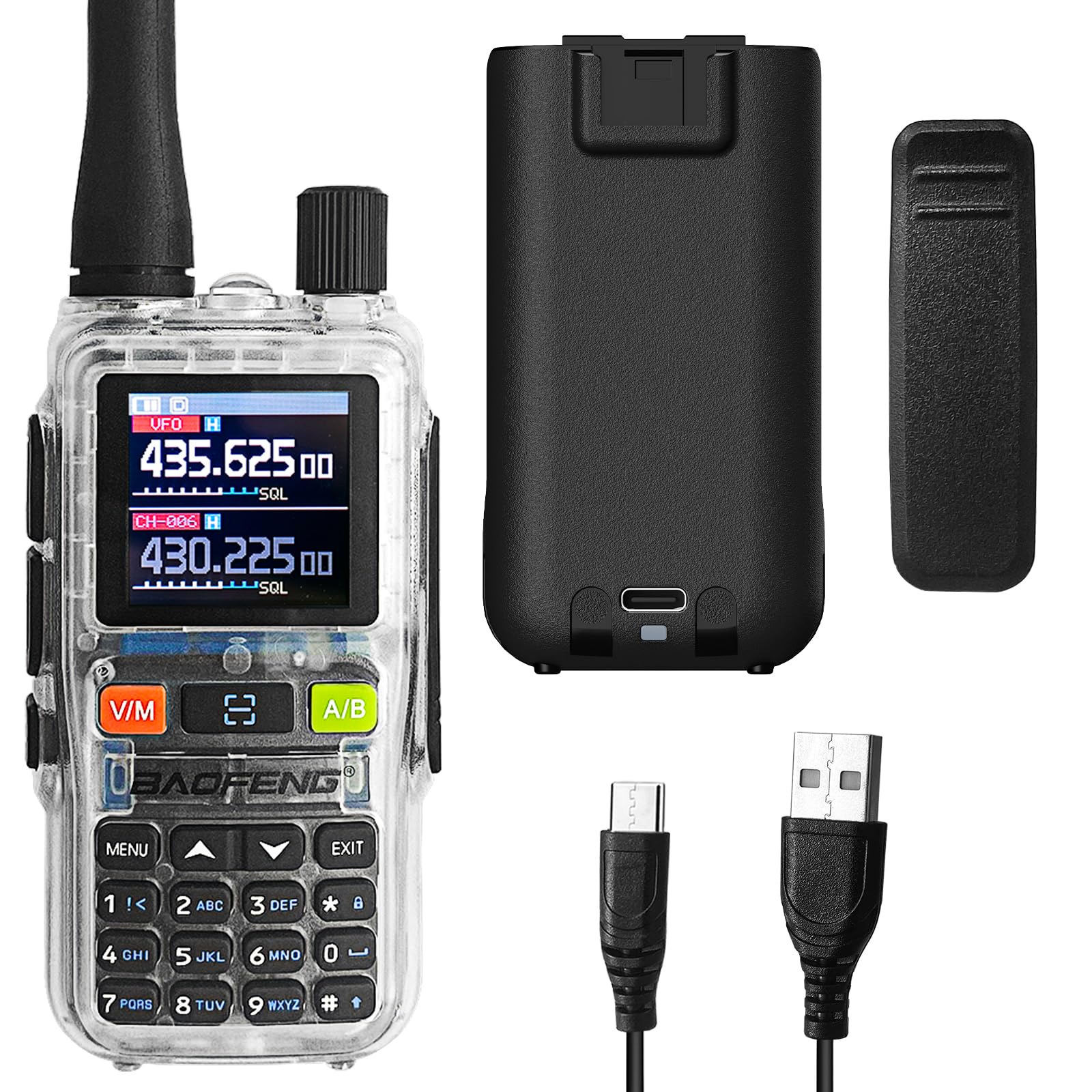
Figure 1: BAOFENG UV-5R Mini Radio. This image shows the front of the radio with its display and keypad.
2. Package Contents and Device Overview
2.1 Package Contents
Ensure all items are present in your package:
- BAOFENG UV-5R Mini Radio
- Antenna
- Battery
- Belt Clip
- USB-C Charging Cable
- User Manual
2.2 Device Overview

Figure 2: Front view of the radio with key components labeled, including Antenna, Flashlight, Volume Power Knob, LED Indicator, PTT-A Button, PTT-B Button, Screen, Accessory Port, A/B button, Microphone, Monitor button, Search/Flashlight button, V/M-VFO/MR button, and Numeric Keypad.

Figure 3: Side view of the radio, showing the PTT buttons and accessory port.

Figure 4: Back view of the radio, highlighting the USB-C charging port.
3. Setup
3.1 Battery Installation and Charging
- Align the battery with the compartment on the back of the radio and slide it into place until it clicks.
- To charge, connect the provided USB-C cable to the radio's USB-C port and a compatible power source (e.g., computer, wall adapter, power bank, car charger).
- The LED indicator will show charging status. A full charge typically takes several hours.

Figure 5: The radio can be charged via USB-C from multiple sources, including a computer, wall plug, power bank, or car charger.
3.2 Antenna and Belt Clip Attachment
- Screw the antenna clockwise onto the connector at the top of the radio until it is finger-tight. Do not overtighten.
- Attach the belt clip to the designated slot on the back of the radio by sliding it down until it locks securely.
4. Basic Operation
4.1 Power On/Off and Volume Control
- To power on, rotate the Volume Power Knob clockwise.
- To power off, rotate the Volume Power Knob counter-clockwise until it clicks.
- Adjust the volume by rotating the Volume Power Knob.
4.2 Channel Selection and Frequency Mode
- Use the V/M button to switch between Frequency (VFO) mode and Channel (MR) mode.
- In Channel mode, use the up/down arrow keys to select a channel.
- In Frequency mode, enter frequencies directly using the numeric keypad.
4.3 Transmitting and Receiving
- Press and hold the PTT-A or PTT-B button to transmit. Speak clearly into the microphone.
- Release the PTT button to receive.
- The radio supports dual-band TX/RX and dual standby, allowing monitoring of two frequencies simultaneously.
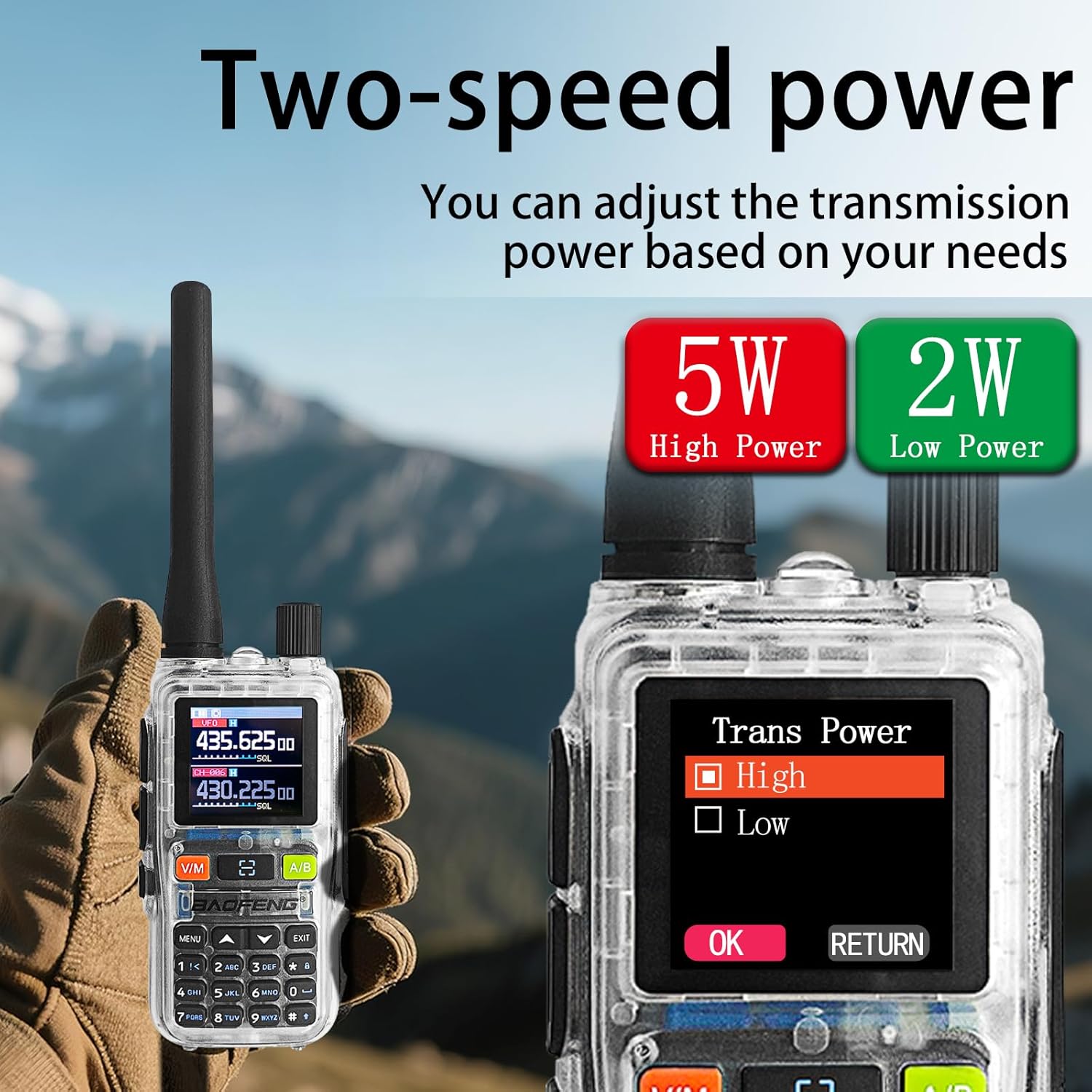
Figure 6: The radio's display showing two active frequencies for dual-frequency standby, with the PTT A/B buttons highlighted.
4.4 NOAA Weather Alerts
- The radio can receive NOAA weather alerts. Refer to the menu settings for activating and configuring NOAA channels.

Figure 7: The radio supports NOAA Weather Alerts, providing critical weather information.
4.5 Adjustable Power Output
- The radio supports adjustable power output (5W/2W). This can be configured through the menu or app.
- Higher power (5W) provides greater range, while lower power (2W) conserves battery life.
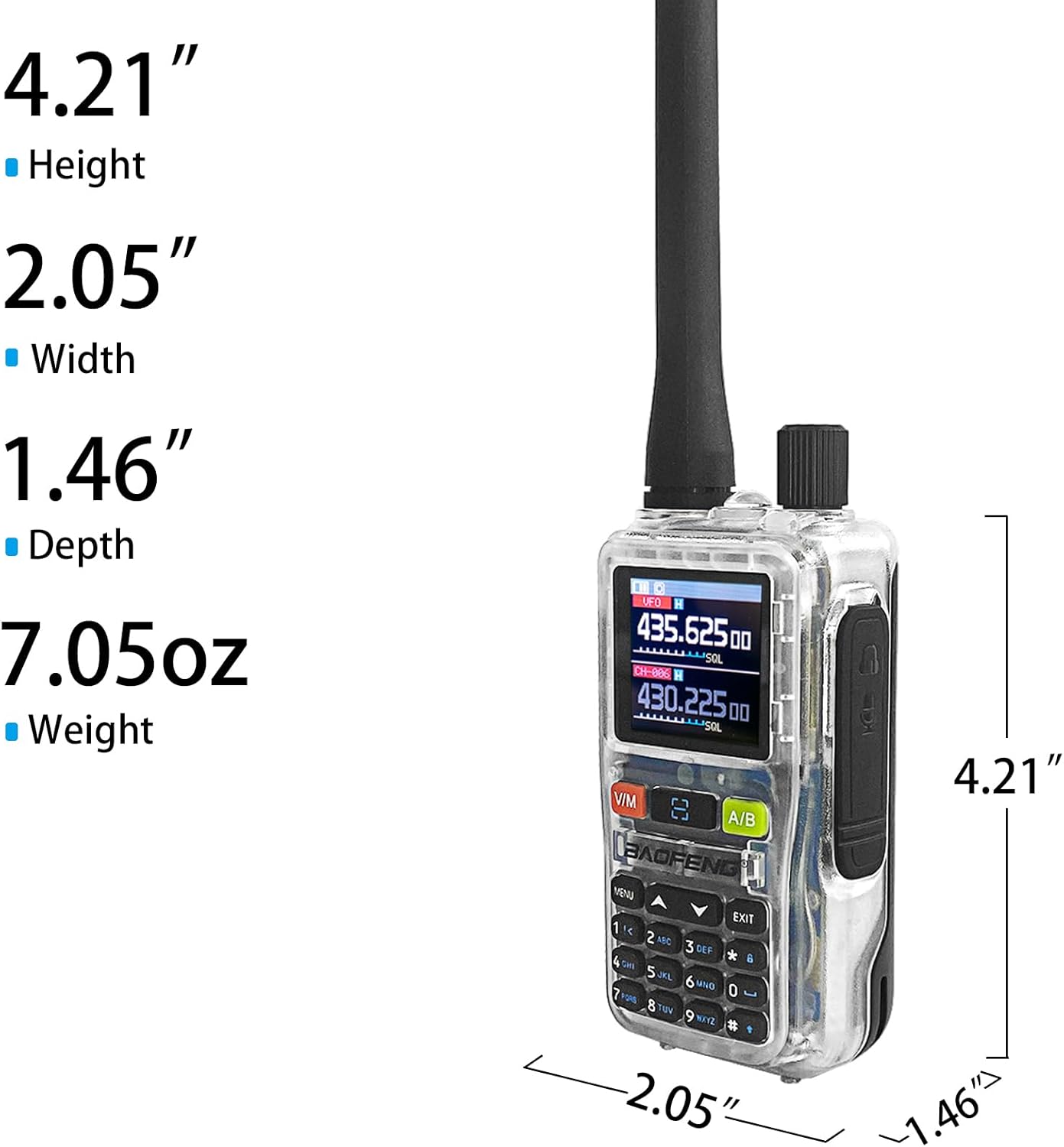
Figure 8: The radio offers adjustable transmission power, with options for 5W (High Power) and 2W (Low Power).
5. Advanced Features and Programming
5.1 App Programming (Ola Radio)
The BAOFENG UV-5R Mini can be programmed using the Ola Radio app on iOS or Android devices. This allows for efficient batch updates and configuration of multiple devices.
- Download the "Ola Radio" app from your device's app store.
- Enable "Wireless Cps" in the radio's menu (MENU > Wireless Cps > ON).
- Open the app and connect to your radio.
- Configure channel settings, frequency mode, RX/TX CTCSS/DCS codes, and power settings within the app.
- Save and upload configurations to the radio.

Figure 9: The radio's display showing "Wireless Cps" setting and a smartphone screen displaying the Ola Radio app for programming.
Video 1: Overview of the BAOFENG UV-5R Mini Transparent Radio, demonstrating its features and compact design.
Video 2: Demonstration of the BAOFENG UV-5R Mini Radio, highlighting its dual-band capabilities and walkie-talkie functions.
5.2 One-Key Frequency Pairing
The radio supports one-key frequency pairing to quickly synchronize frequencies between two radios.
- Ensure both radios are powered on.
- On the transmitting radio, long-press the scan button (often labeled with a magnifying glass icon or similar).
- The radio will enter search mode and automatically detect the frequency of another nearby radio.
- Once detected, you can save the frequency to a channel.

Figure 10: Two radios shown side-by-side, illustrating the process of one-key frequency pairing by long-pressing the scan button.
5.3 Customizable Side Key (SK1)
The SK1 side key can be assigned to various functions for quick access:
- Flashlight: Activates the built-in flashlight.
- VOX: Enables Voice Operated Exchange for hands-free transmission.
- Alarm: Activates an emergency alarm.
- Scan: Initiates channel or frequency scanning.
Refer to the radio's menu for customizing the SK1 function.

Figure 11: The radio's flashlight function is shown in use, useful for dark environments.
6. Maintenance
6.1 Cleaning
- Wipe the radio with a soft, damp cloth. Do not use harsh chemicals or abrasive cleaners.
- Ensure the USB-C port is free of dust and debris.
6.2 Battery Care
- Charge the battery fully before first use.
- Avoid overcharging or completely draining the battery to prolong its lifespan.
- Store the radio and battery in a cool, dry place when not in use for extended periods.
6.3 General Care
- The radio is not water-resistant. Avoid exposure to water or high humidity.
- Do not expose the radio to extreme temperatures.
- Handle the antenna carefully to prevent damage.
7. Troubleshooting
| Problem | Possible Cause | Solution |
|---|---|---|
| Radio does not power on. | Battery is low or not installed correctly. | Charge the battery. Reinstall the battery securely. |
| Cannot transmit or receive. | Incorrect frequency/channel, low battery, or out of range. | Verify frequency/channel settings. Charge battery. Move closer to other radios. |
| Poor audio quality. | Weak signal, incorrect squelch setting, or damaged antenna. | Adjust squelch level. Check antenna connection. Move to an area with better signal. |
| App programming fails. | "Wireless Cps" not enabled on radio, or app connection issue. | Ensure "Wireless Cps" is ON in radio menu. Restart app and radio. Check Bluetooth connection. |
8. Specifications
| Feature | Detail |
|---|---|
| Brand | BAOFENG |
| Model Number | UV-5R Mini |
| Number of Channels | 999 |
| Frequency Range | 136-174MHz, 400-520MHz |
| Power Output | 5W/2W (adjustable) |
| Talking Range Maximum | 5 Kilometer |
| Voltage | 12 Volts (DC) |
| Charging | USB-C Fast Charging |
| Display | 1.44" TFT Screen |
| Water Resistance Level | Not Water Resistant |
| Included Components | Antenna, Battery, Belt Clip |

Figure 12: Physical dimensions of the BAOFENG UV-5R Mini Radio: Height 4.21", Width 2.05", Depth 1.46", Weight 7.05oz.
9. Warranty & Support
9.1 Warranty Information
This BAOFENG UV-5R Mini Radio comes with a 1-year warranty from the date of purchase. This warranty covers manufacturing defects and malfunctions under normal use. It does not cover damage caused by misuse, accidents, unauthorized modifications, or natural disasters.
Please retain your proof of purchase for warranty claims.
9.2 Customer Support
For technical assistance, troubleshooting, or warranty inquiries, please contact BAOFENG customer support through the retailer where the product was purchased or visit the official BAOFENG website for contact information.


