
Introduction
This manual provides detailed instructions for setting up and operating your EVATEK Wireless HDMI Transmitter and 2 Receivers kit. This system is designed to transmit high-definition audio and video signals wirelessly to two separate displays, eliminating the need for long HDMI cables. It supports simultaneous streaming of 4K content to a primary display and 1080P/60Hz HD to a secondary screen, with automatic resolution adjustment.
Key Features:
- One-to-Two Wireless HDMI Solution: Connect one transmitter to your source device and two receivers to two separate displays (TVs, projectors, monitors) for simultaneous content sharing.
- Effortless 1080P HD, Plug & Play: Enjoy crisp 1080P/60Hz HD visuals with automatic resolution adjustment. No apps, Bluetooth pairing, or Wi-Fi connections are required for setup.
- Seamless Dual-Band Performance: Utilizes 2.4G/5G technology for a stable connection up to 328ft/100m with low latency (<0.2 seconds). Supports both mirror and extend display modes.
- Portable Design: Lightweight and compact for easy transport, suitable for various environments including conference rooms, classrooms, outdoor events, and home theaters.
What's in the Box
- 1 x Wireless HDMI Transmitter
- 2 x Wireless HDMI Receivers
- USB-C to USB-A Power Cables (for receivers)
- HDMI Adapters (Micro HDMI, Mini HDMI, 4K USB-C to HDMI)
Setup Instructions
- Connect the Transmitter (TX):
Plug the Wireless HDMI Transmitter into the HDMI output port of your source device (e.g., laptop, PC, camera, set-top box). If your source device has a USB port, connect the provided USB-C power cable from the transmitter's USB-C port to the source device's USB port for power. Some laptops may power the transmitter directly via HDMI without the additional USB power cable.

Image: The Wireless HDMI Transmitter (TX) connected to a laptop, wirelessly sending content to two large display screens in a modern meeting room setup. This illustrates the dual-display capability for business presentations.
- Connect the Receivers (RX):
Plug each Wireless HDMI Receiver into an available HDMI input port on your display devices (e.g., TV, projector, monitor). Connect the provided USB-C power cable from each receiver's USB-C port to a USB port on its respective display device for power. Most TVs have USB ports that can supply sufficient power.

Image: A diagram showing the wide compatibility of the Wireless HDMI system. The Transmitter (TX) connects to HDMI input devices (laptop, PC, STB, camera), and the Receiver (RX) connects to HDMI output devices (projector, monitor, portable display, HD TV).
- Power On and Pairing:
Ensure both the transmitter and receivers are powered on. The devices are pre-paired from the factory. They should automatically connect within a few seconds. The status indicator lights on the devices will confirm successful pairing (e.g., solid light after flashing).
If pairing is not automatic, you may need to manually pair them. Refer to the troubleshooting section for manual pairing instructions.
- Select Input on Displays:
On your display devices, select the correct HDMI input source to which the receivers are connected.
Operating Instructions
Display Modes:
- Mirror Mode: Your source device's screen content will be duplicated on both connected displays.
- Extend Mode: Your source device's screen can be extended across the connected displays, providing a larger workspace. This mode is typically configured through your computer's display settings.
Resolution Adjustment:
The system automatically adjusts the resolution based on the connected displays. It supports 4K streaming to the primary display and 1080P/60Hz HD to the secondary screen.
Signal Stability:
For optimal performance, ensure a clear line of sight between the transmitter and receivers. Obstacles can shorten the transmission distance and affect signal quality.
Product Media
Product Images:

Image: This image shows the versatility of the EVATEK Wireless HDMI kit, enabling a multi-room entertainment system. A family is shown enjoying a movie projected onto a large outdoor screen, with the laptop wirelessly connected to the projector via the HDMI transmitter. Another screen inside the house also displays the same content, highlighting simultaneous streaming.

Image: The Wireless HDMI system is depicted in a bar setting, showcasing its ability to display live sports on multiple screens simultaneously. A laptop is wirelessly connected to two TVs, allowing patrons to watch the same event from different vantage points.
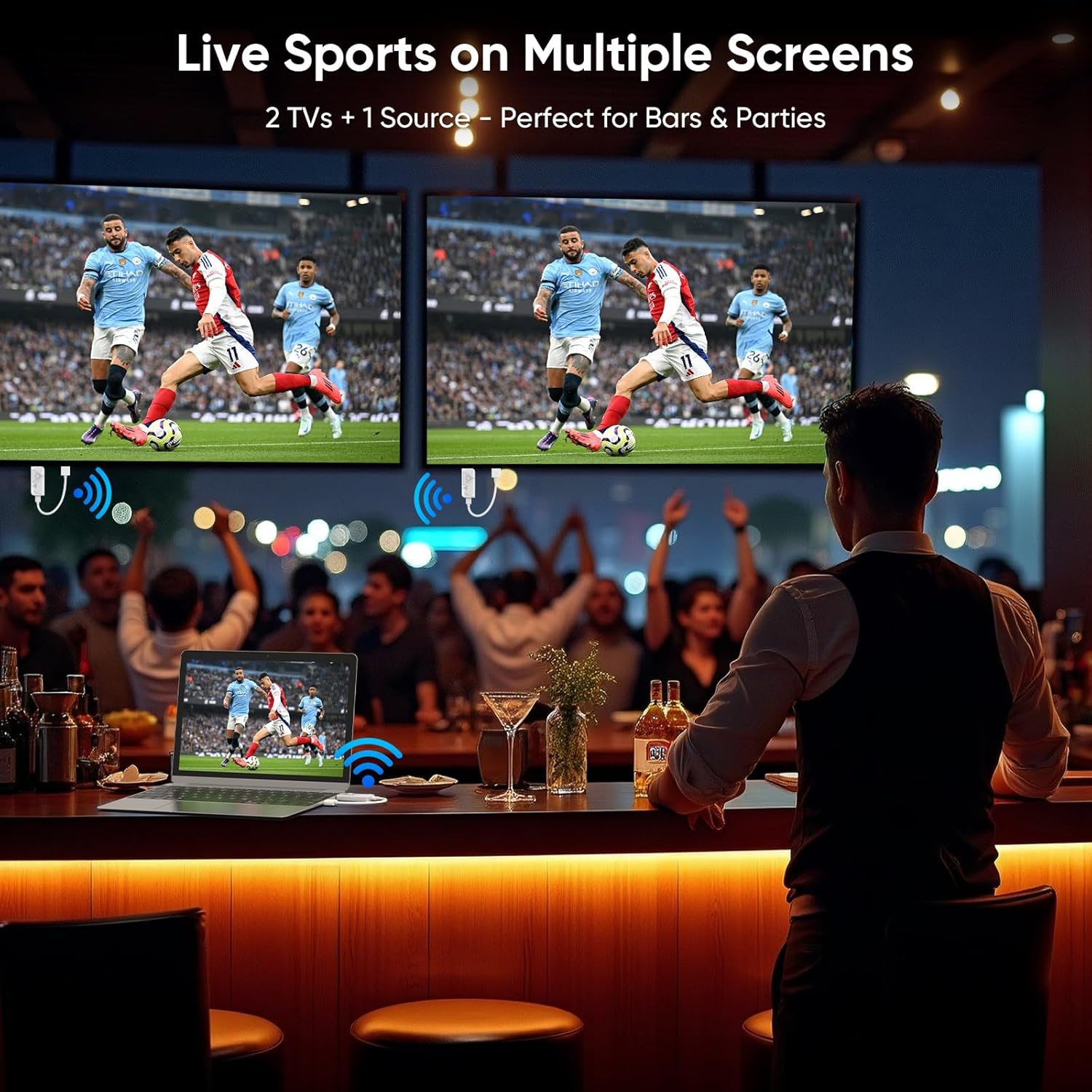
Image: This visual comparison highlights the benefit of the wireless HDMI system. The top panel shows a cluttered desk with a laptop connected to two monitors via multiple cables. The bottom panel shows the same setup, but with the wireless HDMI transmitter and receivers, resulting in a clean, cable-free workspace.
Official Product Videos:
Video: This video demonstrates how to quickly pair the HDMI transmitter and receiver if they disconnect. It shows the process of holding the pair button and powering the devices, with indicator lights confirming successful pairing.
Video: This video illustrates the usage of the wireless HDMI system with one transmitter and two receivers, demonstrating its capability for dual-screen output.
Troubleshooting
- No Signal/Black Screen:
- Ensure both the transmitter and receivers are properly powered via their USB-C ports. Some home devices may require a dedicated charger if their USB ports do not provide sufficient power.
- Verify that the HDMI cables are securely connected to both the source device and the displays.
- Check that the correct HDMI input source is selected on your displays.
- Try manually re-pairing the devices: Hold the "Pair" button on both the transmitter and receiver simultaneously until the status indicator lights flash, then release. They should re-establish connection.
- Intermittent Connection/Poor Quality:
- Reduce the distance between the transmitter and receivers. The maximum range is 328ft/100m, but obstacles (walls, furniture) can significantly reduce this.
- Ensure there are no major obstructions blocking the signal path.
- Minimize interference from other wireless devices operating on 2.4G/5G frequencies.
- Overheating:
It is normal for the devices to get warm during operation. If they become excessively hot and cause connection issues, ensure they have adequate ventilation and are not covered. Disconnect power and allow them to cool down before resuming use.
- Compatibility Issues:
- Tablets and phones require HDMI output functionality for compatibility.
- This product is a one-to-two transmission system and is not compatible with other EVATEK one-to-one devices or other brands.
Specifications
| Feature | Detail |
|---|---|
| Brand | EVATEK |
| Model Number | DT257W-H2 |
| Connectivity Technology | HDMI |
| Wireless Frequency | 2.4G/5G Dual-Band |
| Transmission Range | Up to 328ft/100m (line of sight) |
| Latency | <0.2 seconds |
| Video Resolution | Supports 4K (primary), 1080P/60Hz HD (secondary) |
| Audio Output Mode | Stereo, Surround (5.1) |
| Video Encoding | H.264, H.265/HEVC |
| Compatible Devices | Camera, Laptop, Personal Computer, Set Top Box, Television |
| Item Weight | Transmitter: 0.1lbs; Receivers: 0.08lbs each |
| Product Dimensions | 7.2 x 4.4 x 1 inches |
Warranty and Support
EVATEK provides a 24-month quality replacement service for this product. If you encounter any problems or require assistance, please contact our professional technical support team. We are committed to ensuring your satisfaction.
For further assistance, please visit the EVATEK Store on Amazon.