1. Introduction
This manual provides essential instructions for setting up, operating, and maintaining your BEYNIVAN Android 15 Tablet. Please read this guide thoroughly to ensure proper use and to maximize the performance of your device. Keep this manual for future reference.
2. Package Contents
Verify that all items listed below are present in your product package:
- BEYNIVAN Android 15 Tablet
- Detachable Keyboard
- Protective Case
- Power Adapter
- USB Charging Cable
- SIM Ejector Tool
- User Manual (this document)

Image 2.1: BEYNIVAN Android 15 Tablet with keyboard, mouse, charger, cable, and earphones.
3. Device Overview
Familiarize yourself with the physical components of your tablet.
3.1 Key Features
- Android 15 Operating System with GMS Certification
- 11-inch Immersive Display
- Octa-core Processor (Dual-core ARM Cortex-A75 up to 2.0GHz, Six-core ARM Cortex-A55 up to 1.8GHz)
- 36GB RAM (expandable) + 512GB ROM (expandable up to 1TB)
- 4G LTE and Dual-band 5G Wi-Fi Connectivity
- Bluetooth 5.2
- 9580mAh High-Capacity Battery with 20W Fast Charging
- 13MP Rear Camera and 8MP Front Camera
- GPS Navigation Support
- Face ID Unlock
- Split-Screen Functionality
- SWEET 4 Smart Audio System with 4 Amplified Stereo Speakers

Image 3.1: Overview of Android 15 features, GMS certification, and memory configuration (36GB RAM + 512GB ROM + 1TB expandable).

Image 3.2: Details on the 11-inch display, Octa-core processor (Cortex-A75, Cortex-A55), Mali G52 GPU, and 4 stereo speakers.

Image 3.3: Information on 2.4G+5G Wi-Fi, Bluetooth 5.2, straight edge metal body (539g, 8.4mm bezel), and 4-mode GPS positioning.
4. Setup
4.1 Charging the Tablet
- Connect the USB charging cable to the tablet's charging port.
- Plug the other end of the cable into the provided power adapter.
- Insert the power adapter into a wall outlet.
- The battery icon on the screen will indicate charging status. For optimal battery life, fully charge the tablet before first use.
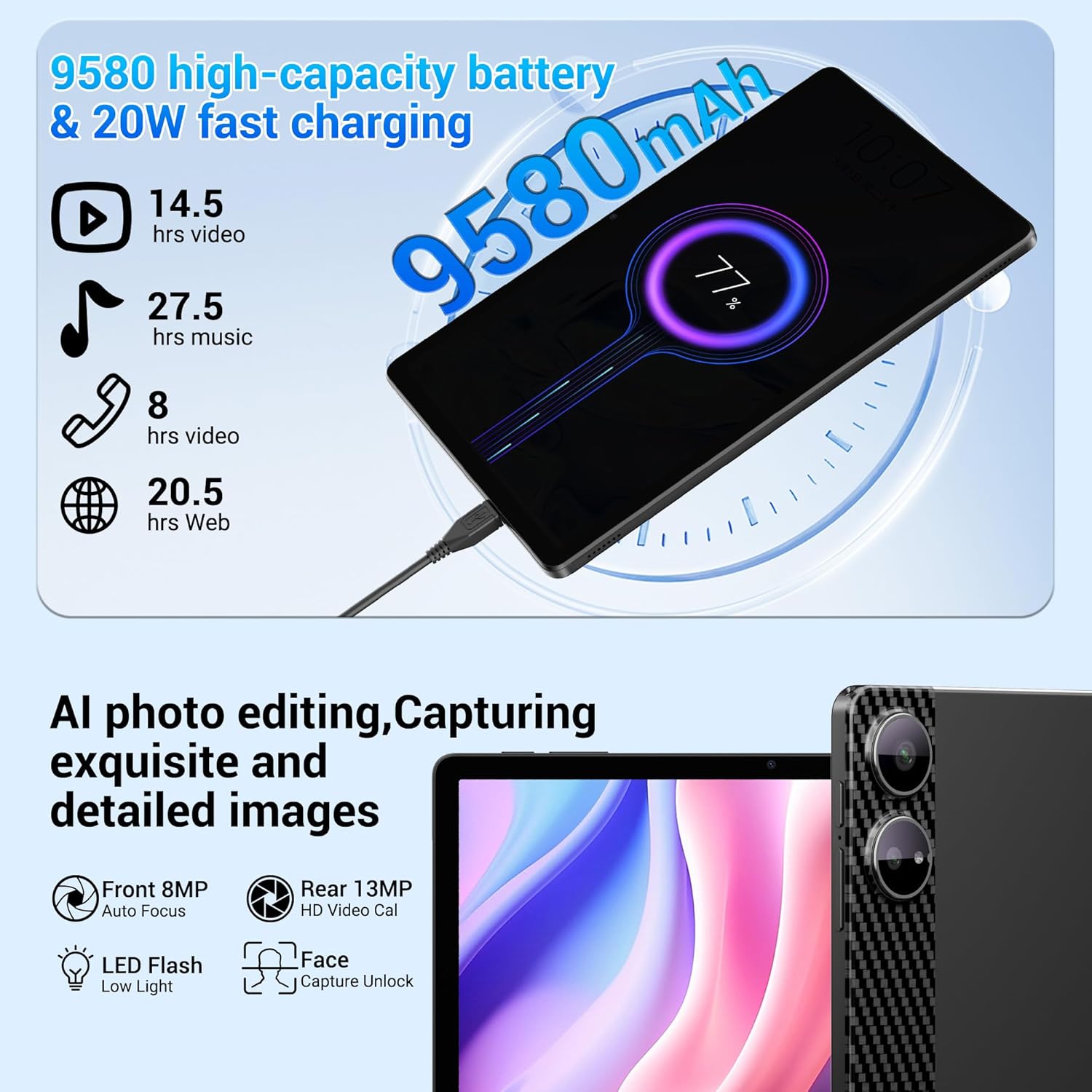
Image 4.1: Visual representation of the 9580mAh battery and 20W fast charging capability.
4.2 Inserting SIM and MicroSD Cards
- Locate the SIM/microSD card tray on the side of the tablet.
- Insert the SIM ejector tool into the small hole next to the tray and press gently until the tray pops out.
- Place your Nano-SIM card(s) and/or microSD card into the designated slots on the tray, ensuring correct orientation.
- Carefully push the tray back into the tablet until it clicks into place.
4.3 Initial Power On and Setup
- Press and hold the Power button until the BEYNIVAN logo appears.
- Follow the on-screen instructions to complete the initial setup, including language selection, Wi-Fi connection, Google account login, and security settings.
4.4 Connecting the Keyboard
Align the tablet with the magnetic connector on the keyboard case. The tablet will snap into place and automatically connect to the keyboard.
5. Operating Instructions
5.1 Basic Operations
- Power On/Off: Press and hold the Power button. Select 'Power off' or 'Restart' from the options.
- Screen Lock/Unlock: Briefly press the Power button to lock or unlock the screen.
- Volume Control: Use the Volume Up and Volume Down buttons located on the side of the tablet.
- Navigation: Use on-screen gestures (swipe, tap, pinch) or the connected keyboard and mouse for navigation.
5.2 Connectivity
- Wi-Fi: Go to Settings > Network & internet > Wi-Fi. Turn Wi-Fi on and select your desired network.
- Mobile Data (4G LTE): If a SIM card is inserted, go to Settings > Network & internet > Mobile network to enable mobile data.
- Bluetooth: Go to Settings > Connected devices > Bluetooth. Turn Bluetooth on and pair with compatible devices.
- GPS: Location services are enabled by default. You can manage them in Settings > Location.
5.3 Camera
The tablet features a 13MP rear camera and an 8MP front camera.
- Open the Camera application from the home screen or app drawer.
- Switch between front and rear cameras as needed.
- Tap the shutter button to take photos or the record button to start/stop video recording.
- The LED flash can be used in low-light conditions.
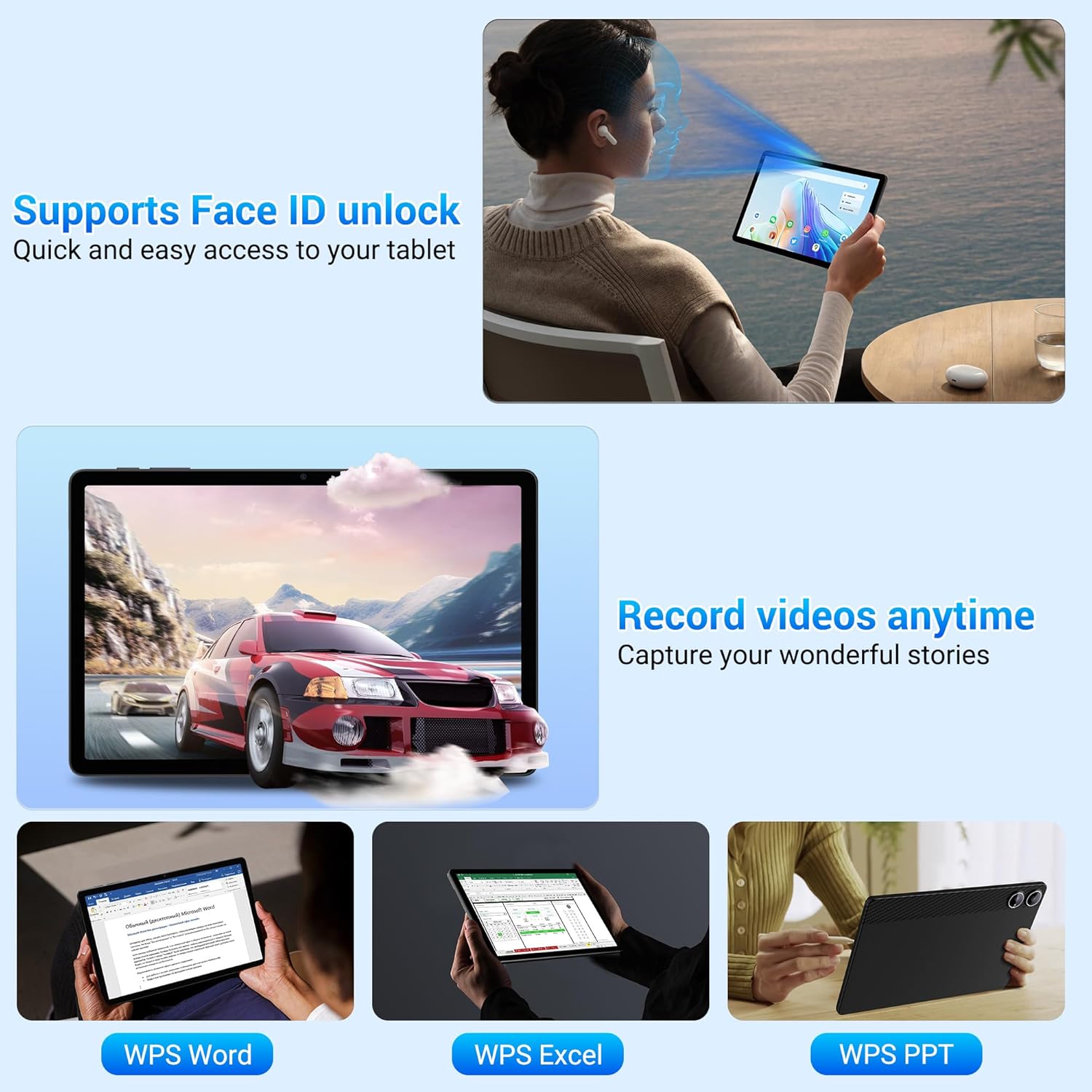
Image 5.1: Features including Face ID unlock, video recording capabilities, and pre-installed WPS Office applications (Word, Excel, PPT).
5.4 Multimedia
Enjoy audio and video content with the tablet's immersive display and quad stereo speakers.
- Use pre-installed apps or download media players from the Google Play Store to play music and videos.
- Connect Bluetooth headphones or speakers for a private listening experience.
5.5 Productivity Features
- Split-Screen: To use two apps simultaneously, open an app, then swipe up from the bottom of the screen and hold to access recent apps. Tap the app icon at the top of the window and select 'Split screen'. Choose a second app to open in the other half of the screen.
- Gemini AI: The tablet integrates Gemini AI for enhanced performance and smart features. Specific AI functionalities can be accessed through compatible applications.
- WPS Office: Pre-installed WPS Word, Excel, and PPT applications allow for document creation and editing.

Image 5.2: Illustration of multi-functional split-screen mode and diverse applications such as work, entertainment, gaming, and creative tasks.
5.6 Security
- Face ID Unlock: Set up Face ID in Settings > Security > Face Unlock. This allows you to unlock your tablet using facial recognition.
- Other Security Options: PIN, Pattern, and Password unlock methods are also available in the Security settings.
6. Maintenance
- Cleaning: Use a soft, lint-free cloth to clean the screen and body of the tablet. Avoid abrasive materials or harsh chemicals.
- Battery Care: Avoid extreme temperatures. Do not allow the battery to fully discharge frequently. Use the provided charger for optimal performance.
- Software Updates: Regularly check for system updates in Settings > System > System update to ensure your tablet has the latest features and security patches.
- Storage Management: Periodically clear unnecessary files and apps to maintain optimal performance.
7. Troubleshooting
If you encounter issues with your tablet, refer to the following common solutions:
- Tablet not powering on: Ensure the tablet is sufficiently charged. Connect it to the charger and wait a few minutes before attempting to power on again.
- Slow performance: Close unused applications, clear cache, or restart the tablet. Check for available software updates.
- Wi-Fi connection issues: Restart your Wi-Fi router and the tablet. Forget the network in tablet settings and reconnect.
- Apps crashing: Clear the app's cache and data in Settings > Apps. If the issue persists, uninstall and reinstall the app.
- Screen unresponsive: Perform a forced restart by holding the Power button for approximately 10-15 seconds.
8. Specifications
| Feature | Specification |
|---|---|
| Brand | BEYNIVAN |
| Model Number | B0FPQQZLSD |
| Operating System | Android 15 |
| Display Size | 11 Inches |
| Processor | Octa-core (Dual-core ARM Cortex-A75 up to 2.0GHz, Six-core ARM Cortex-A55 up to 1.8GHz) |
| GPU | ARM Mali G52 |
| RAM | 36GB |
| Internal Storage (ROM) | 512GB |
| Expandable Storage | Up to 1TB via microSD card |
| Battery Capacity | 9580mAh |
| Fast Charging | 20W |
| Rear Camera | 13MP |
| Front Camera | 8MP |
| Wireless Connectivity | 4G LTE, 5G Wi-Fi (802.11ac/b/g/n) |
| Bluetooth | Bluetooth 5.2 |
| Navigation | GPS, A-GPS |
| Dimensions | 34.79 x 19.7 x 3.9 cm (Package) |
| Weight | 1.49 kg (Package), 539g (Tablet) |
| Color | M90-black |
9. Warranty and Support
For warranty information and technical support, please refer to the documentation provided with your purchase or contact BEYNIVAN customer service through their official channels. Keep your proof of purchase for warranty claims.