
1. Product Overview
The XIXIMENG G6 Wireless Gaming Controller is designed for versatile gaming across PC and Android platforms. It features Bluetooth 5.3 connectivity, Hall effect joysticks, macro programming, and multiple connection modes for an enhanced gaming experience.

Image 1: The G6 Wireless Gaming Controller in transparent green, showcasing its design and button layout.

Image 2: Two G6 controllers in different colors, illustrating multi-platform compatibility and core features such as precise triggers, 3D joysticks, and six-axis motion sensing.
Key Features:
- 5 Connection Modes: 2.4G, V, M, X, and S modes for broad compatibility.
- Bluetooth 5.3: Low latency and stable wireless connection.
- Hall Effect Joysticks: Designed for precision and durability, eliminating drift.
- High-Precision Triggers: Enhanced sensitivity for responsive control.
- Six-Axis Motion Sensing: Built-in gyroscope for precise motion control.
- Asymmetric Dual Vibration Motors: Multi-level intensity for immersive feedback.
- Macro-Programmable Back Button: Customizable M2 button for complex commands.
- 400mAh Battery: Up to 20 hours of continuous use, 60 days standby.
- Ergonomic Design: Comfortable for extended gaming sessions.
2. Package Contents
Verify that all items are present in your package:
- 1 x G6 Game Controller
- 1 x Packaging Box
- 1 x Instruction Manual (this document)
3. Setup and Connection
3.1 System Requirements
Ensure your device meets the following requirements:
- Android 6.0 or higher
- Compatible with PCs, consoles, and emulators
3.2 2.4G Mode Connection (USB Receiver Required)
To use 2.4G mode, a compatible USB receiver must be purchased separately.
- Slide the controller's "Mode Selector" switch to "2.4G".
- Press and hold the HOME button for 3 seconds to enter 2.4G pairing mode. The wireless controller indicator will flash rapidly in blue.
- Plug the 2.4G USB receiver into your device (PC, console, etc.).
- Upon successful connection, the controller's indicator will remain steadily lit in blue.
- If previously connected, simply press the HOME button. The indicator will flash slowly and automatically reconnect.

Image 3: Location of the 5 Modes Keys switch on the controller, indicating 2.4G, V, M, X, and S modes.
3.3 Bluetooth Connection
For Bluetooth connection, ensure the controller is within 8 meters of your device to avoid signal interference.
- Slide the controller's "Mode Selector" switch to the desired Bluetooth mode (V, M, X, or S). Refer to the device's specific requirements for which mode to use.
- Press and hold the HOME button for 3 seconds to enter Bluetooth pairing mode. The indicator will flash rapidly.
- On your device, navigate to Bluetooth settings and search for available devices.
- Select "XIXIMENG G6" (or similar name) from the list to pair.
- Once connected, the indicator light on the controller will become solid.

Image 4: Diagram illustrating the Bluetooth 5.3 standard, highlighting its low latency and stability for multi-platform use.
4. Operating Instructions
4.1 Power Management
- Sleep Mode: The controller automatically powers off and enters sleep mode after 5 minutes of no button operation to conserve battery.
- Wake Up: Press and hold the HOME button to wake the controller and automatically reconnect to the last paired device.
- Power Off: While powered on, press and hold the HOME button for 8 seconds. All LED indicators will turn off, indicating the controller is powered off.
4.2 Charging the Controller
- Low Battery: The indicator light will flash rapidly.
- Charging: The indicator light will flash slowly.
- Fully Charged: The indicator light will turn off.
Use a DC 5V/500mA adapter for charging. Avoid high-voltage chargers to prevent battery damage.
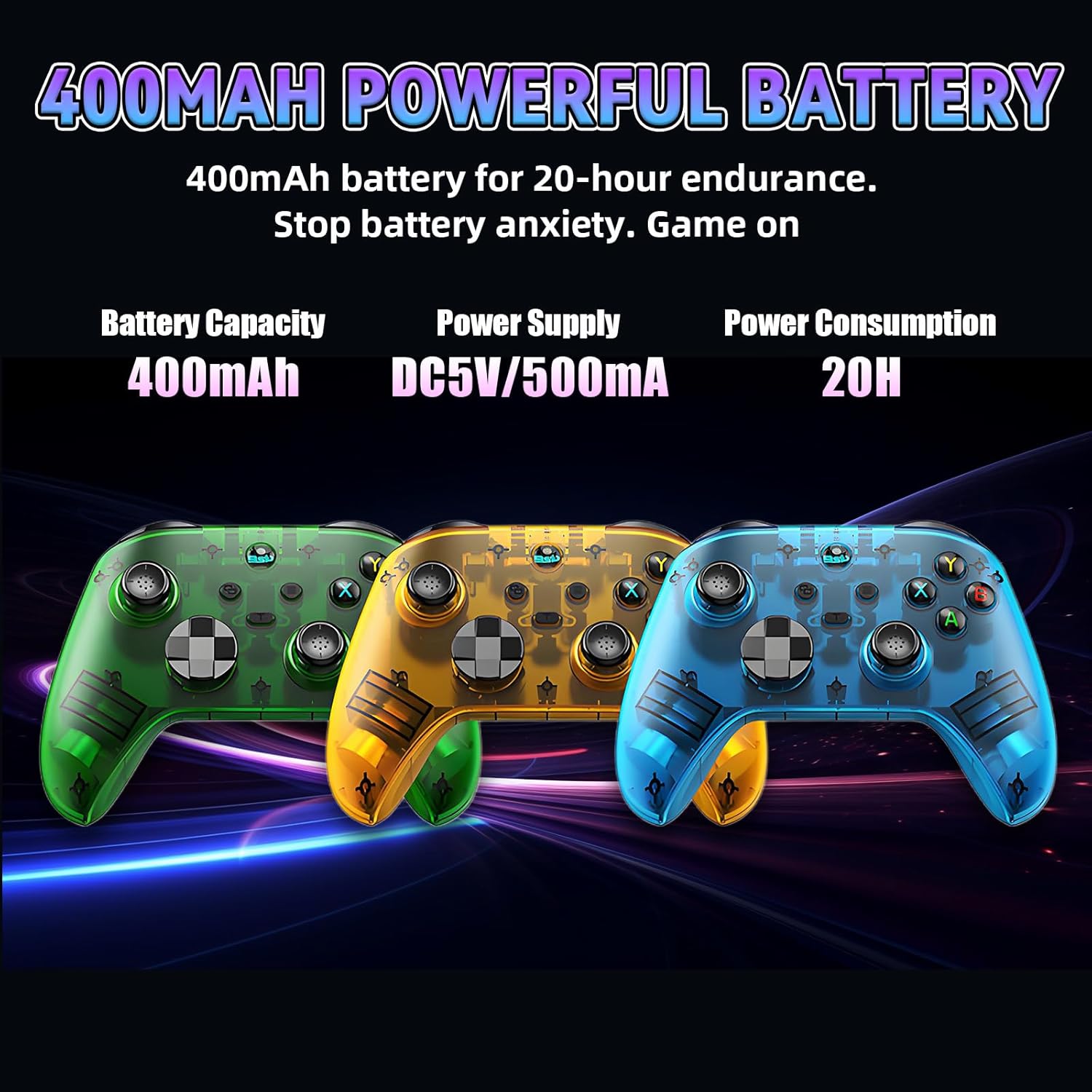
Image 5: Visual representation of the controller's 400mAh battery capacity, DC5V/500mA power supply requirement, and 20-hour continuous usage.
4.3 Advanced Features
- Hall Effect Joysticks & High-Precision Triggers: Experience precise control with zero drift and highly sensitive triggers.

Image 6: Close-up views highlighting ergonomic button layout, responsive controls, and anti-slip grip texture for enhanced gaming.
- Six-Axis Motion Sensing: The built-in gyroscope allows for fine-tuned motion control, enhancing aiming and immersion in compatible games.

Image 7: Illustration of the 6-Axis Motion-Sensing capability, enabling realistic steering and aiming.
- Asymmetric Dual Vibration Motors: Enjoy realistic haptic feedback with adjustable intensity, adapting to different game scenarios.
- Macro-Programmable Back Button (M2): Customize the M2 button for one-button combos or complex button mappings (e.g., Down+Y+B+A) to optimize your gameplay.
- One-Button Combos: Execute complex actions effortlessly with multi-level combo frequency adjustments.
5. Maintenance and Care
- Battery Care:
- Charge the 400mAh battery with a DC5V/500mA adapter only. Strictly avoid high-voltage chargers.
- If not used for an extended period, charge the controller every 3 months to prevent battery damage from deep discharge.
- Power Saving:
- The controller has a low sleep current (<5uA) for power efficiency.
- For prolonged storage, power off the controller completely by holding the HOME button for 8 seconds.
- Daily Maintenance:
- Wipe the controller's anti-slip texture with a soft, dry cloth regularly.
- Do not use water or corrosive cleaners, as they may damage the surface or internal components.
- Avoid dropping or squeezing the controller to protect the joysticks and internal circuits.
6. Specifications
| Feature | Specification |
|---|---|
| Operating Voltage | DC 3.7V |
| Operating Current | Approx. 10mA |
| Continuous Usage Time | >20 hours |
| Sleep Current | <5µA |
| Charging Voltage/Current | DC 5V/500mA |
| Bluetooth Transmission Range | ≤8 meters |
| Battery Capacity | 400mAh |
| Standby Time | 60 days (when fully charged) |
| Product Dimensions | 6.3 x 2.76 x 4.33 inches |
7. Troubleshooting
- Connection Issues:
- Ensure your device's system meets the requirements (Android 6.0+, compatible with PCs/consoles/emulators).
- For Bluetooth, keep the controller within 8 meters of the device.
- Verify the correct mode (2.4G, V, M, X, or S) is selected on the controller.
- Battery Not Charging:
- Confirm you are using a DC 5V/500mA charger.
- Check the charging cable and port for damage.
- Mode Transition Issues:
If you encounter difficulties transitioning between the V, M, X, or S modes, please contact customer support for assistance.
8. Customer Support
For further assistance, technical support, or inquiries regarding warranty, please contact XIXIMENG customer service. Refer to the product packaging or the retailer's website for contact information.
You can also visit the official XIXIMENG store on Amazon for more information: XIXIMENG Store


