
1. Introduction
The Alxum Displayport KVM Switch (Model: SJW-KM202A) allows two computers to share two monitors, a keyboard, a mouse, and other USB 3.0 devices. This KVM switch supports DisplayPort input from computers and HDMI output to monitors, providing a streamlined workspace for users managing multiple systems.
Key features include:
- Dual Monitor Support: Connects two computers to two monitors using DisplayPort input and HDMI output.
- High Resolution: Supports Ultra HD 4K@60Hz (3840x2160@60Hz) resolution, backward compatible with 4K@30Hz, 1920x1080P@60Hz, and lower resolutions.
- USB 3.0 Connectivity: Equipped with 3 USB-A and 1 USB-C ports, offering Super Speed USB 3.0 data transfer at up to 5Gbps for sharing peripherals like keyboards, mice, printers, and USB drives.
- Multiple Switching Modes: Features one-touch button switching on the device and a wired desktop controller for convenient computer selection.
- Wide Compatibility: Compatible with Windows, macOS, and Linux operating systems.
2. Package Contents
Please verify that all items are present in your package:
- 1 x Alxum Displayport KVM Switch
- 2 x USB-A to USB-A Cables
- 1 x Desktop Controller
- 1 x Power Adapter
- 1 x Power Cable
- 1 x User Manual

Image: Contents of the Alxum Displayport KVM Switch package, including the KVM unit, cables, desktop controller, power adapter, and user manual.
3. Product Overview
Familiarize yourself with the ports and buttons on your KVM switch:
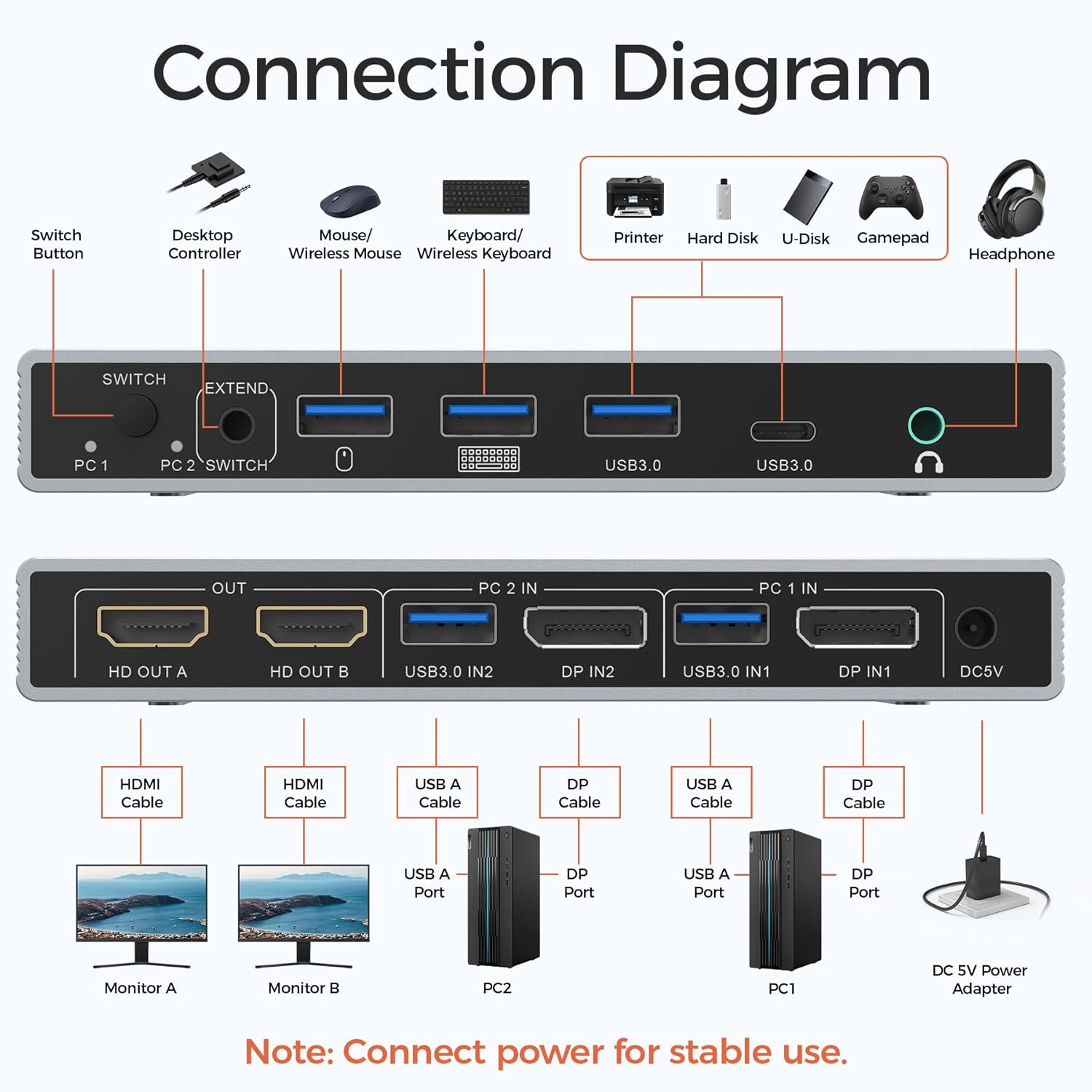
Image: Detailed connection diagram showing the front and rear panels of the Alxum Displayport KVM Switch, illustrating all input and output ports.
Front Panel
- SWITCH Button: Toggles between PC1 and PC2.
- EXTEND Port: Connects to the wired desktop controller for remote switching.
- USB 3.0 Ports (3x USB-A, 1x USB-C): For connecting USB peripherals such as keyboard, mouse, printer, U-disk, etc.
- Audio Out Port: For connecting headphones or speakers.
Rear Panel
- HD OUT A / HD OUT B: HDMI outputs for connecting to two monitors.
- PC 2 IN (USB3.0 IN2, DP IN2): Inputs for connecting to Computer 2 (one USB-A cable, one DisplayPort cable).
- PC 1 IN (USB3.0 IN1, DP IN1): Inputs for connecting to Computer 1 (one USB-A cable, one DisplayPort cable).
- DC 5V: Power input port for the included power adapter.

Image: Close-up of the KVM switch showing the LED indicator light, which illuminates to show which PC (PC1 or PC2) is currently active.
4. Setup Instructions
Follow these steps to connect your Alxum Displayport KVM Switch:
- Power Connection: Connect the included 5V power adapter to the DC 5V port on the KVM switch and plug it into a power outlet. This is essential for stable operation.
- Monitor Connection: Connect your two monitors to the HD OUT A and HD OUT B (HDMI) ports on the KVM switch using HDMI cables.
- Computer 1 Connection:
- Connect one DisplayPort cable from your first computer's DisplayPort output to the DP IN1 port on the KVM switch.
- Connect one USB-A to USB-A cable from your first computer's USB-A port to the USB3.0 IN1 port on the KVM switch.
- Computer 2 Connection:
- Connect one DisplayPort cable from your second computer's DisplayPort output to the DP IN2 port on the KVM switch.
- Connect one USB-A to USB-A cable from your second computer's USB-A port to the USB3.0 IN2 port on the KVM switch.
- Peripheral Connection: Connect your keyboard, mouse, and other USB peripherals to the USB 3.0 ports on the front panel of the KVM switch. If using a wired desktop controller, connect it to the EXTEND port.
- Audio Connection (Optional): Connect your headphones or speakers to the Audio Out port on the front panel.
Important Notes for Setup:
- Ensure each computer supports dual-monitor display. Test by connecting monitors directly to your computer before using the KVM switch.
- Each computer requires one DisplayPort cable and one USB-A cable connected to the KVM switch for full functionality (video, keyboard, mouse).
- Both your computer and monitors must support 4K@60Hz, and you must use appropriate cables, to achieve 4K@60Hz resolution.
- Do not press the switch button while connecting devices or cables to prevent potential issues.
- The two monitors will display the video source from only one computer at a time; simultaneous output from both PC1 and PC2 is not supported.

Image: Diagram illustrating the simplified cabling of the Alxum KVM switch, showing that each computer only requires one DisplayPort and one USB cable for connection.
5. Operating Instructions
Switching Between Computers
The Alxum KVM switch offers two methods for switching between connected computers:
- Button Switch: Press the 'SWITCH' button on the front panel of the KVM device to toggle between PC1 and PC2. The LED indicator will show which computer is active.
- Desktop Controller Switch: Use the wired desktop controller connected to the 'EXTEND' port. Press the button on the controller to switch between PC1 and PC2. This provides a convenient remote switching option.
Note: Hotkey switching via keyboard is not supported by this KVM switch.
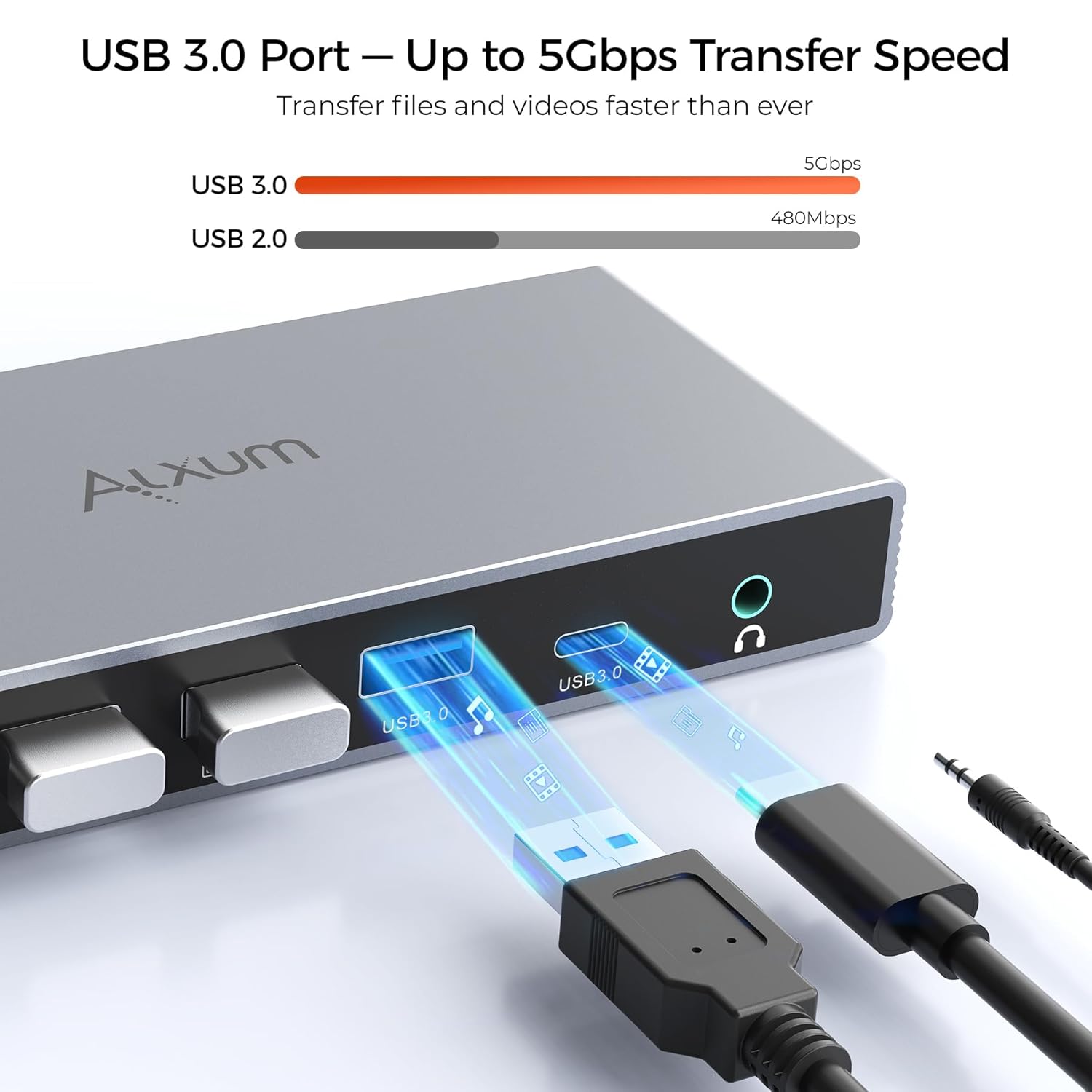
Image: Illustration showing the two methods for switching between computers: directly pressing the button on the KVM unit or using the wired desktop controller.
Display Working Modes
The KVM switch supports two primary display modes for your dual monitors:
- Extended Mode: Each monitor displays a different part of your desktop, extending your workspace.
- Mirror Mode: Both monitors display the same content, mirroring your desktop.
To configure display modes on Windows, press Win + P and select your desired mode (Duplicate or Extend). For macOS, please note that Multi-Stream Transport (MST) for extended mode may not be fully supported, depending on your Mac model and OS version.
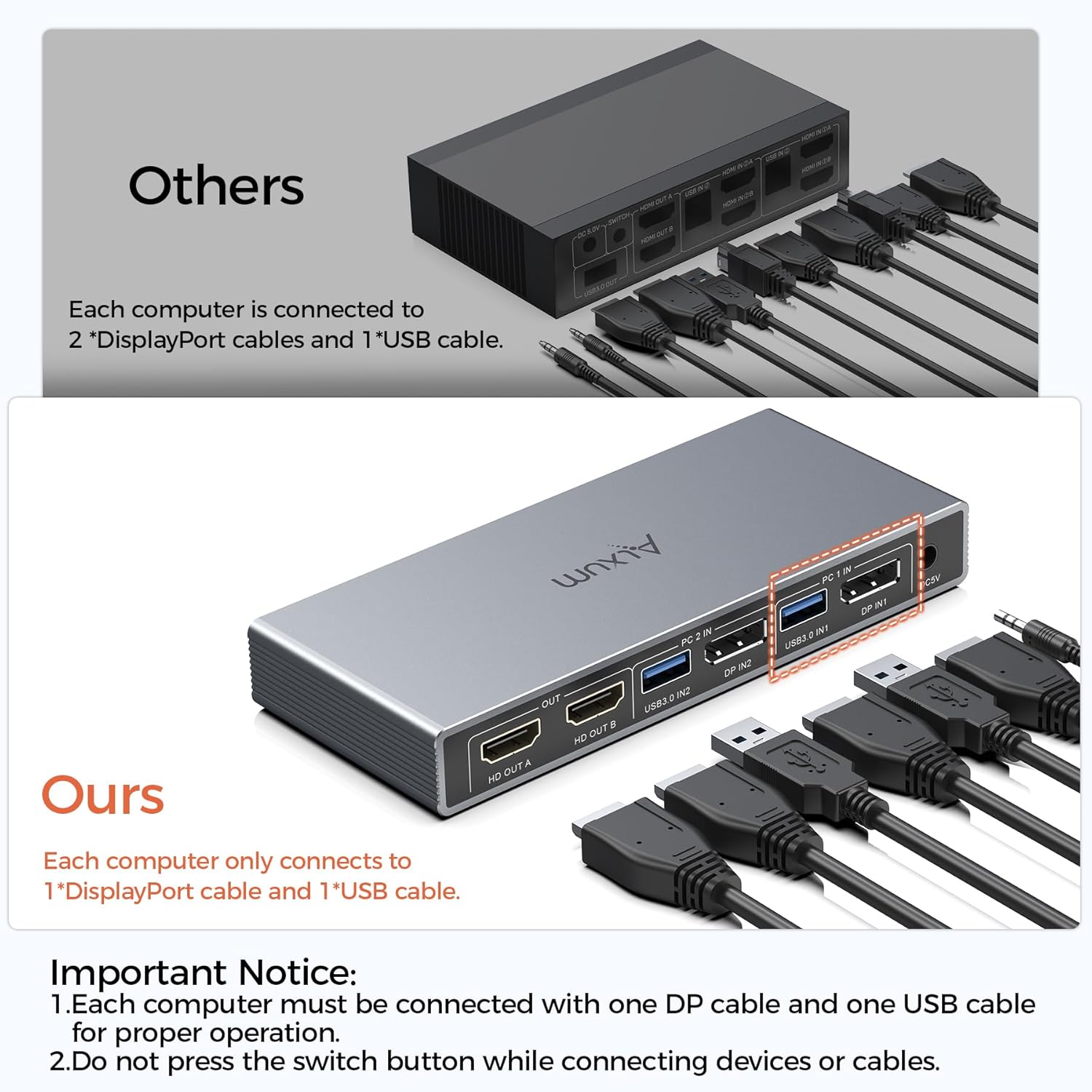
Image: Visual representation of Extended Mode, where two monitors show different content, and Mirror Mode, where both monitors display identical content.
6. Specifications
| Feature | Specification |
|---|---|
| Model Number | SJW-KM202A |
| Input Ports | 2 x DisplayPort (for PC video), 2 x USB 3.0 Type-A (for PC data) |
| Output Ports | 2 x HDMI (for monitors), 3 x USB 3.0 Type-A, 1 x USB 3.0 Type-C, 1 x 3.5mm Audio Out |
| Video Resolution | Up to 4K@60Hz (3840x2160@60Hz), backward compatible |
| USB Data Transfer | Up to 5Gbps (USB 3.0) |
| Switching Methods | Button on device, Wired Desktop Controller |
| Operating Systems | Windows, macOS, Linux |
| Power Supply | DC 5V (via included power adapter) |
| Dimensions (L x W x H) | 7.09 x 2.95 x 0.79 inches (18 x 7.5 x 2 cm) |
| Item Weight | 1.01 pounds (0.46 kg) |
7. Troubleshooting
If you encounter issues with your KVM switch, please refer to the following common solutions:
- No Display / Flickering Screen:
- Ensure the 5V power adapter is securely connected to the KVM switch and a power outlet.
- Verify all DisplayPort and HDMI cables are correctly and firmly connected to both the KVM switch, computers, and monitors.
- Check if your computers and monitors support the desired resolution (e.g., 4K@60Hz). Ensure all cables used are rated for that resolution.
- Try connecting the monitors directly to the computer to confirm they function correctly without the KVM switch.
- Restart the KVM switch by unplugging and re-plugging the power adapter.
- Keyboard/Mouse Not Responding:
- Ensure the USB-A to USB-A cables are securely connected from both computers to the KVM switch (USB3.0 IN1 and USB3.0 IN2).
- Verify your keyboard and mouse are connected to the USB 3.0 ports on the front of the KVM switch.
- Try connecting the keyboard and mouse to different USB ports on the KVM switch.
- Ensure the correct computer input (PC1 or PC2) is selected on the KVM switch.
- Note that hotkey switching is not supported; use the physical button on the KVM or the wired desktop controller.
- USB Devices Not Detected:
- Confirm the USB-A to USB-A cables are properly connected from both computers to the KVM switch.
- Ensure the KVM switch is powered on.
- Try connecting the USB device to a different USB 3.0 port on the KVM switch.
- Audio Issues:
- Check the audio cable connection from your speakers/headphones to the KVM's Audio Out port.
- Verify audio output settings on your computer are configured to use the KVM switch as the audio device.
8. Maintenance
To ensure the longevity and optimal performance of your Alxum Displayport KVM Switch, follow these maintenance guidelines:
- Cleaning: Use a soft, dry cloth to clean the exterior of the device. Avoid using liquid cleaners or aerosols, which may damage the unit.
- Storage: Store the KVM switch in a cool, dry place away from direct sunlight and extreme temperatures.
- Handling: Handle the device with care. Avoid dropping it or subjecting it to strong impacts.
- Cable Management: Ensure cables are not excessively bent or strained, which can lead to damage over time.
- Power Off: If the device will not be used for an extended period, it is recommended to disconnect the power adapter.
9. Warranty and Support
Alxum products are designed for reliability and performance. For specific warranty information, please refer to the warranty card included with your product or visit the official Alxum website.
If you require technical assistance or have questions not covered in this manual, please contact Alxum customer support through their official channels. When contacting support, please have your product model number (SJW-KM202A) and purchase details readily available.
