
1. Introduction
This manual provides detailed instructions for the setup, operation, maintenance, and troubleshooting of your PUNEHOD R1390 DTF Printer. Please read this manual thoroughly before operating the device to ensure proper function and longevity.
The PUNEHOD R1390 is an A3 Direct to Film (DTF) transfer printer equipped with a white ink circulation system, designed for printing on various fabrics including hats, jeans, T-shirts, handbags, shoes, schoolbags, and sweatshirts.
2. Package Contents
Verify that all items listed below are included in your package. The printer and accessories may arrive in two separate boxes.
- PUNEHOD R1390 DTF Printer
- A3 DTF Oven
- 100M PET Film Roll
- 6 x 250ml DTF Ink (CMYK + White)
- 500g DTF Transfer Powder
- RIP Software
- Power Cable
- USB Cable
- Cleaning Kit
- Ink Damper
- Mois-Liquid (250ml)
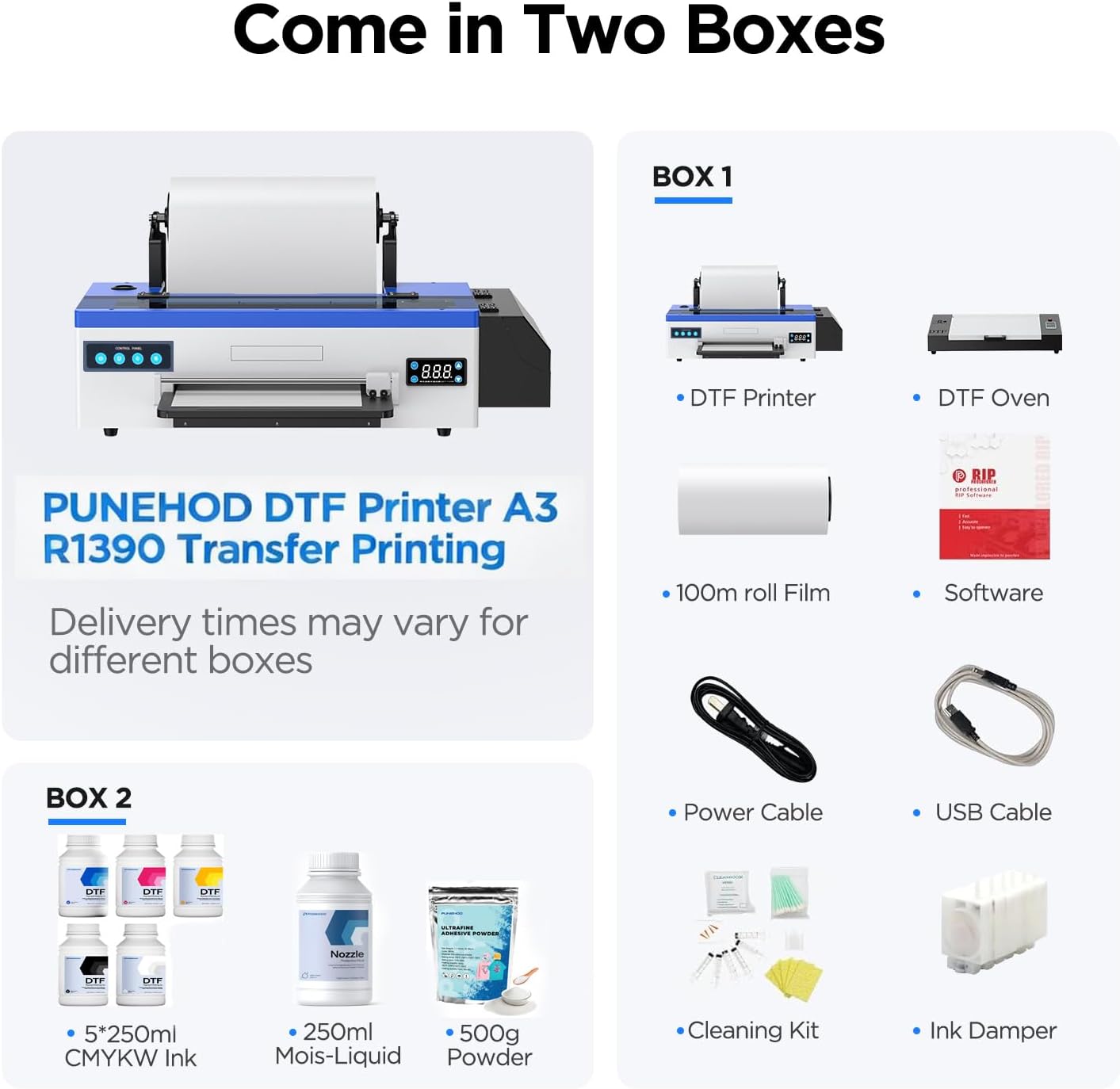
Figure 2.1: Contents of the PUNEHOD R1390 DTF Printer package, including the printer, oven, various inks, transfer powder, PET film, and essential accessories.
Note: The white USB flash drive previously included has been discontinued due to reported virus concerns. Please consult the PUNEHOD official website or customer service for information regarding software and drivers.
3. Setup Instructions
- Unpacking: Carefully remove all components from their packaging. Place the printer on a stable, level surface.
- Power Connection: Connect the power cable to the printer and a suitable power outlet. Do not power on yet.
- USB Connection: Connect the printer to your computer using the provided USB cable.
- Ink Installation:
- Open the ink compartment.
- Carefully fill the ink reservoirs with the corresponding DTF inks (CMYK and White). Ensure correct color placement.
- Install the ink dampers if they are not pre-installed.
- Software Installation: Install the RIP software on your computer. Follow the software's installation guide.
- Film Loading: The printer supports both roll film and sheet film.
- For roll film: Mount the 100M PET film roll onto the detachable reel design.
- For sheet film: Load individual PET sheets into the designated feeder.
- Initial Power On: Once all connections are secure and ink is loaded, power on the printer. The printer will perform an initial self-check.

Figure 3.1: The PUNEHOD R1390 DTF Printer supports both roll and sheet film feeding, with a maximum print width of 13 inches.
Video 3.1: An overview of the PUNEHOD R1390 DTF printer, demonstrating its components and basic operation. This video is provided by PUNEHOD-Direct.
4. Operating Instructions
Follow these steps for a typical DTF printing process:
- Design Preparation: Create or edit your design using the RIP software. Ensure the design is optimized for DTF printing, including white ink layers if necessary.
- Print to Film: Send the prepared design from the RIP software to the PUNEHOD R1390 printer. The printer will print the design onto the PET film.
- Powder Application: After printing, evenly sprinkle DTF transfer powder over the wet ink on the PET film. Ensure complete coverage.
- Powder Curing: Place the powdered film into the A3 DTF oven to cure the adhesive powder. The powder will melt and form a sticky layer.
- Heat Press Transfer: Position the cured film onto the garment or fabric. Use a heat press to apply appropriate heat and pressure, transferring the design from the film to the fabric.
- Peel Off Film: Once cooled, carefully peel off the PET film. The design will remain on the garment.

Figure 4.1: Step-by-step guide for using the DTF printer, from design to finished product.
4.1 Print Quality and Resolution
The PUNEHOD R1390 printer offers a high print resolution of 2880 x 1440 dpi, ensuring clear and vibrant color reproduction. This resolution contributes to detailed and accurate prints.

Figure 4.2: Visual comparison demonstrating the superior print resolution and speed of the PUNEHOD R1390 printer.
4.2 Versatile Applications
The DTF printing method allows for transfer onto a wide range of fabrics and items, including:
- T-shirts
- Hats
- Jeans
- Handbags
- Shoes
- Schoolbags
- Sweatshirts
- Canvas bags

Figure 4.3: Various items customized using the DTF printing process, showcasing the printer's versatility.
5. Maintenance
Regular maintenance is crucial for the optimal performance and longevity of your PUNEHOD R1390 DTF Printer, especially concerning the white ink system.
5.1 White Ink Protection System
The printer features a 3-in-1 white ink circulation, mixing, and filtering system to prevent common issues associated with white ink:
- White Ink Circulation: A built-in system ensures continuous circulation of white ink within the ink tank, tubes, and cartridges, preventing sedimentation.
- White Ink Mixing: An automatic stirring system with a blender prevents white ink from settling, which can lead to clogging.
- White Ink Filtration: Multi-stage filtration filters out impurities, reducing the risk of printhead clogging.
5.2 Cleaning System
- Auto Self-Cleaning Function: The system performs automatic self-cleaning to remove ink residue and prevent nozzle blockages. It is recommended to run this function regularly.
- Waste Ink Management: The printer includes a waste ink management system that collects waste ink from cleaning cycles, helping to maintain the machine's interior and prevent operational issues.

Figure 5.1: Detailed view of the white ink system and cleaning mechanisms designed to protect the printhead and prevent clogging.
For detailed cleaning procedures and schedules, refer to the specific instructions provided with the RIP software or contact customer support.
6. Troubleshooting
This section addresses common issues you might encounter with your PUNEHOD R1390 DTF Printer.
6.1 Common Issues and Solutions
- Print Quality Issues (Streaks, Missing Colors):
- Perform a nozzle check and printhead cleaning cycle through the printer's utility software.
- Ensure ink levels are sufficient and ink lines are not clogged or air-locked.
- Verify that the white ink circulation and mixing systems are functioning correctly.
- Printer Not Responding:
- Check all cable connections (power, USB).
- Restart the printer and your computer.
- Ensure the correct printer drivers are installed and updated.
- White Ink Clogging:
- Regularly activate the white ink circulation and stirring functions.
- Perform daily automatic cleaning cycles.
- If severe, perform a manual printhead cleaning using the provided cleaning kit and Mois-Liquid, following specific instructions.
- Software/Driver Issues:
- Ensure you are using the latest version of the RIP software and printer drivers.
- If issues persist, reinstall the software and drivers.
- Note: Avoid using unauthorized or unverified software/drivers, especially from unknown USB drives.
If you encounter issues not covered here or require further assistance, please contact PUNEHOD customer support.
7. Specifications
| Feature | Detail |
|---|---|
| Brand | PUNEHOD |
| Model Name | R1390 |
| Model Number | R1390-LS |
| Connectivity Technology | USB |
| Printing Technology | Inkjet |
| Special Feature | 3-in-1 white ink circulation, mixing and filtering system |
| Color | Blue |
| Printer Output | Color |
| Maximum Print Speed (Color) | 20 pages_per_minute |
| Max Printspeed Monochrome | 20 pages_per_minute |
| Item Weight | 90 pounds |
| Item Dimensions (D x W x H) | 31.5"D x 13"W x 8"H |
| Print Media | Fabric |
| Ink Color | White, CMYK |
| Resolution | 2880 x 1440 dpi |
| Maximum Media Size | A3 (13 inches width) |
| Maximum Sheet Capacity | 100 |
| Duplex | Manual |
| Power Consumption | 60 watts |
| Wattage | 65 watts |
8. Warranty Information
The PUNEHOD R1390 DTF Printer comes with a limited manufacturer warranty.
- Standard Warranty: 1 year on non-consumable parts.
- Printhead Warranty: 3 months on the printhead.
For specific terms and conditions of the warranty, please refer to the documentation included with your product or contact PUNEHOD customer service.

Figure 8.1: PUNEHOD customer service details, including warranty periods for the printer.
9. Customer Support
PUNEHOD provides reliable after-sales support to assist you with installation, debugging, and any operational questions.
- Online Service Support: Available to help with installation and machine debugging.
- Response Time: Customer service aims to reply within 24 hours.
- Contact Methods: You can reach support through your order page or via the after-sales service channels mentioned in the manual.
- Tutorial Videos: Various printing and installation tutorial videos are included with the package or available online.
For the best results, PUNEHOD recommends using their brand of DTF ink, powder, and PET film in conjunction with the printer.

