1. Introduction
This manual provides detailed instructions for the setup, operation, maintenance, and troubleshooting of your Gawfolk GF005 28-inch 4K UHD IPS Monitor. Please read this manual thoroughly before using the product to ensure proper functionality and longevity.
Product Overview
The Gawfolk GF005 is a 28-inch 4K UHD IPS monitor designed for enhanced productivity and immersive entertainment. It features a 3840x2560 resolution with a unique 3:2 aspect ratio, providing more vertical screen space. The display supports 10-bit color depth, capable of showing 1.07 billion colors with 128% sRGB coverage for accurate and vivid visuals. Integrated speakers offer convenient audio, while eye-care technologies like DC dimming and low blue light reduce eye strain. Adaptive Sync ensures smooth visuals by eliminating screen tearing and stuttering, with a 60Hz refresh rate suitable for daily tasks and video playback. Multiple connectivity options include two HDMI 2.0 ports and two DisplayPort 1.4 ports.
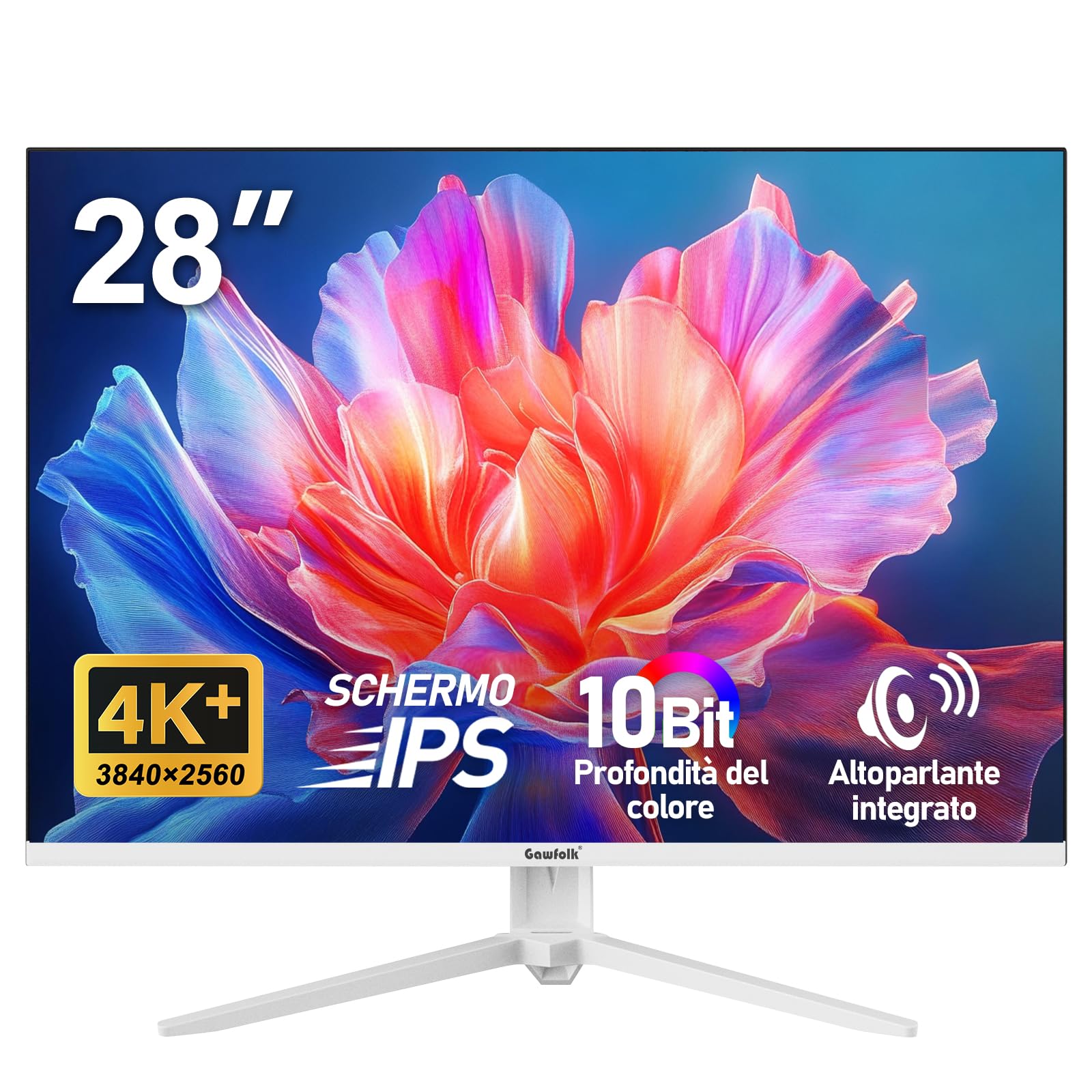
Figure 1.1: Gawfolk GF005 28-inch 4K UHD IPS Monitor
2. Setup Guide
Package Contents
- Gawfolk GF005 Monitor
- Monitor Stand (Base and Neck)
- Power Adapter
- HDMI Cable
- DisplayPort Cable
- User Manual
- Screws and Screwdriver for stand assembly
Stand Installation
Follow these steps to assemble and attach the monitor stand:
- Carefully remove the monitor from its packaging, keeping it face down on a soft, flat surface to prevent screen damage.
- Assemble the stand base and neck using the provided screws and screwdriver. Ensure all connections are secure.
- Align the assembled stand with the mounting slots on the back of the monitor.
- Gently push the stand into the slots until it clicks into place. Ensure it is firmly attached.
- Carefully lift the monitor and place it on a stable, flat surface.

Figure 2.1: Rear view of the monitor showing stand attachment area.

Figure 2.2: Monitor fully assembled on its stand.
Connecting Your Monitor
The monitor offers multiple input options. Connect the appropriate cable from your computer or device to the monitor.
- HDMI Connection: Use an HDMI cable to connect your device to one of the two HDMI 2.0 ports on the monitor. The maximum refresh rate supported via HDMI is 50Hz.
- DisplayPort Connection: Use a DisplayPort cable to connect your device to one of the two DisplayPort 1.4 ports on the monitor. The maximum refresh rate supported via DisplayPort is 60Hz.
- Audio Output: Connect external speakers or headphones to the 3.5mm Audio Out port if desired.

Figure 2.3: Available input and output ports on the monitor.
The monitor also supports VESA mounting (75x75mm) for wall or arm installation, providing flexibility for your workspace setup.
3. Operating Instructions
Display Features
4K UHD Resolution
Experience stunning visual clarity with the monitor's 3840x2560 UHD resolution. The 3:2 aspect ratio provides increased vertical screen space, which is beneficial for document viewing, coding, and creative tasks, reducing the need for frequent scrolling.

Figure 3.1: Visual comparison of 4K+ resolution detail against 1080p.
IPS Panel and Color Accuracy
The IPS panel technology ensures wide 178-degree viewing angles and consistent color reproduction. With 10-bit color depth, the monitor can display over 1.07 billion colors, and its 128% sRGB color gamut coverage delivers rich, accurate, and vibrant colors, ideal for professional photo and video editing, as well as immersive media consumption.

Figure 3.2: Illustration of the monitor's wide color gamut and 10-bit color depth.
Integrated Speakers
The monitor includes built-in dual speakers, eliminating the need for external audio devices and helping to keep your desk clutter-free. These speakers are suitable for everyday audio needs such as video playback and conference calls.

Figure 3.3: Monitor displaying content with sound waves indicating integrated speakers.
Eye Care Technology
The monitor incorporates DC dimming technology to fundamentally reduce screen flickering, and a low blue light mode to minimize harmful blue light emissions. These features work together to alleviate eye fatigue during prolonged use, promoting a more comfortable viewing experience.

Figure 3.4: Visual representation of low blue light and DC dimming benefits.
60Hz Refresh Rate with Adaptive Sync
The 60Hz refresh rate ensures smooth performance for everyday office tasks, web browsing, and video playback. Additionally, Adaptive Sync technology synchronizes the monitor's refresh rate with your graphics card, effectively eliminating screen tearing and stuttering for a fluid visual experience.

Figure 3.5: Visual demonstration of the smoothness provided by a 60Hz refresh rate.
On-Screen Display (OSD) Menu
The monitor features an intuitive On-Screen Display (OSD) menu for adjusting various settings. Use the control buttons located on the monitor (typically on the back or bottom edge) to navigate the menu. Common adjustable settings include brightness, contrast, color temperature, input source selection, and picture modes.
Refer to the quick start guide included in your package for specific button functions and OSD navigation details.
4. Maintenance
Cleaning the Monitor
- Always power off the monitor and unplug the power cord before cleaning.
- Use a soft, lint-free cloth slightly dampened with water or a mild, non-abrasive screen cleaner.
- Do not spray cleaner directly onto the screen. Apply it to the cloth first.
- Avoid using harsh chemicals, abrasive pads, or solvents, as these can damage the screen and casing.
General Care
- Keep the monitor away from direct sunlight, excessive heat, and humidity.
- Ensure proper ventilation around the monitor to prevent overheating.
- Avoid placing heavy objects on the monitor or its cables.
- If the monitor will not be used for an extended period, unplug it from the power outlet.
5. Troubleshooting
If you encounter issues with your monitor, please refer to the following common troubleshooting steps:
- No Power:
- Ensure the power cable is securely connected to both the monitor and a working power outlet.
- Verify the power adapter is functioning correctly.
- Press the power button on the monitor.
- No Signal:
- Check that the video cable (HDMI or DisplayPort) is securely connected to both the monitor and your computer/device.
- Ensure the correct input source is selected on the monitor's OSD menu.
- Try using a different video cable or port to rule out cable or port issues.
- Verify your computer's graphics card is properly installed and its drivers are up to date.
- Image Distortion or Poor Quality:
- Adjust the resolution and refresh rate settings on your computer to match the monitor's native resolution (3840x2560) and refresh rate (60Hz).
- Check the video cable for damage or loose connections.
- Reset the monitor's display settings to factory defaults via the OSD menu.
- No Audio from Integrated Speakers:
- Ensure the monitor's volume is not muted or set too low in the OSD menu.
- Check your computer's audio output settings to ensure the monitor is selected as the playback device.
- If using HDMI or DisplayPort, verify that audio is being transmitted through the cable.
- Test with external speakers or headphones connected to the monitor's 3.5mm audio out port to isolate the issue.
If these steps do not resolve the issue, please contact customer support for further assistance.
6. Technical Specifications
| Feature | Specification |
|---|---|
| Brand | Gawfolk |
| Model | GF005 |
| Screen Size | 28 Inches |
| Display Type | IPS LCD |
| Resolution | 3840x2560 Pixels (4K UHD) |
| Aspect Ratio | 3:2 |
| Color Depth | 10-bit (1.07 Billion Colors) |
| Color Gamut | 128% sRGB |
| Refresh Rate | 60 Hz |
| Response Time | 5 Milliseconds |
| Brightness | 270 Candela |
| Viewing Angle | 178 Degrees |
| Connectivity | 2x HDMI 2.0, 2x DisplayPort 1.4, 3.5mm Audio Out |
| Integrated Speakers | Yes |
| Eye Care Features | DC Dimming, Low Blue Light, Adaptive Sync |
| VESA Mount Compatibility | 75x75mm |
| Product Dimensions | 19.9 x 61.19 x 50.72 cm |
| Item Weight | 3.4 Kilograms |
7. Warranty and Support
Warranty Information
Gawfolk offers a 12-month warranty service for this monitor. This warranty covers manufacturing defects and ensures your product functions as intended under normal use.
Customer Support
If you have any questions or require assistance with your Gawfolk GF005 monitor, please do not hesitate to contact our customer support team. You can typically find contact information on the product packaging, warranty card, or the official Gawfolk website.
Please have your product model number (GF005) and purchase details ready when contacting support to facilitate a quicker resolution.


