1. Introduction
This manual provides essential information for the proper setup, operation, and maintenance of your Gawfolk 49-inch Ultra-Wide Curved 1500R Gaming Computer Monitor (Model GF490C). This monitor features a DQHD (5120x1440) resolution, 165Hz refresh rate, 1ms response time, and Adaptive Sync technology for an immersive visual experience. Please read this manual thoroughly before using the product to ensure optimal performance and safety.

Figure 1: Gawfolk 49-inch Curved Gaming Monitor in a typical setup.
2. Safety Information
To prevent damage and ensure safe operation, observe the following precautions:
- Do not expose the monitor to rain, moisture, or extreme temperatures.
- Avoid placing the monitor near heat sources or in direct sunlight.
- Use only the power adapter supplied with the monitor.
- Do not block ventilation openings.
- Keep the monitor away from strong magnetic fields.
- Disconnect the power cable during lightning storms or when unused for long periods.
- Refer all servicing to qualified service personnel.
3. Package Contents
Verify that all items are present in your product package:
- Gawfolk 49-inch Curved Gaming Monitor
- Monitor Stand (Base and Neck)
- Power Adapter and Cable
- HDMI Cable
- DisplayPort (DP) Cable
- User Manual
4. Setup
4.1 Assembling the Stand
- Carefully remove the monitor from its packaging, keeping the screen protected.
- Attach the stand neck to the monitor back panel.
- Secure the stand base to the neck using the provided screws.
- Place the assembled monitor on a stable, flat surface.

Figure 2: Monitor back panel and stand assembly points.
4.2 Connecting Cables
Connect the monitor to your computer or other devices using the appropriate cables.
- Power Connection: Connect the power adapter to the monitor's DC input and then plug it into a power outlet.
- Video Connection: Use either an HDMI 2.1 cable or a DisplayPort 1.4 cable to connect the monitor to your computer's graphics card. For optimal performance (DQHD resolution at 165Hz), DisplayPort 1.4 is recommended.
- Audio Output: Connect external speakers or headphones to the audio output interface if desired.

Figure 3: Monitor input and output ports.
4.3 Adjusting the Monitor Position
The monitor stand allows for height adjustment, swivel, and tilt to optimize your viewing comfort.
- Height Adjustment: The monitor supports up to 160mm of vertical height adjustment. Gently push or pull the monitor up or down.
- Swivel: The monitor can swivel left and right (L/R 15°).
- Tilt: The screen can be tilted from -5° to 20° (forward/backward).
- Wall Mount: The monitor is compatible with 75x75mm VESA wall mounts (sold separately).

Figure 4: Monitor ergonomic adjustments and wall mount compatibility.
5. Operating Instructions
5.1 Power On/Off
Press the power button located on the monitor to turn it on or off. The power indicator light will illuminate when the monitor is active.
5.2 On-Screen Display (OSD) Menu
The OSD menu allows you to adjust various monitor settings. Navigate the menu using the joystick or buttons typically found on the back or bottom of the monitor.
Key OSD Settings:
- Picture Settings: Adjust brightness, contrast, sharpness, and color temperature.
- Color Modes: Select from various preset color modes (e.g., Standard, Game, Movie, sRGB) to suit your content. The monitor offers 120% sRGB wide color gamut coverage.
- Input Source: Manually select between HDMI 1, HDMI 2, DP 1, or DP 2 inputs.
- Refresh Rate: Ensure your system is configured to output 165Hz for the smoothest experience.

Figure 5: Visual representation of different refresh rates.
5.3 Adaptive Sync (FreeSync)
This monitor supports Adaptive Sync technology, which synchronizes the monitor's refresh rate with your GPU's frame rate. This eliminates screen tearing and minimizes stuttering and input lag, providing a smoother gaming experience.
- Activation: Enable Adaptive Sync in both the monitor's OSD menu and your graphics card's control panel (e.g., AMD FreeSync settings).

Figure 6: Effect of Adaptive Sync on screen tearing.
5.4 RGB Ambient Lighting
The monitor features built-in RGB ambient lighting on the back shell. This lighting can be customized through the OSD menu to match your preferences or gaming setup.
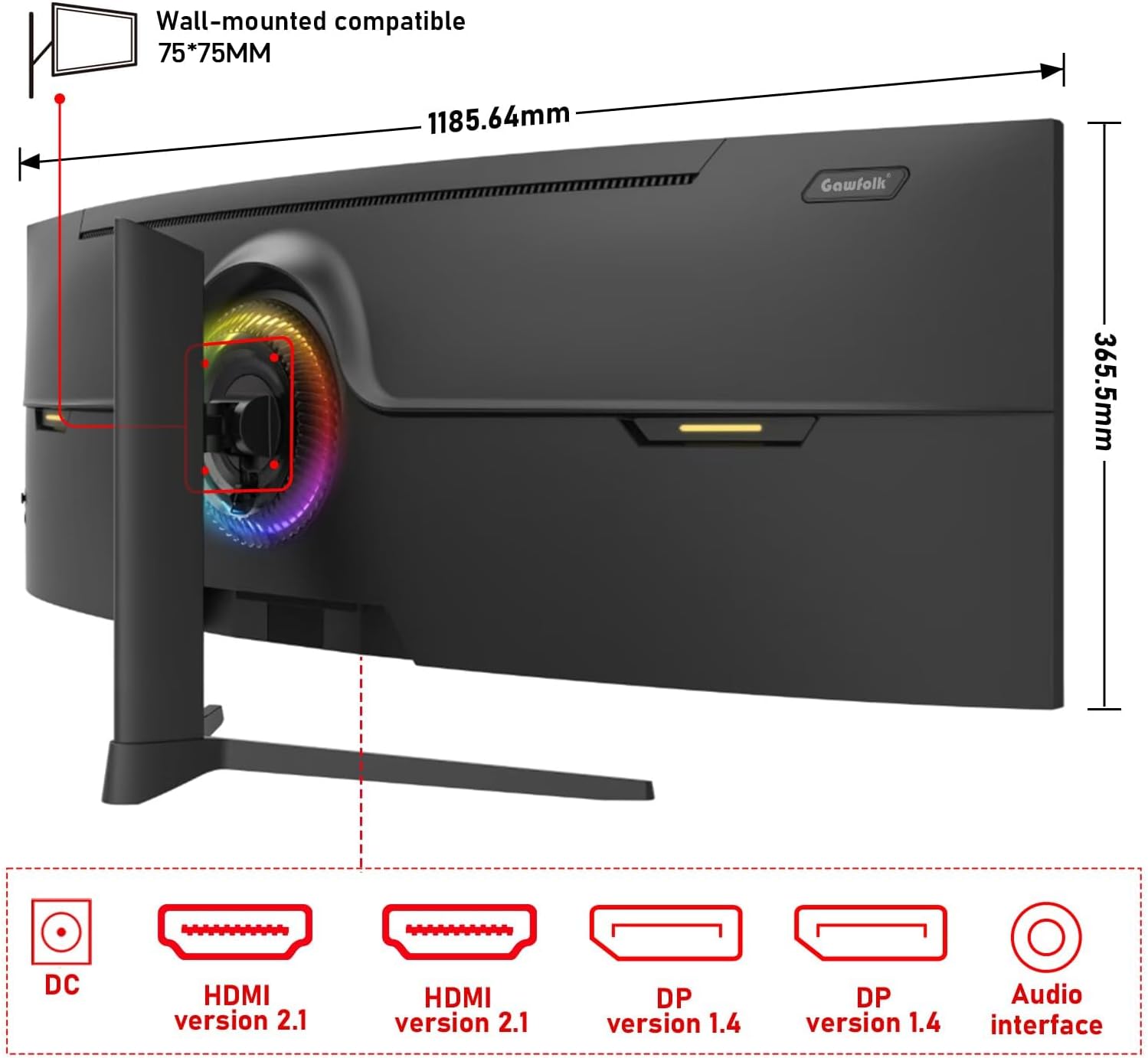
Figure 7: RGB ambient lighting on the monitor's rear.
5.5 Eye Protection Features
The monitor incorporates low blue light technology and a flicker-free screen design to reduce eye strain during extended use.
- Low Blue Light: This feature filters harmful blue light emissions. It can be adjusted or enabled/disabled via the OSD menu.
- Flicker-Free: The monitor uses DC dimming to eliminate screen flickering, which contributes to eye comfort.
6. Maintenance
6.1 Cleaning the Monitor
- Always unplug the monitor before cleaning.
- Use a soft, lint-free cloth slightly dampened with water or a mild, non-abrasive screen cleaner.
- Do not spray cleaner directly onto the screen.
- Avoid using benzene, thinner, ammonia-based cleaners, or abrasive materials.
6.2 Storage
If storing the monitor for an extended period, disconnect all cables and store it in a cool, dry place, preferably in its original packaging to protect it from dust and physical damage.
7. Troubleshooting
If you encounter issues with your monitor, refer to the following common problems and solutions:
| Problem | Possible Cause | Solution |
|---|---|---|
| No power | Power cable not connected; Power outlet faulty | Ensure power cable is securely connected; Test power outlet with another device. |
| No signal | Video cable not connected; Incorrect input source selected | Check video cable connections; Select correct input source via OSD menu. |
| Image too dark/bright | Brightness/Contrast settings incorrect | Adjust Brightness and Contrast in the OSD menu. |
| Screen tearing/stuttering | Adaptive Sync not enabled; GPU drivers outdated | Enable Adaptive Sync in OSD and GPU settings; Update graphics drivers. |
| Flickering screen | Refresh rate mismatch; Faulty cable | Ensure refresh rate is set correctly; Try a different video cable. |
8. Specifications
Detailed technical specifications for the Gawfolk 49-inch Curved Gaming Monitor (GF490C):
- Model Number: GF490C
- Screen Size: 49 Inches
- Panel Type: Curved 1500R
- Resolution: DQHD (5120x1440 Pixels)
- Aspect Ratio: 32:9
- Refresh Rate: 165Hz
- Response Time: 1ms
- Brightness: 330 cd/m²
- Contrast Ratio: 3000:1 (Native)
- Color Gamut: 120% sRGB
- Video Inputs: 2 x HDMI 2.1, 2 x DisplayPort 1.4
- Audio Output: 1 x 3.5mm Audio Jack
- Ergonomics: Height Adjustment (0-160mm), Swivel (L/R 15°), Tilt (-5° to 20°)
- Wall Mount Compatibility: VESA 75x75mm
- Product Dimensions: 11.83 x 46.67 x 22.28 inches
- Item Weight: 16.94 pounds
9. Warranty and Support
Gawfolk provides a 12-month after-sales service for this monitor. If you encounter any problems during the use of your monitor, please contact our customer support for assistance.
- Warranty Period: 12 months from the date of purchase.
- Support Contact: Refer to the contact information provided on the product packaging or the official Gawfolk website for customer service.