
1. Product Overview
The MAXDONE Solar Trail Camera PH960W is designed for outdoor monitoring, capturing high-resolution photos and videos of wildlife or for security purposes. It features solar power, a built-in rechargeable battery, WiFi and Bluetooth connectivity for app control, and IP66 waterproofing for reliable performance in various weather conditions.
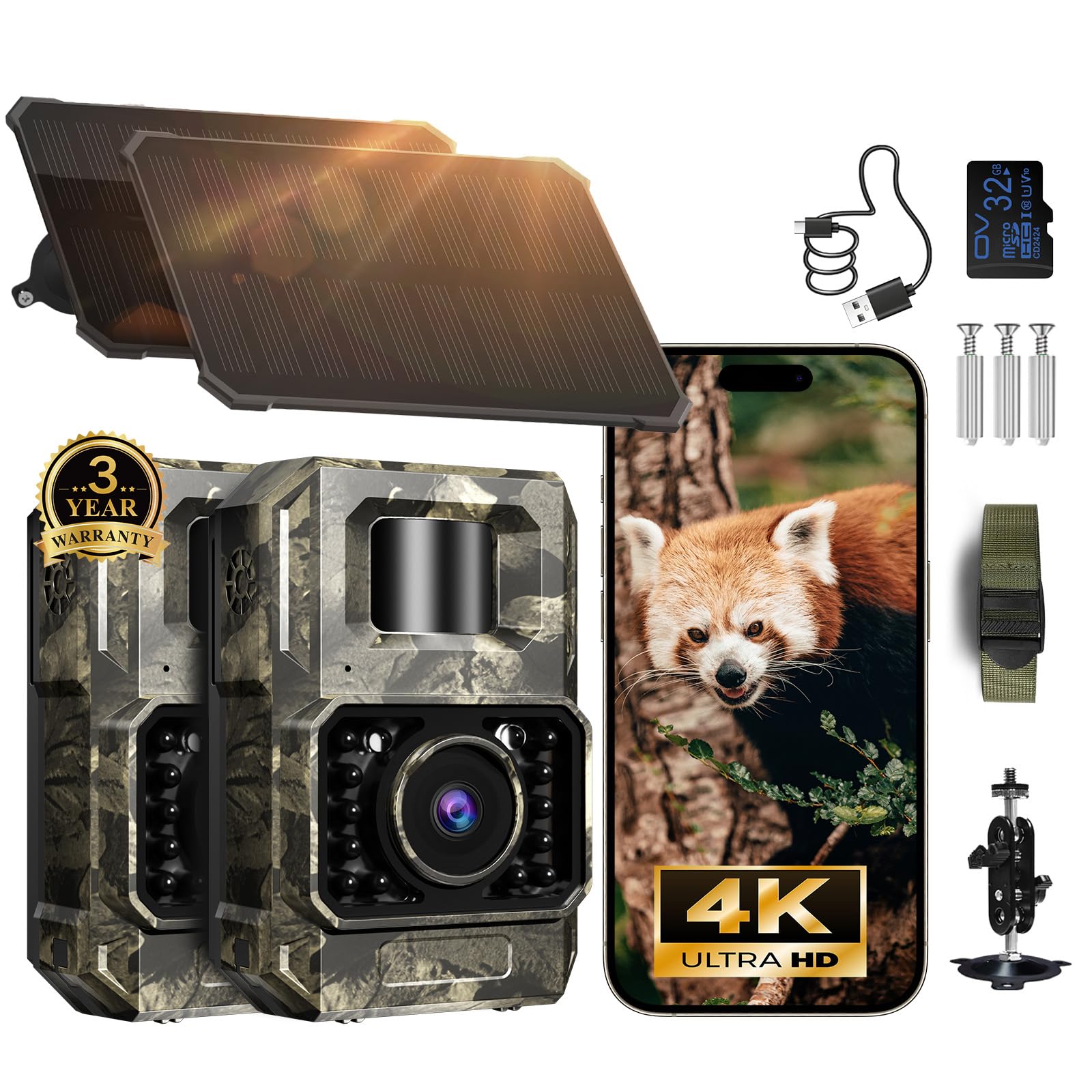
Image 1: The MAXDONE Solar Trail Camera PH960W, showcasing its compact design and camouflage finish.
2. Package Contents
Before setup, please verify that all items are present in the package:
- MAXDONE Solar Trail Camera (PH960W)
- Detachable Solar Panel
- Mounting Straps
- Mounting Bracket
- 32GB SD Card
- USB Cable
- User Manual

Image 2: All components included in the MAXDONE Solar Trail Camera PH960W package, including the camera, solar panel, mounting accessories, and SD card.
3. Setup Guide
3.1 Initial Charging
The camera features a built-in rechargeable battery and a detachable solar panel. For optimal performance, ensure the camera is fully charged before initial use. The solar panel will maintain the charge during outdoor deployment.
3.2 SD Card Installation
Insert the included 32GB SD card into the designated slot on the camera. Ensure it is inserted correctly until it clicks into place.

Image 3: The MAXDONE Solar Trail Camera PH960W with an SD card inserted, highlighting the storage solution.
3.3 App Download and Connection
- Download the TrailCam GO app from your smartphone's app store (available for Android and iOS).
- Switch the camera to the 'ON' position.
- Open the TrailCam GO app on your phone and follow the on-screen instructions to connect to the camera's WiFi signal. Note: The camera creates its own WiFi signal for connection and does not support home WiFi networks. Connection range is up to 55 ft in open areas.

Image 4: Visual guide for connecting the camera to the TrailCam GO app, showing the app interface and camera switch.
3.4 Mounting the Camera
Use the provided mounting straps and bracket to securely attach the camera to a tree or other stable surface. Position the camera to capture the desired monitoring area.

Image 5: The MAXDONE Solar Trail Camera PH960W mounted on a tree with its solar panel, demonstrating outdoor deployment.
4. Operating Instructions
4.1 Basic Operation via App
Once connected to the TrailCam GO app, you can:
- Preview: View live footage from the camera.
- Download: Transfer captured photos and videos to your phone.
- Settings: Adjust camera parameters such as resolution, trigger sensitivity, and operating modes.
- Share: Easily share media directly from the app.

Image 6: Illustration of the TrailCam GO app interface controlling the camera, showing options for preview, download, and settings.
4.2 Photo and Video Capture
The camera captures crisp 64MP images and smooth 4K/30fps videos. The 100° wide-angle lens ensures a broad field of view. Advanced H.264 compression optimizes storage space and speeds up file transfers.

Image 7: Depiction of the camera's 4K 64MP image and video quality, with a deer captured in sharp detail.
4.3 Night Vision
Equipped with enhanced 850nm infrared LEDs, the camera provides low-glow night vision up to 65 feet. Adaptive lighting balances brightness to prevent overexposure or dark spots, ensuring clear images even in total darkness.

Image 8: Comparison of night vision quality, showing how adaptive lighting prevents overexposure and dark spots for clear images.
4.4 Motion Activation
The camera features fast motion-activation technology with a 0.1-second trigger speed, capturing 1-5 photos per trigger to ensure no moment is missed.

Image 9: Illustration demonstrating the camera's 0.1-second trigger time, capturing fast-moving subjects.
4.5 Advanced Features
- Timestamps: Automatically adds date, time, and temperature to recordings.
- Custom Monitoring Periods: Set specific times for the camera to be active.
- Time-Lapse Mode: Capture images at set intervals to observe long-term changes.
- Loop Recording: Overwrites the oldest files when the SD card is full.
- Password Protection: Secure your camera settings and data.
- Custom Detecting Area: Define specific zones for motion detection to avoid irrelevant recordings and save power/storage.
- Location Tracking: Use the app to mark camera locations on a map for easy navigation and security.

Image 10: The TrailCam GO app interface showing how to set a custom detection area to optimize recordings.

Image 11: The TrailCam GO app displaying a map with marked camera locations for easy tracking and management.
5. Maintenance
5.1 Power Management
The camera's built-in rechargeable battery is complemented by a detachable solar panel for continuous power. For extended hunting trips or prolonged use in low-light conditions, the camera can be connected to an external power bank.

Image 12: Various charging options for the camera, including adapter, power bank, solar panel, and computer connection.
5.2 Weather Resistance
The camera features an IP66 waterproof rating, ensuring reliable operation in rain, snow, and other tough outdoor conditions. Regularly check the seals and ports for any debris or damage to maintain its waterproof integrity.

Image 13: The MAXDONE Solar Trail Camera PH960W demonstrating its IP66 waterproof capability in a water splash scenario.
5.3 Cleaning
Wipe the camera lens and solar panel periodically with a soft, clean cloth to ensure clear image capture and efficient solar charging. Avoid using abrasive cleaners.
6. Troubleshooting
If you encounter issues with your MAXDONE Solar Trail Camera PH960W, consider the following:
- Camera not powering on: Ensure the battery is charged and the power switch is in the 'ON' position. Check the solar panel connection.
- Poor image/video quality: Clean the camera lens. Ensure the camera is securely mounted and not vibrating. Check night vision settings if issues occur in low light.
- App connection issues: Ensure the camera's WiFi is enabled and your phone is within the 55 ft connection range. Remember, the camera creates its own WiFi network and does not connect to home WiFi.
- Motion detection not working: Verify motion detection settings in the app. Ensure the detection area is clear of obstructions that might trigger false alarms or block detection.
- SD card errors: Ensure the SD card is properly inserted and not full. Try formatting the SD card via the app (this will erase all data).
7. Specifications
| Brand | MAXDONE |
| Model Name | TRAIL CAMERA (PH960W) |
| Recommended Uses | Outdoor Security |
| Connectivity Technology | Wireless (Wi-Fi, Bluetooth) |
| Special Feature | Adjustable |
| Indoor/Outdoor Usage | Outdoor |
| Compatible Devices | Smartphone |
| Controller Type | Push Button |
| Mount Type | Wall Mount |
| Color | Camo |
| Power Source | Battery Powered (Rechargeable, Solar) |
| Video Capture Format | MP4 |
| Video Capture Resolution | 4K (30fps) |
| Image Resolution | 64MP |
| Item Dimensions | 2.8 x 1.5 x 4.3 inches |
| Waterproof Rating | IP66 |
8. Warranty and Support
8.1 Warranty Information
The MAXDONE Solar Trail Camera PH960W is backed by a 2-year warranty and a 24-Months Care Plan, ensuring peace of mind regarding product quality and performance.
8.2 Customer Support
For any questions, technical assistance, or support needs, MAXDONE offers 24-hour friendly customer service and one-on-one support. You can also visit the official MAXDONE store for more information and resources: MAXDONE Store.