
Samsung UN65U7900FFXZA
Samsung UN65U7900F Series 65-inch UHD 4K Smart Tizen TV Instruction Manual
Model: UN65U7900FFXZA
1. Introduction
Welcome to your new Samsung UN65U7900F Series 65-inch UHD 4K Smart Tizen TV. This manual provides essential information for setting up, operating, maintaining, and troubleshooting your television. Please read these instructions carefully to ensure proper use and to maximize your viewing experience.
Important Safety Information:
- Always follow basic safety precautions when using this product to reduce the risk of fire, electric shock, and injury.
- Do not expose the TV to rain or moisture.
- Ensure proper ventilation around the TV.
- Refer all servicing to qualified service personnel.
2. What's in the Box
Carefully unpack your TV and check that all the following items are included:
- Samsung Q8F 4K HDR Smart QLED TV (Note: Product title indicates U7900F series, please verify model on packaging)
- SolarCell Remote Control
- Power Cable
- Limited 1-Year Protection documentation
If any items are missing or damaged, please contact your retailer.
3. Setup
3.1. TV Assembly
Before proceeding, ensure the TV is placed on a stable, level surface or securely mounted to a wall using a compatible VESA mount (sold separately). If using the included stand, attach it according to the instructions provided in the separate stand assembly guide.

Figure 3.1: Samsung 65-inch TV securely placed on its stand.
3.2. Connecting Peripherals
Connect your devices to the TV's ports. Ensure the TV and all devices are powered off before making connections.
- Power Cable: Connect the power cable to the TV's power input and then to a wall outlet.
- HDMI Devices: Connect external devices such as a Blu-ray player, game console, or cable box to the TV's HDMI port. Note: This model features only ONE HDMI input. Plan your device connections accordingly.
- USB Devices: Connect USB storage devices for media playback or software updates to the TV's USB port. Note: This model features only ONE USB input.
- Network Connection: For Smart TV features, connect the TV to your home network via Wi-Fi or an Ethernet cable (not included).

Figure 3.2: Side profile of the TV, illustrating the location of connection ports.
3.3. Initial Setup
Once powered on, the TV will guide you through the initial setup process. This includes:
- Language selection
- Network connection setup (Wi-Fi or wired)
- Channel scanning (for antenna/cable connections)
- Samsung account login (optional, for full Smart TV features)
4. Operating Your TV
4.1. SolarCell Remote Control
Your TV comes with a SolarCell Remote Control. This remote charges via indoor lighting or USB-C, eliminating the need for disposable batteries. Familiarize yourself with the buttons for power, volume, channel, navigation, and smart hub access.
4.2. Navigating Tizen OS
The Samsung Tizen operating system provides a user-friendly interface for accessing apps, streaming services, and TV settings. Use the remote's navigation pad to browse the Smart Hub, which appears as a horizontal bar at the bottom of the screen.
4.3. Accessing Free Content
Your TV offers access to over 2,700 free channels, including more than 400 premium Samsung TV Plus channels. These include live national and local news, sports, movies, music, kids' shows, and K-Content. Additionally, you can access free streaming apps like Pluto TV and Freevee with an internet connection.
5. Key Features
5.1. Crystal Processor 4K & 4K Upscaling
The Crystal Processor 4K enhances picture quality, delivering vibrant colors and lifelike detail. It also features powerful 4K upscaling, which analyzes and upgrades lower-resolution content to near-4K quality, ensuring movies, TV shows, games, and sports appear sharp and clear.
5.2. MetalStream Design
The TV features a sleek MetalStream Design, crafted from a single sheet of metal. This design minimizes distractions with a slim bezel and enhances the aesthetic of your living space.
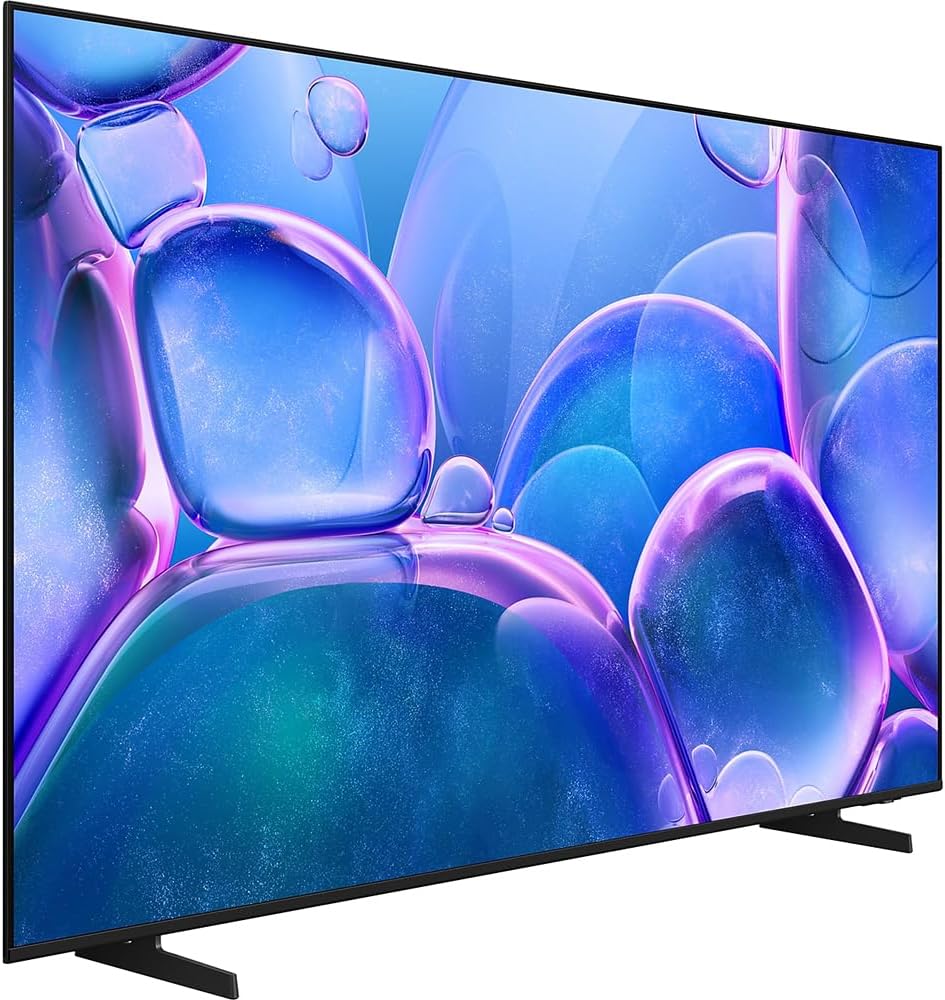
Figure 5.1: The slim profile and elegant MetalStream Design of the television.
5.3. Samsung Knox Security
Your TV incorporates Samsung Knox Security, a triple-layer protection system. It automatically blocks unauthorized applications and phishing websites, safeguarding your personal data and IoT devices connected to the TV. Regular updates ensure continuous protection.
5.4. Motion Xcelerator Technology
Motion Xcelerator technology improves clarity for fast-moving content, such as video games and sports. It estimates and predicts motion between frames to enhance smoothness and reduce blur, providing a more fluid viewing experience.
5.5. HDR10+ & Color Booster
High Dynamic Range (HDR) technology, including HDR10+, expands the contrast range between the lightest and darkest parts of a scene, revealing enhanced detail and depth. The Color Booster feature further intensifies hues, making colors appear richer and more vibrant.

Figure 5.2: An example of HDR enhancing the contrast and detail in a scenic image.
5.6. Object Tracking Sound Lite & Q-Symphony
Object Tracking Sound Lite creates an immersive audio experience by making sound follow the on-screen action, utilizing a virtual top channel. When paired with a compatible Samsung soundbar, Q-Symphony allows both the TV speakers and the soundbar to operate simultaneously, producing a more robust and nuanced surround sound.
6. Maintenance
6.1. Cleaning the TV
To clean the screen, gently wipe it with a soft, dry microfiber cloth. For stubborn marks, lightly dampen the cloth with water or a specialized screen cleaner. Avoid using harsh chemicals, abrasive materials, or direct spraying of liquids onto the screen.
To clean the TV frame and stand, use a soft, dry cloth. Do not use wax or polishing agents.
6.2. Software Updates
Periodically check for software updates through the TV's settings menu. Updates can improve performance, add new features, and enhance security. Ensure your TV is connected to the internet to receive updates.
7. Troubleshooting
If you encounter issues with your TV, refer to the following common problems and solutions:
- No Power:
Ensure the power cable is securely connected to both the TV and a working wall outlet. Test the outlet with another device. - No Picture/Sound:
Verify that the correct input source is selected. Check all cable connections (HDMI, etc.) for looseness or damage. If using an external device, ensure it is powered on. - Poor Picture Quality:
Adjust picture settings (brightness, contrast, sharpness) in the TV menu. If using an antenna, check its connection and position. For streaming content, ensure a stable internet connection. - Remote Control Not Working:
Ensure the SolarCell Remote is charged. Point the remote directly at the TV. If issues persist, try resetting the remote or pairing it again according to the on-screen instructions. - Limited Connectivity (HDMI/USB):
This model is noted to have only one HDMI input and one USB input. If you have multiple devices, consider using an HDMI switch or USB hub (sold separately) to manage your connections. - Smart Features Not Working:
Check your internet connection. Restart the TV and your router. Ensure the TV's software is up to date.
For more complex issues, consult the full e-Manual accessible via your TV's settings or visit the Samsung support website.
8. Specifications
| Brand | Samsung |
| Model Number | E1SAMUN65U7900 (UN65U7900FFXZA) |
| Screen Size | 65 Inches |
| Display Technology | LED |
| Resolution | 4K UHD (3840 x 2160) |
| Refresh Rate | 60 Hz |
| Aspect Ratio | 16:9 |
| Connectivity Technology | Bluetooth, Wi-Fi |
| Product Dimensions (D x W x H) | 8.74" x 56.85" x 34.73" (with stand) |
| Item Weight | 32 Pounds |
| Special Features | Crystal Processor 4K, HDR10+, Color Booster, MetalStream Design, Object Tracking Sound Lite, Samsung Knox Security, Motion Xcelerator |
9. Warranty and Support
9.1. Limited Warranty
This Samsung TV comes with a limited 1-year manufacturer's protection. Please refer to the warranty documentation included in your product packaging for full terms and conditions. Keep your proof of purchase for warranty claims.
9.2. Customer Support
For technical assistance, service requests, or further information, please visit the official Samsung support website or contact Samsung customer service. Contact details can typically be found on the Samsung website or in your warranty documentation.
Related Documents - UN65U7900FFXZA
 |
Guide de réparation Samsung TV Guide de réparation détaillé pour téléviseurs Samsung, couvrant les précautions, le démontage, le remontage et les procédures de dépannage. Inclut des avertissements de sécurité et des informations spécifiques aux modèles. |
 |
Samsung Crystal UHD U7900F TV User Guide Comprehensive user guide for the Samsung Crystal UHD U7900F Smart TV, covering setup, features, connections, smart hub, troubleshooting, and more. Learn to maximize your viewing experience with this detailed manual. |
 |
Samsung Crystal UHD U7900F 4K Smart TV - Specifications and Models Explore the features, specifications, and model variations of the Samsung Crystal UHD U7900F 4K Smart TV, including its design, picture quality, smart capabilities, and connectivity options. |
 |
Samsung Smart TV User Guide: Features, Setup, and Troubleshooting Comprehensive user guide for Samsung Smart TVs, covering setup, features, connections, smart hub, advanced functions, and troubleshooting. Learn how to optimize your viewing experience. |
 |
Samsung TV Simple User Guide: Setup, Safety, and Specifications Comprehensive simple user guide for Samsung TVs, covering setup, installation, safety precautions, troubleshooting, and technical specifications. Learn how to get the most out of your Samsung Smart TV. |
 |
Guide de l'utilisateur Samsung Ce guide complet de l'utilisateur Samsung fournit des instructions détaillées pour configurer, utiliser et dépanner votre téléviseur Samsung. Découvrez toutes les fonctionnalités pour une expérience optimale. |