
JDZ DC12
JDZ 4K Digital Camera (Model DC12) Instruction Manual
Model: DC12 | Brand: JDZ
1. Introduction
This manual provides instructions for the operation and maintenance of your JDZ 4K Digital Camera, Model DC12. This camera features a 56MP CMOS sensor for capturing photos and 4K HD videos. It includes autofocus, a 3-inch 180° flip screen, 16X digital zoom, and a built-in flash. The camera can also function as a webcam when connected to a PC.
2. What's in the Box
- JDZ 4K Digital Camera (Model DC12)
- 32GB Memory Card
- USB Charging Cable
- Wrist Strap
- Camera Pouch
- User Manual

3. Product Overview
3.1 Camera Components
Familiarize yourself with the main components of your camera:
- Lens: Main optical component for image capture.
- Flash: Provides illumination in low-light conditions.
- 3-inch 180° Flip Screen: Viewfinder and display, rotatable for various shooting angles.
- Mode Dial: Selects different shooting modes (Photo, Video, Setup, etc.).
- Shutter Button: Activates autofocus (half-press) and captures images/starts recording (full-press).
- Zoom Buttons: Adjusts digital zoom level.
- USB-C Port: For charging and data transfer.
- Memory Card Slot: For inserting the MicroSD card.
- Tripod Mount: Standard thread for attaching to a tripod.

4. Setup
4.1 Charging the Battery
Before first use, fully charge the camera battery. Connect the camera to a power source using the provided USB charging cable. The charging indicator light will show the charging status.
4.2 Inserting the Memory Card
Locate the memory card slot on the side of the camera. Insert the included 32GB MicroSD card into the slot until it clicks into place. Ensure the card is inserted in the correct orientation.
4.3 Setting Date and Time
Upon first power-on or after a battery replacement, you may need to set the date and time. Navigate to the 'Setup' menu using the mode dial and select the 'Date/Time' option to adjust the settings.
4.4 Formatting the Memory Card
It is recommended to format the memory card before first use and periodically thereafter to ensure optimal performance and prevent data corruption. Access the 'Setup' menu and select the 'Format' option. Confirm your selection to proceed with formatting. Note: Formatting will erase all data on the memory card.
Video 4.1: This video demonstrates the camera's features, including the quick boot-up, 4K video capability, 16X digital zoom, 180° flip screen, webcam functionality, and various filters. It also shows the process of setting the date and formatting the memory card.
5. Operating the Camera
5.1 Power On/Off
Press and hold the power button located on the top of the camera to turn it on or off.
5.2 Selecting Shooting Modes
Rotate the mode dial on the top of the camera to select between different functions:
- Photo Mode: For capturing still images.
- Video Mode: For recording video footage.
- Slow Motion: Records video at a higher frame rate for slow-motion playback.
- Continuous Shooting: Captures a rapid sequence of photos.
- Smile Capture: Automatically takes a photo when a smile is detected.
- Motion Detection: Begins recording when motion is detected in the frame.
- Self-Timer: Sets a delay before taking a photo (e.g., 2s, 5s, 10s).
- Time-Lapse: Captures images at set intervals to create a time-lapse video.
- Setup: Accesses camera settings and configurations.
5.3 Taking Photos and Recording Videos
In Photo or Video mode, half-press the shutter button to activate autofocus. Once the subject is in focus (indicated by a green frame), fully press the shutter button to capture a photo or start/stop video recording.
5.4 Using Digital Zoom
Use the zoom buttons (W/T) to adjust the 16X digital zoom. 'W' zooms out (wide-angle) and 'T' zooms in (telephoto).
5.5 Using the Flash
The camera features a built-in flash for low-light conditions. The flash settings can typically be adjusted via the camera's menu or a dedicated button, allowing for auto-flash, fill-flash, or flash off options.

5.6 Applying Filters
The camera includes 20 built-in filters to modify the appearance of your photos. Access these filters through the camera's menu in Photo mode.

5.7 Webcam Functionality
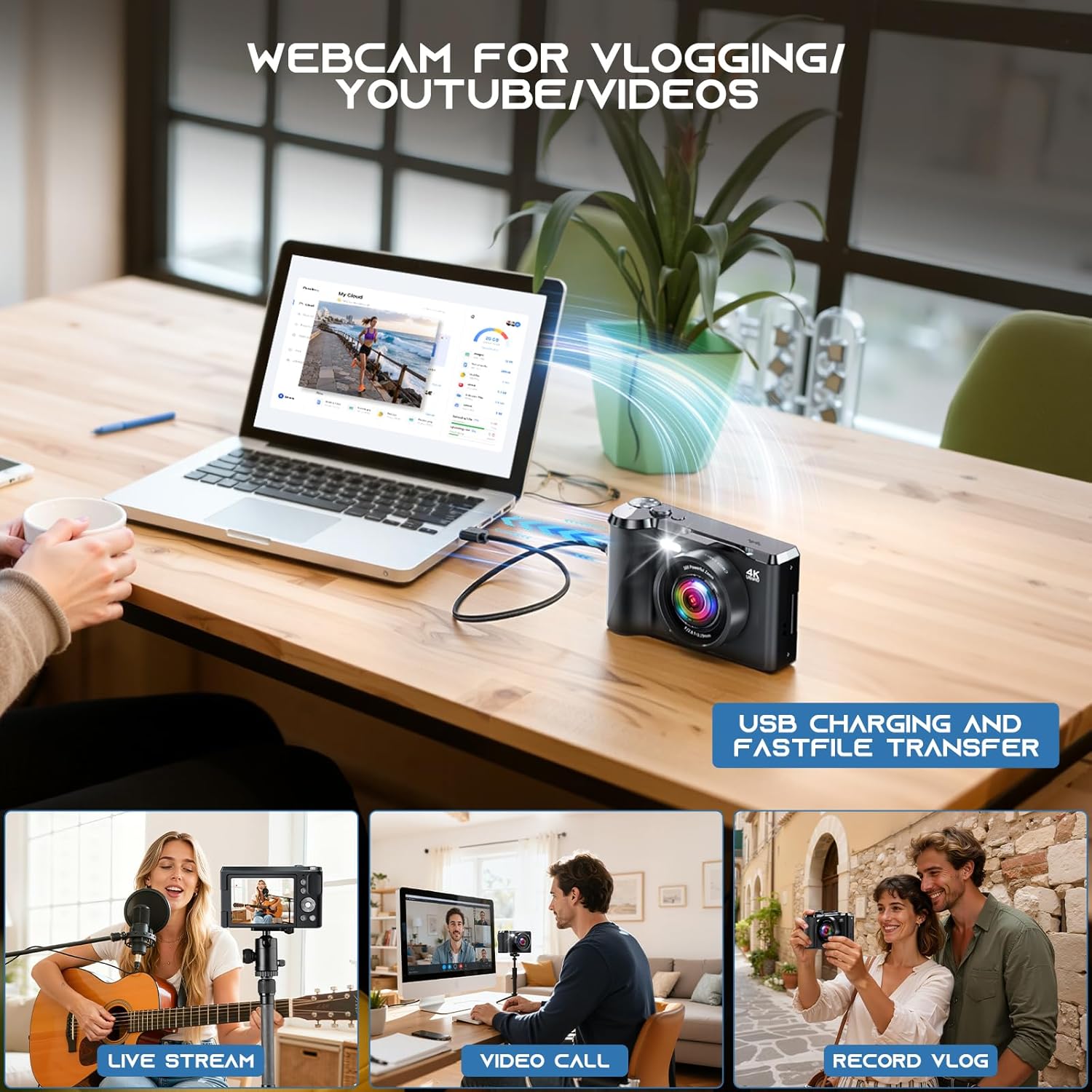
Connect the camera to your PC using the USB cable. Select 'Webcam Mode' on the camera to use it for live streaming, online classes, or video calls.
6. Viewing and Managing Content
6.1 Playback on Camera
Switch to Playback mode using the mode dial to view your captured photos and videos on the 3-inch screen. Use the navigation buttons to browse through your media.
6.2 Transferring Files to a Computer
Connect the camera to your computer using the USB cable. The camera will appear as a removable disk. You can then drag and drop files from the camera's memory card to your computer.
6.3 Deleting Files
In Playback mode, select the photo or video you wish to delete. Press the delete button (often indicated by a trash can icon) and confirm your selection. You can also delete multiple files or all files via the menu options.
7. Maintenance
- Keep the camera clean by wiping it with a soft, dry cloth.
- Avoid exposing the camera to extreme temperatures, dust, or moisture.
- Clean the lens gently with a lens cleaning cloth to avoid scratches.
- Store the camera in its pouch when not in use.
8. Troubleshooting
- Camera not turning on: Ensure the battery is charged and correctly inserted.
- Cannot take photos/videos: Check if the memory card is inserted and has sufficient space. Format the card if necessary (backing up data first).
- Poor image quality: Ensure the lens is clean. Check lighting conditions and adjust camera settings (e.g., ISO, white balance) if needed.
- Camera not recognized by PC: Ensure the USB cable is properly connected and 'Webcam Mode' or 'Mass Storage Mode' is selected on the camera.
9. Specifications
| Feature | Specification |
|---|---|
| Product Dimensions | 5.91 x 3.9 x 2.17 inches |
| Item Weight | 1.06 ounces |
| Model Name | DC12 |
| Photo Sensor Technology | CMOS |
| Supported File Format | JPEG |
| Image Stabilization | Digital |
| Optical Zoom | 16 x |
| Maximum Webcam Image Resolution | 56 MP |
| Aspect Ratio | 16:9 |
| Language | English |
| Manufacturer | Shenzhen Sulang Technology Co., Itd |
10. Warranty and Support
For warranty information and technical support, please refer to the contact details provided with your product packaging or visit the official JDZ website. Protection plans may be available for extended coverage.
Ask a question about this manual
Ask about setup, troubleshooting, compatibility, parts, safety, or missing instructions. Manuals+ will review the question and use this page’s manual context to help answer it.