1. Introduction
Thank you for choosing the electrosmart Android 13 Car Radio. This manual provides detailed instructions for the installation, operation, and maintenance of your new car stereo system. Please read this manual thoroughly before installation and use to ensure proper functionality and to maximize your user experience.
2. Product Overview
The electrosmart Android 13 Car Radio is a 9-inch IPS touch screen car stereo designed for Ford F150 models from 2009 to 2014. It features an Android 13 operating system with 4GB RAM and 64GB ROM, offering smooth performance and ample storage for applications. Key features include wireless Apple CarPlay and Android Auto, GPS navigation, Wi-Fi connectivity, Bluetooth 5.2, steering wheel control support, and backup camera input.
Package Contents:
- 9-inch IPS Touch Screen Car Stereo Unit
- Power Cable (A)
- RCA Cable (B)
- USB Cable (C)
- Radio Antenna (D)
- GPS Antenna (E)
- Reversing Line (F)
- Microphone
- Camera (Optional, if included in package)
- User Manual (This document)

Image: Overview of the car stereo unit dimensions, included accessories (microphone, camera, power cable, RCA cable, USB cable, radio antenna, GPS antenna, reversing line), and a detailed rear wiring diagram.
3. Compatibility
This car radio is specifically designed for Ford F150 models manufactured between 2009 and 2014. It is compatible with F-150 (STX, XLT, XL) trims.
Important: This unit is not compatible with original factory navigation systems. It is also not compatible with F-150 Lariat, FX4, Platinum, or SVT Raptor trims. Please verify your vehicle's trim and existing features before installation.
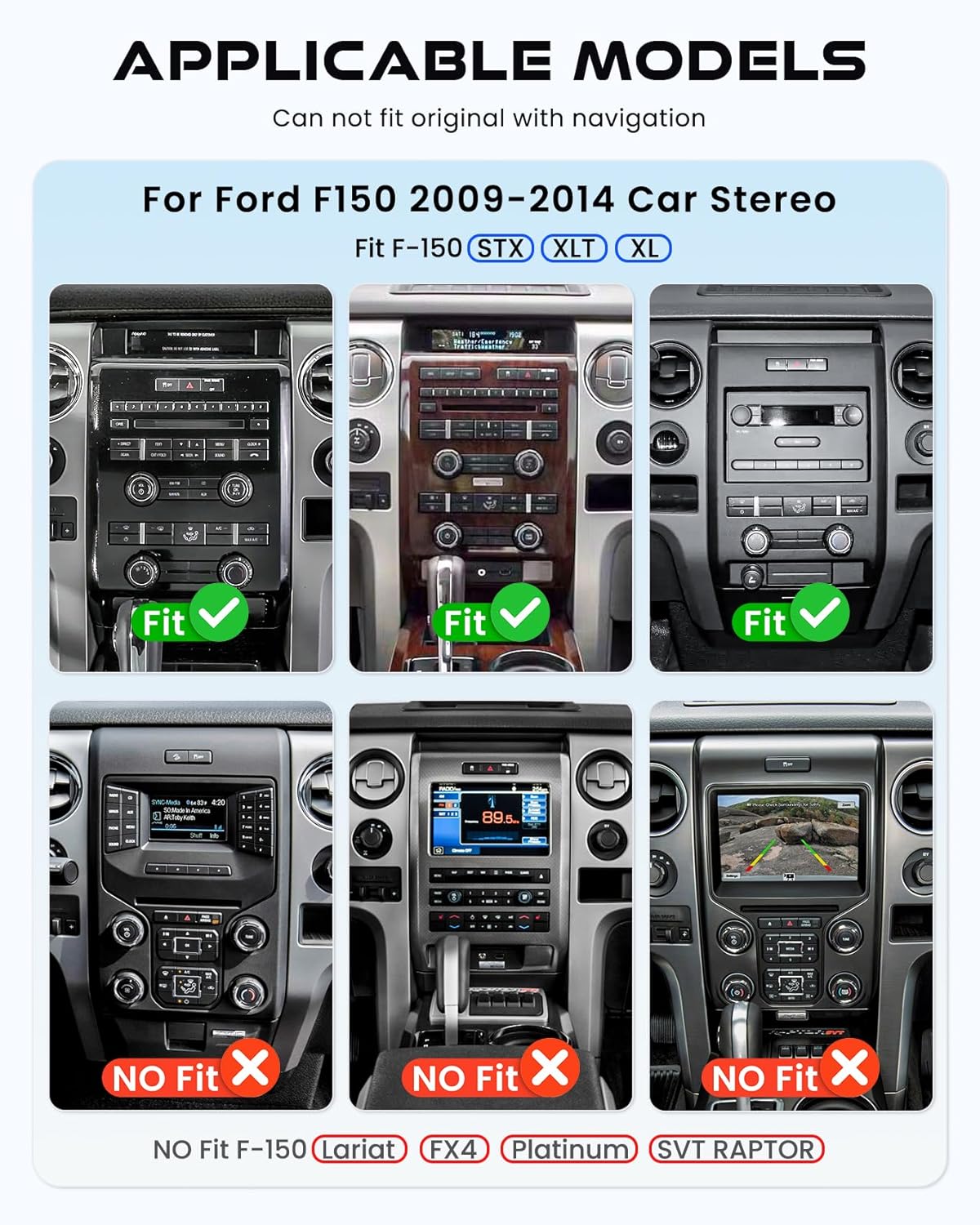
Image: Visual guide indicating compatible (STX, XLT, XL) and incompatible (Lariat, FX4, Platinum, SVT Raptor) Ford F150 dashboard configurations for the 2009-2014 model years.
4. Installation (Setup)
Professional installation is recommended. Ensure the vehicle's battery is disconnected before beginning installation to prevent electrical damage.
Wiring Connections:
- Power Cable (A): Connect the main power harness to the vehicle's wiring. Ensure all connections are secure and match the vehicle's electrical system.
- RCA Cable (B): Use for external audio/video input/output connections (e.g., amplifiers, external monitors).
- USB Cable (C): Connect for USB devices, such as flash drives or for wired CarPlay/Android Auto.
- Radio Antenna (D): Connect the vehicle's radio antenna to the unit.
- GPS Antenna (E): Mount the GPS antenna in a location with a clear view of the sky (e.g., dashboard, under the windshield) and connect it to the unit.
- Reversing Line (F): Connect this cable to the vehicle's reverse light trigger and the backup camera input.
- Microphone: Connect the external microphone for improved call quality.
- Camera: If installing a backup camera, connect its video output to the designated camera input on the unit.
After all connections are made, carefully mount the head unit into the dashboard. Reconnect the vehicle's battery and test all functions.
5. Operating Instructions
5.1. Basic System Navigation
The unit operates on Android 13. Navigate through menus and applications using the 9-inch IPS touch screen. Swipe gestures and taps are used for interaction.
5.2. Wireless Apple CarPlay & Android Auto
Connect your smartphone wirelessly or via USB to access Apple CarPlay or Android Auto. This allows for safe, hands-free access to navigation, music, calls, and messages through voice commands (Siri or Google Assistant).

Image: Displays the car stereo screen showing both Apple CarPlay and Android Auto interfaces, highlighting their integration with smartphone features and voice assistants.
5.3. GPS Navigation
The unit supports both offline and online GPS navigation. It comes with pre-installed offline map files. For online navigation, connect to Wi-Fi and use applications like Google Maps. The GPS antenna ensures accurate positioning.
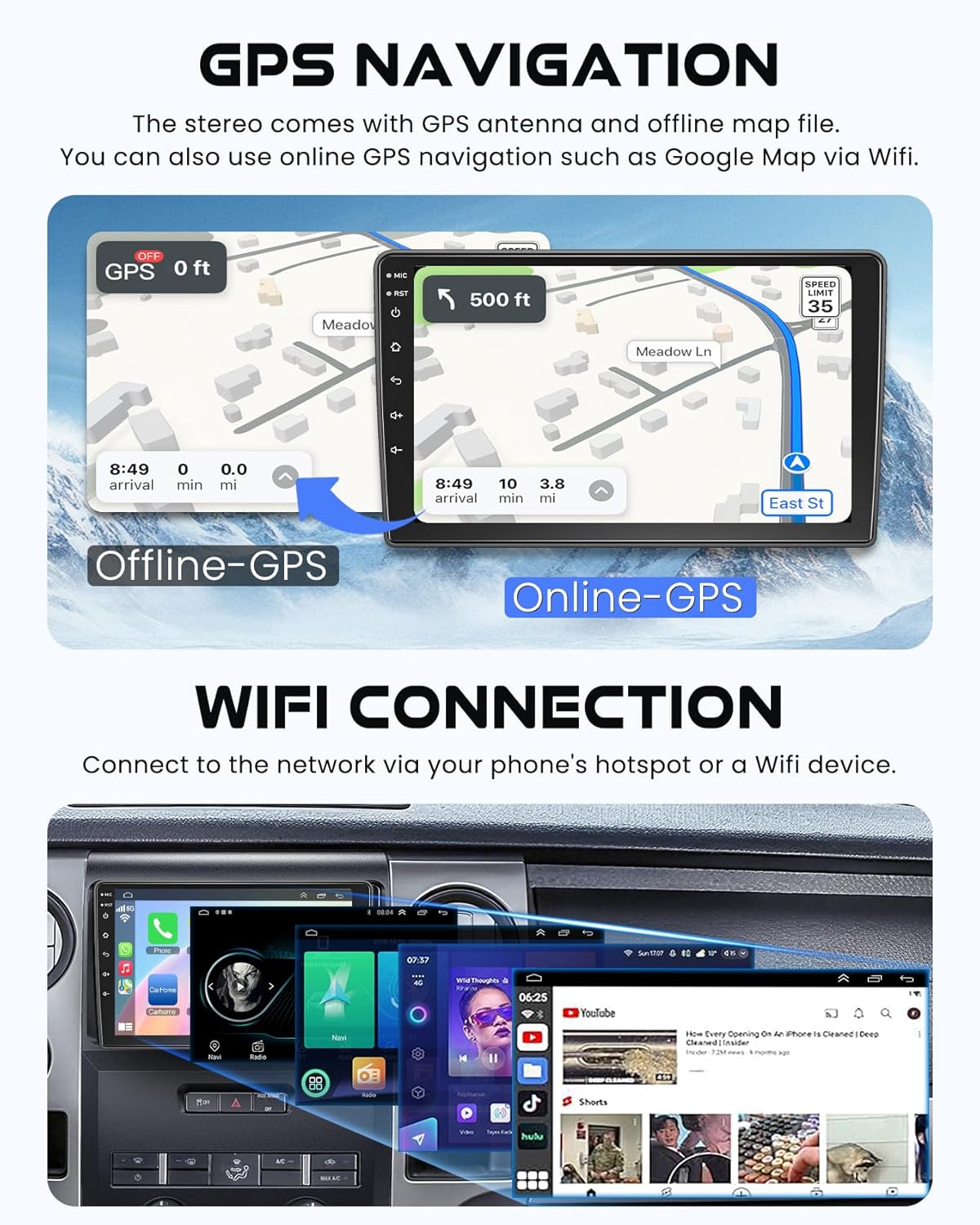
Image: Illustrates the GPS navigation feature, showing both offline map functionality and online map usage via Wi-Fi, along with the Wi-Fi connection screen.
5.4. Bluetooth 5.2
Pair your smartphone via Bluetooth for hands-free calling and wireless audio streaming. Access phone contacts and call history directly from the car stereo.
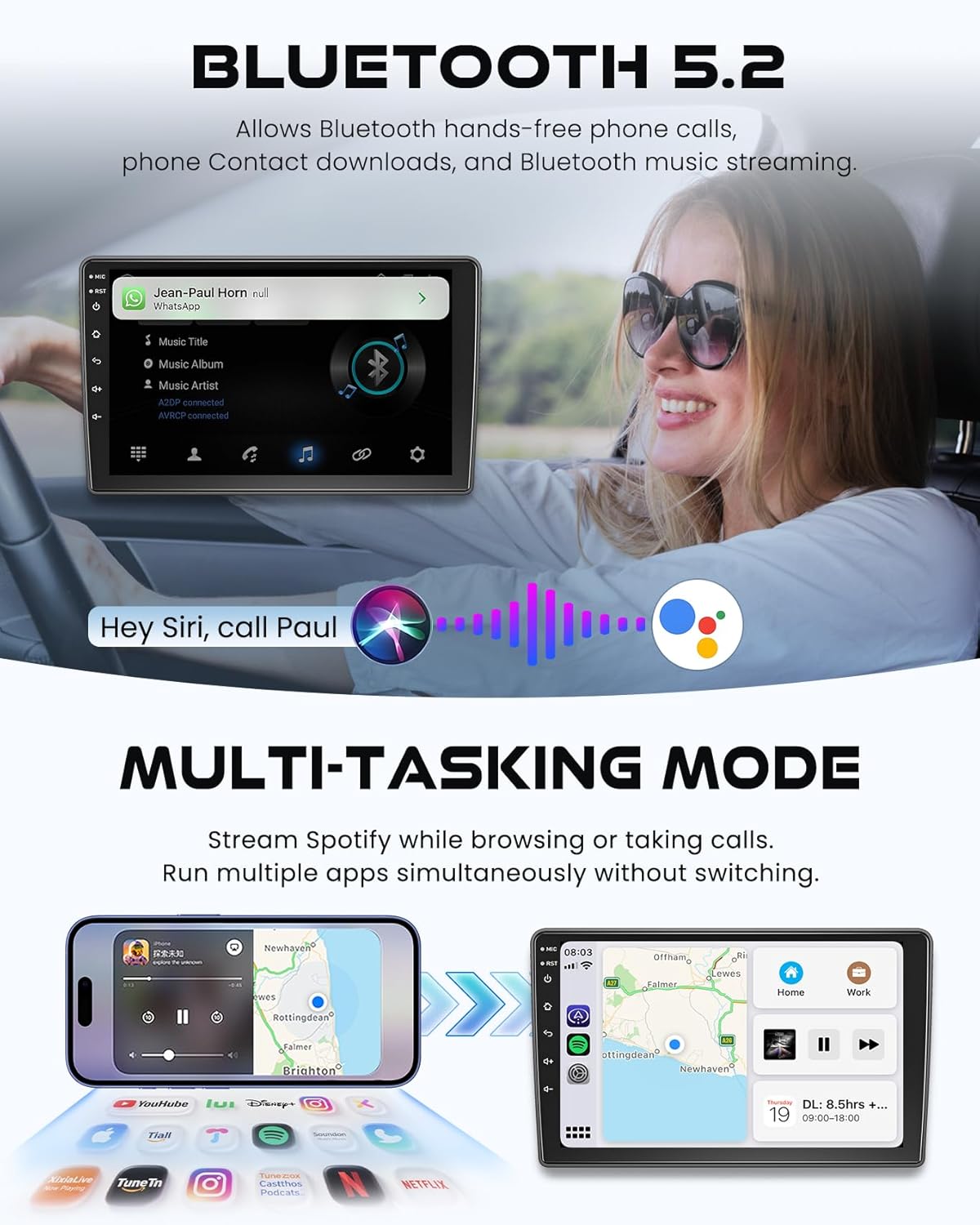
Image: Depicts the Bluetooth 5.2 connectivity for hands-free phone calls and music streaming, alongside a demonstration of the multi-tasking split-screen mode running Spotify and a navigation app simultaneously.
5.5. Multi-Tasking Mode (Split-Screen)
The unit supports split-screen functionality, allowing you to run two applications simultaneously. For example, you can use navigation on one side while playing music or making a call on the other.
5.6. Steering Wheel Control
The system supports integration with your vehicle's existing steering wheel controls. This allows for convenient and safe operation of audio functions without taking your hands off the wheel. Refer to the system settings for programming steering wheel buttons.

Image: Shows the clear night vision display from a backup camera and the on-screen interface for configuring steering wheel controls.
5.7. Backup Camera
When connected, the backup camera automatically displays a clear, bright image on the screen when the vehicle is shifted into reverse, aiding in safer parking and maneuvering.
5.8. Wi-Fi Connection
Connect the car stereo to a Wi-Fi network or your mobile phone's hotspot to access online features, download apps, stream videos, and use online navigation.
5.9. EQ Settings & FM/RDS Radio
Customize your audio experience with multiple preset EQ settings. Adjust volume, fader, balance, treble, and bass controls. The built-in FM/RDS radio provides clear reception for local stations.
6. Maintenance
- Screen Cleaning: Use a soft, lint-free cloth to clean the touch screen. Do not use abrasive cleaners or solvents.
- Software Updates: Periodically check for system software updates to ensure optimal performance and access to new features. Updates can typically be found through the system settings or the manufacturer's website.
- General Care: Avoid exposing the unit to extreme temperatures, direct sunlight for prolonged periods, or excessive moisture.
7. Troubleshooting
| Problem | Possible Cause | Solution |
|---|---|---|
| Unit does not power on. | Incorrect wiring; Blown fuse; Vehicle battery disconnected. | Check power cable connections. Inspect vehicle fuses. Ensure battery is connected. |
| No sound. | Volume too low; Mute activated; Speaker wiring issue. | Increase volume. Check mute setting. Verify speaker connections. |
| GPS signal lost or inaccurate. | GPS antenna obstructed or improperly connected. | Ensure GPS antenna has a clear view of the sky and is securely connected. |
| Bluetooth not connecting. | Bluetooth off on unit or phone; Pairing mode not active. | Enable Bluetooth on both devices. Put unit in pairing mode and search from phone. |
| Backup camera not displaying. | Camera wiring issue; Reverse trigger not connected. | Check camera video input and reversing line connection. Ensure camera is powered. |
| Touch screen unresponsive or laggy. | System overload; Software glitch. | Restart the unit. If issue persists, perform a factory reset (note: this will erase data). |
If you encounter issues not listed here or require further assistance, please contact electrosmart customer support.
8. Specifications
| Feature | Detail |
|---|---|
| Model | B0FPFK43P2 |
| Operating System | Android 13 |
| Memory (RAM) | 4GB |
| Storage (ROM) | 64GB |
| Screen Size | 9 Inches |
| Display Type | IPS Touch Screen |
| Resolution | 720*1280 (HD) |
| Connectivity | Bluetooth 5.2, Wi-Fi |
| Special Features | Wireless Apple CarPlay, Android Auto, GPS Navigation, EQ, FM Tuner, Hands-Free Calling, Split-Screen Mode, Steering Wheel Control Support, Backup Camera Input, OBD2/DVR/DPS Support |
| Audio Output Mode | Stereo |
| Speaker Surround Sound Channel Configuration | 5.1 |
| Amplification | 4*50W |
| Compatible Devices | Smartphone |
| Item Weight | 1.93 Kilograms |
| Package Dimensions | 41.71 x 32.28 x 14.5 cm |
9. Warranty and Support
This product comes with a standard manufacturer's warranty. For details regarding warranty coverage, duration, and claims, please refer to the warranty card included in your package or contact electrosmart customer support.
For technical support, installation queries, or any other assistance, please contact electrosmart customer service through the contact information provided with your purchase or on the official electrosmart website.
Returns Policy: This product is subject to a 30-day return policy for refund or replacement, as per the seller's terms.