
HINYFVOZ HINYFVOZ
HINYFVOZ 9-Inch HD Touchscreen GPS Navigator User Manual
Model: HINYFVOZ
1. Overview
The HINYFVOZ 9-Inch HD Touchscreen GPS Navigator is designed to provide reliable and comprehensive navigation for various vehicle types, including cars, trucks, and RVs. It features a large, high-definition display, pre-loaded North America maps with free lifetime updates, and intelligent routing capabilities. This manual provides essential information for setting up, operating, and maintaining your device.
2. Package Contents
Before you begin, please ensure all items are present in your package:
- GPS Navigator
- User Manual
- Dashboard Plate
- USB Data Cable
- Car Charger
- Suction Cup Mount

Image: All components included in the HINYFVOZ GPS Navigator package.
3. Setup
3.1 Mounting the Device
- Clean the Surface: Ensure the dashboard or windshield area where you intend to mount the GPS is clean and dry.
- Attach Suction Cup Mount: Press the suction cup firmly onto the desired surface and engage the lever to secure it.
- Attach GPS Unit: Slide the GPS navigator onto the mount until it clicks securely into place. Adjust the angle for optimal viewing without obstructing your driving view.
- Connect Power: Plug the car charger into your vehicle's 12V power outlet and connect the other end to the GPS unit.

Image: The HINYFVOZ GPS Navigator securely mounted on a car dashboard.
3.2 Initial Power On and Settings
Upon first power-on, the device may prompt you to configure basic settings such as language, time zone, and vehicle type. Follow the on-screen instructions. For optimal routing, accurately input your vehicle's dimensions (length, width, height) if using for RV or truck routing.
4. Operating Instructions
4.1 Main Menu Navigation
The main menu provides access to all functions. Tap the icons to select Navigation, Settings, Media Player, and other features.
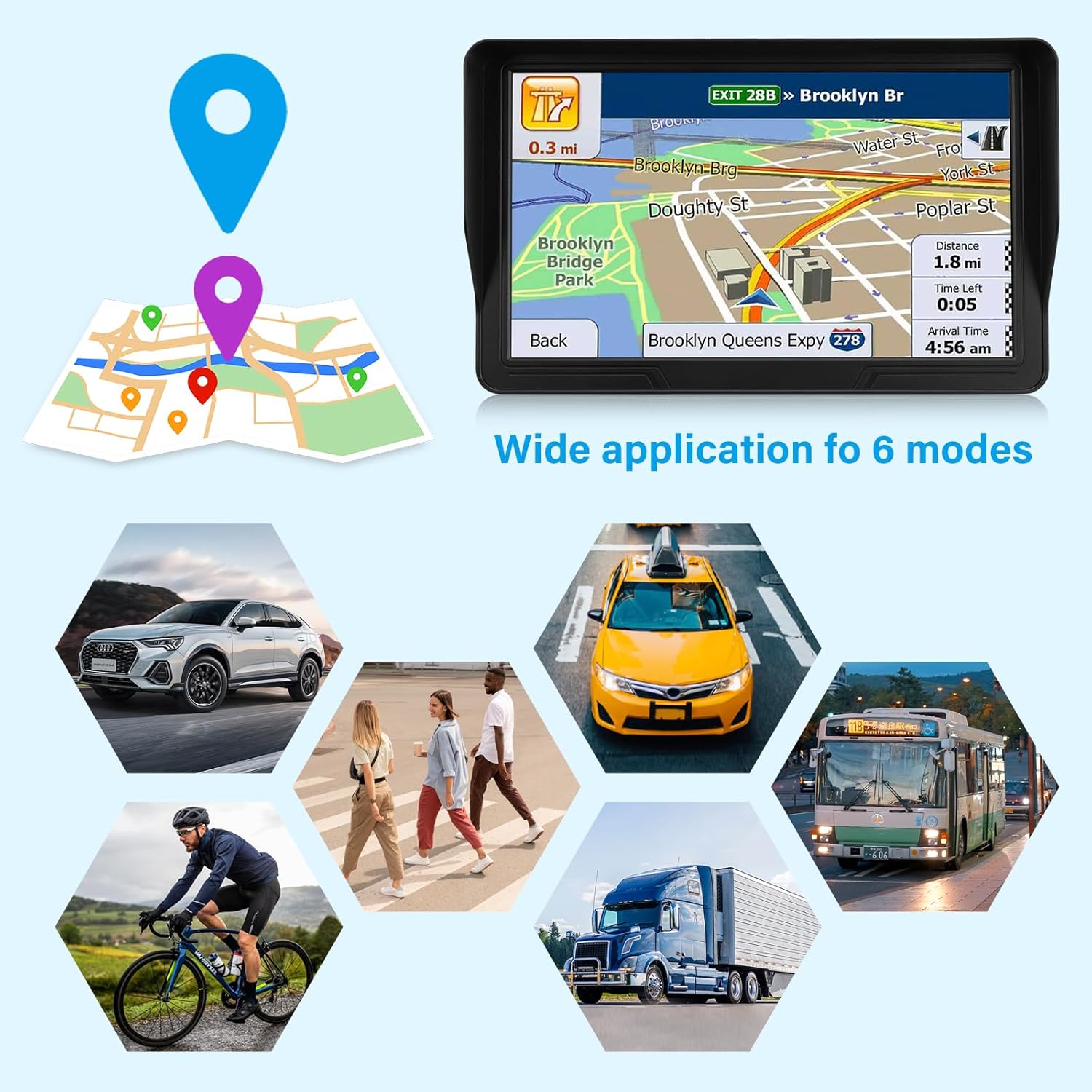
Image: The GPS navigator displaying various application modes, including car, truck, RV, pedestrian, and bicycle.
4.2 Setting a Destination
- From the main menu, tap "Navigation".
- Select "Destination" or "Find Address".
- Enter the address, zip code, or Point of Interest (POI) using the on-screen keyboard.
- Confirm the destination and tap "Go" to start route guidance.
4.3 Voice Guidance and Alerts
The device provides clear turn-by-turn voice prompts. It also offers safety alerts for speed limits, red-light cameras, and school zones. Ensure the volume is set to an audible level.

Image: The GPS screen showing active navigation with speed limit and alert icons.
4.4 FM Transmission
To broadcast voice guidance through your car's audio system, activate the built-in FM transmitter. Go to "Settings" and select "FM Transmitter". Tune your car radio to the specified FM frequency on the GPS unit. (Note: This function only transmits audio and is not a standalone FM radio.)

Image: Visual representation of the FM transmission setup process.
5. Key Features
- 9-inch HD Large Screen: Provides a clear and broad field of view with sharper graphics and convenient menu navigation.
- Free Lifetime Map Updates: Pre-loaded with the latest North America maps (2026 version) and offers free lifetime updates for current road information.
- Voice Guidance & Safety Alerts: Delivers clear turn-by-turn voice prompts, speed limit reminders, red-light camera warnings, and school zone alerts.
- Customized Vehicle Route Planning: Allows route customization for cars, trucks, and RVs by entering vehicle dimensions to avoid unsuitable roads.
- Smart Search & FM Transmission: Supports quick destination input and broadcasts voice guidance through your car's audio system.
6. Maintenance
6.1 Cleaning the Device
Use a soft, lint-free cloth to clean the screen and exterior of the GPS navigator. Do not use abrasive cleaners or solvents, as they may damage the device. Avoid spraying liquids directly onto the screen.
6.2 Map Updates
The device offers free lifetime map updates. To update maps, connect the GPS unit to a Windows PC using the provided USB data cable. Follow the instructions provided with the device or visit the manufacturer's website for detailed update procedures. Alternatively, updates may be available via TF card (not included).

Image: Diagram illustrating the process of updating maps via PC or TF card.
6.3 Battery Care
To prolong battery life, avoid exposing the device to extreme temperatures. Charge the device fully before long trips and periodically if not in use.
7. Troubleshooting
| Problem | Possible Cause | Solution |
|---|---|---|
| Device does not power on. | Low battery or power connection issue. | Ensure the device is fully charged or connected to a working power source. Check the car charger and USB cable for damage. |
| No GPS signal. | Obstructed view of the sky or device interference. | Move the device to an area with a clear view of the sky. Avoid placing it near other electronic devices that may cause interference. |
| Voice guidance is too low or absent. | Volume settings or FM transmitter not configured correctly. | Adjust the device's volume. If using FM transmission, ensure your car radio is tuned to the correct frequency and the FM transmitter is active. |
| Touchscreen unresponsive. | Temporary software glitch or screen protector issue. | Restart the device. If a screen protector is installed, ensure it is properly applied and not interfering with touch sensitivity. |
8. Specifications
- Brand: HINYFVOZ
- Model Name: HINYFVOZ
- Screen Size: 9 Inches
- Display Type: Touch Screen (Capacitive)
- Vehicle Service Type: Car, RV, Truck
- Connectivity Technology: USB
- Map Type: North America (2026 Maps)
- Operating System: Windows
- Control Method: Touch, Voice
- Human-Interface Input: Microphone, Touchscreen
- Are Batteries Included: Yes
- Item Weight: 1.07 Kilograms
- UPC: 717661784711
- Manufacturer: GPS-HJX
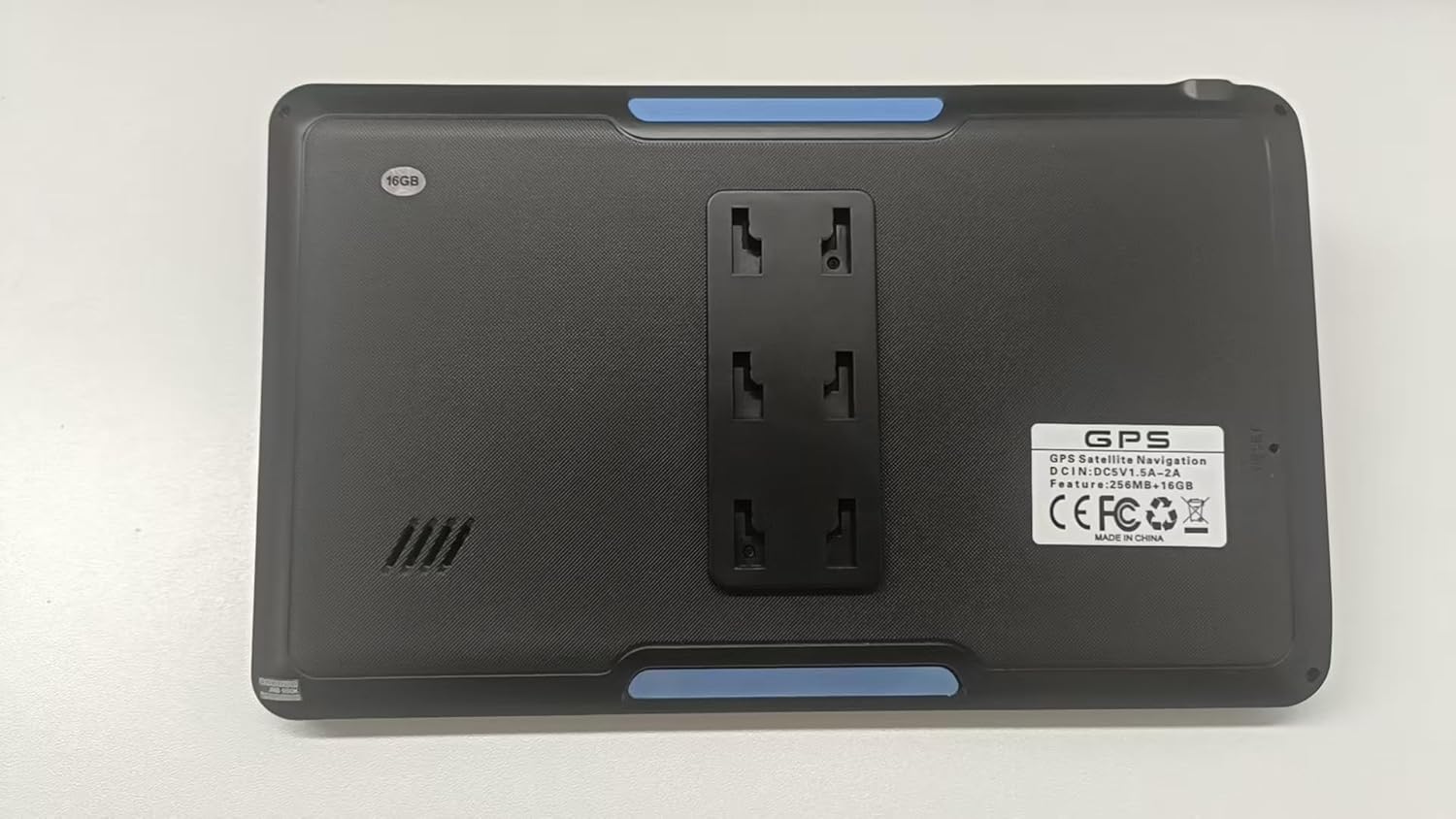
Image: Rear view of the GPS unit, highlighting its design and information labels.
9. Warranty and Support
The product comes with a 1-year warranty from the manufacturer, GPS-HJX. For technical support, warranty claims, or further assistance, please refer to the contact information provided in the product packaging or visit the official HINYFVOZ support website.
For additional protection, 2-Year and 3-Year Protection Plans are available for purchase separately. These plans offer extended coverage beyond the standard manufacturer's warranty.
Ask a question about this manual
Ask about setup, troubleshooting, compatibility, parts, safety, or missing instructions. Manuals+ will review the question and use this page’s manual context to help answer it.