
1. Introduction
The PTGTO Wireless CarPlay & Android Auto Adapter converts your vehicle's existing wired CarPlay or Android Auto system into a wireless connection. This device offers a stable, low-latency experience for navigation, music, and communication, enhancing your driving convenience.
This manual provides detailed instructions for setting up and operating your adapter, along with important compatibility information and troubleshooting tips.
2. Package Contents
- 1x PTGTO Wireless CarPlay & Android Auto Adapter
- 1x USB-C Adapter
- 1x User Manual

Image: Contents of the PTGTO Wireless CarPlay Adapter package.
3. Compatibility
The PTGTO Wireless CarPlay & Android Auto Adapter is designed for vehicles with factory-wired CarPlay or Android Auto systems from 2016 onwards.
- iPhone Compatibility: iPhone 6 and later models running iOS 10+ versions.
- Android Phone Compatibility: Android phones running Android 11+ versions.
Important Note: This adapter is NOT compatible with BMW or Tesla vehicles.
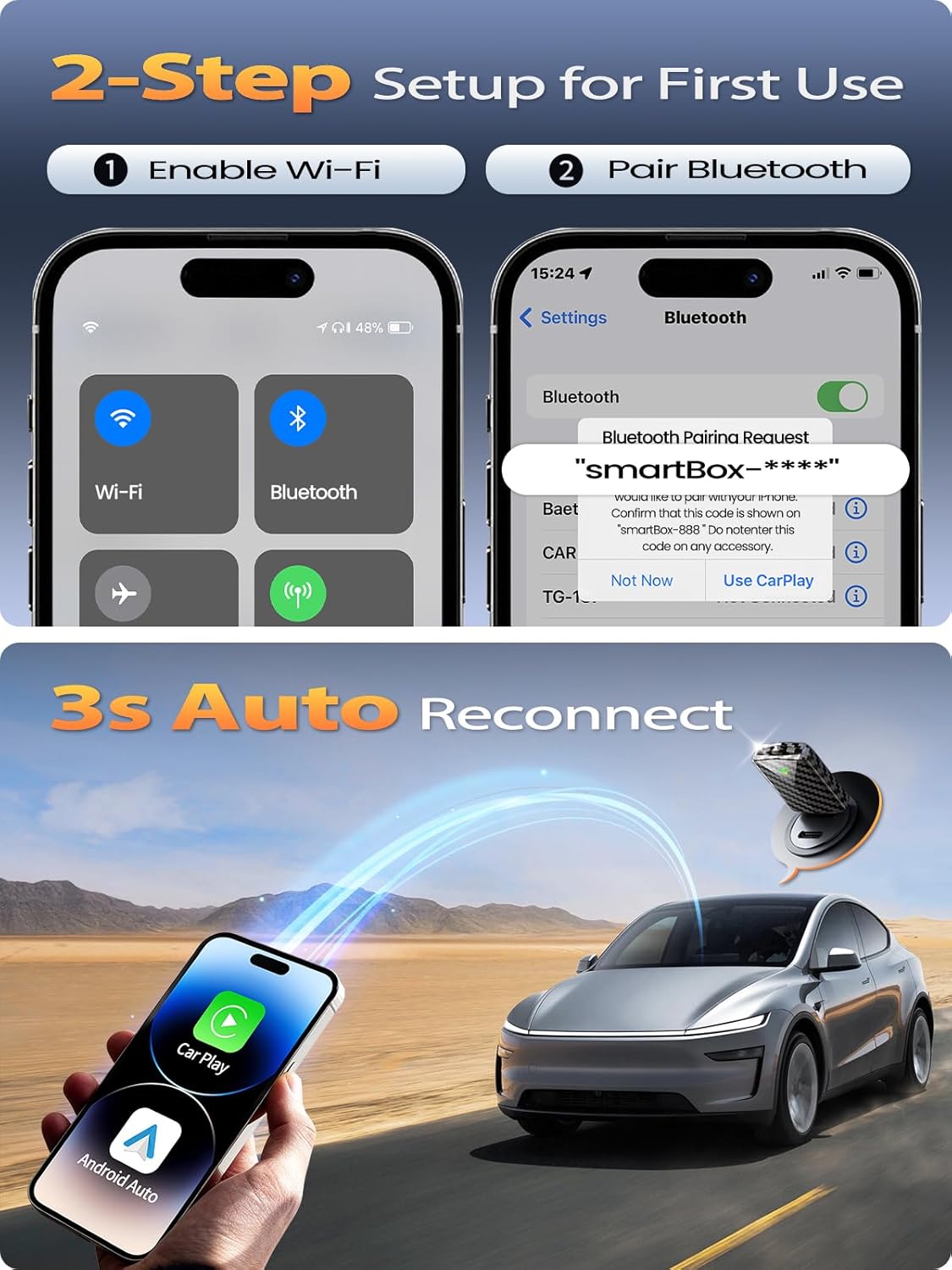
Image: Visual representation of device and vehicle compatibility.
4. Setup Instructions
Follow these steps for initial setup:
- Plug in the Adapter: Insert the PTGTO Wireless Adapter into your car's USB-A data port. If your car only has a USB-C port, use the included USB-C adapter. Ensure it is plugged into a data port, not just a charging port. The adapter features dual-sided LED indicators for visible status.
- Enable Wi-Fi and Bluetooth on Your Phone: On your iPhone or Android device, go to Settings and ensure both Wi-Fi and Bluetooth are turned ON. The Wi-Fi should not be connected to another device.
- Pair via Bluetooth: On your phone's Bluetooth settings, search for the adapter's Bluetooth name, typically starting with "smartBox-xxxx". Select it to pair.
- Confirm Connection: Follow any on-screen prompts on your phone and car's display to allow contacts, favorites sync, and connect to CarPlay or Android Auto.

Image: The adapter connected to a car's USB-A port, with an illustration of the USB-C adapter.
Video: A step-by-step guide on how to use the PTGTO Wireless CarPlay Adapter.
Description: This video demonstrates the process of connecting the PTGTO Wireless CarPlay Adapter to a car and pairing it with a smartphone, showing the seamless transition to wireless CarPlay.

Image: A visual guide to the initial setup steps, including enabling Wi-Fi/Bluetooth and pairing.

Image: Instructions for iPhones with iOS 18+, detailing how to access CarPlay settings for pairing.
5. Operating Instructions
Once successfully paired, the adapter will automatically connect to your phone within approximately 3-5 seconds each time you start your car, provided your phone's Bluetooth and Wi-Fi are enabled.
- Seamless Integration: Enjoy all original CarPlay or Android Auto applications, including navigation (Maps, Google Maps, Waze), music streaming (Spotify, Apple Music), calls, and messages, directly on your car's infotainment screen.
- Control Methods: Interact with your car's system using the native touchscreen, control knobs, or steering wheel buttons, just as you would with a wired connection. Voice commands via Siri or Google Assistant are also fully supported.
- Safety Feature: For driving safety, the adapter intelligently restricts video playback applications (e.g., YouTube, Netflix) while the vehicle is in motion.
- Dual-Side LED Indicators: The adapter features LED indicators on both sides, ensuring visibility of its working status regardless of your car's USB port orientation.

Image: Illustration of the adapter's 3-second automatic reconnection feature.

Image: Demonstrates the multiple control methods available for the car's infotainment system.
6. Maintenance
The PTGTO Wireless CarPlay & Android Auto Adapter requires minimal maintenance. Keep the device clean and dry. Avoid exposing it to extreme temperatures or direct sunlight for prolonged periods. Do not attempt to disassemble or repair the adapter yourself, as this will void the warranty.
7. Troubleshooting
- Connection Issues: If the adapter fails to connect, ensure your phone's Wi-Fi and Bluetooth are on and not connected to other devices. Try unplugging and re-plugging the adapter, then restart your car's infotainment system.
- No Audio: Verify that your car's audio input is set to CarPlay/Android Auto. Check your phone's volume and the car's volume settings.
- Overheating: The adapter is designed with intelligent engineering to prevent overheating. If you experience unusual heat, ensure the adapter is not obstructed and has adequate ventilation.
- Lag or Delay: While designed for minimal delay, ensure your phone's operating system is up to date. A strong Wi-Fi signal from your phone is crucial for optimal performance.
For persistent issues, refer to the support section for assistance.
8. Specifications
| Feature | Detail |
|---|---|
| Model Number | CarPay CA6 |
| Dimensions (L x W x H) | 2.09 x 0.43 x 0.95 inches |
| Weight | 0.06 Kilograms |
| Connector Type | USB Type A, USB Type C |
| Input Voltage | 5 Volts |
| Current Rating | 0.2 Amps |
| Nominal Power | 1 Watts |
| Certifications | FCC-certified (UL, ISO, CE, IC, RoHS mentioned in A+ content) |

Image: Product certifications and patents.
9. Warranty and Support
The PTGTO Wireless CarPlay & Android Auto Adapter comes with a 2-year warranty and 7-year after-sales support.
For any questions, technical assistance, or warranty claims, please contact our dedicated support team:
- Email: PTGTO-Warranty@outlook.com
- Availability: 24/7 expert support
We also provide timeless firmware updates to ensure optimal performance and compatibility.

Image: PTGTO customer support information.