
1. Introduction
This manual provides detailed instructions for the setup, operation, maintenance, and troubleshooting of your PIXGOOD 2K 11-inch Tablet, model M128-EEA. Please read this manual thoroughly before using your device to ensure proper functionality and to maximize your user experience.

2. Package Contents
Upon opening the package, please verify that all the following items are included:
- 1 x PIXGOOD Tablet PC (M128-EEA)
- 1 x Keyboard
- 1 x Mouse
- 1 x Protective Case
- 1 x Pen (Stylus)
- 1 x Earphones
- 1 x Charger (5V/3A)
- 1 x OTG Cable
- 1 x USB Cable (Type-C)
- 1 x User Manual (this document)
3. Setup Guide
3.1 Initial Power On and Charging
- Connect the provided charger to the tablet's USB Type-C port.
- Plug the charger into a power outlet.
- Press and hold the power button located on the side of the tablet until the PIXGOOD logo appears.
- Follow the on-screen instructions to complete the initial setup, including language selection, Wi-Fi connection, and Google account login.
3.2 SIM Card and MicroSD Card Installation
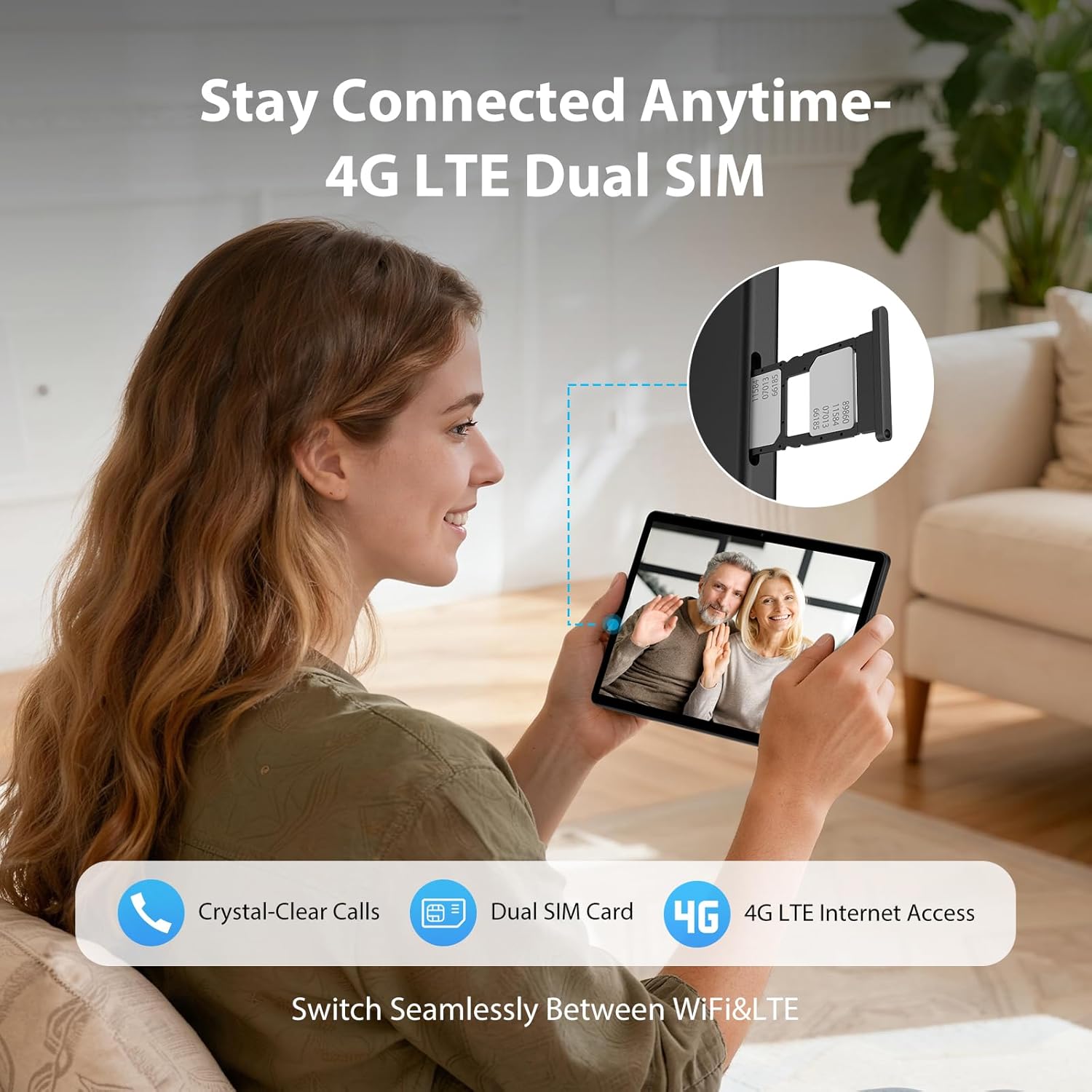
The tablet supports dual Nano 4G LTE SIM cards and a MicroSD card for expanded storage up to 1TB.
- Locate the SIM/MicroSD card tray on the side of the tablet.
- Use the provided SIM ejector tool to open the tray.
- Carefully place your Nano SIM card(s) and/or MicroSD card into the designated slots on the tray. Ensure correct orientation.
- Gently push the tray back into the tablet until it clicks into place.
3.3 Connecting Accessories
Your PIXGOOD tablet comes with a keyboard, mouse, and pen for enhanced productivity.
- Keyboard & Mouse: These accessories connect via Bluetooth. Turn on Bluetooth on your tablet (Settings > Connected devices > Bluetooth), then put the keyboard/mouse into pairing mode (refer to their individual manuals if needed). Select the device from the tablet's Bluetooth list to pair.
- Pen (Stylus): The pen is typically passive and does not require pairing. Simply use it directly on the screen for navigation or writing.
- Earphones: Plug the earphones into the 3.5mm audio jack on the tablet.
4. Operating Instructions
4.1 Android 15 Operating System
Your tablet runs on Android 15, offering an intuitive and secure user experience. Navigate through the interface using touch gestures, access apps from the home screen or app drawer, and customize settings to your preference.

4.2 Display and Entertainment
The 11-inch INCELL IPS display with 2000x1200 FHD resolution provides a clear and vibrant viewing experience. With Widevine L1 certification, you can stream high-definition content from platforms like Netflix, YouTube, and Prime Video at 1080p resolution.

4.3 Connectivity
- Wi-Fi: Connect to 2.4GHz or 5GHz Wi-Fi networks for fast internet access. Go to Settings > Network & internet > Wi-Fi.
- 4G LTE: If a SIM card is installed, enable mobile data in Settings > Network & internet > Mobile network.
- Bluetooth: Pair with Bluetooth devices like headphones, speakers, or the included keyboard and mouse. Go to Settings > Connected devices > Bluetooth.
4.4 Camera Usage
The tablet features a 13MP rear camera and an 8MP front camera. Open the Camera app to capture photos and videos. Switch between front and rear cameras, and explore various camera modes.

4.5 Versatile Usage Scenarios
The PIXGOOD M128-EEA tablet is designed for a wide range of activities, from productivity and learning to entertainment and communication. Its portability and robust features make it suitable for various daily uses.

5. Maintenance
5.1 Cleaning Your Tablet
- Use a soft, lint-free cloth to clean the screen and body of the tablet.
- For stubborn smudges, slightly dampen the cloth with water or a screen-cleaning solution.
- Avoid using harsh chemicals, abrasive materials, or excessive moisture.
5.2 Software Updates
Regularly check for and install software updates to ensure your tablet has the latest features, security patches, and performance improvements. Go to Settings > System > System update.
5.3 Storage Optimization
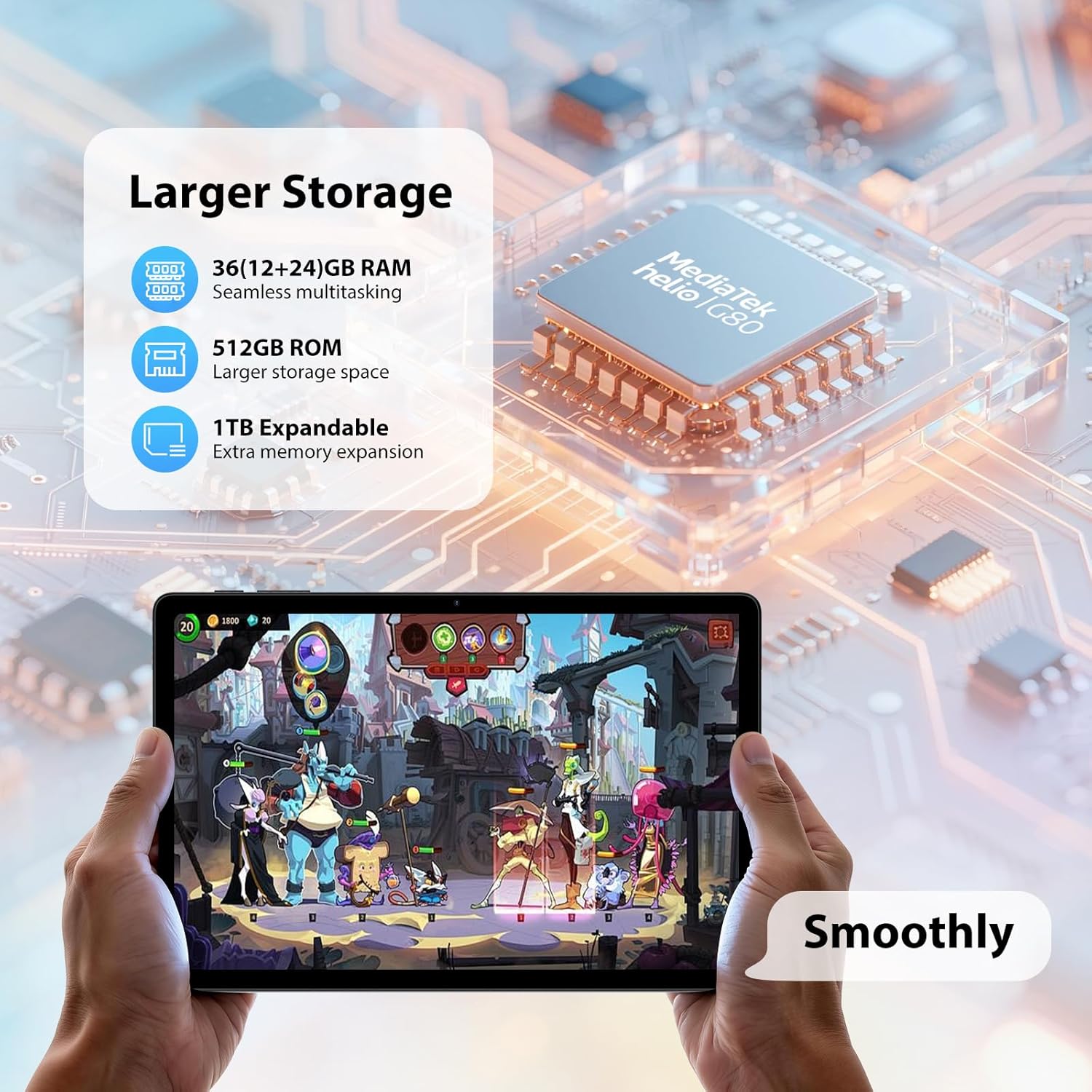
To maintain optimal performance, periodically manage your tablet's storage. Delete unnecessary files, uninstall unused apps, and move large media files to the MicroSD card or cloud storage. The tablet offers 512GB of internal storage and supports up to 1TB MicroSD expansion.
6. Troubleshooting
If you encounter issues with your tablet, refer to the following common solutions:
- Tablet not turning on: Ensure the battery is charged. Connect the charger and wait a few minutes before attempting to power on again.
- Slow performance: Close unused applications, clear cache, or restart the tablet. Check for available storage space.
- Wi-Fi/4G connectivity issues: Restart the tablet and your router/modem. Ensure airplane mode is off. Verify SIM card installation and mobile data settings.
- Apps crashing: Clear the app's cache and data (Settings > Apps > [App Name] > Storage & cache). If the issue persists, reinstall the app.
- Touchscreen unresponsive: Restart the tablet. If the problem continues, contact customer support.
7. Specifications
| Feature | Specification |
|---|---|
| Brand | PIXGOOD |
| Model Number | M128-EEA |
| Operating System | Android 15 |
| Processor | Octa-Core 2.0GHz (Helio G80) |
| RAM | 36GB (12GB physical + 24GB virtual expansion) |
| Internal Storage (ROM) | 512GB |
| Expandable Storage | Up to 1TB via MicroSD card |
| Display Size | 11 inches |
| Display Type | INCELL IPS |
| Display Resolution | 2000 x 1200 FHD |
| Widevine Certification | L1 (for 1080p streaming) |
| Rear Camera | 13.0MP |
| Front Camera | 8.0MP |
| Wi-Fi | 2.4GHz / 5GHz (802.11 ac/b/g/n) |
| Cellular Connectivity | 2G/3G/4G LTE (Dual SIM support) |
| Bluetooth | Yes |
| GPS | Yes |
| Battery Capacity | 9580mAh |
| Charger Output | 5V/3A |
| Ports | USB Type-C, 3.5mm Headphone Jack |
| Dimensions (L x W x H) | 257.35mm x 168.65mm x 8.45mm |
| Weight | 539g |
8. Warranty and Support
8.1 Product Warranty
The PIXGOOD M128-EEA tablet comes with a 36-month manufacturer's warranty from the date of purchase. This warranty covers defects in materials and workmanship under normal use. Please retain your proof of purchase for warranty claims.

8.2 Customer Support
For any questions, technical assistance, or warranty claims, please contact PIXGOOD customer support through the platform where you purchased the product (e.g., Amazon). We are committed to resolving any issues you may encounter.