Introduction
Thank you for purchasing the MD-1308BT Portable 3-Band Radio. This device offers a classic listening experience combined with modern connectivity options, including FM/AM/SW radio, Bluetooth, USB, AUX, and TF card playback. This manual provides detailed instructions for safe and efficient use of your radio.
Safety Information
- Do not expose the unit to rain, moisture, or extreme temperatures.
- Avoid disassembling the radio. Refer all servicing to qualified personnel.
- Keep the device away from strong magnetic fields.
- Use only the specified charging cable and power adapter (DC 5V) to prevent damage.
- Dispose of batteries responsibly according to local regulations.
Package Contents
Please check the box for the following items:
- MD-1308BT Portable Radio
- USB Charging Cable
- External Antenna
- Owner's Manual (this document)

Image: The MD-1308BT radio shown alongside its retail packaging and included USB charging cable.
Product Overview
Familiarize yourself with the main components and controls of your MD-1308BT radio:
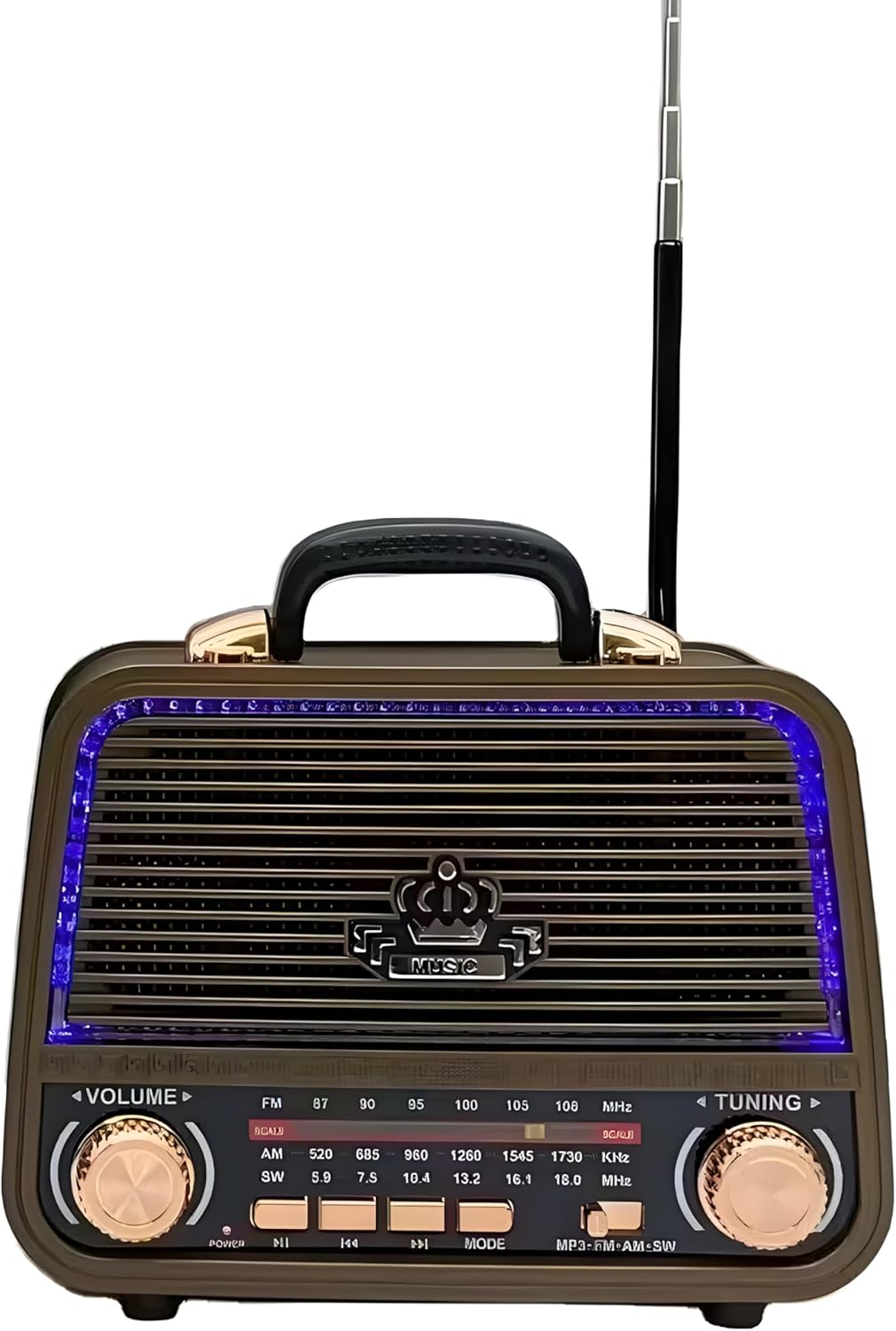
Image: Front view of the MD-1308BT radio, showing the speaker grille, LED lighting, volume and tuning knobs, and playback control buttons.
Front Panel Controls:
- VOLUME Knob: Rotate to adjust the sound level.
- TUNING Knob: Rotate to tune into radio stations.
- Band Selector: Switch between FM, AM, and SW bands.
- Power/Play/Pause Button: Press to power on/off or play/pause media.
- Previous/Next Track Buttons: Navigate tracks in USB/TF/Bluetooth modes.
- MODE Button: Switch between Radio, Bluetooth, USB, AUX, and TF card modes.
- LED Display: Shows frequency or mode information.

Image: Rear view of the MD-1308BT radio, illustrating the battery compartment, USB port, TF card slot, and AUX input.
Rear Panel / Side Ports:
- USB Port: For USB flash drive playback.
- TF Card Slot: For TF (MicroSD) card playback.
- AUX Input: For connecting external audio devices via a 3.5mm cable.
- DC 5V Input: For charging the internal battery or direct power.
- Battery Compartment: Houses the rechargeable battery.
- External Antenna: Extendable antenna for improved radio reception.
Setup
1. Charging the Battery
- Connect the supplied USB charging cable to the DC 5V input port on the radio.
- Connect the other end of the USB cable to a compatible USB power adapter (not included) or a computer USB port.
- The LED indicator will show charging status (specific indicator behavior may vary by unit).
- A full charge typically takes several hours. Disconnect the charger once fully charged.
2. Inserting Storage Media (USB/TF Card)
- For USB playback, insert a USB flash drive into the USB port.
- For TF card playback, insert a TF (MicroSD) card into the TF card slot with the contacts facing down.
3. Extending the Antenna
For optimal radio reception, fully extend the external telescopic antenna.
Operating Instructions
1. Power On/Off
Press and hold the Power/Play/Pause button to turn the radio on or off.
2. Adjusting Volume
Rotate the VOLUME knob to increase or decrease the sound level.
3. Radio Mode (FM/AM/SW)
- Press the MODE button until the radio mode (FM, AM, or SW) is selected.
- Use the Band Selector switch to choose between FM, AM, or SW bands.
- Rotate the TUNING knob to scan for and select radio stations. The frequency will be displayed on the LED screen.
- Extend the external antenna for better reception, especially for FM and SW bands.
4. Bluetooth Mode
- Press the MODE button until "BT" or "Bluetooth" appears on the display. The radio will enter pairing mode.
- On your mobile device, enable Bluetooth and search for available devices.
- Select "MD-1308BT" from the list to pair. A confirmation sound may be heard.
- Once paired, you can play audio from your device through the radio. Use the radio's playback control buttons (Play/Pause, Previous/Next) or your device's controls.

Image: The MD-1308BT radio wirelessly connected to a smartphone, demonstrating Bluetooth audio playback.
5. USB/TF Card Playback
- Insert a USB flash drive or TF card containing MP3 audio files into the respective port.
- Press the MODE button to switch to USB or TF card mode. Playback should start automatically.
- Use the Play/Pause and Previous/Next buttons to control playback.
6. AUX Input Mode
- Connect an external audio device (e.g., smartphone, MP3 player) to the AUX input port using a 3.5mm audio cable (not included).
- Press the MODE button until "AUX" appears on the display.
- Control playback and volume from your connected external device.
Maintenance
- Clean the radio's exterior with a soft, dry cloth. Do not use abrasive cleaners or solvents.
- When not in use for extended periods, store the radio in a cool, dry place.
- To prolong battery life, avoid fully discharging the battery frequently and recharge it regularly.
Troubleshooting
| Problem | Possible Cause | Solution |
|---|---|---|
| Radio does not power on. | Battery is low or depleted. | Charge the radio using the USB cable. |
| No sound or low volume. | Volume is too low; incorrect mode selected. | Increase volume using the VOLUME knob; ensure correct mode (Radio, BT, USB, AUX) is selected. |
| Poor radio reception. | Antenna not extended; weak signal. | Fully extend the external antenna; try repositioning the radio. |
| Bluetooth not connecting. | Radio not in pairing mode; device too far. | Ensure radio is in BT mode; keep devices within 10 meters; unpair and re-pair if necessary. |
| USB/TF card not playing. | Incorrect file format; card/drive not inserted correctly. | Ensure files are MP3 format; reinsert the USB drive/TF card; try a different drive/card. |
Specifications
- Model: MD-1308BT
- Brand: Generic
- Tuner Technology: FM/AM/SW (3-Band)
- Connectivity: Bluetooth, USB, AUX, TF Card
- Power Source: Rechargeable Battery / DC 5V
- Special Features: Volume Control, LED Display, Rechargeable, Built-in Speaker, External Antenna
- Color: Brown
- Approximate Package Dimensions: 10 x 10 x 8.5 cm
Warranty and Support
This product comes with a standard manufacturer's warranty. Please refer to the retailer's policy for specific warranty terms and conditions. For technical support or service inquiries, please contact your point of purchase.


