
1. Introduction
This manual provides detailed instructions for the installation, operation, and maintenance of your CNSTWEI 9.7-inch CarPlay Screen for Cadillac SRX 2009-2012. Please read this manual thoroughly before using the product to ensure proper functionality and safety. This multimedia car radio receiver enhances your driving experience with advanced features like wireless Android Auto and CarPlay.
2. Product Overview
The CNSTWEI 9.7-inch CarPlay Screen is designed specifically for Cadillac SRX models from 2009 to 2012. It replaces the factory OEM screen with an Android 14 touchscreen, integrating seamlessly with your vehicle's existing systems. Key features include:
- HD IPS Full Laminated Touchscreen
- Wireless & Wired Car Auto Play (CarPlay)
- Wireless & Wired Android Auto
- Built-in DSP (Digital Signal Processor)
- Accurate GPS Navigation
- Bluetooth 5.0 for music and calls
- Dual-band Wi-Fi (2.4GHz and 5GHz)
- Supports original car radio, amplifier, joystick control, and backup camera display
- Built-in 2 USB Ports and AUX Audio Output
3. What's in the Box
Upon unboxing, please verify that all the following components are present:
- 1 x Car CarPlay Screen
- 1 x Power Cable
- 1 x USB Cable
- 1 x GPS Antenna
- 1 x AUX Cable
- 1 x Plastic Base
- Installation Guide (this document)
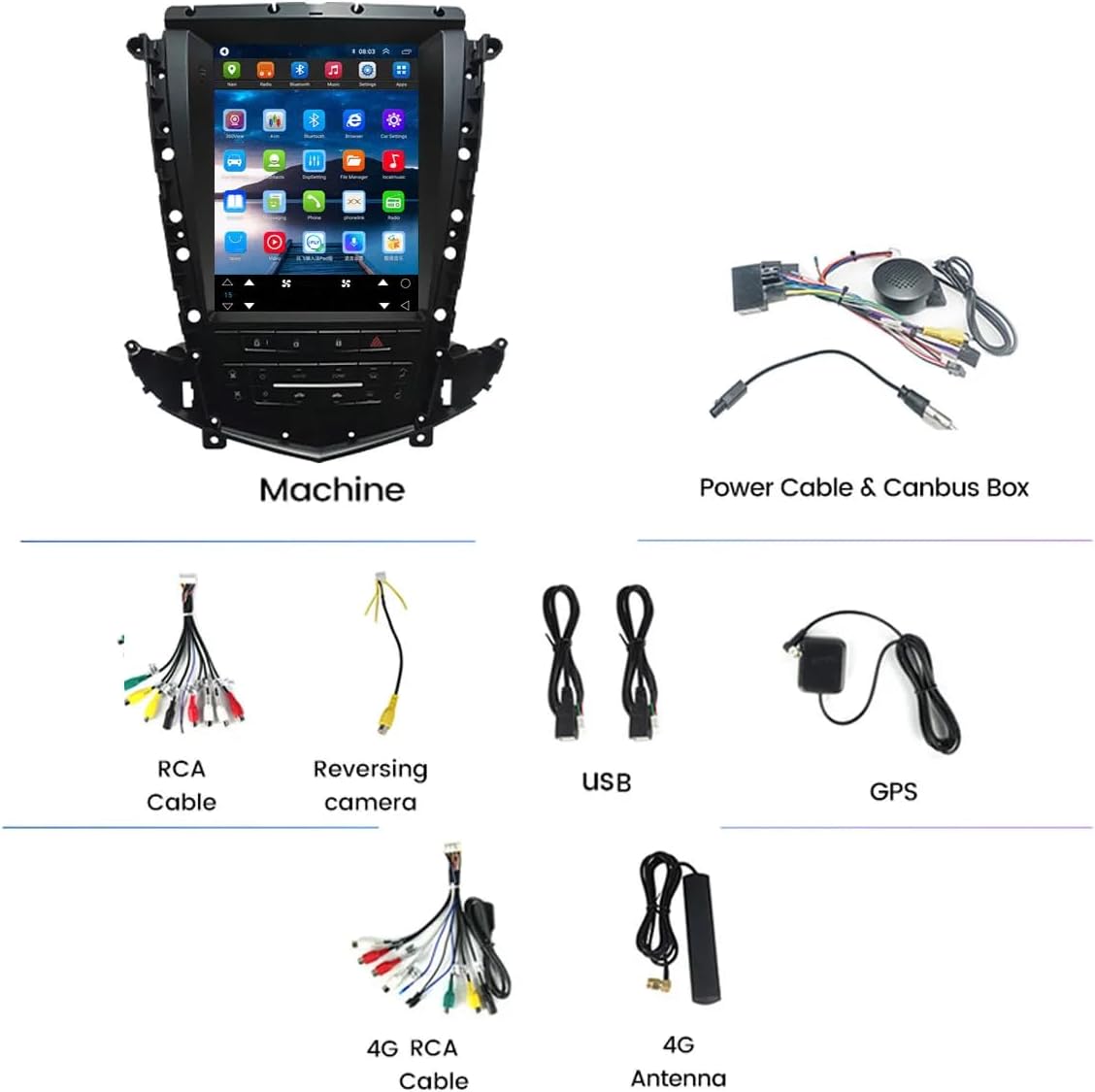
Image: All components included in the product package, laid out for inspection.
4. Setup and Installation
Installation requires removing the original car dashboard components. It is recommended to seek professional assistance if you are unfamiliar with car electronics installation. Ensure the vehicle's power is off before beginning.
4.1. Visual Comparison (Before and After Installation)
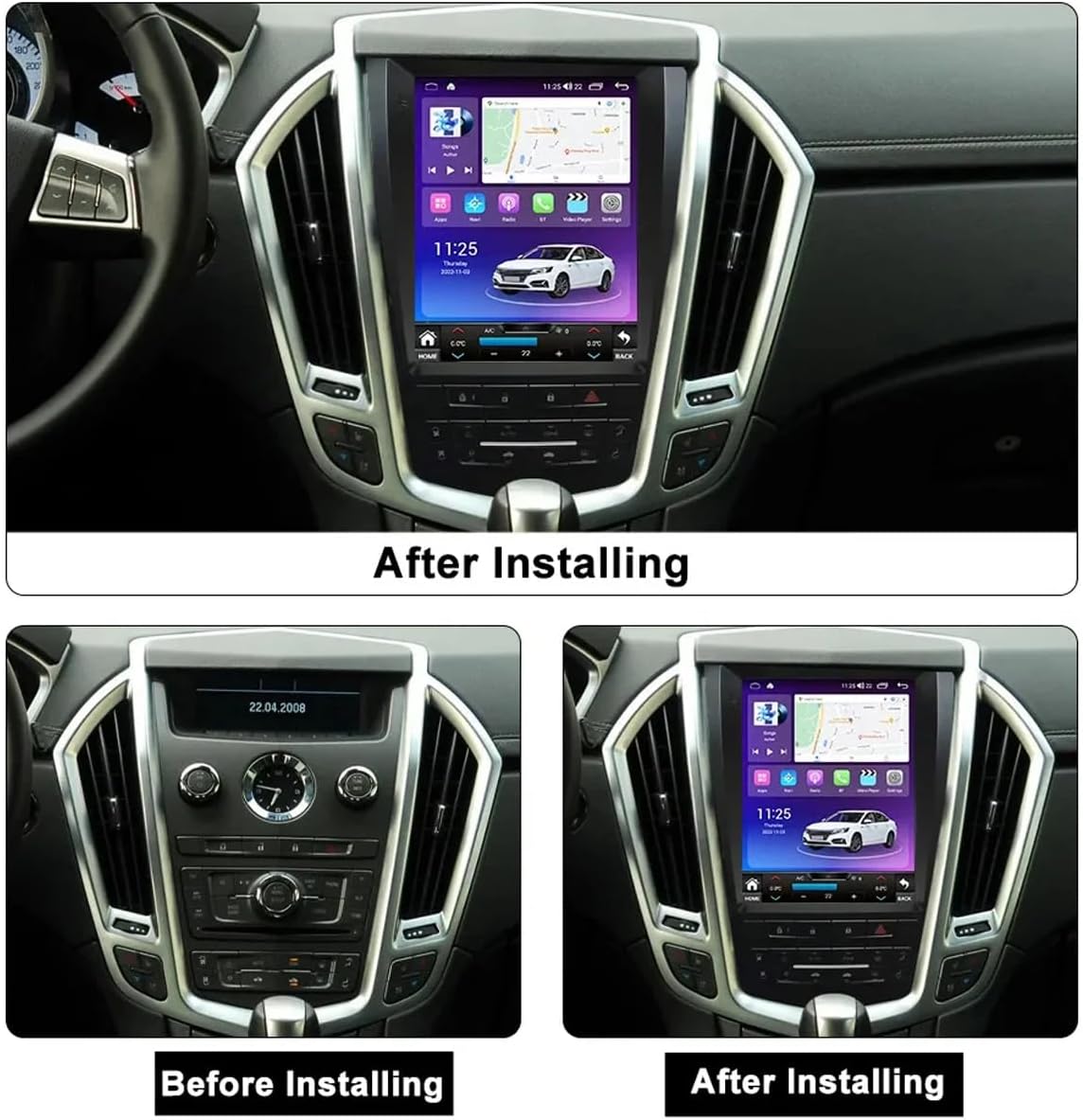
Image: A visual comparison showing the original Cadillac SRX dashboard and the dashboard with the new 9.7-inch CarPlay screen installed.
4.2. Wiring Connections
Refer to the following video for a detailed guide on connecting the various cables to the CarPlay unit. Ensure all connections are secure to prevent malfunctions.
Video: Detailed installation guide for the Android Radio, including step-by-step wiring connections for GPS antenna, 4G antenna, radio antenna adapter, USB cables, RCA cables, Canbus protocol box, and power plug.
Key connection points:
- GPS Antenna Connection: Connect the GPS antenna cable to the designated port on the back of the unit.
- 4G Antenna Connection: Attach the 4G antenna cable to its corresponding port for cellular data connectivity.
- Radio Antenna Adapter: Use the provided adapter to connect the vehicle's radio antenna to the unit.
- USB Cable Connections: Connect both the 6-pin and 4-pin USB cables to their respective ports. These are used for data transfer and connecting external devices.
- RCA Cable Group: Connect the RCA cable group for audio/video input/output.
- Canbus Protocol Box: Connect the Canbus protocol box to ensure communication with the vehicle's original systems, such as steering wheel controls.
- Key Plate Wire Connection: Connect the wire for the key plate controls.
- Radio Power Plug: Connect the main power harness to the unit and then to the original car plug.
- UPC Heat Dissipation Fan Plug: Connect the fan plug for proper cooling.
- External Microphone: Connect the external microphone for improved call quality.

Image: The back of the CarPlay screen unit with all necessary wiring harnesses and connectors attached, illustrating a complete wiring setup.
5. Operating Instructions
The CarPlay screen operates on an Android system, offering a user-friendly interface. Navigation is primarily via the touchscreen and integrated physical buttons.
5.1. Basic Navigation and Interface
The main screen displays essential information such as time, date, navigation, and media playback. Swipe left or right to access additional app screens. The bottom bar provides quick access to Home, A/C controls, and Back functions.
Video: Demonstration of the CarPlay screen's user interface, showing navigation between apps, media playback, and general system responsiveness.
5.2. Radio Functionality
Access the 'Radio' app from the home screen. You can manually tune frequencies or use the scan function to find available stations. The unit supports FM radio.

Image: The FM radio interface, displaying frequency tuning and station selection options.
5.3. Wireless CarPlay and Android Auto
The unit features built-in wireless CarPlay and Android Auto. Connect your smartphone via Bluetooth and Wi-Fi to mirror your phone's interface on the screen, accessing navigation, music, messages, and more.
5.4. DSP (Digital Signal Processor)
Utilize the built-in DSP to customize your audio experience. Adjust equalizer settings, sound fields, and bass enhancement to match your preferences.

Image: The DSP Processor interface, showing various audio settings and equalizer controls for sound optimization.
5.5. Steering Wheel Controls
The unit supports your vehicle's original steering wheel controls. After installation, you may need to configure these controls within the system settings to ensure proper functionality for media playback, volume, and call management.

Image: A hand demonstrating the use of steering wheel controls to navigate the CarPlay screen's functions.
6. Specifications
| Feature | Description |
|---|---|
| Brand | CNSTWEI |
| Compatibility | Cadillac SRX 2009-2012 |
| Screen Size | 9.7 inches |
| Operating System | Android 14 |
| RAM | 4GB |
| ROM | 64GB |
| Display Type | IPS Screen, Full Laminated |
| Connectivity | Bluetooth 5.0, Wi-Fi (2.4G b/g/n; 5G a/g/n/ac), USB Tethering |
| Special Features | Built-in Wireless & Wired Car Auto Play, Built-in Wireless & Wired Android Auto, Built-in DSP, Accurate GPS Navigation, AUX Audio Output, 2 USB Ports |
| Control Method | Touch |
| Audio Output Mode | Stereo |
7. Maintenance
To ensure the longevity and optimal performance of your CarPlay screen, follow these maintenance guidelines:
- Screen Cleaning: Use a soft, lint-free cloth to clean the touchscreen. For stubborn smudges, lightly dampen the cloth with a screen cleaner solution. Avoid harsh chemicals or abrasive materials.
- Software Updates: Periodically check for and install software updates to ensure you have the latest features and bug fixes.
- Temperature Control: Avoid exposing the unit to extreme temperatures for extended periods.
- Cable Integrity: Regularly inspect all connected cables for any signs of wear or damage. Ensure they are securely plugged in.
8. Troubleshooting
If you encounter issues with your CarPlay screen, refer to the following common problems and solutions:
- No Power: Check all power cable connections. Ensure the vehicle's ignition is on. Verify the fuse in the vehicle's fuse box related to the radio/multimedia system.
- No Sound: Check speaker connections and volume settings. Ensure the correct audio input/output source is selected. Verify the vehicle's original amplifier is functioning correctly.
- Touchscreen Unresponsive: Try restarting the unit. If the issue persists, perform a screen calibration (refer to system settings).
- GPS Not Working: Ensure the GPS antenna is correctly installed and has a clear view of the sky. Check GPS settings within the unit.
- CarPlay/Android Auto Connection Issues: Ensure Bluetooth and Wi-Fi are enabled on both the unit and your smartphone. Try forgetting and re-pairing the device. Update the CarPlay/Android Auto app on your phone.
- Steering Wheel Controls Not Working: Access the 'Panel Key Learning' or 'Steering Wheel Control' settings in the unit to configure or re-calibrate the controls.
- Rearview Camera Not Displaying: Check the rearview camera input connection. Ensure the camera is powered and functioning.
Many issues can arise from incorrect cable connections or settings. If you encounter persistent problems, please contact customer support for assistance.
9. Warranty and Support
Your CNSTWEI CarPlay Screen is covered by a manufacturer's warranty. Please refer to the warranty card included with your purchase for specific terms and conditions. For technical support, troubleshooting assistance, or warranty claims, please contact the seller or manufacturer directly through the contact information provided with your product or on their official website.