
1. Introduction
The Portronics Toad Ergo Vertical Wireless Ergonomic Mouse is designed to provide a comfortable and natural hand posture, reducing strain during extended use. Its vertical design promotes a handshake grip, which can alleviate pressure on the wrist and palm. This manual provides instructions for setting up, operating, and maintaining your new ergonomic mouse.

Image: The Portronics Toad Ergo mouse shown next to a laptop, highlighting its 2.4 GHz wireless connectivity.
2. What's in the Box
- 1 x Portronics Toad Ergo Vertical Wireless Mouse
- 1 x 2.4 GHz USB Receiver (dongle)
Note: AAA batteries are not included and must be purchased separately.
3. Setup Guide
3.1. Installing Batteries
- Locate the battery compartment on the underside of the mouse.
- Open the battery compartment cover.
- Insert two (2) AAA batteries, ensuring correct polarity (+/-).
- Close the battery compartment cover securely.
3.2. Connecting the USB Receiver
- Remove the 2.4 GHz USB receiver from its storage slot on the underside of the mouse.
- Plug the USB receiver into an available USB port on your computer (PC or Mac).
- Your computer should automatically detect and install the necessary drivers. This may take a few moments.
3.3. Powering On the Mouse
Once the batteries are installed and the USB receiver is connected, the mouse is ready for use. There is no separate power switch; the mouse will activate upon movement and enter a power-saving hibernation mode when idle.
4. Operating Instructions
4.1. Ergonomic Grip
The vertical design of the Toad Ergo mouse encourages a natural handshake grip, aligning your wrist and forearm in a more neutral position. This design aims to reduce muscle strain and discomfort often associated with traditional horizontal mice.

Image: A hand demonstrating the comfortable, natural grip on the vertical ergonomic mouse.

Image: Visual representation of the mouse's 57-degree vertical angle, designed to support a natural hand posture.

Image: A comparison showing the ergonomic mouse promoting a neutral wrist position versus the twisted wrist position with a traditional mouse.
4.2. Button Functions
The Portronics Toad Ergo mouse features 6 buttons for enhanced control:
- Left Click Button: Standard primary click function.
- Right Click Button: Standard secondary click function.
- Scroll Wheel: For vertical scrolling. Can also be pressed for middle-click functionality.
- DPI Button: Adjusts cursor sensitivity (DPI).
- Forward Button: Navigates forward in web browsers or applications.
- Backward Button: Navigates backward in web browsers or applications.

Image: An illustration clearly marking the Left Button, Right Button, Scroll Wheel, DPI Button, Forward Button, and Backward Button on the mouse.

Image: Detailed views of the DPI button, scroll wheel, dedicated back and forward buttons, and the textured wrist support area.
4.3. Adjusting DPI (Cursor Speed)
The mouse features adjustable DPI settings, allowing you to customize cursor sensitivity for different tasks. Press the DPI Button (located near the scroll wheel) to cycle through the available DPI settings: 1200, 1600, 2400, and 3200 DPI. A higher DPI setting results in faster cursor movement across the screen with less physical mouse movement.
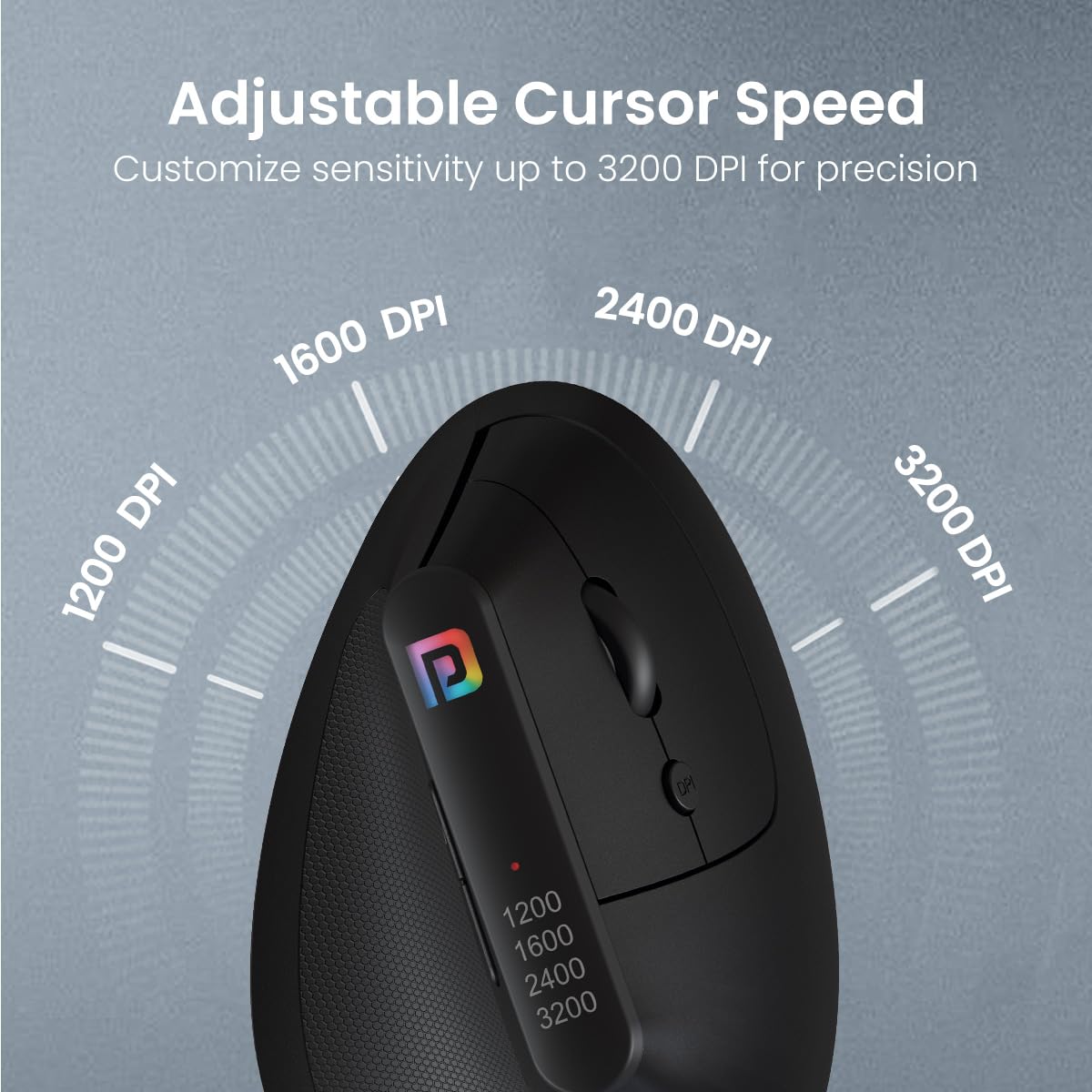
Image: Visual representation of the adjustable DPI levels (1200, 1600, 2400, 3200) and their effect on cursor speed.
5. Maintenance
5.1. Cleaning
To maintain optimal performance and hygiene, clean your mouse regularly:
- Use a soft, lint-free cloth slightly dampened with water or a mild cleaning solution.
- Avoid using harsh chemicals, abrasive cleaners, or solvents.
- Do not allow liquids to enter the mouse's interior.
- Clean the optical sensor on the underside of the mouse with a dry cotton swab if cursor tracking becomes erratic.
5.2. Battery Replacement
When the mouse's performance degrades or it becomes unresponsive, it is likely time to replace the AAA batteries. Follow the instructions in Section 3.1 to replace the batteries.
5.3. Storage
When not in use for extended periods, store the mouse in a cool, dry place. You may remove the batteries to prevent potential leakage, especially if storing for several months.
6. Troubleshooting
| Problem | Possible Cause | Solution |
|---|---|---|
| Mouse is unresponsive or not moving. | Low or dead batteries. USB receiver not connected. Mouse not powered on. | Replace batteries. Ensure USB receiver is firmly plugged into a working USB port. |
| Erratic cursor movement. | Dirty optical sensor. Uneven or reflective surface. Interference. | Clean the optical sensor. Use a mouse pad or non-reflective surface. Move mouse closer to receiver or away from other wireless devices. |
| Buttons not functioning correctly. | Software issue. Physical damage. | Restart your computer. Ensure drivers are updated. If problem persists, contact support. |
| Wireless connection issues. | Distance from receiver. Interference. | Reduce distance between mouse and receiver. Avoid placing receiver near other electronic devices. Try a different USB port. |
7. Specifications
- Brand: Portronics
- Model: POR-1808
- Connectivity: 2.4 GHz Wireless (USB Receiver)
- Buttons: 6D (Left, Right, Scroll Wheel, DPI, Forward, Backward)
- DPI Settings: Adjustable up to 3200 DPI (1200, 1600, 2400, 3200)
- Ergonomic Design: Vertical, Handshake Grip
- Power Source: 2 x AAA Batteries (not included)
- Operating System Compatibility: Windows, Mac OS
- Product Dimensions: 10 x 8 x 0.1 cm (approximate)
- Item Weight: 140 g (approximate)
- Included Components: 1N Wireless Mouse
- Country of Origin: China
8. Warranty & Support
For warranty information and customer support, please refer to the warranty card included with your product or visit the official Portronics website. You can also contact Portronics customer service directly for assistance with product issues or inquiries.
Portronics Customer Service: 9555-245-245
Please retain your purchase receipt for warranty claims.

