
1. Introduction
This manual provides detailed instructions for the YYSWIE D20 10.1 Inch Android 14 Tablet. Please read this guide thoroughly before using your device to ensure proper operation and to maximize its features. Keep this manual for future reference.

Figure 1: YYSWIE D20 10.1 Inch Android 14 Tablet with Stylus Pen
2. Package Contents
Verify that all items are present in your package:
- YYSWIE D20 10.1 Inch Android 14 Tablet
- Stylus Pen
- Charger
- USB-C Cable
- Pre-applied Screen Protector
- User Manual (this document)

Figure 2: Tablet and Included Accessories
3. Product Overview
3.1 Key Features
- Display: 10.1-inch IPS HD (1280x800) with eye-care mode
- Processor: Quad-Core (1.6 GHz Allwinner)
- RAM: 6GB (3GB physical + 3GB virtual)
- Storage: 32GB internal, expandable up to 128GB via microSD card (not included)
- Operating System: Android 14
- Battery: 5000mAh, up to 10 hours usage
- Cameras: 2MP Front, 5MP Rear
- Connectivity: Wi-Fi (802.11b), Bluetooth 4.0
- Additional: Includes stylus pen, pre-installed screen protector, parental controls

Figure 3: High-Performance Quad-Core CPU

Figure 4: Storage Capacity Overview
3.2 Physical Components
Familiarize yourself with the tablet's buttons, ports, and cameras.
- Power Button: Located on the side/top edge. Used to turn the tablet on/off or put it to sleep.
- Volume Buttons: Adjust audio levels.
- USB-C Port: For charging and data transfer.
- MicroSD Card Slot: For expanding storage.
- Front Camera: For video calls and selfies.
- Rear Camera: For taking photos and videos.
- Reset Pinhole: A small hole for factory reset (use a thin pin).

Figure 5: Front and Rear Camera Locations
4. Setup
4.1 Charging the Tablet
- Connect the USB-C cable to the tablet's USB-C port.
- Plug the other end of the USB-C cable into the provided charger.
- Plug the charger into a power outlet.
- Allow the tablet to charge fully before first use. The battery indicator on the screen will show charging status.

Figure 6: Charging the Tablet
4.2 Powering On/Off
- To Power On: Press and hold the Power button until the YYSWIE logo appears.
- To Power Off: Press and hold the Power button until a menu appears. Select "Power off" and confirm.
- To Sleep/Wake: Briefly press the Power button.
4.3 Initial Configuration
Upon first power-on, follow the on-screen prompts to set up your tablet:
- Select your preferred language.
- Connect to a Wi-Fi network.
- Sign in with your Google account or create a new one. This is necessary for downloading apps from the Google Play Store.
- Review and accept the terms and conditions.
- Set up screen lock (PIN, pattern, or password) for security.
4.4 Inserting a MicroSD Card
To expand your tablet's storage:
- Locate the microSD card slot on the side of the tablet.
- Gently insert the microSD card into the slot with the gold contacts facing down until it clicks into place.
- The tablet will detect the card and prompt you to format it for use. Follow the on-screen instructions.
4.5 Using the Stylus Pen
The included stylus pen is non-charging and does not require Bluetooth pairing. Simply use it directly on the screen for navigation, drawing, or note-taking.

Figure 7: Using the Stylus Pen
5. Operating Your Tablet
5.1 Basic Navigation (Android 14)
Your tablet runs on Android 14, offering an intuitive user experience. Common gestures include:
- Tap: Select an item.
- Swipe: Scroll through screens or lists.
- Pinch-to-Zoom: Enlarge or reduce content.
- Long Press: Access contextual menus or move icons.
- Navigation Bar: Use the on-screen buttons (Back, Home, Recent Apps) at the bottom of the screen.
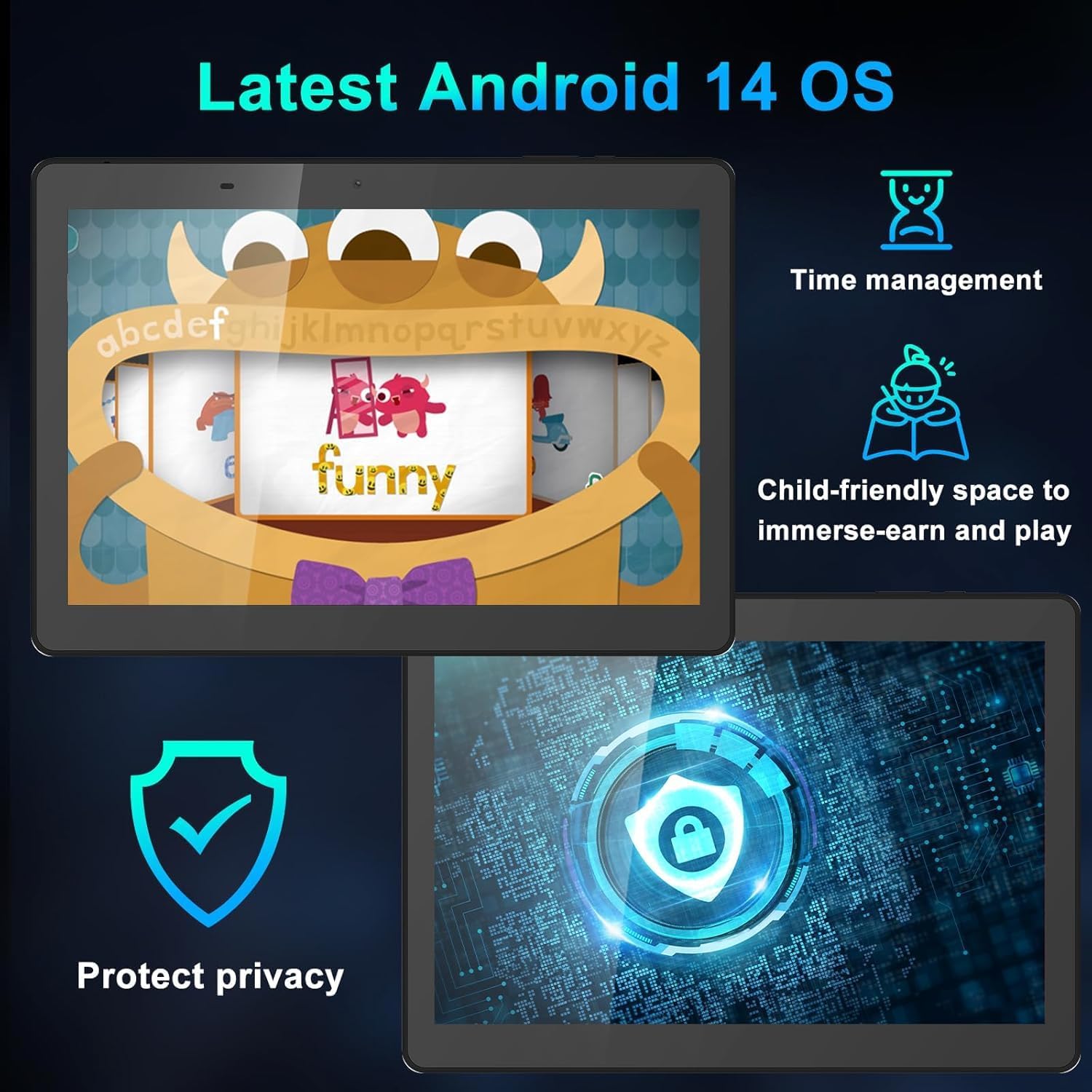
Figure 8: Android 14 Interface Highlights
5.2 Connecting to Wi-Fi and Bluetooth
Access these settings from the Quick Settings panel (swipe down from the top of the screen) or through the main Settings app.
- Wi-Fi: Turn Wi-Fi on, select your network, and enter the password if required.
- Bluetooth: Turn Bluetooth on, scan for devices, and select the device you wish to pair with.
5.3 Using the Camera
Open the Camera app from the home screen or app drawer.
- Tap the shutter button to take a photo.
- Switch between front and rear cameras using the camera icon.
- Select video mode to record videos.
5.4 Parental Controls
Android 14 includes enhanced parental controls. Navigate to Settings > Digital Wellbeing & parental controls to manage screen time, app access, and content filtering for child profiles.

Figure 9: Tablet Use for Young Users
5.5 Eye-Care Mode
To reduce blue light emission and eye strain, activate Eye-Care Mode. This can usually be found in Settings > Display or through the Quick Settings panel.

Figure 10: 10.1 Inch IPS HD Display
6. Maintenance and Care
6.1 Cleaning
Use a soft, lint-free cloth to clean the screen and body of the tablet. Avoid using harsh chemicals or abrasive materials.
6.2 Battery Management
- Avoid extreme temperatures, which can degrade battery life.
- For optimal battery health, avoid frequently draining the battery completely or keeping it at 100% charge for extended periods.
- Use only the provided charger and cable.
6.3 Software Updates
Regularly check for and install software updates to ensure your tablet has the latest features, security patches, and performance improvements. Go to Settings > System > System update.
7. Troubleshooting
If you encounter issues with your tablet, refer to the following common solutions:
| Problem | Solution |
|---|---|
| Tablet does not turn on | Ensure the battery is charged. Connect the charger and wait a few minutes before attempting to power on again. If unresponsive, try a soft reset by pressing and holding the power button for 10-15 seconds. |
| Tablet freezes or is unresponsive | Press and hold the Power button for about 10 seconds to force a restart. If the issue persists, try clearing the cache of problematic apps or performing a factory reset (see below). |
| Wi-Fi connection issues | Restart your tablet and your Wi-Fi router. Forget the network in Wi-Fi settings and reconnect. Ensure you are within range of the Wi-Fi signal. |
| Battery drains quickly | Reduce screen brightness, close unused apps, disable Wi-Fi/Bluetooth when not in use, and check for apps consuming excessive power in battery settings. |
| Stylus pen not working | Ensure the screen is clean. The stylus is passive and does not require charging or pairing. If the issue persists, test with finger input to determine if it's a screen or stylus issue. |
7.1 Factory Reset
A factory reset will erase all data on your tablet and restore it to its original factory settings. Back up important data before proceeding.
- Go to Settings > System > Reset options.
- Select Erase all data (factory reset).
- Confirm your decision and enter your PIN/pattern/password if prompted.
- The tablet will restart and begin the reset process.
8. Specifications
| Feature | Detail |
|---|---|
| Brand | YYSWIE |
| Model Number | D20 |
| Operating System | Android 14 |
| Screen Size | 10.1 Inches |
| Screen Resolution | 1280 x 800 pixels (IPS HD) |
| Processor | 1.6 GHz Quad-Core (Allwinner) |
| RAM | 6GB (3GB physical + 3GB virtual) |
| Internal Storage | 32 GB |
| Expandable Storage | Up to 128GB via MicroSD card |
| Battery Capacity | 5000mAh |
| Average Battery Life | Up to 10 Hours |
| Rear Webcam Resolution | 5 MP |
| Front Webcam Resolution | 2 MP |
| Wireless Type | 802.11b (Wi-Fi) |
| Bluetooth | Bluetooth 4.0 |
| Item Weight | 1.57 pounds |
| Product Dimensions | 12.2 x 7.48 x 1.34 inches |

Figure 11: Tablet Dimensions and Key Specifications
9. Warranty and Support
9.1 Warranty Information
YYSWIE offers a 12-month warranty for its products. If you experience any issues within this period, please contact our customer support for assistance.
9.2 Customer Support
For any questions, technical assistance, or warranty claims, please contact YYSWIE customer support. We aim to reply to customer messages within 24 hours.
- Online Support: Refer to the YYSWIE store on Amazon for contact options.
- Email Support: Available 24/7 for dedicated technical assistance.