
1. Introduction
Welcome to the YLEEBG P60 Android 15 Tablet. This device is designed to provide a versatile and efficient experience for both work and entertainment. Featuring a powerful octa-core processor, 26GB RAM, 256GB internal storage expandable up to 2TB, and a vibrant 10-inch IPS display, your tablet is equipped for seamless multitasking, high-definition media consumption, and advanced AI functionalities. This manual will guide you through the setup, operation, and maintenance of your new tablet.
2. What's in the Box
Please verify that all items listed below are included in your package:
- 1 x YLEEBG P60 Android Tablet (10 inch)
- 1 x Bluetooth Keyboard
- 1 x Wireless Mouse
- 1 x Stylus Pen
- 1 x Tablet Protective Case
- 1 x USB Charger
- 1 x USB-C Cable
- 1 x User Manual (this document)
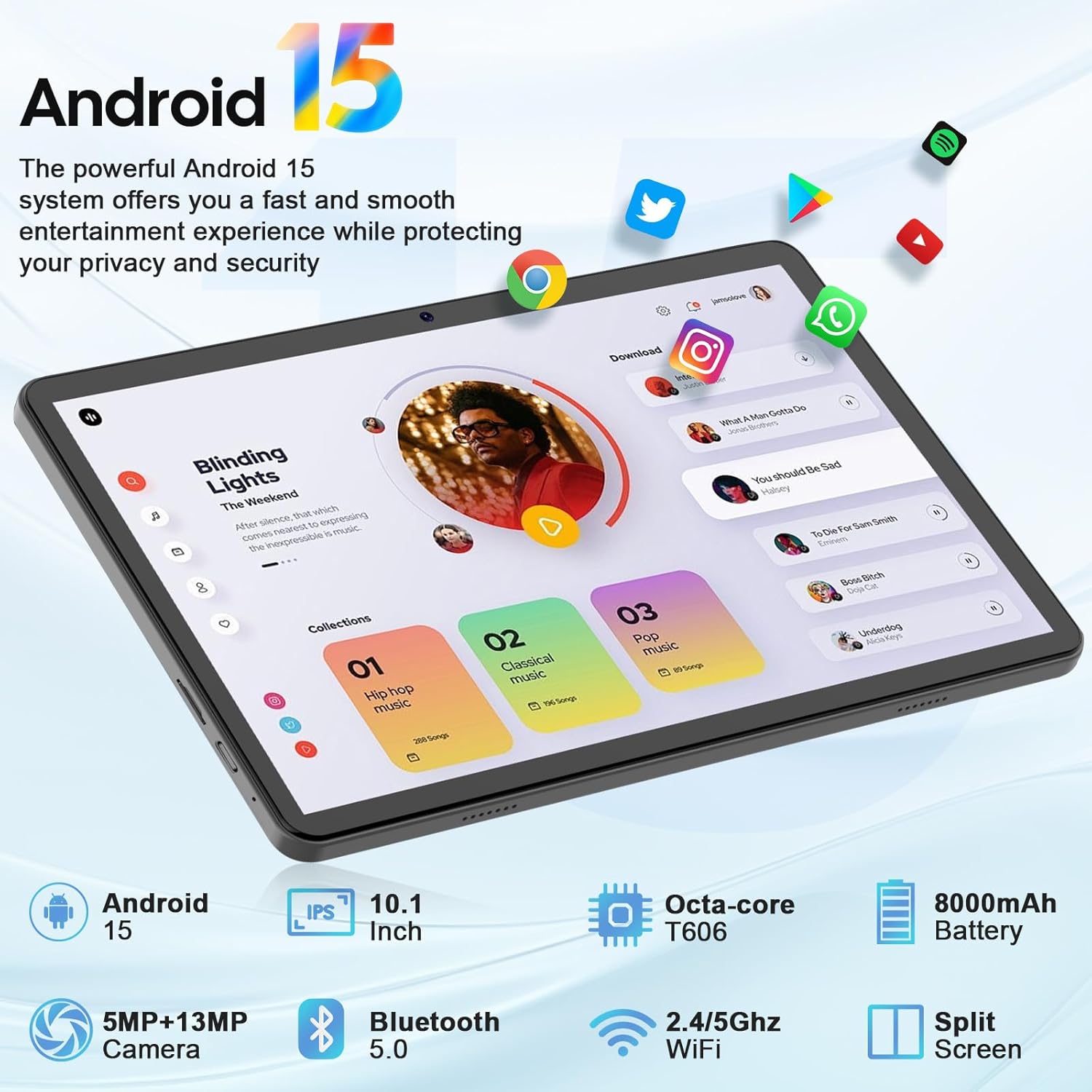
Image: YLEEBG P60 Tablet and included accessories.
3. Device Overview
Familiarize yourself with the physical components of your YLEEBG P60 tablet.
3.1 Tablet Components
The following diagram illustrates the key features and ports of your tablet:

Image: Detailed diagram showing tablet ports and buttons.
- Power Button: Press and hold to power on/off or restart.
- Volume Keys: Adjust audio volume.
- Headphone Jack: 3.5mm audio output.
- USB-C Port: For charging and data transfer.
- Micro SD Card Slot: Expand storage up to 2TB.
- Dual Microphones: For audio input.
- Rear Camera (13MP) with Flash: For photos and videos.
- Front Camera (5MP): For video calls and selfies.
- Speakers: Audio output.
- Reset Button: Small pinhole for force restart (use a thin pin).
4. Setup
Follow these steps to set up your YLEEBG P60 tablet for first-time use.
4.1 Initial Power On
- Press and hold the Power Button on the side of the tablet until the screen lights up.
- The tablet will display the boot-up sequence.
- Once the welcome screen appears, select your preferred language and region.
- Follow the on-screen prompts to complete the initial setup, including connecting to Wi-Fi and setting up your Google account.
Video: Unboxing and initial setup of the YLEEBG P60 Android 15 Tablet.
4.2 Connecting Accessories (Keyboard & Mouse)
Your YLEEBG P60 tablet comes with a Bluetooth keyboard and wireless mouse for enhanced productivity. To connect them:
- Enable Bluetooth on Tablet: Go to Settings > Connected devices > Bluetooth and toggle it On.
- Pair Keyboard: Turn on the Bluetooth keyboard. Press the 'Connect' button (usually a small button or key combination like Fn+C) until the Bluetooth indicator light flashes. On your tablet, tap 'Pair new device' and select 'Bluetooth Keyboard' from the list.
- Pair Mouse: Turn on the wireless mouse. It may have a small button on the bottom to initiate pairing. On your tablet, tap 'Pair new device' and select 'BT5.2 Mouse' (or similar name) from the list.
- Confirm the pairing on both devices if prompted.
Video: Demonstrating Bluetooth keyboard and mouse pairing with the tablet.
5. Operating the Tablet
This section covers basic operations and key features of your YLEEBG P60 tablet.
5.1 Navigation and Gestures
The Android 15 operating system offers intuitive touch gestures for navigation:
- Tap: Select an item or open an app.
- Swipe: Scroll through pages or menus.
- Pinch-to-Zoom: Enlarge or shrink content like photos and web pages.
- Long Press: Access contextual menus or move app icons.
- Swipe Down from Top: Access Quick Settings and Notifications.
5.2 Split Screen Functionality
The YLEEBG P60 supports split-screen mode, allowing you to run two applications simultaneously. To activate:
- Open the first app you wish to use.
- Tap the recent apps button (usually a square icon) to view open applications.
- Long-press the icon of the first app at the top of its card, then select 'Split screen'.
- Choose the second app from your recent apps or app drawer to fill the other half of the screen.

Image: Tablet demonstrating split-screen multitasking.
5.3 Gemini AI Integration
Your tablet features Gemini AI, enhancing various aspects of your user experience. Gemini AI can assist with:
- Voice-enabled Q&A: Get instant answers to your questions.
- Massive Knowledge Base: Access information across numerous fields.
- Creativity and Content Creation: Generate creative content and assist in writing.
- Planning and Decision Support: Help plan itineraries and provide decision-making references.

Image: Overview of Gemini AI functionalities on the tablet.
5.4 Widevine L1 Support
The YLEEBG P60 supports Widevine L1, allowing you to stream high-definition content from popular platforms like Netflix, YouTube, Hulu, and Prime Video. This ensures a clear and immersive viewing experience.

Image: Tablet displaying Widevine L1 certification for HD streaming.
6. Maintenance
Proper maintenance ensures the longevity and optimal performance of your tablet.
6.1 Battery Charging
The tablet is equipped with an 8000mAh battery. Use the provided USB-C cable and charger to charge the device. A full charge can provide up to 16 hours of average use. Avoid using unapproved chargers, which may damage the battery or tablet.

Image: YLEEBG P60 Tablet being charged.
6.2 Storage Management
Your tablet has 256GB of internal storage. To manage storage and expand it:
- Check Storage: Go to Settings > Storage to view usage and free up space.
- Expand Storage: Insert a microSD card into the dedicated slot to expand storage up to 2TB for photos, videos, and documents.

Image: Visual representation of the tablet's large memory and expandable storage.
6.3 Cleaning and Care
- Use a soft, lint-free cloth to clean the screen and body of the tablet.
- Avoid using harsh chemicals or abrasive materials.
- Keep the tablet away from extreme temperatures and direct sunlight.
7. Troubleshooting
If you encounter issues with your tablet, refer to the following common solutions:
7.1 Device Not Powering On
- Ensure the battery is charged. Connect the tablet to the charger and wait a few minutes before attempting to power it on.
- Press and hold the Power Button for 10-15 seconds to force a restart.
- If the tablet remains unresponsive, locate the small reset pinhole (refer to Device Overview) and gently press it with a thin pin.
7.2 Wi-Fi Connectivity Issues
- Check if Wi-Fi is enabled in Settings > Network & internet > Wi-Fi.
- Restart your Wi-Fi router and the tablet.
- Forget the network and reconnect by entering the password again.
7.3 Bluetooth Pairing Problems
- Ensure Bluetooth is enabled on both the tablet and the accessory.
- Make sure the accessory is in pairing mode.
- Move the devices closer together to ensure they are within range.
- Remove any previously paired versions of the accessory from the tablet's Bluetooth settings and attempt to pair again.
7.4 Slow Performance
- Close unused applications running in the background.
- Clear cache and data for frequently used apps in Settings > Apps.
- Ensure sufficient storage space is available.
- Restart the tablet regularly.
8. Specifications
The following are the technical specifications for the YLEEBG P60 Android 15 Tablet:
| Feature | Specification |
|---|---|
| Model Name | P60 |
| Operating System | Android 15 |
| Screen Size | 10 Inches |
| Screen Resolution | 1280 x 800 pixels (IPS Display) |
| Processor | Octa-core 1.6 GHz (Unisoc T606) |
| RAM | 26GB (4GB Physical + 22GB Virtual) |
| Internal Storage | 256GB ROM |
| Expandable Storage | Up to 2TB via Micro SD Card |
| Rear Camera | 13MP |
| Front Camera | 5MP |
| Battery Capacity | 8000mAh |
| Average Battery Life | Up to 16 hours |
| Wi-Fi Connectivity | 2.4GHz/5GHz Dual-band (802.11ac/b/g/n) |
| Bluetooth | Bluetooth 5.0 |
| Dimensions (LxWxH) | 10.7 x 7.5 x 2.5 inches |
| Item Weight | 2.1 pounds |
| Color | Silver |

Image: Key specifications including Android version, RAM, ROM, screen size, battery, and connectivity.
9. Warranty and Support
Your YLEEBG P60 tablet is covered by a manufacturer's warranty. Please refer to the warranty card included in your package for specific terms and conditions, including warranty duration and coverage details.
9.1 Customer Support
For technical assistance, troubleshooting beyond this manual, or warranty claims, please contact YLEEBG customer support. Contact information can typically be found on the warranty card, the product packaging, or the official YLEEBG website.
When contacting support, please have your product model (P60) and purchase information readily available.