
abytespark AOV2060
abytespark Gaming PC Desktop Computer User Manual
Model: AOV2060 | Brand: abytespark
1. Introduction
This manual provides essential information for the safe and efficient use of your abytespark Gaming PC Desktop Computer (Model AOV2060). Please read these instructions carefully before setting up and operating your new computer. Retain this manual for future reference.

Image 1.1: abytespark Gaming PC Desktop with RGB fans, accompanied by a gaming keyboard and mouse.
2. Package Contents
Verify that all items listed below are present in your package. If any items are missing or damaged, please contact customer support.
- abytespark Gaming PC Desktop (Model AOV2060)
- Power Cord
- Gaming Keyboard
- Gaming Mouse
- Mouse Pad
- User Manual (this document)
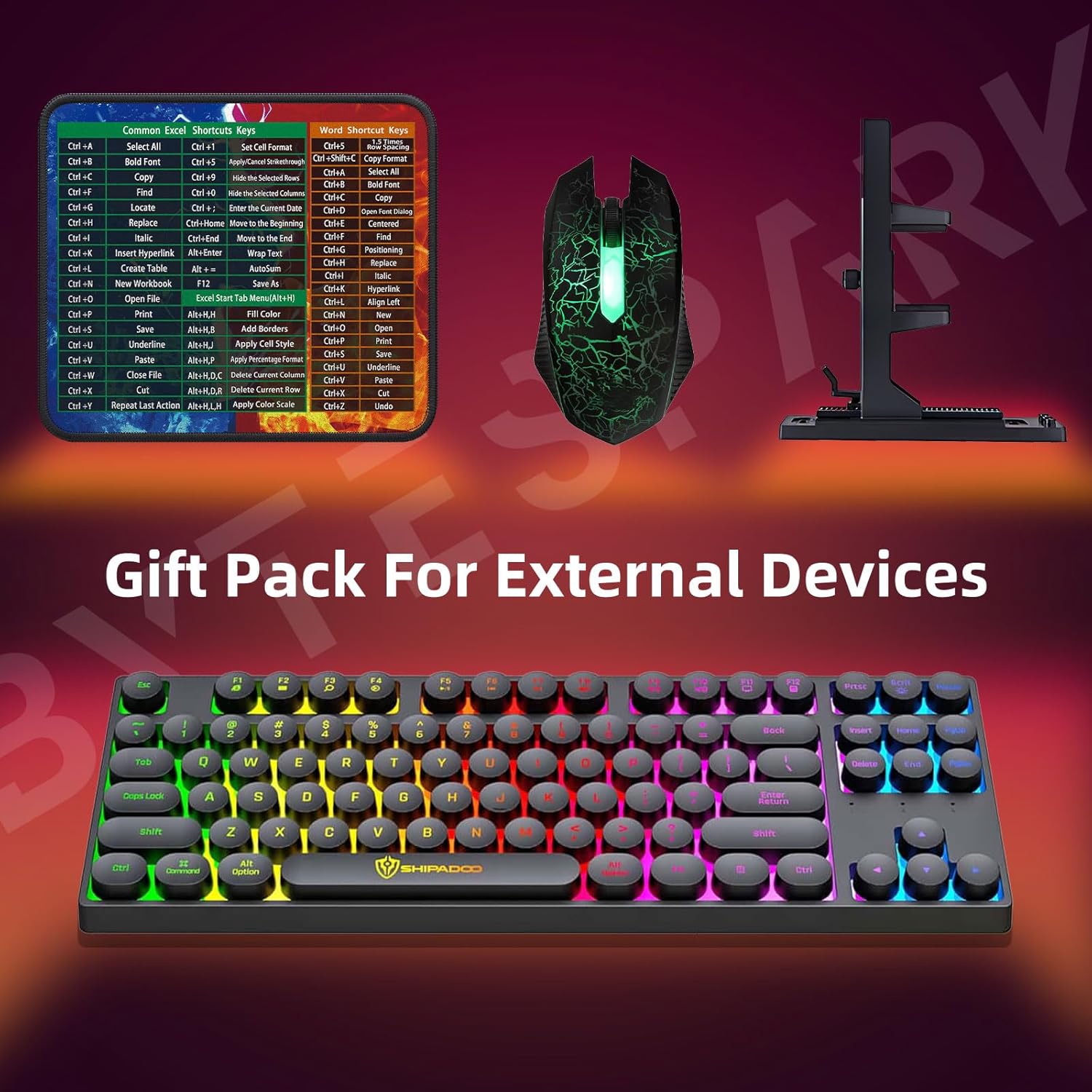
Image 2.1: The included gaming keyboard, mouse, and mouse pad accessories.
3. Setup Guide
3.1 Initial Placement
Place the PC desktop on a stable, flat surface. Ensure adequate ventilation around the computer to prevent overheating. Avoid placing it in direct sunlight or near heat sources.
3.2 Connecting Peripherals
Refer to the rear panel diagram below for port identification.

Image 3.1: Rear panel connectivity ports.
- PS/2 Port: For legacy keyboard or mouse.
- HDMI Port (Motherboard): For integrated graphics output (not typically used with a dedicated GPU).
- VGA Port: For older monitors.
- DVI Port (Motherboard): For older digital monitors.
- USB 2.0 Ports (x2): For general peripherals.
- USB 3.0 Ports (x2): For high-speed devices.
- USB 2.0 Ports (x4): For general peripherals.
- RJ45 Ethernet Port: For wired network connection.
- 3.5mm Audio Interface: For speakers, headphones, and microphone.
- DVI Port (Graphics Card): For digital monitors.
- HDMI Port (Graphics Card): For high-definition displays.
- DisplayPort (Graphics Card): For high-resolution and high-refresh-rate displays.
- Power Cord Connector: Connect the power cable here.
- Monitor: Connect your monitor to one of the graphics card output ports (HDMI, DisplayPort, or DVI, labeled 10, 11, 12). For optimal performance, use the ports on the dedicated graphics card.
- Keyboard and Mouse: Connect the gaming keyboard and mouse to any available USB ports (labeled 5, 6, 7).
- Network: For a wired connection, connect an Ethernet cable to the RJ45 port (labeled 8). For wireless, the PC supports WiFi 5.0.
- Audio: Connect speakers or headphones to the 3.5mm audio jacks (labeled 9).
3.3 Powering On
Connect the power cord to the power cord connector (labeled 13) on the rear of the PC, then plug the other end into a wall outlet or surge protector. Press the power button located on the front of the PC to turn it on. The system will boot into Windows 11 Home.
4. Operating Instructions
4.1 Windows 11 Home
Your PC comes pre-installed with Windows 11 Home 64-Bit. Follow the on-screen prompts for initial setup, including language, region, and network configuration. It is recommended to create a Microsoft account for full access to Windows features and updates.
4.2 Gaming and Performance
This PC is equipped with an AMD Ryzen R5 5500 processor and an NVIDIA GeForce RTX 2060 graphics card, providing strong performance for gaming and demanding applications. Ensure your graphics drivers are up to date for optimal gaming experience. You can download the latest drivers from the NVIDIA website.

Image 4.1: The PC is suitable for various applications including gaming, livestreaming, business, and design.
4.3 Network Connectivity
The PC supports both wired Ethernet and wireless WiFi 5.0 (2.4 GHz and 5.0 GHz bands). To connect to WiFi, click the network icon in the Windows taskbar, select your desired network, and enter the password.

Image 4.2: The PC offers dual network connectivity options: wired Ethernet and WiFi.
5. Maintenance
5.1 Cleaning
Regular cleaning helps maintain optimal performance and extends the lifespan of your PC. Use a soft, dry cloth to wipe down the exterior. For dust accumulation inside the case, use compressed air. Ensure the PC is powered off and unplugged before cleaning. Do not use liquid cleaners directly on components.
5.2 Software Updates
Keep your Windows operating system and drivers updated. Windows updates can be managed through the Settings app. Graphics card drivers should be updated regularly from the NVIDIA official website to ensure compatibility and performance improvements for new games and applications.
6. Troubleshooting
This section addresses common issues you might encounter. For problems not covered here, please refer to the support section.
6.1 No Power
- Ensure the power cord is securely connected to both the PC and the power outlet.
- Verify the power switch on the back of the power supply unit (if present) is in the 'On' position.
- Test the power outlet with another device to confirm it is functional.
6.2 No Display on Monitor
- Confirm the monitor is powered on and its input source is correctly selected.
- Ensure the video cable (HDMI, DisplayPort, DVI) is securely connected to the graphics card ports on the PC and the monitor.
- Avoid connecting the monitor to the motherboard's video output ports when a dedicated graphics card is installed.
6.3 Poor Gaming Performance
- Update your graphics card drivers from the NVIDIA website.
- Close unnecessary background applications.
- Check game settings and reduce graphics quality if necessary.
- Ensure the PC has adequate ventilation to prevent thermal throttling.
7. Specifications
Detailed technical specifications for the abytespark Gaming PC Desktop (Model AOV2060).
| Component | Specification |
|---|---|
| Model Number | AOV2060 |
| Processor | AMD Ryzen R5 5500 (3.6 GHz base, up to 4.2 GHz boost) |
| Graphics Card | NVIDIA GeForce RTX 2060 with 6GB GDDR6 Video Memory |
| RAM | 16GB DDR4 |
| Storage | 1TB NVME SSD |
| Operating System | Windows 11 Home 64-Bit |
| Wireless Connectivity | WiFi 5.0 (2.4 GHz Radio Frequency) |
| USB Ports | 2x USB 3.0, 6x USB 2.0 |
| Video Outputs | 1x HDMI, 1x DisplayPort, 1x DVI (from Graphics Card) |
| Ethernet | 1x RJ-45 |
| Audio | 3.5mm Audio Jacks |
| Dimensions (LxWxH) | 12.8 x 10.6 x 11.8 inches |
| Item Weight | 13.23 pounds |
| Color | White (Chassis) |

Image 7.1: Overview of key specifications and features of the abytespark Gaming PC.
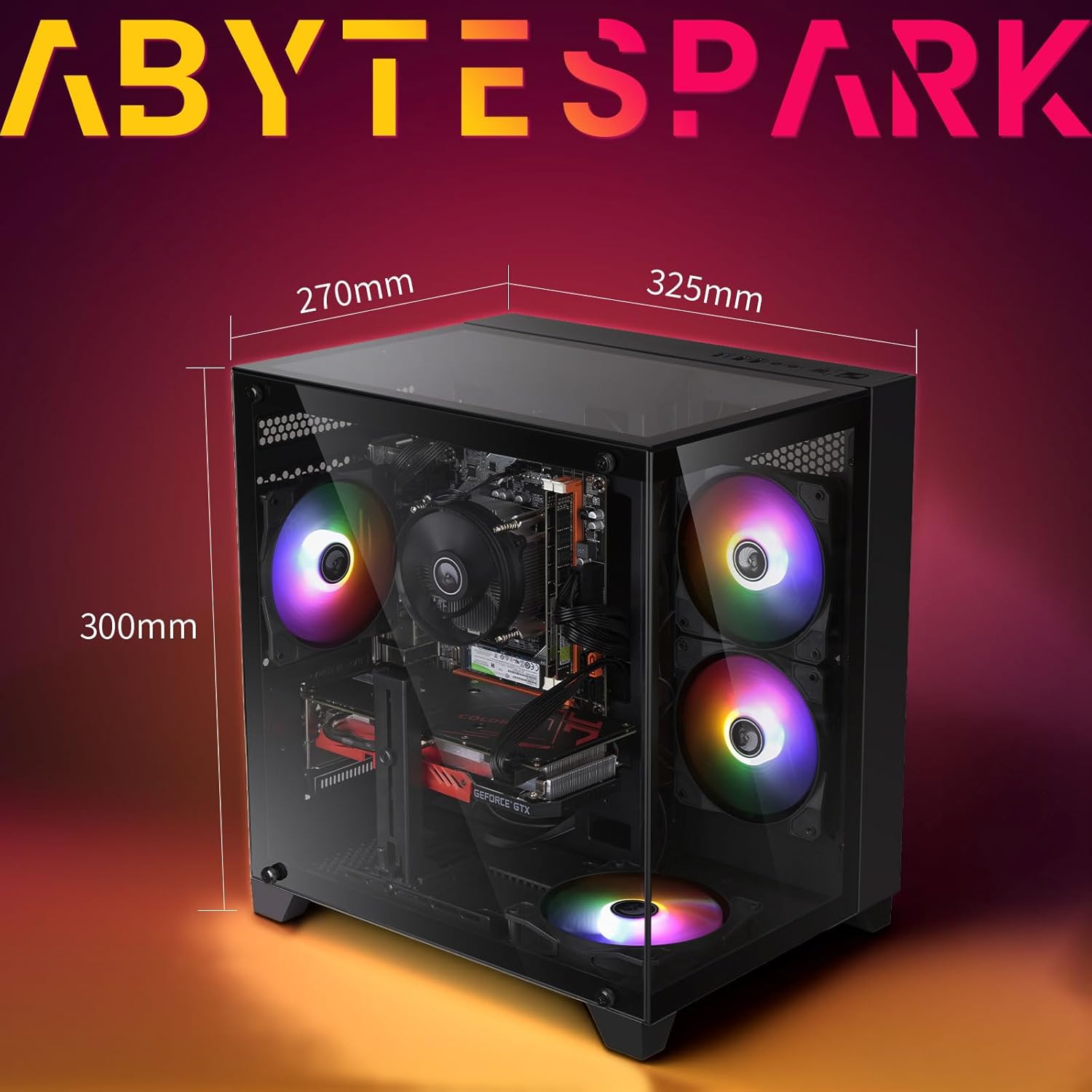
Image 7.2: Physical dimensions of the PC tower.
8. Warranty and Support
Your abytespark Gaming PC Desktop comes with a standard manufacturer's warranty. For specific warranty terms and conditions, please refer to the documentation included with your purchase or contact abytespark customer support.
For technical assistance, troubleshooting, or warranty claims, please contact abytespark customer support through the retailer where the product was purchased or visit the official abytespark website for contact information.
Lifetime Free Technical Staff: As stated in the product description, lifetime free technical support is provided.
no relevant documents
Ask a question about this manual
Ask about setup, troubleshooting, compatibility, parts, safety, or missing instructions. Manuals+ will review the question and use this page’s manual context to help answer it.