
1. Introduction
The ugtenversi R36s is a portable handheld game console designed for retro gaming enthusiasts. It operates on an open-source Linux system and supports over 12 emulators, allowing access to a vast library of classic games. The console features a 3.5-inch IPS screen and is powered by a 3200mAh battery, providing 4-6 hours of gameplay on a single charge. Its compact design makes it suitable for gaming on the go.
This manual provides essential information for setting up, operating, maintaining, and troubleshooting your R36s console.
2. Product Overview
2.1 Package Contents
Upon unboxing, please ensure all items are present:
- R36s Handheld Game Console
- 64GB TF Card (Pre-installed with OS and games)
- USB Type-C Charging Cable
- Screen Protector
- Cleaning Cloth (for screen protector application)
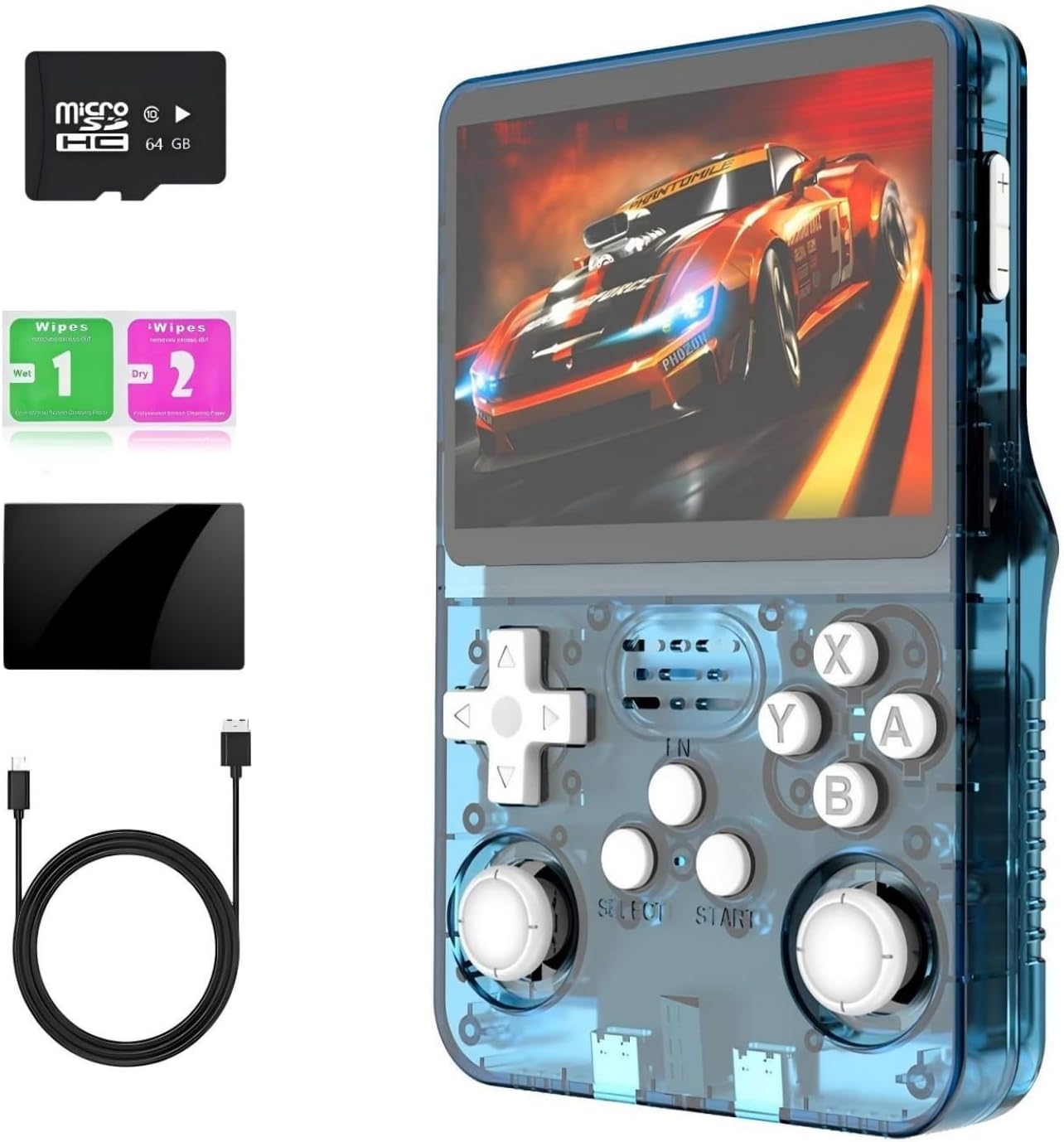
Image 2.1: R36s Handheld Game Console with included accessories: 64GB MicroSD card, wet and dry wipes, screen protector, and USB-C charging cable.
2.2 Console Layout and Controls
Familiarize yourself with the console's buttons, ports, and indicators:

Image 2.2: Diagram illustrating the R36s console's layout, including buttons, joysticks, screen, and ports.
- Internal Lithium-ion Battery: Non-removable, 3200mAh capacity.
- Right Shoulder Button (R1): Used for in-game actions and menu navigation.
- TF1-OS Card Slot: Dedicated slot for the operating system MicroSD card.
- Volume Buttons: Adjust audio output level.
- Left Shoulder Button (L1): Used for in-game actions and menu navigation.
- 3.5-inch IPS HD Screen: Display for games and system interface.
- Power Key: Press and hold to power on/off. Short press to sleep/wake.
- RESET Button: Small recessed button to force a system restart.
- TF2-GAME Card Slot: Dedicated slot for the game library MicroSD card.
- Speaker: Audio output.
- Game Keys (A, B, X, Y): Primary action buttons.
- START Button: Used for starting games and confirming selections.
- Right Joystick (R3): Analog input for movement or camera control.
- D-Pad: Directional input for navigation and game control.
- HOME/F Button: Returns to the main menu or performs specific functions.
- SELECT Button: Used for in-game options and menu selections.
- DC (USB Type-C) Port: Main port for charging the console.
- Headphone Hole: 3.5mm audio jack for headphones.
- OTG (USB Type-C) Port: For connecting external devices like gamepads or for video output.
3. Setup
3.1 Initial Charging
Before first use, fully charge the R36s console. Connect the provided USB Type-C cable to the DC port (17) on the console and the other end to a compatible USB power adapter (not included). The charging indicator will illuminate.

Image 3.1: The R36s console connected to a power adapter via its USB-C port for charging, highlighting its 3200mAh battery.
3.2 Inserting TF Cards
The console comes with a 64GB TF card pre-installed. Ensure both the OS card (TF1-OS slot) and the game card (TF2-GAME slot) are securely inserted before powering on. If you are using your own cards, ensure they are properly formatted and contain the necessary system files and game ROMs.
3.3 Applying Screen Protector
A screen protector is included to prevent scratches. Clean the screen thoroughly with the provided cleaning cloth before carefully applying the protector, ensuring no dust or air bubbles remain.
4. Operating Instructions
4.1 Power On/Off
- To Power On: Press and hold the Power Key (7) until the screen illuminates.
- To Power Off: Important: Do not directly press the Power Key to force shutdown. Navigate to the main menu interface and select the 'Shutdown' option. This prevents potential system damage and data corruption.
- Sleep Mode: A short press of the Power Key will put the console into sleep mode and wake it up.
4.2 Navigating the System
Use the D-Pad (14) or the Left Joystick to navigate through menus. The A button (11) typically confirms selections, while the B button (11) usually cancels or goes back. The START (12) and SELECT (16) buttons may have specific functions depending on the emulator or game.
4.3 Playing Games
The console comes pre-loaded with over 15,000 games across various emulators. From the main menu, select an emulator or game category, then choose your desired game. The RK3326 processor is designed to run most 2D and some 3D games smoothly.

Image 4.3: The R36s console displaying a selection of supported emulators and a large library of classic games.
4.4 External Connectivity (OTG Port)
The OTG (USB Type-C) Port (19) allows for expanded functionality:
- Video Output: Connect an OTG adapter cable (not included) to the OTG port, then connect an HDMI cable to a television or monitor for a larger display.
- External Gamepad: Connect an external USB gamepad via an OTG adapter cable to enable two-player gaming or for preferred control input.

Image 4.4: The R36s console demonstrating its OTG port, allowing connection to an external display and a gamepad for multi-player gaming.
5. Maintenance
- Cleaning: Use a soft, dry cloth to clean the console's exterior. For the screen, use a microfiber cloth. Avoid harsh chemicals or abrasive materials.
- Storage: Store the console in a cool, dry place away from direct sunlight and extreme temperatures.
- Battery Care: To prolong battery life, avoid fully discharging the battery frequently. Charge the console regularly, even if not in use for extended periods.
- Software Updates: Periodically check for system software updates to ensure optimal performance and compatibility. Refer to the official ugtenversi support channels for update instructions.
6. Troubleshooting
If you encounter issues with your R36s console, refer to the following common problems and solutions:
- Console Does Not Power On: Ensure the battery is charged. Connect the console to a power source and try again. If unresponsive, press the RESET button (8) with a thin object.
- Games Lag or Perform Poorly: Some larger 3D games may experience performance limitations due to hardware specifications. Ensure the game card is properly inserted.
- System Crashing/Unstable: Always perform a proper shutdown from the main menu to prevent system corruption. If crashes persist, try resetting the console using the RESET button.
- Missing Games/SD Card Not Detected: Verify that the game TF card (TF2-GAME slot) is correctly inserted. If using a new card, ensure it is properly formatted and contains valid game ROMs.
- No Sound: Check the volume level using the Volume Buttons (4). Ensure headphones are not connected if you expect sound from the internal speaker.
- Screen Issues: If the screen is unresponsive or displays artifacts, try restarting the console.
7. Specifications
| Feature | Specification |
|---|---|
| Model Number | R36s |
| Processor | RK3326 Quad-core ARM 64bit Cortex-A35 CPU up to 1.5GHz |
| Operating System | Open-source LINUX System |
| Screen Size | 3.5 Inches IPS HD Screen |
| Display Type | LCD |
| Resolution | 640*480 (Brightness Adjustable) |
| Memory Storage Capacity | 64 GB (via TF card) |
| Battery | 3200mAh Lithium-ion (Nonstandard Battery) |
| Battery Life | 4-6 hours (approx.) |
| Charging Port | USB Type-C (DC) |
| Connectivity | OTG USB Type-C |
| Controller Type | Button Control, Dual 3D Joysticks |
| Material | Plastic |
| Product Dimensions | 4.1 x 3.2 x 1.1 inches |
| Item Weight | 11.2 ounces (approx. 0.7 lbs) |
| UPC | 784482475463 |
| Recommended Age | 12 years and up |
8. Safety Information
- Keep the device away from sources of fire and extreme heat.
- Do not use the game console while it is charging.
- Children under the age of 16 should use this device under adult supervision.
- Avoid exposing the console to water or other liquids.
- Do not attempt to disassemble or repair the console yourself. Contact support if issues arise.
9. Warranty and Support
ugtenversi is committed to providing quality products and customer satisfaction. While specific warranty details are not provided in this manual, if you encounter any problems during the use of your R36s Handheld Game Console, please contact ugtenversi customer support. They are available to assist you with troubleshooting and resolving any issues you may experience.
For support, please refer to the contact information provided with your purchase or visit the official ugtenversi store page on Amazon: ugtenversi Store