1. Introduction
This manual provides essential information for setting up, operating, maintaining, and troubleshooting your Dell OptiPlex 3280 All-in-One (AIO) PC. The OptiPlex 3280 is a compact and integrated desktop solution designed for efficiency and ease of use, featuring a 21.5-inch Full HD display and running Windows 11 Pro.
Key Features:
- Efficient Intel Core i3 Performance: Equipped with an Intel Core i3-10105T processor for daily tasks and applications.
- Crisp, Full HD Display: A 21.5-inch, 1920 x 1080, 60 Hz, IPS, anti-glare screen for clear visuals.
- Space-Efficient All-in-One Design: Integrates the computer and monitor into a single unit.
- Plug and Play Convenience: Pre-installed with Windows 11 Pro and includes a wired keyboard and mouse.
- Robust Connectivity Options: Features built-in Wi-Fi, Bluetooth, multiple USB ports, and DisplayPort.
2. Setup Guide
2.1 Unpacking and Placement
- Carefully remove the Dell OptiPlex 3280 AIO PC, keyboard, mouse, and power adapter from the packaging.
- Place the AIO PC on a stable, flat surface with adequate ventilation around the unit.
2.2 Connecting Peripherals
Connect the included keyboard and mouse to the available USB ports on the back or side of the AIO PC.
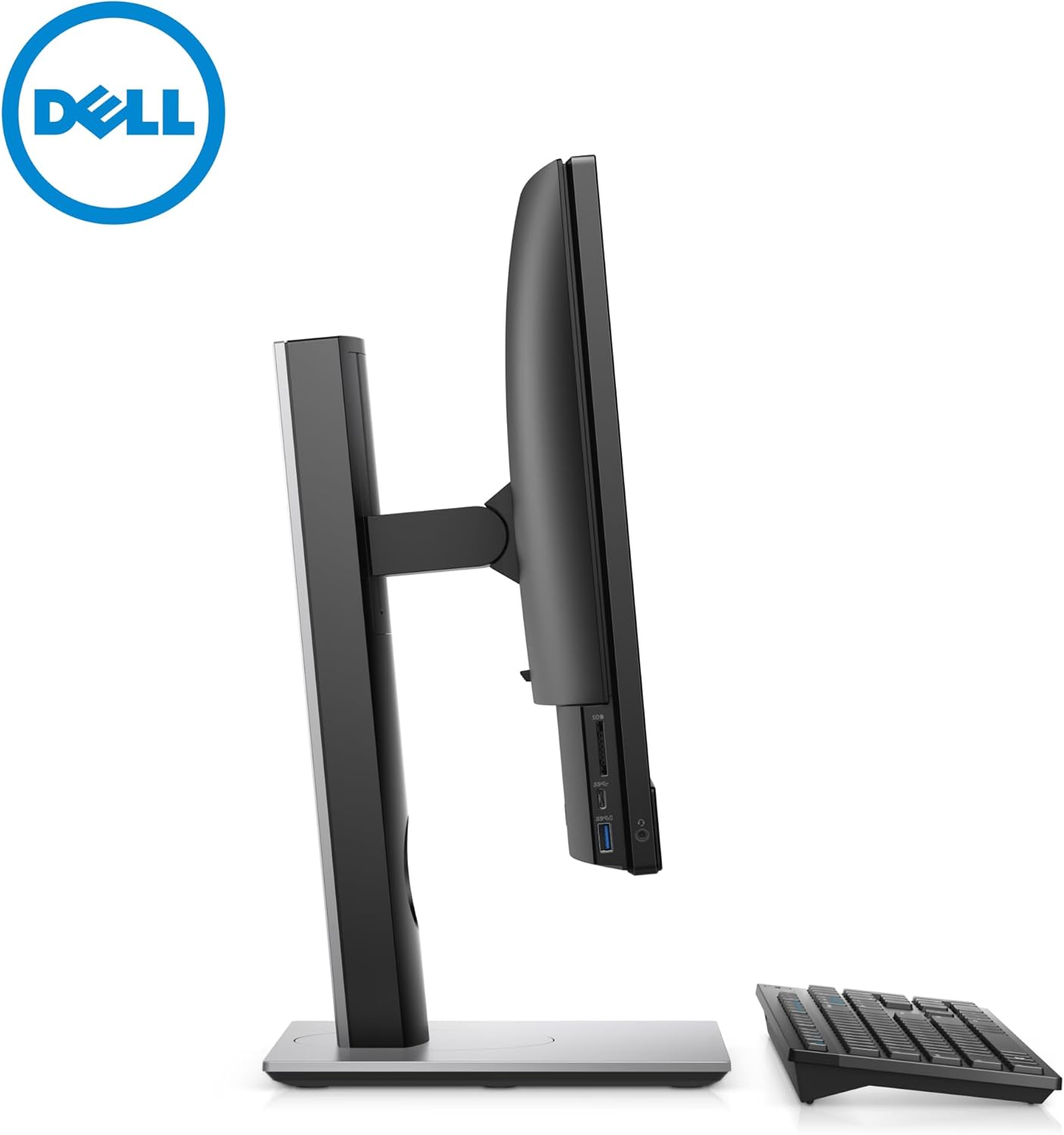
Image: Rear view of the Dell OptiPlex 3280 All-in-One PC, highlighting the various input/output ports for connecting peripherals and power.
- USB Ports: Locate the USB ports (Type-A and Type-C) on the left side and rear of the unit. Connect your keyboard and mouse.
- Power Connection: Connect the power adapter cable to the power connector on the back of the AIO PC, then plug the adapter into a wall outlet.
- Network (Optional): For a wired network connection, connect an Ethernet cable to the RJ-45 port on the back.
- External Display (Optional): If connecting an additional monitor, use the DisplayPort (DP++) on the back.
2.3 Initial Power-On and Windows Setup
- Press the power button, usually located on the bottom right side of the display bezel.
- Follow the on-screen instructions to complete the Windows 11 Pro setup process. This includes selecting your region, language, creating a user account, and connecting to a Wi-Fi network if not using a wired connection.
3. Operating Instructions
3.1 Power On/Off and Sleep Mode
- Power On: Press the power button.
- Shut Down: Click the Start button in Windows, then Power > Shut down.
- Sleep Mode: Click the Start button, then Power > Sleep, or press the power button briefly.
3.2 Display Adjustments
The 21.5-inch Full HD display offers a clear viewing experience. Adjustments for brightness and other display settings can be made through the Windows Display Settings (Right-click on desktop > Display settings).

Image: Front view of the Dell OptiPlex 3280 All-in-One PC, showcasing the display, integrated speakers, and the included wired keyboard and mouse.
3.3 Connectivity (Wi-Fi, Bluetooth, USB)
- Wi-Fi: To connect to a wireless network, click the network icon in the system tray, select your network, and enter the password.
- Bluetooth: Enable Bluetooth in Windows Settings > Bluetooth & devices to pair with compatible devices like headphones or speakers.
- USB Ports: Use the various USB 2.0, USB 3.2 Gen 1 Type-A, and USB 3.2 Gen 1 Type-C ports for connecting external drives, printers, and other peripherals. The USB 3.2 Gen 1 Type-A port with PowerShare can charge devices even when the PC is off or in sleep mode.
- SD Card Reader: Insert SD cards into the dedicated slot on the left side for data transfer.
3.4 Using the Camera and Audio
- FHD IR Pop-up Camera: The integrated camera can be used for video conferencing and Windows Hello facial recognition. It pops up from the top bezel when activated.
- Audio: The AIO PC includes stereo speakers. For private listening, connect headphones to the headset/universal audio port on the left side.
4. Maintenance
4.1 Cleaning the AIO PC
- Display: Use a soft, lint-free cloth slightly dampened with water or a non-abrasive screen cleaner. Do not spray liquid directly onto the screen.
- Chassis: Wipe the exterior surfaces with a soft, dry cloth. For stubborn dirt, a slightly damp cloth can be used. Avoid harsh chemicals.
- Ventilation: Ensure the ventilation slots on the back and bottom of the unit are clear of dust and obstructions to prevent overheating.
4.2 Software Updates
Regularly update your Windows 11 Pro operating system and drivers to ensure optimal performance and security. Go to Windows Settings > Windows Update to check for and install updates.
5. Troubleshooting
5.1 Common Issues and Solutions
- No Power:
- Ensure the power cable is securely connected to both the AIO PC and the wall outlet.
- Verify the wall outlet is functional by plugging in another device.
- Check the power adapter for any damage.
- No Display:
- Ensure the PC is powered on.
- If an external monitor is connected, ensure it is powered on and correctly configured in Windows Display Settings.
- No Internet Connection (Wi-Fi):
- Check if Wi-Fi is enabled in Windows settings.
- Restart your router and modem.
- Ensure you have the correct Wi-Fi password.
- Keyboard/Mouse Not Responding:
- Ensure the USB cables are securely plugged into the AIO PC.
- Try connecting them to different USB ports.
- Restart the computer.
6. Specifications
| Feature | Specification |
|---|---|
| Model | Dell OptiPlex 3280 All-in-One |
| Operating System | Windows 11 Pro |
| Processor | Intel Core i3-10105T (4 cores, 8 threads, up to 3.9 GHz) |
| Memory (RAM) | 16 GB DDR4 DIMM |
| Storage | 512 GB SSD (PCIe-NVMe) |
| Display | 21.5-inch FHD (1920 x 1080) IPS, 60 Hz, Anti-glare |
| Graphics | Intel UHD Graphics (Integrated) |
| Camera | FHD IR Pop-up Camera |
| Connectivity | Wi-Fi, Bluetooth |
| Ports |
|
| Dimensions (H x W x D) | 12.96 x 19.6 x 2.14 inches (without stand) |
| Weight | Starting at 10.31 lbs |
7. Warranty and Support
7.1 Product Condition and Warranty
This Dell OptiPlex 3280 All-in-One PC is a renewed product. Renewed products typically come with a limited warranty provided by the seller or the renewal program. Please refer to your purchase documentation for specific warranty details. A 90-day return/replacement policy is generally offered for renewed products.
7.2 Technical Support
For technical assistance, please contact the seller from whom you purchased this renewed product. You may also find general support resources on the official Dell support website for driver downloads and documentation related to the OptiPlex 3280 model.
- Seller Support: Refer to your purchase invoice or platform for seller contact information.
- Dell Support: Visit www.dell.com/support for general product information and driver downloads.


