
1. Setup
1.1 Unboxing and Package Contents
Carefully remove the keyboard and accessories from the packaging. Verify that all components are present.
- GK GAMAKAY TK75HE V2 Keyboard
- USB Cable
- Keycap Puller
1.2 Connectivity Options
The TK75HE V2 keyboard supports three connection modes: USB-C wired, 2.4GHz wireless, and Bluetooth.
1.2.1 USB-C Wired Connection
- Connect the provided USB-C cable to the keyboard's USB-C port.
- Connect the other end of the USB-C cable to an available USB port on your computer.
- The keyboard will be automatically detected and ready for use.
1.2.2 2.4GHz Wireless Connection
- Locate the 2.4GHz USB receiver (dongle) typically stored in a compartment on the keyboard.
- Plug the 2.4GHz USB receiver into an available USB port on your computer.
- Ensure the keyboard's mode switch is set to 2.4GHz.
- The keyboard should connect automatically.
1.2.3 Bluetooth Connection
- Ensure the keyboard's mode switch is set to Bluetooth.
- On your computer or device, navigate to Bluetooth settings.
- Initiate pairing mode on the keyboard (refer to the keyboard's specific key combination for Bluetooth pairing, often Fn + a number key).
- Select "GK GAMAKAY TK75HE V2" from the list of available Bluetooth devices on your computer/device to complete pairing.
1.3 Software Installation
To unlock advanced features and customization, download and install the official GK GAMAKAY software from the manufacturer's website. This software allows for:
- Adjusting actuation points for individual keys.
- Configuring Dynamic Keystrokes (DKS).
- Setting up Snap Tap functionality.
- Customizing TFT screen content (images/GIFs).
- Managing RGB lighting effects.
- Calibrating switches.
2. Operation
2.1 Basic Keyboard Functions
The TK75HE V2 operates as a standard 75% layout keyboard. All keys perform their labeled functions by default. Function (Fn) key combinations may be used for secondary functions, multimedia control, or mode switching.
2.2 Multifunctional CNC Knob

The CNC knob located on the top right of the keyboard provides quick access to media and volume controls:
- Press Knob: Play / Pause media.
- Rotate Right: Increase volume.
- Rotate Left: Decrease volume.
This image illustrates the functionality of the CNC knob, indicating how to press for play/pause and rotate for volume adjustment.
2.3 TFT Screen Usage

The 0.85-inch TFT screen provides real-time information and customization options. It can display:
- Battery status.
- Date and time.
- Connection mode.
- Custom JPG/GIF animations (configurable via software).
This image highlights the small TFT screen on the keyboard, showing it displaying the current time and date, indicating its informational capabilities.
2.4 RGB Lighting Control
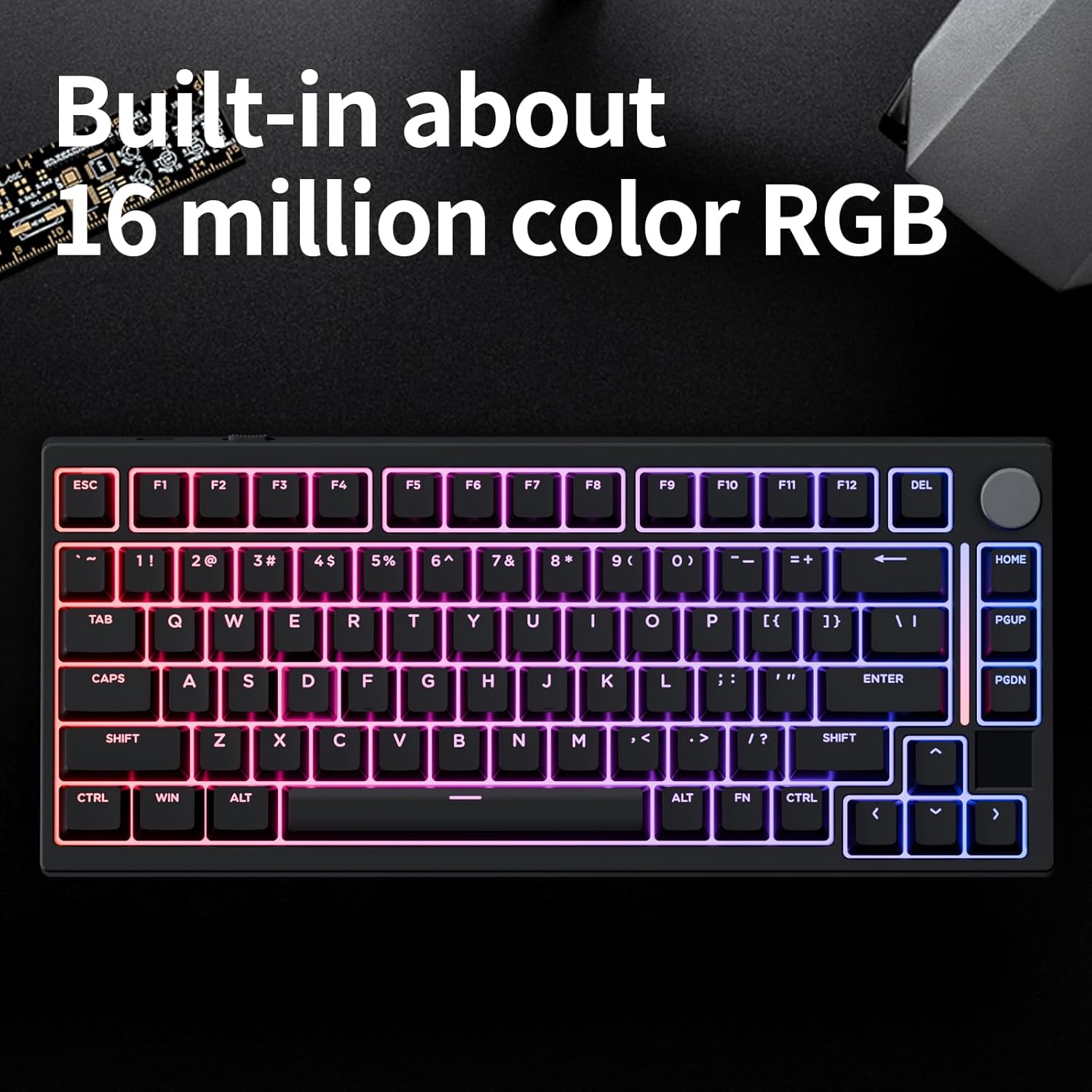
The keyboard features 16.8 million colors with programmable RGB lighting effects. Lighting modes and colors can be adjusted directly on the keyboard using Fn key combinations or through the dedicated software for more advanced customization.
This image displays the keyboard with its RGB lighting active, showcasing the range of colors and dynamic effects possible.
2.5 Advanced Key Features
2.5.1 Adjustable Actuation Point
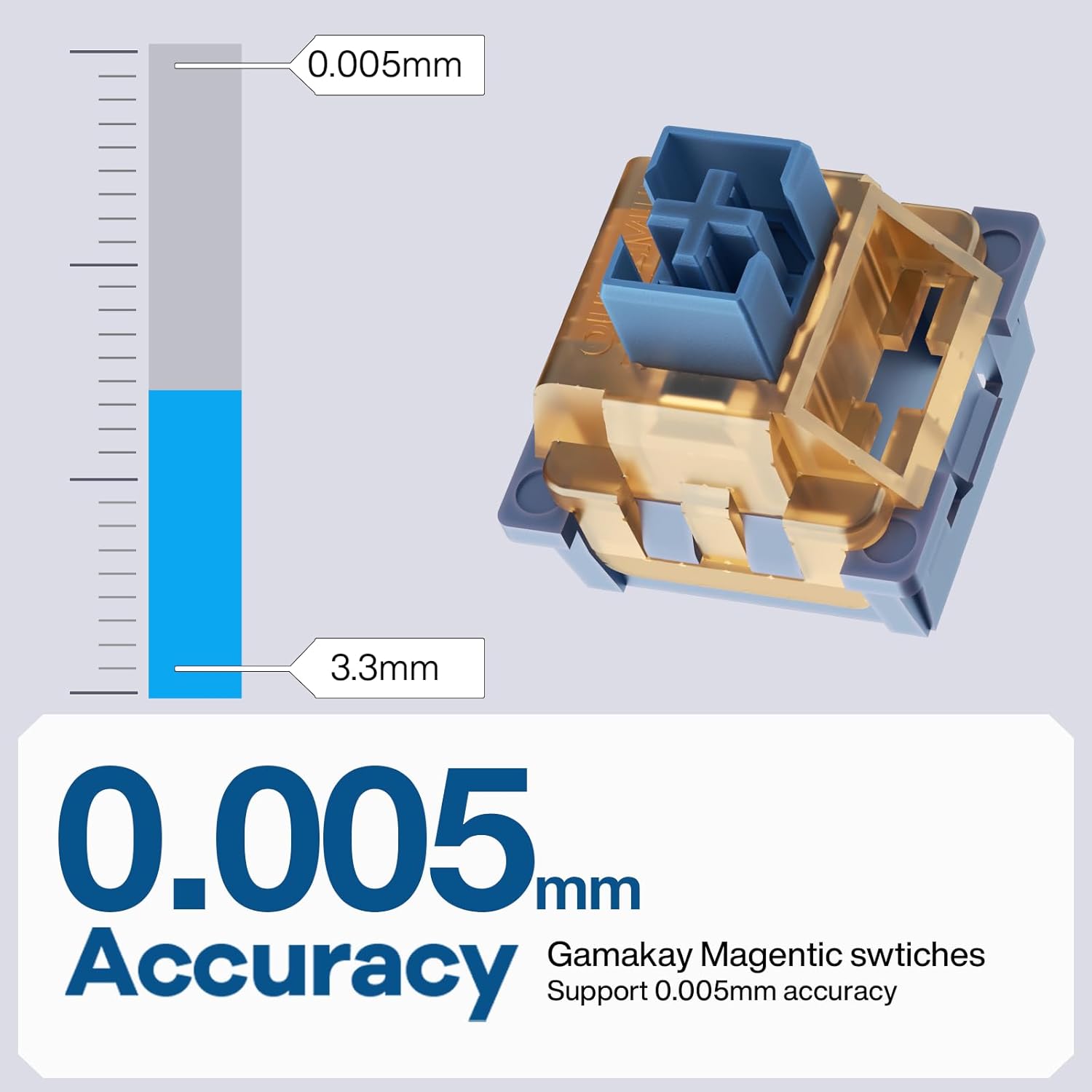
Each Hall magnetic switch on the TK75HE V2 can have its actuation point adjusted from 0.1mm to 3.4mm in 0.01mm increments. This allows for precise control over key sensitivity, suitable for both rapid keypresses in gaming and accurate typing.
This diagram visually represents the adjustable actuation depth of the magnetic switches, highlighting the precision of 0.005mm accuracy.
2.5.2 Rapid Trigger (RT)

The Rapid Trigger feature enables ultra-precise 0.005mm actuation break with zero dead zone. This means keys register input and reset almost instantly upon release, allowing for faster, more responsive actions in competitive scenarios.
This image compares traditional mechanical switches with Rapid Trigger technology, demonstrating how RT allows for quicker key resets and repeated inputs.
2.5.3 Dynamic Keystroke (DKS)
DKS allows you to assign up to four different actions within a single keystroke based on the key's travel distance. This feature provides advanced customization for complex commands without needing macros.
2.5.4 Snap Tap
Configurable via software, Snap Tap prioritizes the latest input between two selected keys without requiring the release of the previous key. This enhances responsiveness for directional changes in games.
2.5.5 8KHz Polling Rate
The keyboard features an 8KHz polling rate, ensuring ultra-low latency of 0.06ms for immediate response times between keypress and computer recognition.
3. Maintenance
3.1 Cleaning the Keyboard
- Disconnect the keyboard from your computer before cleaning.
- Use a soft, lint-free cloth lightly dampened with water or a mild cleaning solution to wipe down the keycaps and chassis.
- For dust and debris between keys, use compressed air.
- Avoid harsh chemicals or abrasive materials.
3.2 Hot-Swappable Switches

The TK75HE V2 features full hot-swappable magnetic switches, allowing you to customize your typing experience by replacing switches without soldering. It supports other brands of magnetic switches (N pole magnets).
- Use the provided keycap puller to gently remove the desired keycap.
- Use a switch puller (not included, but often comes with replacement switches) to carefully remove the magnetic switch.
- Align the pins of the new magnetic switch with the sockets on the PCB and press firmly until it clicks into place.
- Reattach the keycap.
This image demonstrates the process of removing a keycap to access the hot-swappable switch, illustrating the ease of customization.
4. Troubleshooting
4.1 Keyboard Not Responding
- Wired Connection: Ensure the USB-C cable is securely connected to both the keyboard and the computer. Try a different USB port or cable.
- 2.4GHz Wireless: Verify the 2.4GHz receiver is plugged in and the keyboard is in 2.4GHz mode. Try re-pairing the keyboard with the receiver if necessary.
- Bluetooth: Check if Bluetooth is enabled on your device and the keyboard is in Bluetooth mode. Re-pair the device if the connection is lost. Ensure the keyboard battery is charged.
4.2 Phantom Keypresses or Ghosting
If you experience unintended key activations or keys not registering correctly, this may be due to switch calibration issues, especially after shipment.
- Download and use the GK GAMAKAY software.
- Navigate to the calibration section within the software.
- Follow the on-screen instructions to recalibrate the magnetic switches.
4.3 RGB Lighting Issues
- Ensure the keyboard is powered on and connected.
- Check keyboard brightness settings using Fn key combinations.
- Use the GK GAMAKAY software to reset or reconfigure lighting effects.
4.4 TFT Screen Not Displaying
- Ensure the keyboard is powered on.
- Check for any software settings that might disable the screen.
- If custom GIFs/images are not displaying, verify they are in the correct format and size as specified by the software.
5. Specifications
| Feature | Detail |
|---|---|
| Model | TK75HE V2 |
| Layout | 75% (81 keys) |
| Switch Type | Hall Effect Magnetic Switches |
| Actuation Point | Adjustable 0.1mm to 3.4mm (0.01mm steps) |
| Rapid Trigger Accuracy | 0.005mm |
| Polling Rate | 8KHz |
| Latency | 0.06ms (wired/2.4G wireless) |
| Connectivity | Tri-Mode (USB-C, 2.4GHz Wireless, Bluetooth) |
| Keycaps | PBT Cherry-profile translucent |
| RGB Lighting | 16.8 million colors, programmable effects |
| Display | 0.85-inch TFT Screen |
| Dimensions | 12.5 x 5 x 1.5 inches |
| Weight | 2.57 pounds |
| Compatible OS | Windows, macOS |
6. Warranty & Support
6.1 Product Warranty
GK GAMAKAY products are covered by a limited warranty against manufacturing defects. The specific duration and terms of the warranty may vary by region and retailer. Please retain your proof of purchase for warranty claims.
6.2 Technical Support
For technical assistance, troubleshooting beyond this manual, or warranty inquiries, please contact GK GAMAKAY customer support through their official website. You may find contact information, FAQs, and software downloads at the following link: