
1. Product Overview
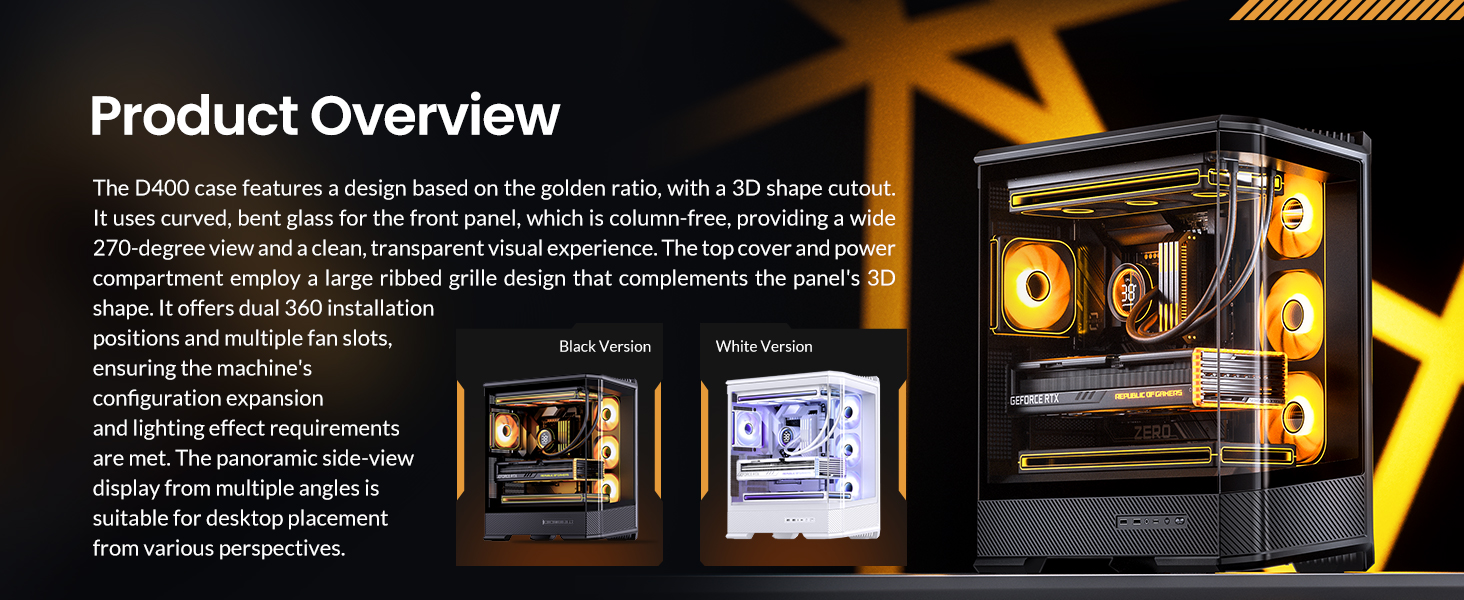
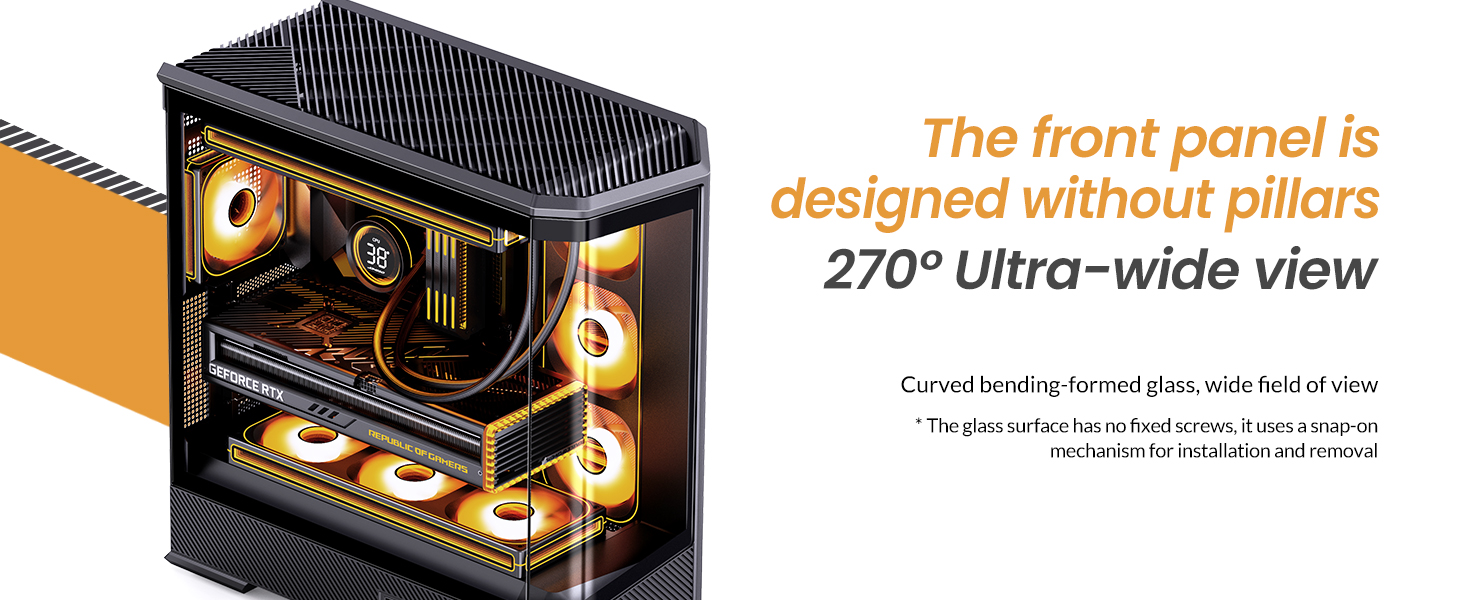
The JONSBO D400 is a white ATX Mid-Tower PC case featuring a three-dimensional beveled curved glass design, allowing for clear visibility of internal hardware. It supports BTF motherboards, ATX power supplies, and dual 360mm AIO liquid coolers, offering extensive cooling and component compatibility.
Key Features:
- Dimensions: 488mm (L) x 239mm (W) x 514mm (H) (including feet).
- Design: Three-dimensional beveled curved glass for enhanced aesthetics and hardware visibility.
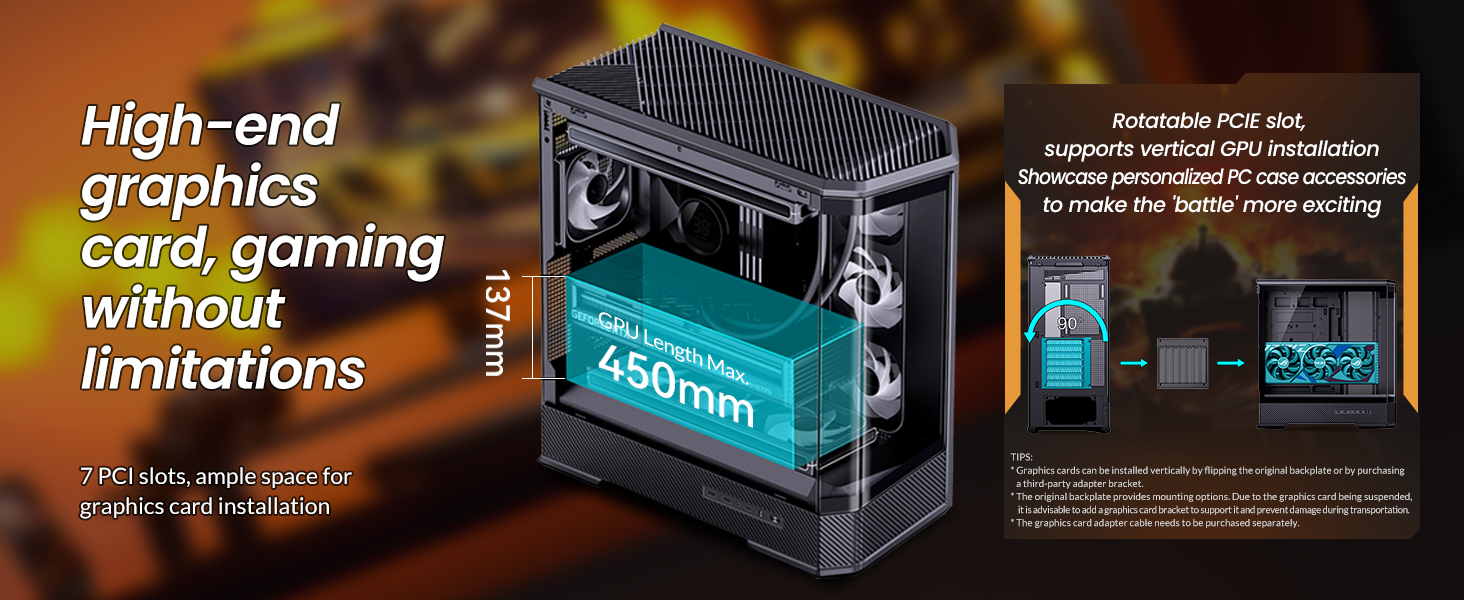
- GPU Support: Graphics cards up to 450mm in length.
- PSU Support: ATX PS2 power supplies.
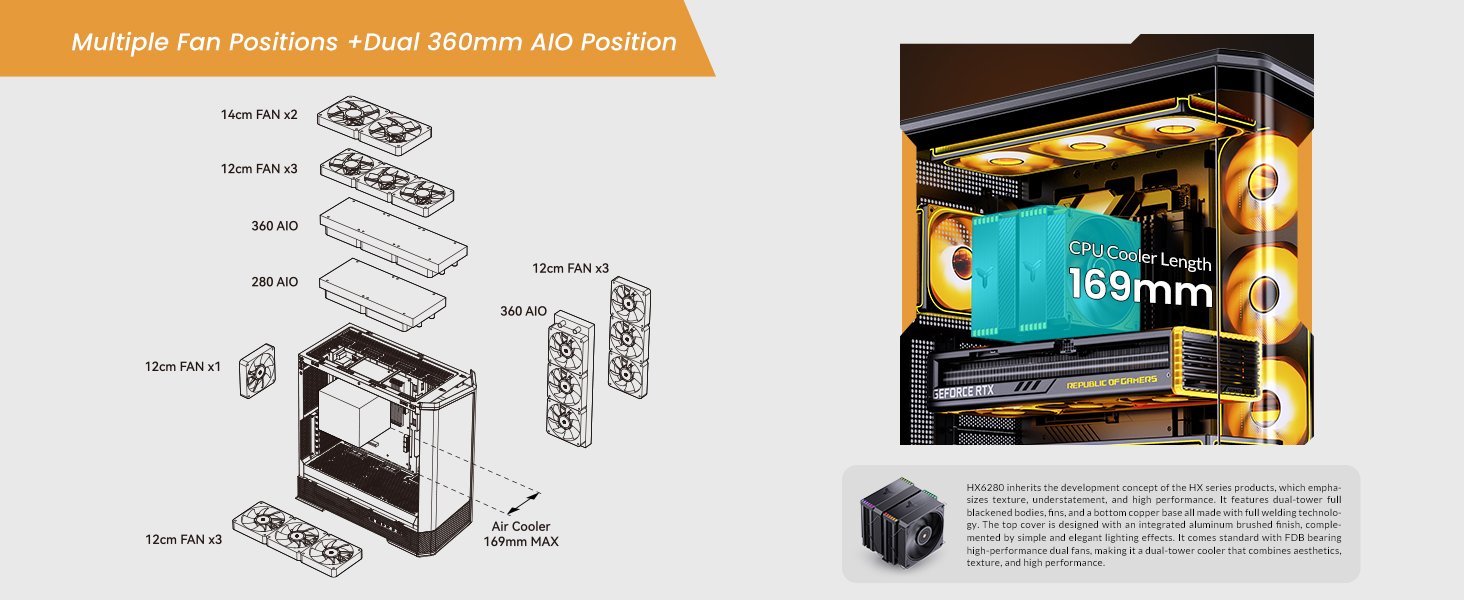
- Air Cooling: CPU coolers up to 169mm in height.
- Liquid Cooling (AIO): Supports top-mounted 240mm, 280mm, or 360mm AIOs, and side-mounted 360mm AIOs.
- Fan Positions: Up to 10 fan positions for optimal airflow (Top: 3x120mm/2x140mm; Side: 3x120mm; Rear: 1x120mm; Power Compartment: 3x120mm).
- Drive Bays: Flexible storage options including 2x 2.5" SSDs, or 1x 3.5" HDD + 1x 2.5" SSD (back side), and 1x 2.5" SSD or 1x 3.5" HDD (PSU compartment).
- Front I/O: 1x USB3.2 Gen2 Type-C, 2x USB3.0, 1x AUDIO + 1x MIC (2-in-1).
- Expansion Slots: 7.

2. Specifications
| Feature | Detail |
|---|---|
| Brand | Jonsbo |
| Model Name | D400 |
| Case Type | Mid Tower |
| Color | White |
| Material | Metal |
| Product Dimensions (LxWxH) | 19.21 x 9.21 x 20.43 inches (488x239x514mm) |
| Item Weight | 23.6 pounds |
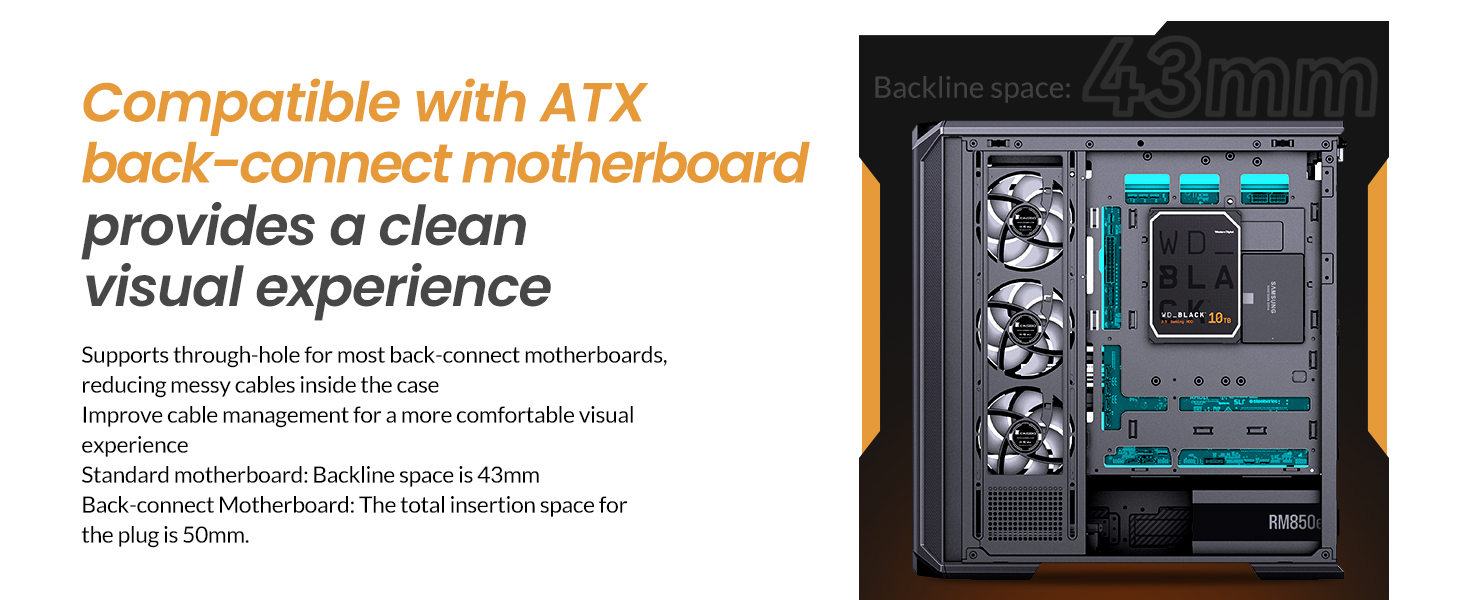
| Motherboard Compatibility | ATX, Micro ATX, Mini ITX, BTF Motherboard |
| GPU Length (Max) | ≤450mm |
| CPU Cooler Height (Max) | 169mm |
| PSU Support | ATX PS2 (≤200mm), Bottom Mount |
| AIO Support | Top: 240mm/280mm/360mm (optional); Side: 360mm (optional) |
| Fan Positions | Top: 3x120mm/2x140mm; Side: 3x120mm; Rear: 1x120mm; Power Compartment: 3x120mm |
| Drive Bays | Back Side: 2x 2.5" SSD or 1x 3.5" HDD + 1x 2.5" SSD; PSU Compartment: 1x 2.5" SSD or 1x 3.5" HDD |
| Front I/O Ports | 1x USB3.2 Gen2 Type-C, 2x USB3.0, 1x AUDIO + 1x MIC (2-in-1) |
| Expansion Slots | 7 |
3. Setup and Installation
This section provides general guidelines for installing components into your JONSBO D400 PC case. Always refer to the specific manuals for your individual components (motherboard, GPU, PSU, etc.) for detailed instructions.
3.1 Preparing the Case
- Carefully remove the side glass panels. The beveled curved glass design allows for easy access.
- Identify the motherboard standoffs. Ensure they match your motherboard's form factor (ATX, Micro ATX, Mini ITX, or BTF).

3.2 Motherboard Installation
- Align your motherboard with the standoffs in the case.
- Secure the motherboard using the provided screws.
- Connect the front I/O cables (USB 3.0, USB Type-C, Audio, Power/Reset switches, LED indicators) to the appropriate headers on your motherboard.
3.3 Power Supply Unit (PSU) Installation
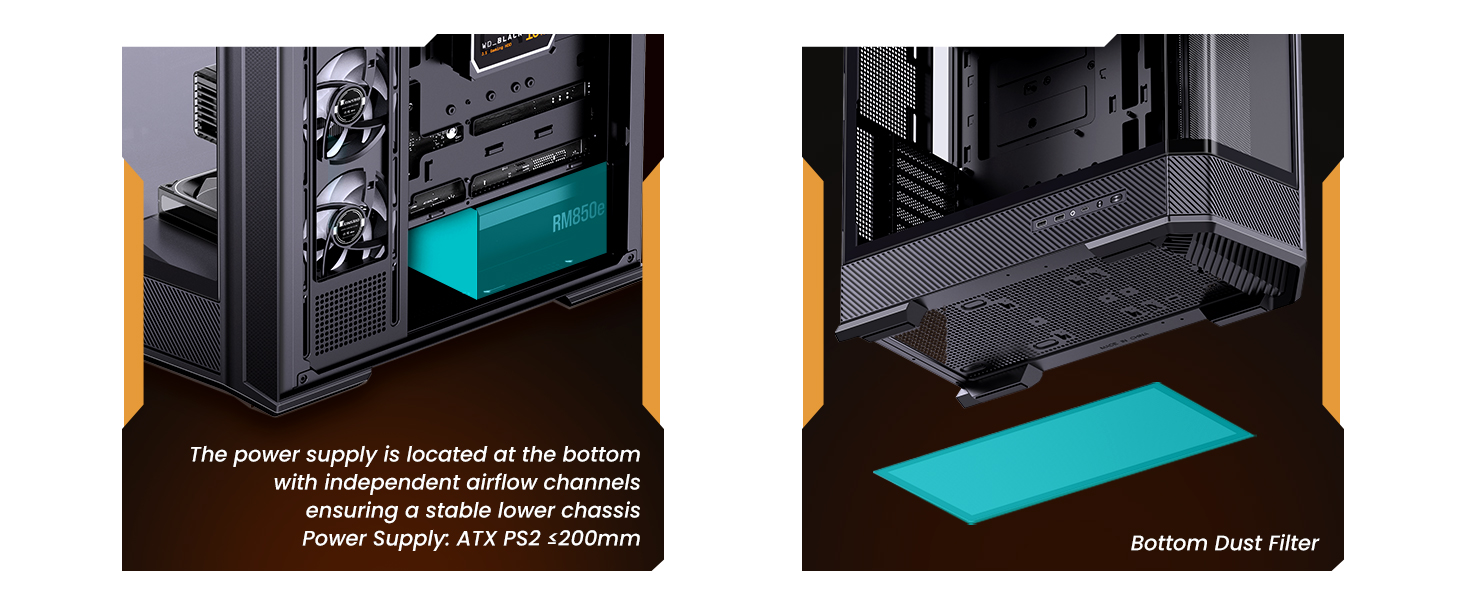
- The JONSBO D400 supports ATX PS2 power supplies and features a bottom-mount design.
- Install the PSU into its designated compartment at the bottom rear of the case.
- Secure the PSU with screws.
- Route the necessary power cables through the cable management cutouts.
3.4 Graphics Card (GPU) Installation
- The case supports GPUs up to 450mm in length.
- Remove the necessary expansion slot covers at the rear of the case.
- Insert your GPU into the primary PCIe slot on your motherboard and secure it with screws.
- Connect the required PCIe power cables from your PSU to the GPU.
3.5 Cooling System Installation (Fans & AIO)
- The D400 offers 10 fan positions: Top (3x120mm/2x140mm), Side (3x120mm), Rear (1x120mm), and Power Compartment (3x120mm).
- For AIO liquid coolers, the case supports up to 360mm radiators on the top and side.
- Install fans or radiators into your desired positions, ensuring proper airflow direction (intake/exhaust).
- Connect fan and AIO pump cables to your motherboard headers or a fan controller.
3.6 Storage Drive Installation
- The case provides mounting options for 2.5" SSDs and 3.5" HDDs.
- Install your drives into the designated drive bays (back side of motherboard tray or PSU compartment).
- Secure the drives with screws and connect SATA data and power cables.

4. Operating Instructions
Once all components are installed and secured, and the side panels are reattached, your JONSBO D400 PC is ready for operation.
4.1 Powering On
- Ensure all external cables (power, monitor, peripherals) are securely connected.
- Flip the power switch on your PSU to the 'On' position.
- Press the power button on the front I/O panel of your case to start your system.
4.2 Using Front I/O Ports
The front I/O panel provides convenient access to various ports:
- USB3.2 Gen2 Type-C: For high-speed data transfer with compatible devices.
- USB3.0: For connecting USB devices such as external drives, keyboards, and mice.
- AUDIO (2-in-1): For connecting headphones or headsets with a combined audio/microphone jack.
5. Maintenance
Regular maintenance helps ensure optimal performance and longevity of your PC components.
5.1 Cleaning Dust Filters
- The JONSBO D400 features a removable bottom dust filter.
- Periodically remove and clean the dust filter to prevent dust buildup and maintain good airflow.
- Use compressed air or a soft brush to remove dust.
5.2 Cleaning Exterior Surfaces
- Wipe the exterior surfaces, including the glass panels, with a soft, lint-free cloth.
- For stubborn smudges on glass, use a mild glass cleaner applied to the cloth (not directly to the glass).
6. Troubleshooting
If you encounter issues with your JONSBO D400 PC case or its installed components, consider the following common troubleshooting steps:
6.1 No Power
- Ensure the PSU is switched on and the power cable is securely connected to both the PSU and the wall outlet.
- Verify that the front panel power button cable is correctly connected to the motherboard.
6.2 Overheating Issues
- Check that all installed fans are spinning and oriented correctly for optimal airflow (e.g., front/side intake, rear/top exhaust).
- Ensure CPU cooler and AIO radiators are properly seated and fans are functioning.
- Clean any dust filters and internal components to improve heat dissipation.
6.3 Component Fit Issues
- If a component does not fit, double-check its dimensions against the case specifications (GPU length ≤450mm, CPU cooler height ≤169mm, PSU length ≤200mm).
- Ensure proper alignment and removal of any necessary modular parts of the case during installation.
6.4 Front I/O Not Functioning
- Verify that all front I/O cables (USB, Audio) are correctly connected to their respective headers on the motherboard.
- Check your motherboard's manual for correct pin assignments.
7. Warranty and Support
7.1 Return Policy
This product is subject to a 30-day return/replacement policy from the date of purchase. Please refer to your retailer's specific return terms and conditions.
7.2 Technical Support
For technical assistance or further inquiries, please visit the official JONSBO website or contact their customer support. Keep your proof of purchase handy when seeking support.
8. Video Demonstrations
JONSBO D400 ATX PC Case Overview
This video provides a comprehensive overview of the JONSBO D400 ATX PC case, showcasing its design, features, and internal layout. It highlights the aesthetic appeal and functional aspects of the case.