
1. Introduction
Thank you for choosing the kumezo 32 Inch 4K Smart Portable TV. This manual provides essential information for setting up, operating, and maintaining your device. Please read it thoroughly to ensure proper usage and to maximize your product experience.

Image 1.1: The kumezo 32 Inch 4K Smart Portable TV, showcasing its adjustable screen.
2. Package Contents
Please verify that all items are present in the package:
- kumezo 32 Inch 4K Smart Portable TV Unit
- Rolling Stand Base with built-in wheels
- Adjustable Pole for Stand
- Power Adapter and Cable
- Air Remote Mouse (with 2 Nonstandard Battery batteries included)
- 5MP Webcam
- Screwdriver
- Screws and Foot Pads (for anti-slip purposes)
- User Manual (this document)

Image 2.1: All components included in the kumezo Smart Portable TV package.
3. Setup Instructions
Follow these steps to assemble your kumezo Smart Portable TV:
- Unpack Components: Carefully remove all items from the packaging.
- Assemble the Stand: Attach the adjustable pole to the rolling stand base using the provided screws and screwdriver. Ensure the power cable from the pole is correctly connected to the base.
- Attach the TV Unit: Securely mount the 32-inch TV unit to the top of the adjustable pole. Ensure all connections are firm.
- Install Webcam: Attach the 5MP webcam to the designated slot on the top edge of the TV unit and connect its USB cable to an available USB port on the TV.
- Initial Power-On: For the first use, connect the power adapter to the base and plug it into a wall outlet. The device will power on automatically.
Video 3.1: Quick Setup Guide for the Smart Portable TV, demonstrating assembly steps.
4. Operating Instructions
4.1. Powering On/Off and Initial Setup
Press the power button located on the side of the TV unit or on the Air Remote Mouse to turn the device on or off. Follow the on-screen prompts to connect to your Wi-Fi network and log in to your Google account.
4.2. Touch Screen and Air Remote Mouse
The 32-inch 4K UHD display features a 10-point touch screen for intuitive interaction. Alternatively, use the included Air Remote Mouse, which has a built-in six-axis gyroscope, allowing you to control the cursor by swinging your wrist. The remote also supports voice commands.
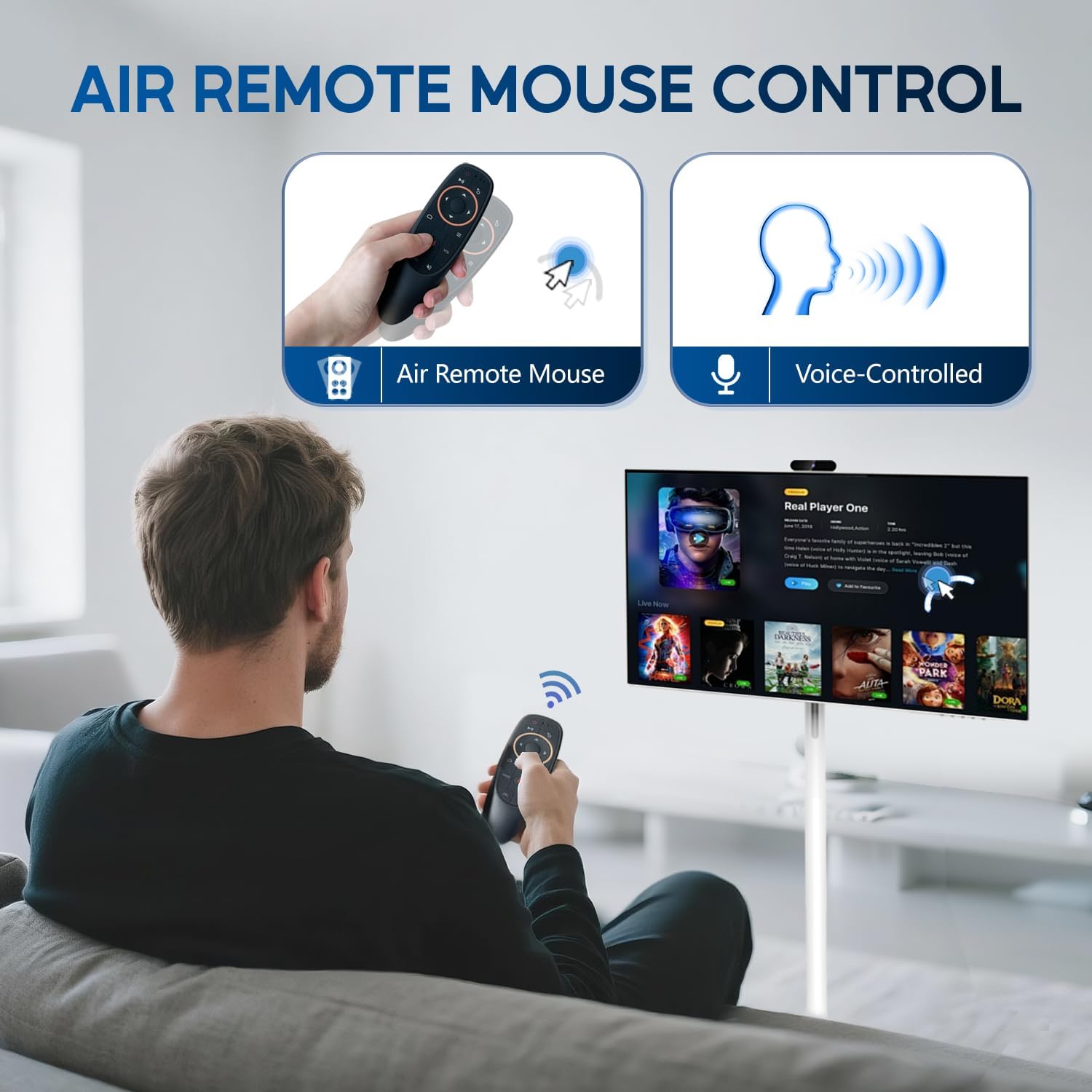
Image 4.1: Demonstrating control of the TV using the Air Remote Mouse.
4.3. Android OS and App Downloads
Running on Android 14 and EDLA-Certified, the TV provides access to over 100,000 apps via the Google Play Store. The Qualcomm Snapdragon 665 CPU and 8+128GB memory ensure a smooth user experience for multitasking and app usage.

Image 4.2: The Android 14 interface with access to the Google Play Store.
4.4. Adjustable Screen and Portability
The screen can be adjusted to horizontal or vertical mode, tilted at various angles (±20°), and lifted (±17cm) for optimal viewing. The base features 5 hidden silent swivel wheels for easy movement across different rooms.

Image 4.3: Screen rotation, tilting, and height adjustment features.
4.5. 5MP Webcam and Screen Casting
The integrated 5MP webcam is suitable for video calls, live streaming, and taking photos. The TV supports both wireless and wired screen casting, allowing you to share content from your smartphone, tablet, or laptop.

Image 4.4: The 5MP webcam in use for video conferencing.
Video 4.5: An introduction to the Smart TV's features and capabilities.
5. Battery Management
The kumezo Smart Portable TV is equipped with a built-in 20000mAh battery, providing up to 10 hours of usage time on a full charge. To charge the device, connect the power adapter to the base and a wall outlet. The charging indicator light on the base will illuminate.

Image 5.1: Usage examples demonstrating the 10-hour battery life.
6. Specifications
| Feature | Detail |
|---|---|
| Brand | kumezo |
| Model Number | Kumezo-065 |
| Screen Size | 32 Inches |
| Resolution | 4K UHD 2160p |
| Operating System | Android 14 (EDLA-Certified) |
| CPU | Qualcomm Snapdragon 665 |
| Memory | 8GB RAM + 128GB Storage |
| Battery | 20000mAh (up to 10 hours usage) |
| Webcam | 5MP |
| Connectivity | Wi-Fi, Bluetooth, HDMI In, USB, Type-C |
| Product Dimensions | 15.7 x 28.1 x 52 inches |
| Item Weight | 46.4 pounds |
7. Maintenance
- Cleaning: Use a soft, dry, lint-free cloth to clean the screen and exterior. For stubborn marks, slightly dampen the cloth with water or a screen-cleaning solution. Avoid harsh chemicals.
- Storage: When not in use for extended periods, store the TV in a cool, dry place.
- Battery Care: To prolong battery life, avoid fully discharging the battery frequently. Charge the device regularly.
8. Troubleshooting
- Device Not Powering On: Ensure the power cable is securely connected to both the TV base and a working power outlet. If using battery power, ensure the battery is charged.
- No Wi-Fi Connection: Check your router and ensure the TV is within range. Re-enter your Wi-Fi password if necessary.
- Remote Control Not Responding: Ensure the batteries in the Air Remote Mouse are correctly inserted and charged. Re-pair the remote if necessary (refer to remote pairing instructions in the quick setup guide).
- Touch Screen Unresponsive: Restart the device. Ensure the screen is clean and free from obstructions.
- Apps Crashing/Slow Performance: Close background applications. Clear app caches or uninstall unused apps to free up memory.
9. Warranty and Support
The kumezo 32 Inch 4K Smart Portable TV comes with a one-year warranty from the date of purchase. For any questions, technical support, or warranty claims, please contact kumezo customer service.
Contact information for support is typically provided in the packaging or on the manufacturer's official website.
Video 9.1: KTC MegPad A32Q7Pro UHD Monitor Operation Guide Video, which mentions a one-year warranty and support contact.