
1. Introduction
This manual provides detailed instructions for the installation, operation, and maintenance of your GTRUI 8-inch Android Car Stereo. Please read this manual thoroughly before using the product to ensure proper functionality and to prevent damage.

Image 1.1: The GTRUI 8-inch Android Car Stereo, shown with a backup camera and a smartphone demonstrating Wireless CarPlay functionality.
The GTRUI Android Car Stereo is an advanced in-dash navigation and entertainment system designed to enhance your driving experience. Featuring an 8-inch QLED touchscreen, Android 12 operating system, 8-core processor, 3GB RAM, and 32GB ROM, it offers seamless performance and a wide range of features including Wireless CarPlay, Android Auto, GPS navigation, Bluetooth 5.0, and a powerful DSP audio system.
2. Package Contents
Verify that all items listed below are present in your product package. If any items are missing or damaged, please contact GTRUI customer support.
- 8-inch Android Car Stereo Head Unit
- Wiring Harness Cable with CANbus Decoder
- Radio Antenna Adaptor
- GPS Antenna
- Backup Camera
- External Microphone
- USB Cables
- RCA Cables
- User Manual
- Installation Tool

Image 2.1: Visual representation of all components included in the GTRUI Android Car Stereo package, including the head unit, cables, antennas, camera, and manual.
3. Compatibility
This Android Car Stereo is specifically designed for the following Ford vehicle models and years:
- Ford F-150 (2004-2008)
- Ford F-250 / F-350
- Ford Focus (2005-2007)
- Ford Mustang (2005-2009)
- Ford Edge (2007-2010)
- Ford Escape (2008-2012)
- Ford Expedition (2007-2014)
- Ford E250 / E350 (2009-2014)
- Ford Freestyle (2005-2007)
- Ford Fusion (2006-2009)
- Ford Mark LT (2006-2008)
- Ford Milan (2006-2009)
- Ford MKX (2007-2009)
- Ford Montego (2005-2007)
- Ford Mountaineer (2007-2010)
- Ford Sable (2008-2009)
- Ford Shelby GT500 (2007-2009)
- Ford Taurus (2008-2009)
The unit comes with a wiring harness and CANbus decoder designed for direct integration, eliminating the need for cable modification or damage to your car's original wiring harness.
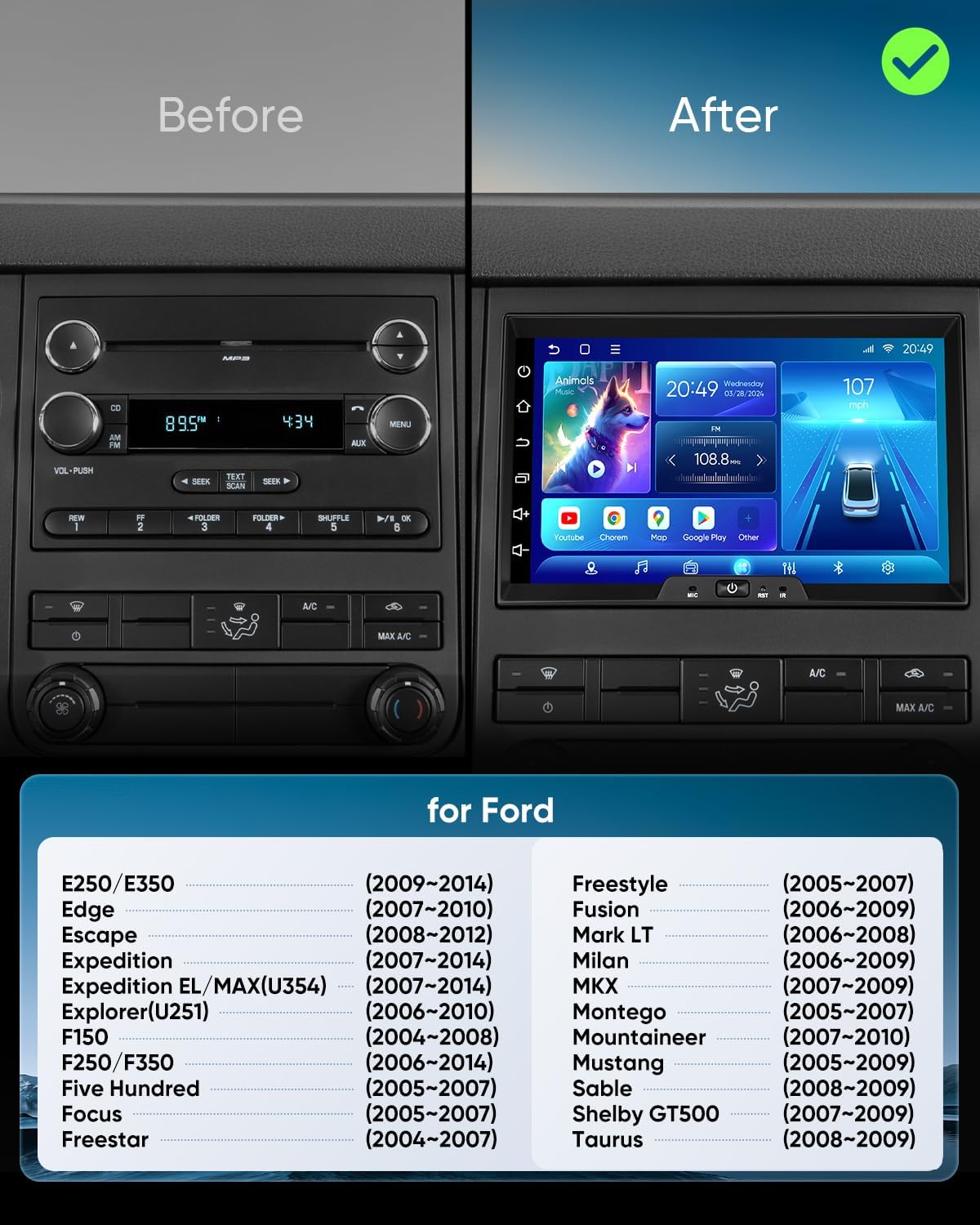
Image 3.1: A visual comparison of the car's dashboard before and after the installation of the GTRUI Android Car Stereo, alongside a comprehensive list of compatible Ford vehicle models and their respective years.
4. Key Features
- Operating System: Android 12
- Processor: 8-core Cortex A55
- Memory: 3GB RAM + 32GB ROM
- Display: 8-inch QLED IPS Touch Screen, 1024x600 resolution, 178° full-viewing angle
- Connectivity: Wireless/Wired CarPlay & Android Auto, Dual-band WiFi (2.4Ghz & 5Ghz), Bluetooth 5.0
- Navigation: Built-in GPS, supports Sygic, iGo, Waze, Google Maps
- Audio: AKM DSP Stereo, 4x50W output, 48-band graphic equalizer, 8 EQ modes, AM/FM Radio with RDS
- Additional Features: Steering Wheel Control support, Split Screen Function, 1-second Boot Time, AHD 1080P Reversing Rear View Camera support (camera included)

Image 4.1: The car stereo integrated into a dashboard, showcasing its Android 12 operating system, Octa Core CPU, 3GB RAM, 32GB ROM, and IPS Touch Screen capabilities.

Image 4.2: The car stereo displaying both Wireless CarPlay and Android Auto interfaces, highlighting access to phone, music, maps, and messaging applications.

Image 4.3: An illustration detailing the audio customization capabilities of the stereo, featuring the ST TDA 7388 power amplifier chip, 4x50W maximum output power, and AKM DSP for a realistic audio experience.
5. Setup & Installation
Installation of the GTRUI Android Car Stereo is designed to be straightforward. It is recommended to have the installation performed by a qualified professional if you are unfamiliar with car audio wiring.
5.1 Pre-Installation Checklist
- Ensure the vehicle's ignition is off and the battery is disconnected.
- Gather all necessary tools (provided installation tool, screwdrivers, wire cutters/strippers).
- Confirm all package contents are present.
5.2 Installation Steps
- Carefully remove the original car stereo and dashboard trim. Refer to your vehicle's service manual for specific instructions.
- Connect the provided wiring harness and CANbus decoder to the car's existing wiring. Ensure all connections are secure.
- Connect the GPS antenna and radio antenna adaptor to the corresponding ports on the new stereo. Position the GPS antenna in a location with a clear view of the sky (e.g., on the dashboard).
- If installing the backup camera, route the camera cable from the rear of the vehicle to the stereo unit. Connect the camera's video output to the designated input on the stereo and its power to the reverse light circuit.
- Connect the external microphone to the stereo and route it to a suitable location (e.g., near the rearview mirror or steering column) for optimal voice pickup.
- Carefully slide the GTRUI Android Car Stereo into the dashboard opening, ensuring all cables are not pinched. Secure the unit using the mounting brackets.
- Reconnect the vehicle's battery.
- Turn on the ignition and test the stereo's functions (power, audio, touch screen, GPS, Bluetooth, camera).
- Reinstall the dashboard trim.
Image 5.1: A visual comparison of the car's dashboard before and after the installation of the GTRUI Android Car Stereo, demonstrating the integrated fit.
6. Operating Instructions
6.1 Power On/Off
- The stereo will typically power on automatically with the vehicle's ignition.
- To manually power off, press and hold the power button on the unit.
- The unit features a 1-second boot time for quick startup after initial power-on.
6.2 Touch Screen Navigation
The 8-inch QLED IPS touchscreen allows for intuitive control. Tap icons to open applications, swipe to navigate menus, and use pinch-to-zoom gestures where supported (e.g., maps).
6.3 Split Screen Function
The split-screen feature allows you to run two applications simultaneously. For example, you can display navigation on one side and music playback on the other.

Image 6.1: The car stereo demonstrating its split-screen functionality, with YouTube playing on the left side and Google Maps navigation active on the right side.
6.4 Steering Wheel Controls
The stereo supports your vehicle's factory steering wheel controls. After installation, these controls should function automatically without additional setup, allowing you to manage audio, calls, and navigation safely.

Image 6.2: An illustration detailing the various functions supported by the vehicle's steering wheel controls when integrated with the GTRUI Android Car Stereo, such as volume adjustment, track control, call management, and navigation access.
7. Connectivity
7.1 Bluetooth 5.0
The stereo features Bluetooth 5.0 for stable and fast wireless connections. You can pair your smartphone for hands-free calling, Bluetooth music streaming, and contact synchronization.
- Go to the Bluetooth settings on the stereo.
- Enable Bluetooth on your smartphone and search for available devices.
- Select the stereo's Bluetooth name (e.g., "GTRUI Car Stereo") from your phone's list and confirm pairing.

Image 7.1: An illustration detailing the Bluetooth 5.0 capabilities of the stereo, emphasizing the Realtek 8761 Chipset, contact synchronization, hands-free calling, and Bluetooth music streaming.
7.2 Wireless CarPlay & Android Auto
Connect your iPhone or Android smartphone wirelessly to access navigation, make calls, send messages, and enjoy music through the stereo's interface. Voice commands via "Hey Siri" or "OK Google" are supported.
- Ensure your phone's Wi-Fi and Bluetooth are enabled.
- On the stereo, select the CarPlay or Android Auto application.
- Follow the on-screen prompts to pair your device. For some Android phones, a wired connection might be required for initial setup or if wireless Android Auto is not supported.

Image 7.2: The car stereo showcasing both CarPlay and Android Auto interfaces, highlighting the integration of voice commands through Siri and Google Assistant for hands-free operation.
7.3 Wi-Fi
The stereo supports dual-band Wi-Fi (2.4Ghz & 5Ghz) for high-speed internet access. Connect to a mobile hotspot or a local Wi-Fi network to download apps, stream content, or update software.
- Go to the Wi-Fi settings on the stereo.
- Select your desired Wi-Fi network and enter the password if required.
8. GPS Navigation
The built-in GPS module provides accurate navigation. The stereo supports various navigation applications such as Sygic, iGo, Waze, and Google Maps. Ensure the GPS antenna is properly installed for optimal signal reception.

Image 8.1: The car stereo displaying Google Maps navigation, illustrating a planned route with estimated travel time and distance over a detailed geographical map.
9. Audio Settings
The GTRUI Android Car Stereo features an AKM DSP (Digital Signal Processor) and a 4x50W amplifier to deliver high-quality audio. You can customize your sound experience with the 48-band graphic equalizer and 8 preset EQ modes.
9.1 Equalizer and DSP
- Access the 'Sound' or 'DSP' settings from the main menu.
- Adjust the 48-band graphic equalizer to fine-tune frequencies.
- Select from 8 preset EQ modes (e.g., Pop, Rock, Jazz, Classical) to match your music genre.
- Adjust balance, fader, and subwoofer settings as desired.
9.2 AM/FM Radio
The built-in RDS radio receiver provides access to AM/FM stations. Features include AF (Automatic Frequency Adjustment) and TA (Traffic Announcement) for an enhanced listening experience.
- Select the 'Radio' application from the main menu.
- Use the scan function to find available stations or manually tune to a specific frequency.
- Save your favorite stations as presets.
10. Troubleshooting
This section addresses common issues you might encounter. For problems not listed here, please contact GTRUI customer support.
| Problem | Possible Cause | Solution |
|---|---|---|
| No power | Loose power connection, blown fuse | Check wiring harness connections. Inspect vehicle's fuse box and replace any blown fuses. |
| No sound | Volume too low, mute activated, speaker wiring issue | Increase volume. Check if mute is active. Verify speaker connections. |
| GPS signal lost/inaccurate | GPS antenna improperly placed or disconnected | Ensure GPS antenna has a clear view of the sky and is securely connected. |
| Bluetooth pairing failure | Bluetooth not enabled on phone/stereo, device out of range | Ensure Bluetooth is active on both devices. Move devices closer. Restart both devices. |
| CarPlay/Android Auto not connecting wirelessly | Phone compatibility issue, Wi-Fi/Bluetooth interference | Check phone compatibility. Try a wired connection. Ensure Wi-Fi and Bluetooth are enabled on phone. |
| Rear camera not displaying | Camera wiring issue, incorrect input selection | Check camera power and video connections. Ensure the stereo automatically switches to camera input when reversing. |
| Touch screen unresponsive | Software glitch, screen damage | Perform a soft reset (refer to unit's reset button). If issue persists, contact support. |
11. Specifications
| Feature | Specification |
|---|---|
| Operating System | Android 12 |
| Processor | 8-core Cortex A55 |
| RAM | 3GB |
| ROM | 32GB |
| Display Size | 8 Inches |
| Display Type | QLED IPS Touchscreen |
| Resolution | 1024x600 |
| Bluetooth Version | 5.0 |
| Wi-Fi | Dual-band (2.4Ghz & 5Ghz) |
| Audio Output Power | 4x50W (Max) |
| Special Features | Wireless CarPlay, Wireless Android Auto, GPS Navigation, DSP Audio, Split Screen, Steering Wheel Control Support |
| Included Components | 8” Android Car Stereo, Backup Camera, External Microphone, Radio Antenna Adaptor, GPS Antenna, USB & RCA Cables, User Manual, Wiring Harness Cable, CANbus Decoder |
| Item Weight | 3.47 pounds |
| Package Dimensions | 13.74 x 8.82 x 5.24 inches |
12. Maintenance
Proper maintenance ensures the longevity and optimal performance of your GTRUI Android Car Stereo.
- Cleaning the Screen: Use a soft, lint-free cloth to gently wipe the touchscreen. For stubborn smudges, slightly dampen the cloth with water or a screen-safe cleaner. Avoid harsh chemicals or abrasive materials.
- Software Updates: Periodically check for software updates through the stereo's settings menu to ensure you have the latest features and bug fixes. A stable Wi-Fi connection is required for updates.
- Environmental Conditions: Avoid exposing the unit to extreme temperatures, direct sunlight for prolonged periods, or excessive moisture.
- Cable Connections: Ensure all cables remain securely connected. Avoid pulling on cables forcefully.
13. Warranty & Support
GTRUI provides a 1-year manufacturer warranty for this product, covering defects in materials and workmanship from the date of purchase.
13.1 Warranty Coverage
The warranty covers normal use and manufacturing defects. It does not cover damage caused by improper installation, misuse, accidents, unauthorized repairs, or normal wear and tear.
13.2 Technical Support
For technical assistance, troubleshooting, or warranty claims, please contact GTRUI customer support. You can typically reach support via the Amazon messaging system or through the contact information provided on the GTRUI official website. Please have your purchase details and product model number ready when contacting support.


