Introduction
This manual provides detailed instructions for the installation, operation, and maintenance of your CAMECHO [2025] Motorcycle Dashcam. This device features a 6.86-inch HD touchscreen, dual front and rear cameras, wireless CarPlay and Android Auto, dual Bluetooth, and IP68 waterproofing, designed for a safe and connected riding experience.

Image: The CAMECHO Motorcycle Dashcam main unit, showcasing its 6.86-inch display.
Package Contents
Verify that all items listed below are included in your package:
- 6.86-inch Player (Main Unit)
- Universal Mount
- User Manual
- Power Cable
- Accessories (mounting hardware)
- 2 x Cameras (Front and Rear)

Image: A visual representation of all components included in the product package, such as the main unit, cameras, cables, and mounting accessories.
Specifications
| Brand | CAMECHO |
| Model Name | CMAECHO [2025] |
| Display | 6.86-inch HD Touchscreen (1280*480) |
| Video Resolution | 1080p |
| Connectivity | Wireless CarPlay, Wireless Android Auto, Dual Bluetooth, Wi-Fi |
| Waterproof Rating | IP68 |
| Operating Temperature | -4°F to 149°F (-20°C to 65°C) |
| Compatible Vehicles | All 12V Motorcycle Models |
| Storage Support | TF Card up to 128GB (not included) |
| Field of View | 135 Degrees (each camera) |
| Dimensions | 214mm x 82mm x 67mm (Main Unit) |
| Weight | 600 grams |
Setup and Installation
Follow these steps to properly install your dashcam system on your motorcycle.
- Attach the Mount: Secure the universal mount to your motorcycle's handlebar using a Phillips screwdriver.
- Adjust the Connecting Rod: Clamp the connecting rod to the mount. The mount is 360° adjustable for optimal positioning.
- Insert and Adjust Device: Insert the main dashcam unit into the mount. Adjust its position as desired and tighten the adjustment ring to secure it.
- Wiring: Connect the power cable. The red wire connects to the motorcycle battery positive terminal, and the black wire connects to the motorcycle battery negative terminal (ground wire). Ensure all connections are secure.
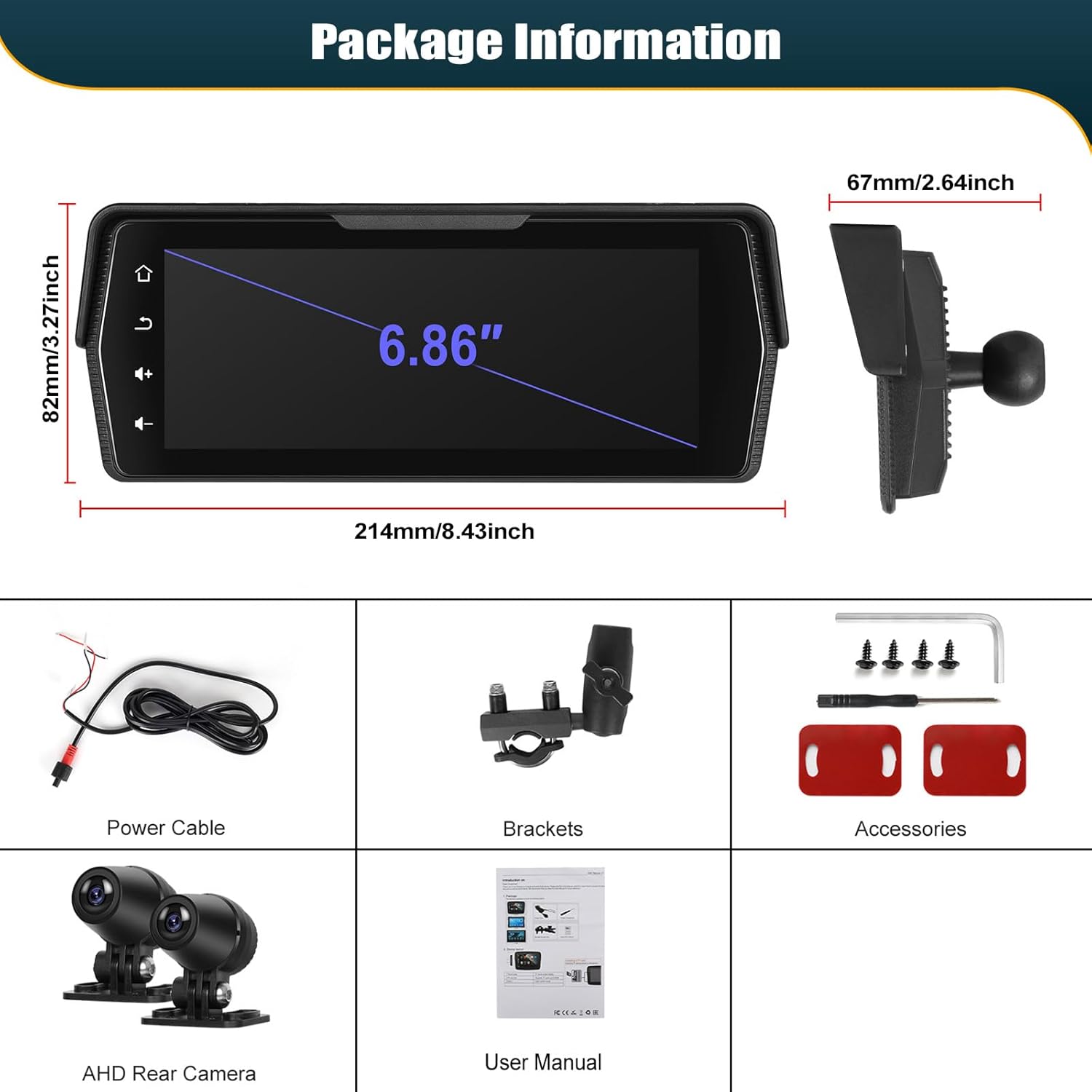
Image: Step-by-step visual guide for mounting the dashcam unit and connecting the power wires to the motorcycle battery.
Camera Installation
Install the front and rear cameras in positions that provide a clear, unobstructed view of the road. Ensure they are securely mounted and their cables are routed safely, away from moving parts or heat sources.

Image: Diagram showing the optimal placement of front and rear cameras on a motorcycle for a comprehensive viewing angle.
Operating Instructions
Powering On and Initial Setup
Once installed and wired, the device will power on with your motorcycle's ignition. Follow the on-screen prompts for initial language selection and time settings.
Wireless CarPlay & Android Auto
This device supports wireless CarPlay and Android Auto. To connect:
- Enable Bluetooth and Wi-Fi on your smartphone.
- On the dashcam, navigate to the CarPlay or Android Auto icon and select it.
- Search for the dashcam's Bluetooth name on your phone and pair.
- Once paired via Bluetooth, the device will automatically establish a Wi-Fi connection for CarPlay/Android Auto functionality.
This allows you to use navigation, make calls, listen to music, and send messages directly from the dashcam screen, supporting Siri and Google Voice Assistant for hands-free operation.

Image: The dashcam display showing the user interface for Wireless CarPlay and Android Auto, with various app icons.
Dual Bluetooth Connection
The dual Bluetooth feature allows you to connect your smartphone to the dashcam for CarPlay/Android Auto, and simultaneously connect a Bluetooth helmet or external speaker for audio output.
- Connect your phone to the dashcam via Bluetooth for CarPlay/Android Auto as described above.
- Access the Bluetooth settings on the dashcam.
- Search for and pair your Bluetooth helmet or speaker.
This enables music playback and call audio directly through your helmet or speaker.

Image: Illustration of the dual Bluetooth functionality, connecting the dashcam to both a smartphone and a Bluetooth-enabled helmet.
Video Recording Function
The dashcam continuously records footage from both front and rear cameras. Ensure a TF card (up to 128GB, not included) is inserted for recording. The device supports loop recording, overwriting the oldest files when the card is full.
- Switching Views: On the screen, you can switch between front view, rear view, or a split-screen display.
- Playback: Access recorded videos directly on the device via the playback function.
- Emergency Lock: In case of a sudden impact, the current recording will be automatically locked to prevent overwriting. You can also manually lock recordings.
- Night Vision: The rear camera features night vision capabilities for clear recording in low-light conditions.

Image: The dashcam screen displaying the video recorder interface, showing live views from both front and rear cameras and control options.
Maintenance
Waterproof and Durability
The CAMECHO dashcam is designed with an IP68 waterproof rating, making it resistant to dust, shock, and water immersion. It is built to withstand various weather conditions, including rain, snow, and dusty environments.

Image: Visual representation of the dashcam's durability, showing its resistance to water, dust, and extreme temperatures.

Image: The dashcam mounted on a motorcycle, illustrating its compatibility with all 12V models and resilience in rainy, snowy, and sandy conditions.
Cleaning
To clean the screen and camera lenses, use a soft, lint-free cloth. For stubborn dirt, dampen the cloth slightly with water or a mild screen cleaner. Avoid abrasive materials or harsh chemicals.
Firmware Updates
Periodically check the official CAMECHO website for any available firmware updates to ensure optimal performance and access to new features. Follow the instructions provided with the update files carefully.
Troubleshooting
| Problem | Possible Cause | Solution |
|---|---|---|
| Device does not power on. | Incorrect power connection, low motorcycle battery. | Check power cable connections (red to positive, black to negative). Ensure motorcycle battery has sufficient charge. |
| CarPlay/Android Auto not connecting wirelessly. | Bluetooth/Wi-Fi off on phone, incorrect pairing. | Ensure phone's Bluetooth and Wi-Fi are enabled. Re-pair the phone via Bluetooth on the dashcam. Ensure no other devices are interfering. |
| No video recording. | No TF card, TF card full, TF card error. | Insert a compatible TF card (up to 128GB). Format the TF card in the device settings. Replace the TF card if it's faulty. |
| Poor video quality. | Dirty camera lens, low light, camera not focused. | Clean camera lenses. Ensure cameras are securely mounted and facing correctly. Adjust display settings if needed. |
| Touchscreen unresponsive. | Temporary software glitch, extreme temperature. | Restart the device. Allow the device to return to normal operating temperature. If persistent, perform a touch calibration in settings. |
Official Product Videos
Watch these official videos for further guidance on product features and usage.
Video: A comprehensive overview or demonstration of the CAMECHO Motorcycle Dashcam's features and functionality.
Video: Detailed guide on the installation process or specific feature setup for the dashcam.
Video: Demonstration of the dashcam's wireless connectivity features, such as CarPlay or Android Auto.
Warranty Information
CAMECHO products are covered by a standard manufacturer's warranty against defects in materials and workmanship. Please refer to the warranty card included in your package or visit the official CAMECHO website for specific terms and conditions, including warranty duration and claim procedures.
Please retain your proof of purchase for warranty claims.
Customer Support
For technical assistance, troubleshooting, or any questions regarding your CAMECHO Motorcycle Dashcam, please contact our customer support team.
- Email: bs_support21@126.com
- Online Resources: Visit the official CAMECHO website for FAQs, updated manuals, and software downloads.

Image: A customer support representative ready to assist with product inquiries.


