
1. Introduction
This manual provides essential information for the safe and efficient use of your AOC C27G4ZX 27-inch VA Curved FHD 280Hz Gaming Monitor. Please read these instructions carefully before installation and operation. Keep this manual for future reference.
Safety Information
- Ensure the monitor is placed on a stable, level surface to prevent accidental falls.
- Do not block ventilation openings. Proper airflow is crucial to prevent overheating.
- Use only the power adapter and cables supplied with the monitor.
- Avoid exposing the monitor to moisture or extreme temperatures.
- Disconnect the power cable from the outlet before cleaning or if the monitor will be unused for an extended period.

Figure 1.1: AOC C27G4ZX Gaming Monitor (Front View)
This image shows the front of the AOC C27G4ZX monitor, highlighting its curved screen and slim bezels, with a vibrant game displayed.
2. Package Contents
Verify that all items are present in the package. If any items are missing or damaged, contact your retailer.
- AOC C27G4ZX Monitor Display
- Monitor Stand (Base and Neck)
- Power Cable
- HDMI Cable
- DisplayPort Cable
- User Manual (this document)
3. Setup
3.1 Assembling the Monitor Stand
- Carefully remove the monitor from its packaging, placing it face down on a soft, clean surface to prevent scratches.
- Attach the stand neck to the back of the monitor using the provided screws.
- Connect the stand base to the stand neck, securing it with the thumb screw or screws as indicated in the diagram.
- Ensure all connections are firm and secure before placing the monitor upright.
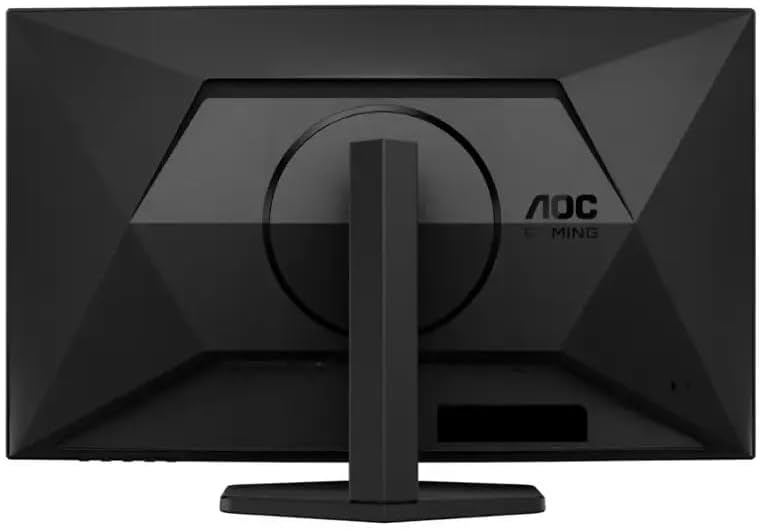
Figure 3.1: Monitor Rear View with Stand Assembly
This image illustrates the rear of the AOC C27G4ZX monitor with the stand components (neck and base) properly attached, ready for use.
3.2 Connecting the Monitor
Connect the monitor to your computer and power source using the following steps:
- Power Connection: Connect the power cable to the monitor's power input, then plug the other end into a grounded electrical outlet.
- Video Connection:
- For optimal performance, use the supplied DisplayPort cable. Connect one end to the monitor's DisplayPort input and the other to your computer's DisplayPort output.
- Alternatively, use the supplied HDMI cable. Connect one end to the monitor's HDMI input and the other to your computer's HDMI output.
- Ensure all cables are securely connected.
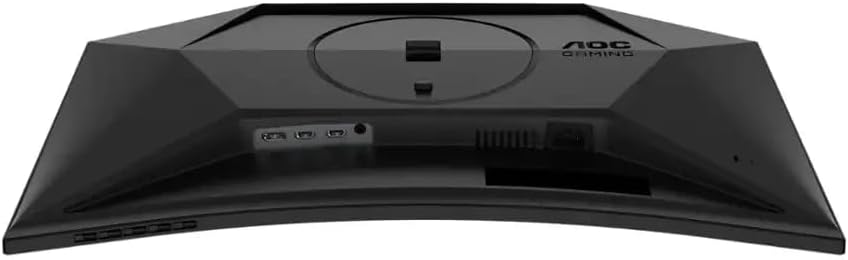
Figure 3.2: Monitor Input Ports
This image displays the underside of the AOC C27G4ZX monitor, clearly showing the various input ports including HDMI and DisplayPort, and the power input.
4. Operating the Monitor
4.1 Power On/Off
Press the power button, usually located on the bottom right or rear of the monitor, to turn the monitor on or off. The power indicator light will illuminate when the monitor is on.
4.2 On-Screen Display (OSD) Menu Navigation
The OSD menu allows you to adjust various monitor settings. Access the OSD menu using the joystick or buttons typically located on the rear or bottom of the monitor.
- Joystick/Buttons: Use to navigate through menu options and confirm selections.
- Main Menu: Contains categories such as Picture, Color, OSD Setup, Game Setting, and Extra.
- Picture Settings: Adjust brightness, contrast, sharpness, and gamma.
- Color Settings: Modify color temperature, hue, and saturation.
- Game Settings: Access features like Game Mode, Shadow Control, Low Input Lag, and Adaptive Sync.
4.3 Key Features
- 280Hz Refresh Rate: Provides extremely smooth motion for gaming. Ensure your graphics card and connection (DisplayPort recommended) support this refresh rate.
- 0.3ms MPRT Response Time: Minimizes motion blur and ghosting in fast-paced scenes.
- Adaptive Sync (FreeSync/G-Sync Compatible): Synchronizes the monitor's refresh rate with your graphics card's frame rate to eliminate screen tearing and stuttering. Enable this feature in the OSD menu and your graphics card control panel.
- 1500R Curved VA Panel: Offers an immersive viewing experience by wrapping the image around your field of vision.

Figure 4.1: Curved Display Profile
This image provides a top-down perspective of the AOC C27G4ZX monitor, clearly showing the curvature of the screen, which enhances immersion.
5. Maintenance
5.1 Cleaning the Screen
- Turn off the monitor and unplug the power cable.
- Gently wipe the screen with a soft, lint-free cloth.
- For stubborn marks, lightly dampen the cloth with water or a non-ammonia, non-alcohol based screen cleaner. Do not spray cleaner directly onto the screen.
5.2 Cleaning the Casing
- Use a soft, dry cloth to wipe the monitor casing.
- Avoid using abrasive cleaners or solvents that may damage the surface.
6. Troubleshooting
If you encounter issues with your monitor, refer to the following common problems and solutions:
| Problem | Possible Cause | Solution |
|---|---|---|
| No Power | Power cable not connected; Power outlet not working; Monitor off. | Check power cable connections; Test outlet with another device; Press the monitor's power button. |
| No Signal | Video cable not connected; Incorrect input source selected; Computer not outputting signal. | Ensure video cable is secure; Select correct input via OSD; Restart computer; Check graphics card. |
| Image Flickering/Distortion | Faulty video cable; Graphics card driver issue; Resolution/Refresh rate mismatch. | Replace video cable; Update graphics drivers; Adjust resolution/refresh rate in OS settings. |
| OSD Not Responding | OSD lock enabled; Hardware malfunction. | Refer to manual for OSD unlock procedure (often press and hold a button); Contact support if issue persists. |
7. Specifications
Detailed technical specifications for the AOC C27G4ZX monitor:
| Feature | Specification |
|---|---|
| Brand | AOC |
| Model Name | C27G4ZX |
| Screen Size | 27 Inches |
| Resolution | FHD 1080p (1920 x 1080) |
| Aspect Ratio | 16:9 |
| Screen Surface | Matte |
| Contrast Ratio | 2000:1 |
| Refresh Rate | 280 Hz |
| Display Technology | VA |
| Brightness | 300 Candela per Square Meter |
| Response Time | 0.3 Milliseconds (MPRT) |
| HDMI Ports | 1 |
| DisplayPort | Yes |
| Adaptive Sync | FreeSync, G-Sync Compatible |
| Mounting Type | VESA Mount (100mm x 100mm) |
| Shape | Curved (1500R) |
| Dimensions (D x W x H) | 9"D x 24"W x 20"H |
8. Warranty and Support
8.1 Warranty Information
This AOC C27G4ZX monitor comes with a 90-day limited warranty. Please retain your proof of purchase for warranty claims. The warranty covers manufacturing defects under normal use. It does not cover damage caused by misuse, accidents, unauthorized modifications, or external factors.
8.2 Customer Support
For technical assistance, warranty service, or further inquiries, please refer to the official AOC support website or contact your local AOC customer service center. Contact information can typically be found on the manufacturer's website.


