
1. Introduction
This manual provides essential information for setting up, operating, and maintaining your HP 21.5-inch All-in-One Desktop PC. This device integrates the computer components and display into a single unit, offering a streamlined computing experience for home and office use. Please read this manual thoroughly to ensure proper usage and to maximize the lifespan of your product.

Image 1.1: Front view of the HP 21.5-inch All-in-One Desktop PC.
2. What's in the Box
Carefully unpack your HP All-in-One Desktop PC and verify that all items are present. If any items are missing or damaged, contact your retailer.
- HP 21.5-inch All-in-One Desktop Computer
- HP USB Cashmere White Wired Keyboard
- HP USB Cashmere White Wired Mouse
- Power Cord
- User Manual (this document)
- Accessories (shipped separately, not included in the same package with the computer)
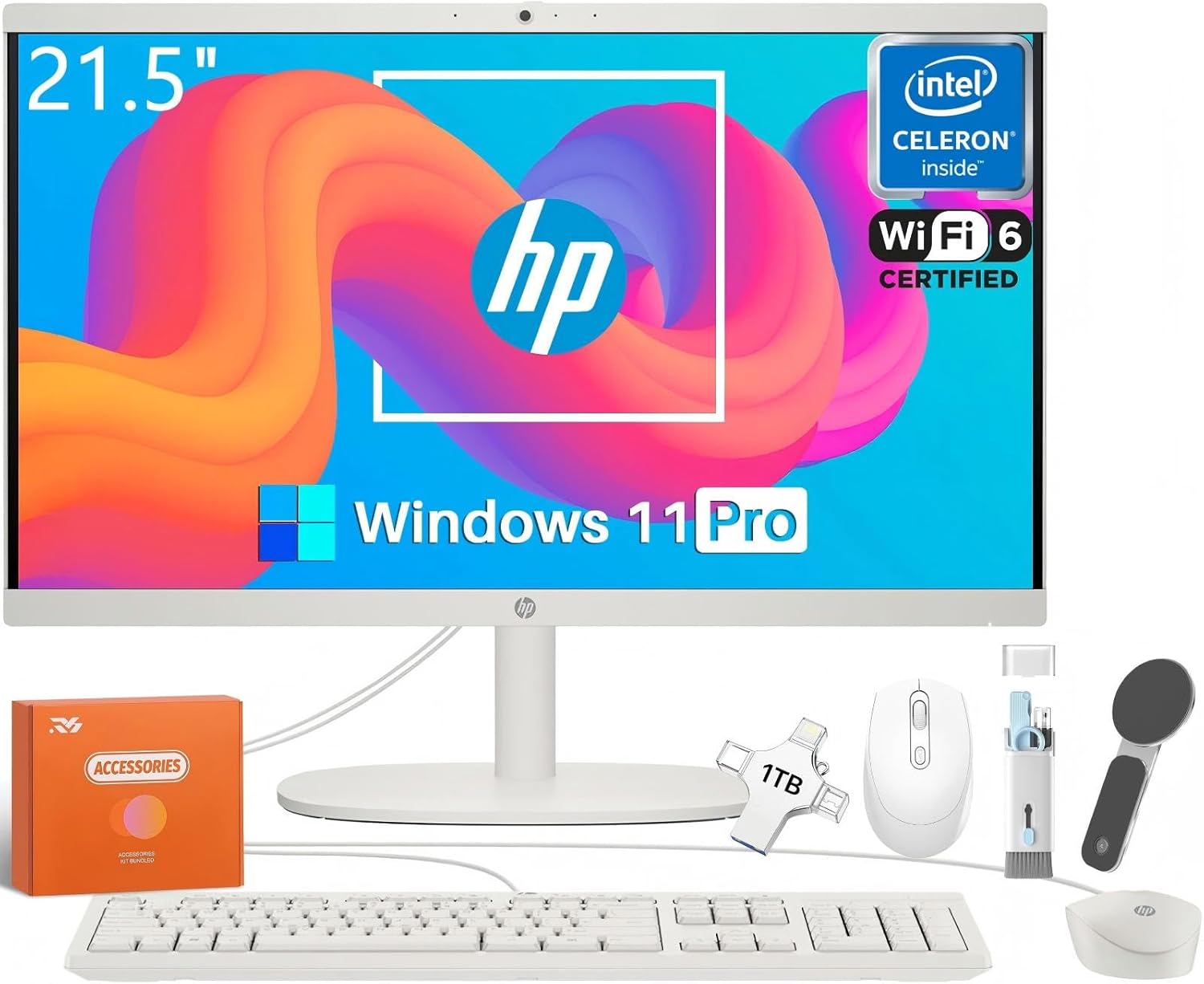
Image 2.1: Included components with the HP All-in-One Desktop PC.
3. Setup
Follow these steps to set up your HP All-in-One Desktop PC:
- Placement: Place the All-in-One PC on a stable, flat surface with adequate ventilation. Ensure there is enough space around the unit for airflow.
- Connect Keyboard and Mouse: Connect the wired USB keyboard and mouse to the available USB ports on the back of the All-in-One PC.
- Power Connection: Connect the power cord to the power port on the back of the All-in-One PC, then plug the other end into a grounded electrical outlet.
- Initial Power On: Press the power button, usually located on the side or bottom edge of the display, to turn on the computer.
- Windows Setup: Follow the on-screen instructions to complete the Windows 11 Pro initial setup, including language selection, network connection, and user account creation.

Image 3.1: HP All-in-One Desktop PC ready for use on a desk.
4. Operating Your PC
4.1 Power On/Off
- To Power On: Press the power button.
- To Shut Down: Click the Start button in Windows 11 Pro, then select Power > Shut down.
- To Restart: Click the Start button, then select Power > Restart.
- To Sleep: Click the Start button, then select Power > Sleep.
4.2 Performance and Multitasking
Your HP All-in-One PC is equipped with an Intel Celeron J4025 processor, 16 GB DDR4 RAM, and a 512 GB PCIe SSD, providing efficient performance for daily tasks, web browsing, document processing, and multimedia consumption. The SSD ensures fast boot-up times and quick application loading.
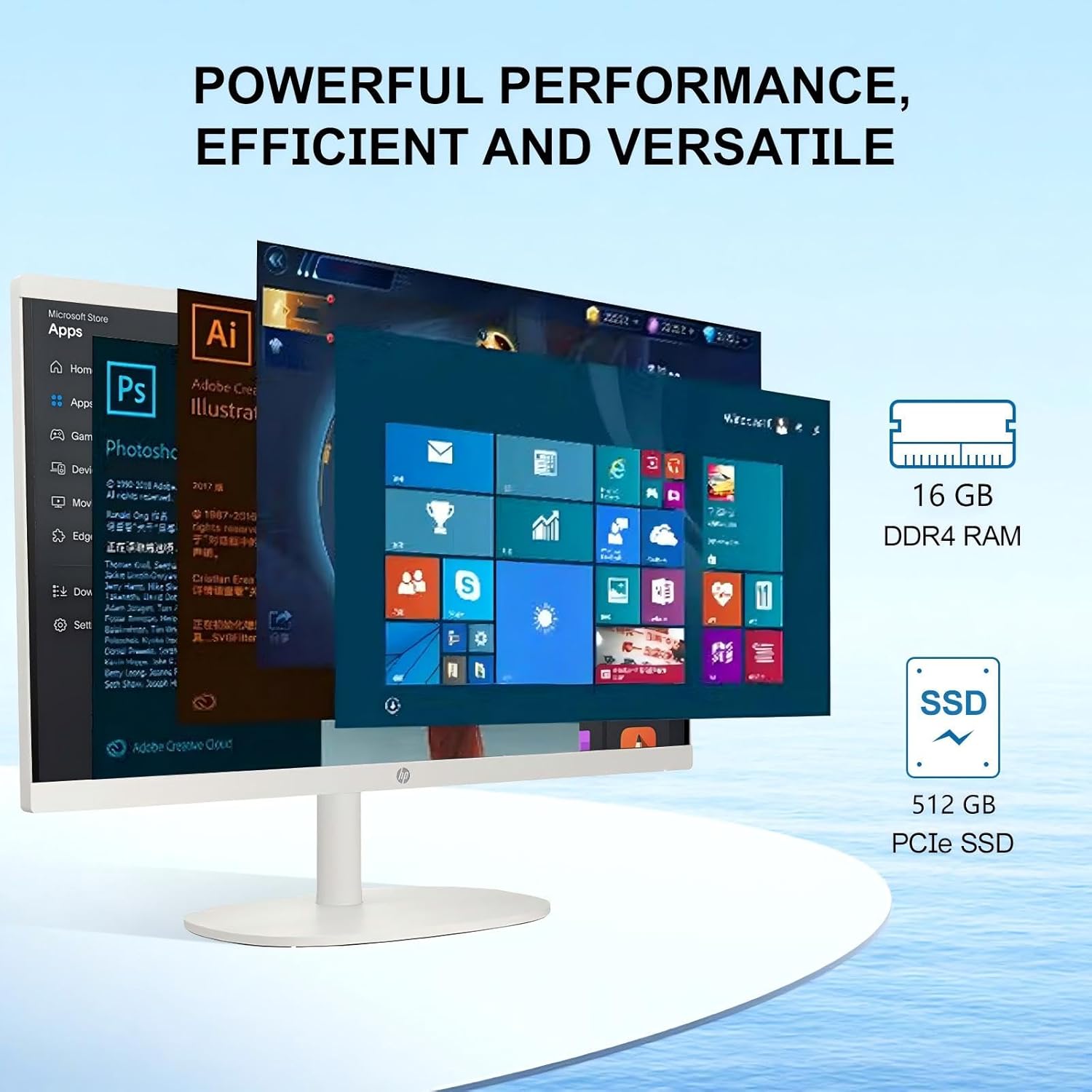
Image 4.1: Demonstrating multitasking capabilities with RAM and SSD.
5. Display and Camera
The HP All-in-One PC features a 21.5-inch Full HD (1920x1080) Anti-Glare IPS display. This display offers vibrant colors with 99% sRGB coverage and a brightness of 250 nits, reducing reflections for comfortable viewing. The integrated HP True Vision 720p HD Camera with Temporal Noise Reduction and Dual Array Digital Microphones provides clear video and audio for online communication.

Image 5.1: Key features of the display and integrated camera.
6. Connectivity
Your HP All-in-One PC offers a variety of ports and wireless options for connecting peripherals and networks:
6.1 Ports
- 1 x USB Type-C (5Gbps signaling rate)
- 2 x USB Type-A (5Gbps signaling rate)
- 2 x USB 2.0 Type-A
- 1 x HDMI Out
- 1 x Headphone/Microphone Combination Jack
- 1 x RJ-45 (Ethernet)
6.2 Wireless
- Wi-Fi 6 (2x2): For high-speed wireless internet connectivity.
- Bluetooth 5.3: For connecting wireless peripherals such as headphones, speakers, or mobile devices.

Image 6.1: Port layout on the back of the HP All-in-One PC.
7. Specifications
| Feature | Specification |
|---|---|
| Brand | HP |
| Model Number | 22-dg0024 |
| Operating System | Windows 11 Pro |
| Processor | Intel Celeron J4025 (2.9 GHz) |
| Display Size | 21.5 Inches |
| Screen Resolution | 1920 x 1080 (FHD) |
| Display Features | Anti-Glare, 250 Nits, 99% sRGB |
| Graphics | Intel UHD Graphics 600 |
| RAM | 16 GB DDR4 |
| Storage | 512 GB SSD |
| Wireless Connectivity | Wi-Fi 6 (2x2), Bluetooth 5.3 |
| Ports | 1x USB-C, 2x USB-A (5Gbps), 2x USB 2.0-A, 1x HDMI Out, 1x Headphone/Mic Combo, 1x RJ-45 |
| Camera | HP True Vision 720p HD Camera with Temporal Noise Reduction |
| Dimensions (LxWxH) | 19.43 x 15.07 x 6.69 inches |
| Weight | 9.19 lbs |

Image 7.1: Physical dimensions and weight of the HP All-in-One PC.
8. Maintenance
Regular maintenance helps ensure the longevity and optimal performance of your HP All-in-One PC.
- Cleaning: Use a soft, lint-free cloth to gently wipe the screen and exterior surfaces. For stubborn marks, dampen the cloth slightly with water or a screen-safe cleaner. Avoid harsh chemicals.
- Software Updates: Regularly check for and install Windows updates and HP driver updates to ensure system stability and security.
- Ventilation: Ensure the ventilation openings on the PC are not blocked to prevent overheating.
- Data Backup: Periodically back up important data to an external drive or cloud storage to prevent data loss.
9. Troubleshooting
This section addresses common issues you might encounter.
9.1 No Power
- Ensure the power cord is securely connected to both the PC and the electrical outlet.
- Verify the electrical outlet is functional by plugging in another device.
- Try a different power cord if available.
9.2 No Display
- Check if the PC is powered on (power indicator light).
- Ensure the brightness settings are not set to minimum.
- If an external monitor is connected, ensure the correct display output is selected in Windows settings.
9.3 Peripheral Issues (Keyboard/Mouse)
- Ensure USB cables are firmly connected to the correct ports.
- Try connecting the peripheral to a different USB port.
- Restart the computer.
9.4 Wi-Fi Connectivity Problems
- Check if Wi-Fi is enabled in Windows settings.
- Ensure you are connecting to the correct network and entering the password accurately.
- Restart your router and modem.
- Update Wi-Fi drivers if necessary.
10. Warranty and Support
Your HP All-in-One Desktop PC comes with a one-year limited warranty. For detailed warranty terms and conditions, please refer to the warranty information provided with your product or visit the official HP support website.
For technical assistance, driver downloads, or further support, please visit the official HP Support website: support.hp.com