Introduction
This manual provides instructions for the setup, operation, and maintenance of your Smiling Shark G-WKL-US Wake Up Light. This device integrates an alarm clock, ambient lighting, a Bluetooth speaker, and a 15W wireless charger into a single unit. Please read these instructions carefully before use and retain them for future reference.
Package Contents
Verify that all items are present in the package:
- 1 x Smiling Shark G-WKL-US Wake Up Light
- 1 x Type-C Charging Cable
- 1 x User Manual (this document)
- 1 x Power Adapter
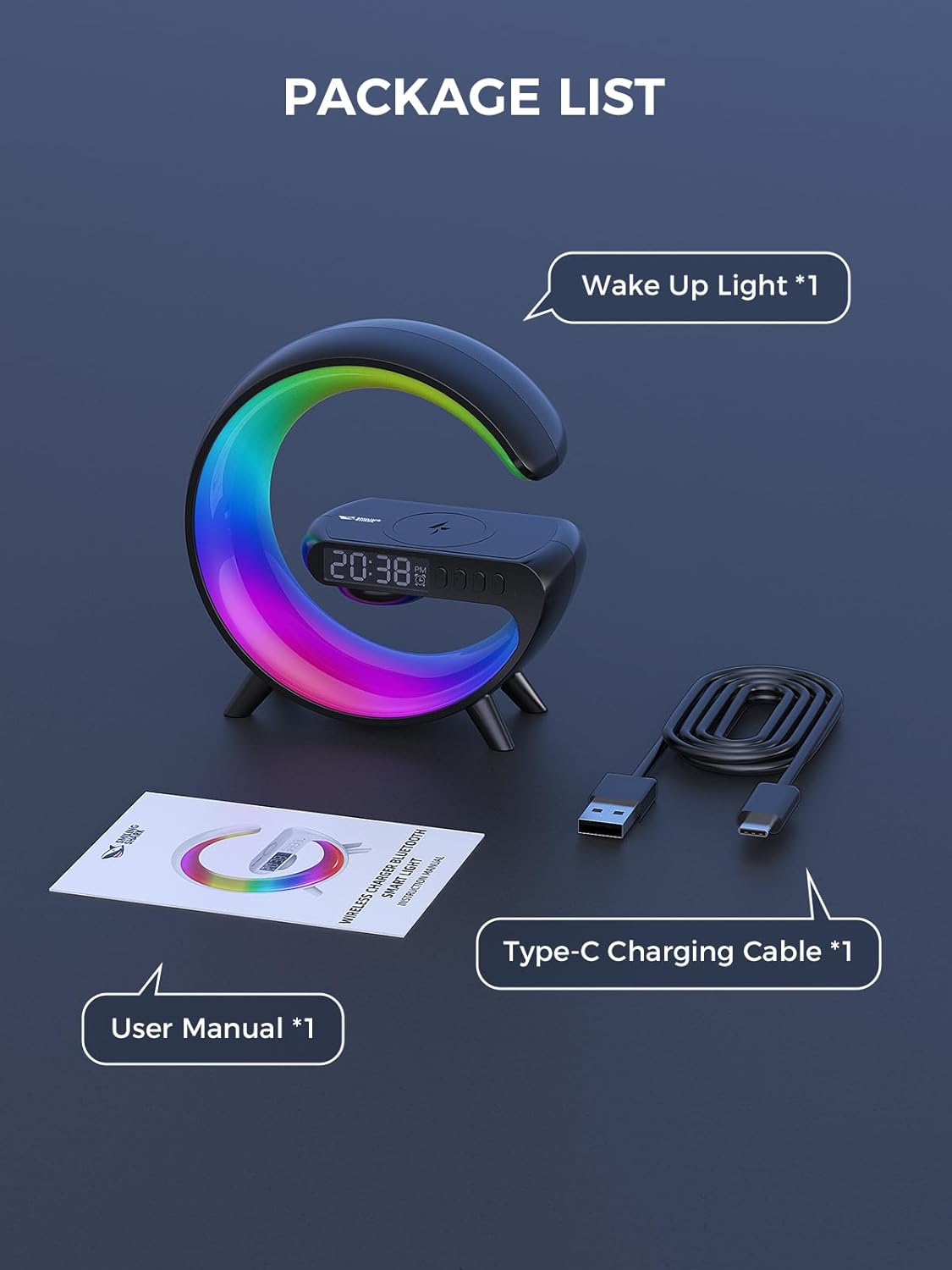
Figure 1: Package Contents
Product Overview
The Smiling Shark G-WKL-US is a versatile device designed to enhance your bedroom or living space. Key features include:
- Wake Up Light Alarm Clock: Features sunrise simulation and customizable alarm settings for a gentle awakening.
- Sleep Aid Function: Offers night light effects and soothing sounds to promote restful sleep.
- Ambient Lighting: Provides 10 distinct light effects and adjustable brightness to create various atmospheres.
- Bluetooth Speaker: Connects wirelessly to your devices for audio playback. Includes a sound-reactive light feature.
- 15W Wireless Charger: Conveniently charges Qi-compatible smartphones and headphone cases.
- AUX Input: Allows connection to external audio sources via a 3.5mm audio cable.

Figure 2: G-Series Smart Light Features
Setup
- Power Connection: Connect the provided Type-C charging cable to the device's DC IN port and plug the adapter into a standard wall outlet. The device will power on automatically.
- Initial Time Setting: Upon first power-on, the clock display may flash. Use the control buttons (refer to the Operating Instructions section for button layout) to set the current time. Press the 'Time Set' button to enter time setting mode, then use the '+' and '-' buttons to adjust hours and minutes. Press 'Time Set' again to confirm.
Operating Instructions
Button Functions
The device features several buttons for control. Specific button labels and functions are typically indicated on the device itself or in a detailed diagram within the printed manual. Common functions include:
- Power Button: Turns the device on/off.
- Light Mode Button: Cycles through different light effects.
- Brightness Adjustment: Increases or decreases light intensity.
- Alarm Set Button: Enters alarm setting mode.
- Volume Control: Adjusts speaker volume.
- Play/Pause Button: Controls media playback via Bluetooth.
Setting Alarm & Sleep Timer
- Alarm Setting: Press the 'Alarm Set' button. Use '+' and '-' to set the desired alarm time. Press 'Alarm Set' again to confirm. You may also select an alarm sound or sunrise simulation duration if available.
- Sleep Timer: To activate the sleep aid function, select a night light effect and choose soothing music or white noise. The light can mimic a sunset to help you fall asleep. Refer to the device's specific controls for activating and setting the duration of the sleep timer.

Figure 3: Wake-up and Sleep Aid Functions
Adjusting Light Modes & Brightness
- Changing Light Modes: Press the 'Light Mode' button to cycle through the 10 available light effects. These include various solid colors and dynamic color-changing patterns.
- Adjusting Brightness: Use the dedicated brightness control buttons (often '+' and '-') to increase or decrease the light intensity for any selected mode.

Figure 4: 10 Light Effects Atmosphere Light
Bluetooth Speaker Pairing
- Activate Bluetooth: Ensure the device is powered on. The Bluetooth indicator light will typically flash, indicating it is in pairing mode.
- Pair with Device: On your smartphone or other Bluetooth-enabled device, go to Bluetooth settings and search for available devices. Select 'G-WKL-US' (or similar name) from the list to pair.
- Audio Playback: Once paired, you can play audio through the integrated speaker. The light can also synchronize with the sound, changing colors in response to music.
Wireless Charging Usage
- Placement: Place your Qi-compatible smartphone or headphone case on the designated wireless charging pad located on top of the device.
- Charging Indicator: The device will typically show an indicator (e.g., a light or icon on the display) when charging is active.
- Important Note: For optimal charging performance, remove any thick phone cases before placing your device on the charging pad.

Figure 5: 15W Fast Wireless Charging
AUX Input Usage
- Connect Cable: Insert a 3.5mm audio cable into the AUX port on the back of the device.
- Connect External Device: Connect the other end of the audio cable to the headphone jack or audio output of your external device (e.g., TV, computer, MP3 player).
- Audio Playback: The device will now function as an external speaker for the connected audio source.

Figure 6: Bluetooth Speaker and AUX Input
Maintenance
- Cleaning: Use a soft, dry cloth to wipe the surface of the device. Do not use abrasive cleaners or solvents.
- Storage: When not in use for extended periods, store the device in a cool, dry place away from direct sunlight.
- Avoid Water: This device is not waterproof. Keep it away from water and high humidity.
Troubleshooting
| Problem | Possible Cause | Solution |
|---|---|---|
| Device does not power on. | Power cable not connected properly or power outlet issue. | Ensure the Type-C cable is securely connected to the device and the adapter is plugged into a working power outlet. |
| Wireless charging is not working. | Phone case is too thick; device not Qi-compatible; incorrect placement. | Remove phone case. Ensure your device supports Qi wireless charging. Reposition the device on the charging pad to align with the charging coil. |
| Bluetooth cannot connect or audio is distorted. | Device not in pairing mode; too far from source; interference. | Ensure the device is in Bluetooth pairing mode. Move your audio source closer to the Wake Up Light. Disconnect other Bluetooth devices to reduce interference. |
| Alarm does not sound or light up. | Alarm not set correctly; volume too low. | Verify alarm time and settings. Increase alarm volume. |
Specifications
| Feature | Detail |
|---|---|
| Brand | Smiling Shark |
| Model Name | G-WKL-US |
| Item Weight | 7.8 ounces (0.49 Pounds) |
| Power Source | Corded Electric |
| Wireless Charging Output | 15 Watts |
| Light Source Type | LED |
| Number of Light Modes | 10 |
| Connectivity | Bluetooth, AUX Input |
| Material | Acrylonitrile Butadiene Styrene, Plastic, Acrylic (Shade) |
| Included Components | Adapter, Type-C Charging Cable |
Safety Information
- Do not disassemble or attempt to repair the device yourself.
- Keep the device away from extreme temperatures, direct sunlight, and open flames.
- Use only the provided power adapter and cable.
- Keep out of reach of children.
Warranty and Support
Specific warranty details and customer support contact information are not provided in this manual. Please refer to the product packaging or the retailer's website for warranty claims and support inquiries.