
iCODIS 17MP A3 Document Scanner
iCODIS 17MP A3 Document Scanner User Manual
Model: 17MP A3 Document Scanner
1. Introduction
Thank you for purchasing the iCODIS 17MP A3 Document Scanner. This versatile scanner is designed for efficient digitization of various documents, books, and 3D objects. It features a high-resolution camera, advanced image processing, and broad compatibility to streamline your workflow at home, office, or educational institutions.
2. Safety Information
Please read all safety instructions carefully before using the device to prevent damage or injury.
- Keep the scanner away from water and high humidity.
- Do not expose the device to extreme temperatures or direct sunlight.
- Use only the provided power adapter and USB cable.
- Avoid disassembling or modifying the scanner.
- Keep out of reach of children.
3. Package Contents
Verify that all items are present in the package:
- iCODIS 17MP A3 Document Scanner Unit
- USB Cable
- Scan Mat
- Software CD (or download link)
- Quick Start Guide
4. Product Overview
Familiarize yourself with the main components of your iCODIS Document Scanner.
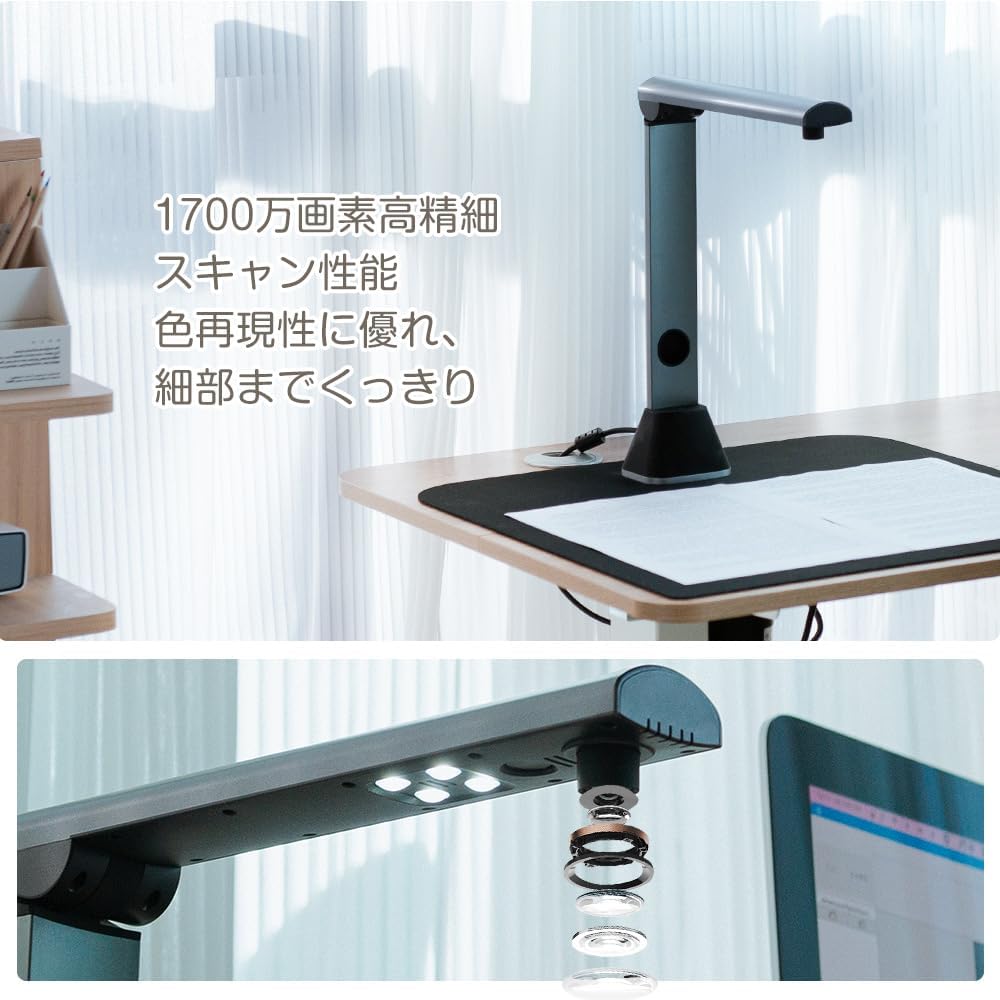
Figure 4.1: The iCODIS Document Scanner set up on a desk, ready for scanning. It features a sleek, foldable design with an overhead camera arm.
4.1 Main Components
- Camera Head: Contains the 17-megapixel high-resolution camera.
- LED Illumination: Built-in 4-lamp LED light with 3-level brightness adjustment for optimal scanning in various lighting conditions.
- Scanner Arm: Adjustable arm that holds the camera head.
- Base: Provides stability and houses the control buttons and USB port.
- Scan Mat: A specialized mat for precise document placement and background correction.

Figure 4.2: Detail of the 17-megapixel camera and the 4-lamp LED illumination system, designed for clear and vivid scans.
5. Setup
5.1 Hardware Installation
- Unpack the scanner and all accessories.
- Place the scanner base on a stable, flat surface.
- Unfold the scanner arm to its upright position.
- Position the scan mat directly under the camera, aligning it with the base.
- Connect the USB cable from the scanner to an available USB port on your computer.
5.2 Software Installation
- Insert the provided software CD into your computer's CD-ROM drive. If your computer does not have a CD-ROM drive, download the latest software from the official iCODIS website.
- Follow the on-screen instructions to install the scanner software.
- Restart your computer after installation is complete.
- The scanner is compatible with both Windows and macOS operating systems.
6. Operating Instructions
6.1 Basic Document Scanning
- Ensure the scanner is connected and the software is running.
- Place the document flat on the scan mat, centered under the camera.
- Adjust the LED light brightness using the touch controls on the base if needed. There are 3 levels of adjustment.
- In the software, select your desired scanning mode (e.g., Document, Book, Object).
- Click the "Scan" button in the software to capture the image.
- The software will automatically process the image, including features like background correction and finger removal.

Figure 6.1: Proper placement of a document on the scan mat for optimal scanning results.
6.2 Book Scanning (Non-Destructive)
The iCODIS scanner is ideal for digitizing books without damaging them.
- Open the book and place it on the scan mat, ensuring both pages are visible under the camera.
- The software features automatic page-turning detection and curve correction to flatten curved pages from thick books.
- Utilize the "Book Scan" mode in the software for specialized processing, including automatic finger removal if you hold the pages down.
- For continuous scanning, the automatic continuous shooting function can detect page turns and capture images sequentially.

Figure 6.2: The scanner's software automatically corrects the curvature of book pages, ensuring a flat, readable digital image.
6.3 OCR and Output Formats
The scanner's Optical Character Recognition (OCR) function supports over 130 languages, allowing you to convert scanned images into editable and searchable text formats.
- After scanning, select the OCR option in the software.
- Choose your desired output format: PDF (searchable), Word, Excel, or JPG.
- The software can convert documents with one-click operation.

Figure 6.3: Illustration of the OCR function converting scanned documents into editable and searchable digital files.
6.4 Real-time Projection and Video Recording
The scanner can also function as an overhead document camera, useful for online presentations, lessons, or recording 3D objects.
- Select the "Video" or "Projection" mode in the software.
- Place the object or document under the camera.
- The live feed can be shared via video conferencing tools like Zoom or recorded directly through the software.

Figure 6.4: The scanner's real-time projection and recording capabilities are useful for presentations and online teaching.
7. Maintenance
Regular maintenance ensures optimal performance and longevity of your scanner.
- Cleaning: Use a soft, dry cloth to clean the exterior of the scanner. For the camera lens, use a specialized lens cleaning cloth. Do not use liquid cleaners or abrasive materials.
- Software Updates: Periodically check the iCODIS official website for software updates to ensure you have the latest features and bug fixes.
- Storage: When not in use, fold the scanner arm down and store it in a clean, dry place away from direct sunlight.
8. Troubleshooting
If you encounter issues with your scanner, refer to the following common problems and solutions:
| Problem | Possible Cause | Solution |
|---|---|---|
| Scanner not recognized by computer. | Loose USB connection, driver not installed, faulty USB port. |
|
| Scanned images are blurry or unclear. | Insufficient lighting, dirty camera lens, document not flat, scanner moved during scan. |
|
| OCR function not working correctly. | Poor image quality, incorrect language setting, software issue. |
|
9. Specifications
| Feature | Detail |
|---|---|
| Scanner Type | Document Scanner (Overhead/Book Camera) |
| Brand | iCODIS |
| Connectivity | USB |
| Max Scan Size | A3 (420 x 297 mm) |
| Camera Resolution | 17 Megapixels |
| Optical Resolution | 1200 dpi |
| Illumination | 4-lamp LED with 3-level brightness adjustment |
| Special Features | Non-destructive book scanning, Automatic page-turning detection, Curve correction, Background correction, Finger removal, Corner fill, OCR (130+ languages), Real-time projection, Video recording |
| Output Formats | PDF (searchable), Word, Excel, JPG, TXT |
| Product Dimensions (Folded) | 7D x 8.5W x 34.4H cm |
| Item Weight | 0.68 kg |
| System Requirements | Windows, macOS |
| Country of Origin | China |

Figure 9.1: Detailed dimensions of the iCODIS Document Scanner, highlighting its compact and portable design.
10. Warranty and Support
10.1 Manufacturer's Warranty
This iCODIS Document Scanner comes with a one-year manufacturer's warranty from the date of purchase. The warranty covers defects in materials and workmanship under normal use. It does not cover damage caused by misuse, accidents, unauthorized modifications, or improper installation.
10.2 Customer Support
For technical assistance, troubleshooting, or warranty claims, please contact iCODIS customer support. Refer to the contact information provided in your product packaging or visit the official iCODIS website for support resources.
11. Video Demonstration
Below is a video demonstrating key features and operation of the iCODIS Document Scanner. Please note that only videos from the seller with relevant content are embedded.
No relevant seller-provided video found in the provided data for direct embedding. If available, a video player would appear here.
This section would typically feature an official product video demonstrating the scanner's features, such as high-speed scanning, OCR, and book flattening. Users unable to view the video can refer to the detailed instructions in this manual.
Ask a question about this manual
Ask about setup, troubleshooting, compatibility, parts, safety, or missing instructions. Manuals+ will review the question and use this page’s manual context to help answer it.