
1. Introduction
The ATOTOSELECT AD5 is a versatile device designed to enhance your in-car entertainment and connectivity. It transforms your factory-wired CarPlay system into a wireless one and integrates a full Android multimedia system directly onto your car's display. This device allows access to various applications, navigation, and an AI voice assistant, providing a comprehensive upgrade to your vehicle's infotainment capabilities.

Image 1.1: Overview of the ATOTOSELECT AD5 Wireless Multifunction Car Smart Box, highlighting its key features like Android OS, Wireless CarPlay, Wireless Android Auto, DriveChat, Torque, YouTube, Netflix, and OTA updates.
2. Safety Information
Always prioritize safety while operating your vehicle. Do not attempt to operate the device or access features that may distract you from driving. Ensure the device is securely installed and cables do not interfere with vehicle controls. Video playback is intended for passengers only; drivers must focus on the road. Adhere to all local traffic laws and regulations.
3. Package Contents
- ATOTOSELECT AD5 Wireless CarPlay Adapter
- USB-A to USB-C Cable
- USB-C to USB-C Cable
- USB-A to USB-A Y-Cable (for specific vehicle models requiring additional power)
- User Manual (this document)
4. Setup
Follow these steps for initial setup and connection:
- Connect the AD5: Plug the appropriate USB cable (USB-A to C or USB-C to C) into the AD5 and then into your car's wired CarPlay/Android Auto USB port. For certain vehicles (e.g., Nissan 2016-2020, Isuzu, Camry, 2023 Toyota Crown, 2023 Lexus NX, Desay SV Volkswagen), use the Y-shaped cable for power supply.
- Power On: The AD5 will power on, indicated by an LED light. Your car's screen should display the Android system interface.
- Pair via Bluetooth: On your smartphone, enable Bluetooth and Wi-Fi. Connect your phone to the AD5's Bluetooth (e.g., 'AD5-XXXX'). Wi-Fi will connect automatically after Bluetooth pairing.
- Launch Wireless CarPlay/Android Auto: Once connected, you can launch Wireless CarPlay or Android Auto from the AD5's interface.
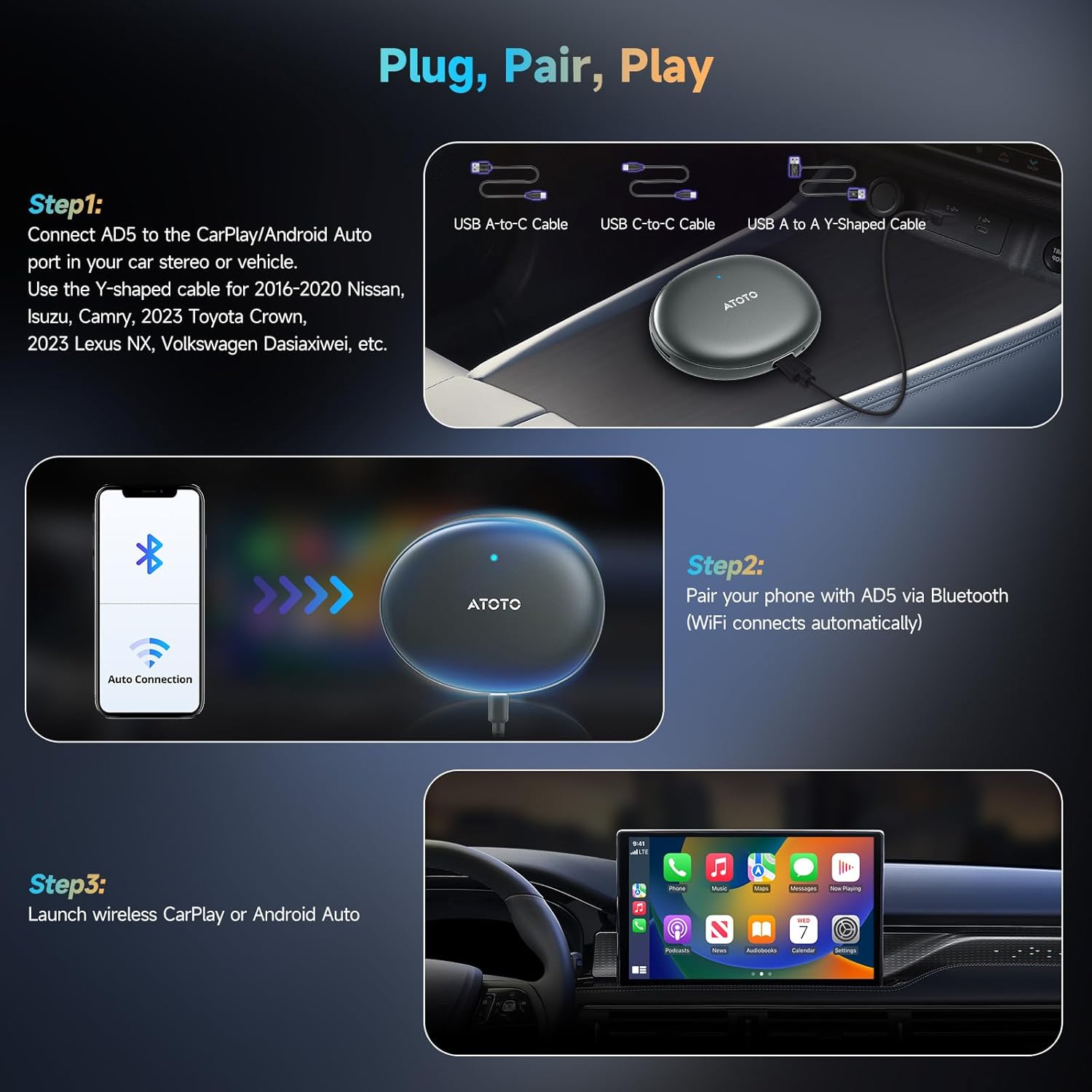
Image 4.1: Visual guide for connecting the AD5 using various USB cables and pairing with a smartphone via Bluetooth to initiate Wireless CarPlay or Android Auto.
Video 4.1: A demonstration of connecting the ATOTOSELECT AD5 to a car's USB port and accessing its Android system, followed by a quick setup of wireless CarPlay and Android Auto.
5. Operating Instructions
5.1 Wireless CarPlay & Android Auto
The AD5 converts your car's wired CarPlay/Android Auto to a wireless connection. Once paired via Bluetooth, your phone will automatically connect to the AD5, providing seamless access to your smartphone's features on your car's display.

Image 5.1: Illustration showing the transformation from a cluttered wired CarPlay/Android Auto setup to a clean, wireless connection using the AD5.

Image 5.2: Displays the user interfaces of Wireless CarPlay and Android Auto as they appear on a car's infotainment screen, demonstrating app access and navigation.
5.2 AI Voice Assistant (DriveChat GenAI)
The AD5 features a ChatGPT-powered DriveChat GenAI Assistant for natural voice interactions. This assistant can provide information, answer questions, and assist with various tasks, making your drive safer and more engaging. You can switch between different chatbot personalities for varied interactions.

Image 5.3: A visual representation of the ChatGPT-powered DriveChat GenAI Assistant interface, showing a conversation with the AI and various chatbot options.
5.3 Dual Wi-Fi Performance
The AD5 is equipped with two independent Wi-Fi modules. One module ensures a stable connection for your wireless CarPlay/Android Auto, while the other handles internet connectivity for streaming apps and other online functions. This dual setup provides a smooth and uninterrupted experience.

Image 5.4: Diagram illustrating the dual Wi-Fi module system, with one Wi-Fi dedicated to Wireless CarPlay/Android Auto and the other for internet-based entertainment applications.
5.4 Pre-installed and Downloadable Apps
The AD5 comes with various pre-installed applications, including popular video streaming services like YouTube and Netflix. You can also access the ATOTOSELECT App Store to download additional applications, expanding the functionality of your device.
5.5 Bluetooth Privacy Screen Lock
This security feature automatically locks the screen when you leave the car, protecting your privacy. It unlocks automatically as you approach the vehicle, providing convenient and secure access to your infotainment system.

Image 5.5: Depicts the Bluetooth Screen Lock feature, showing the screen locking when the phone is away and unlocking when near. Also illustrates the Real-Time Car Data display via an OBDII scanner.
5.6 Expandable Vehicle Diagnostics (OBDII)
For vehicle enthusiasts, the AD5 supports connection to a Bluetooth OBDII scanner (sold separately). This allows you to monitor your vehicle's health and performance data in real-time directly on your car's display.
Video 5.1: A comprehensive video demonstrating various features of the Wireless Car Smart Box AD5, including wireless CarPlay/Android Auto, AI voice assistant, dual Wi-Fi, pre-installed apps, and OBDII diagnostics.
6. Maintenance
- Cleaning: Use a soft, dry cloth to clean the device. Avoid liquid cleaners or abrasive materials.
- Software Updates: The AD5 supports Over-The-Air (OTA) firmware updates. Regularly check for and install updates to ensure optimal performance and access to new features.
- Storage: The device supports expandable storage up to 256GB via a TF card (not included) for local music/video playback and firmware updates. Ensure correct insertion of the TF card to prevent damage.

Image 6.1: Illustrates the TF Card Port on the AD5, indicating its use for expandable storage (up to 256GB) and firmware updates.
7. Troubleshooting
- No Connection: Ensure the USB cable is securely connected to both the AD5 and the car's USB port. Verify your car supports wired CarPlay/Android Auto. Try a different USB port or cable.
- Bluetooth/Wi-Fi Issues: Ensure Bluetooth and Wi-Fi are enabled on your phone. Forget previous pairings and re-pair the device.
- App Not Working: Check your internet connection (via the AD5's second Wi-Fi module). Ensure the app is updated to the latest version.
- Compatibility: The AD5 is compatible with most 2016+ vehicles featuring factory wired CarPlay. Refer to the product details or contact ATOTOSELECT support for specific vehicle compatibility inquiries.
- Slow Performance: Ensure the device has sufficient power. Close unused applications to free up RAM.
8. Specifications
| Feature | Detail |
|---|---|
| Model Number | New-AD5A |
| Brand | ATOTOSELECT |
| Package Dimensions | 6.34 x 6.1 x 1.14 inches |
| Item Weight | 7.8 ounces |
| Compatible Devices | Most 2016+ vehicles with factory wired CarPlay (e.g., Nissan 2016-2020, Isuzu, Camry, 2023 Toyota Crown, 2023 Lexus NX, Desay SV Volkswagen) |
| Connectivity | Dual Bluetooth 5.0/4.2, Dual Wi-Fi 2.4G/5G |
| Storage | Expandable up to 256GB (TF card not included) |
| Special Features | ChatGPT-AI (DriveChat), GPS Tracking (TrackHU), Mirror Link, OTA Updates, Split-Screen |
| Color | Black |
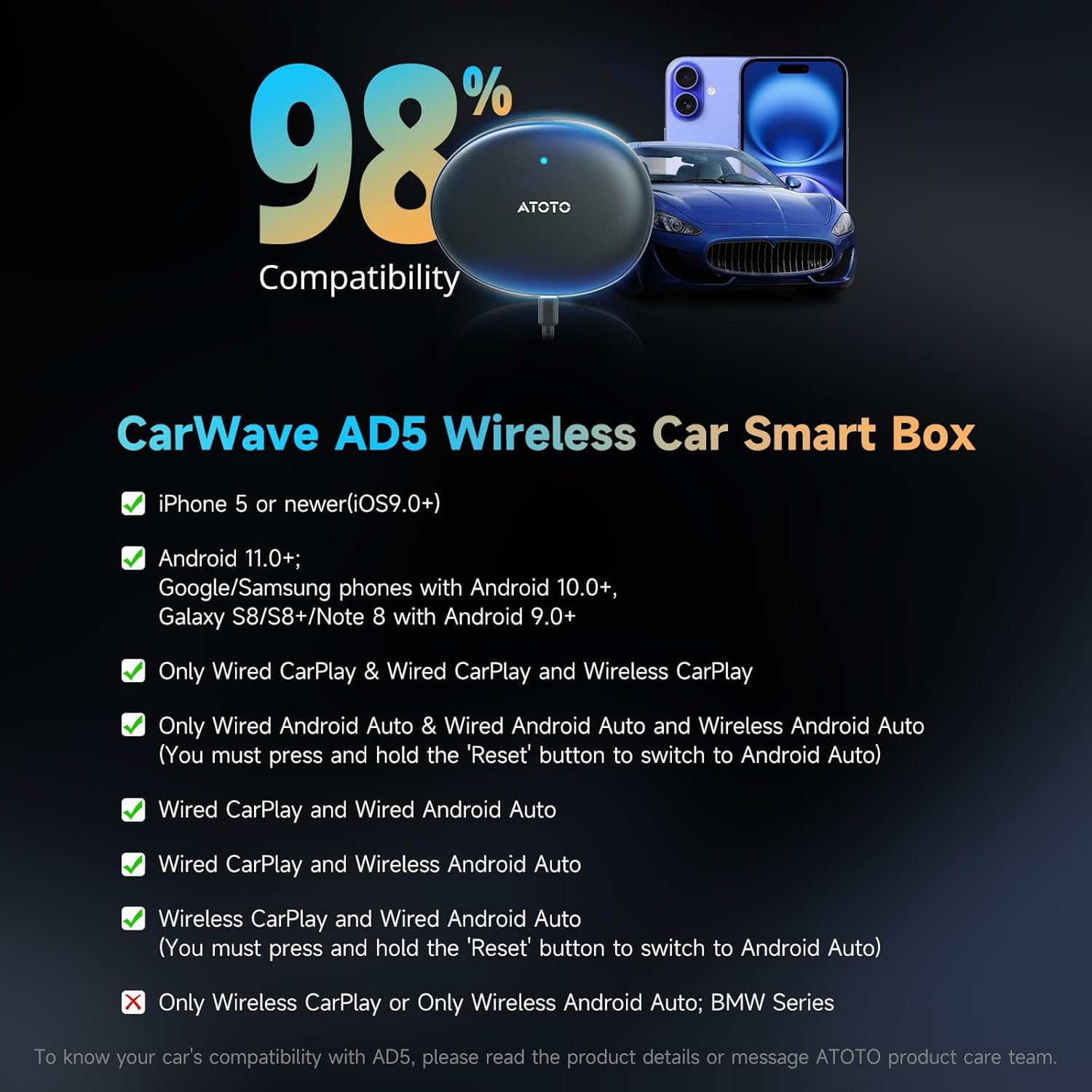
Image 8.1: Detailed compatibility information for the CarWave AD5 Wireless Car Smart Box, listing supported iPhone and Android versions, and various CarPlay/Android Auto configurations.
9. Warranty and Support
This product is backed by 18 months of manufacturer's support. Our experienced engineering team is available to assist with any questions or issues you may encounter. For technical assistance, please refer to the contact information provided with your product or visit the official ATOTOSELECT support channels.