
Camcamp DL02
CAMCAMP DL02 WiFi Video Smart Lock Instruction Manual
Model: DL02
1. Introduction
The CAMCAMP DL02 WiFi Video Smart Lock provides advanced security and convenient access for your home. This smart lock integrates a camera and doorbell, offering multiple unlocking methods including fingerprint, PIN code, IC card, mobile app, and traditional physical keys. This manual provides detailed instructions for installation, setup, operation, maintenance, and troubleshooting to ensure optimal performance and security.

Image 1.1: CAMCAMP DL02 WiFi Video Smart Lock Overview
2. Key Features
- Integrated Camera & Doorbell: Monitor your front door with a built-in camera and receive real-time alerts on your smartphone when the doorbell is pressed.
- Multiple Unlocking Methods: Access your home using fingerprint recognition, PIN codes, IC cards, the mobile app, or traditional physical keys.
- Automatic Locking: The deadbolt automatically engages within seconds after the door closes, providing peace of mind.
- Temporary Access: Generate expiring passcodes for guests, housekeepers, or service technicians, revocable instantly via the app.
- Digital Access Logs: Track all entry records, including fingerprint scans, PIN uses, and timed entries, directly from your smartphone.
- Emergency Power: Equipped with a USB-C emergency power port for access during battery depletion.
- Easy Installation: Designed for straightforward installation without the need for drilling or complex wiring.
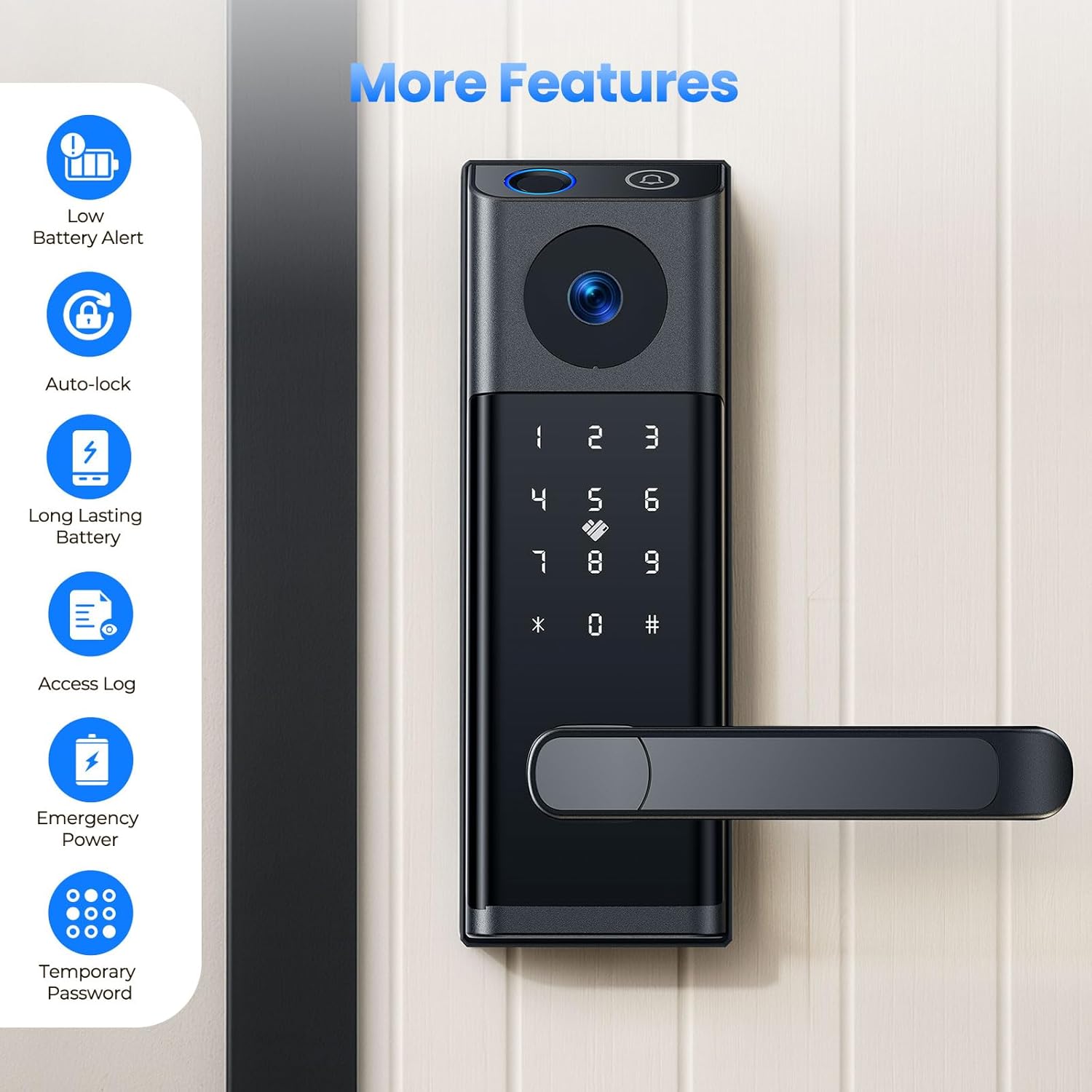
Image 2.1: Overview of CAMCAMP DL02 Smart Lock Features
3. Package Contents
Verify that all components are present in the package:
- Smart Lock (Inside and Outside Lock + Handle) x 1
- Instruction Manual x 1
- Latch and Strike Set x 1
- Screws (6 types)
- Hexagonal Screwdriver x 1
- Spare Key x 2
- Access Card x 2
4. Installation
The CAMCAMP DL02 Smart Lock is designed for easy installation on standard left and right door handle locks. No drilling or complex wiring is typically required.
4.1. Door Compatibility and Size Requirements
Ensure your door meets the following specifications for proper installation:
- Backset: 2.36"-2.75" (60mm-70mm)
- Door Thickness: 1.49"-1.89" (38mm-48mm)
- Cross Bore Diameter: 2.13" (54mm)
- Edge Bore Diameter: 0.4" (12mm)
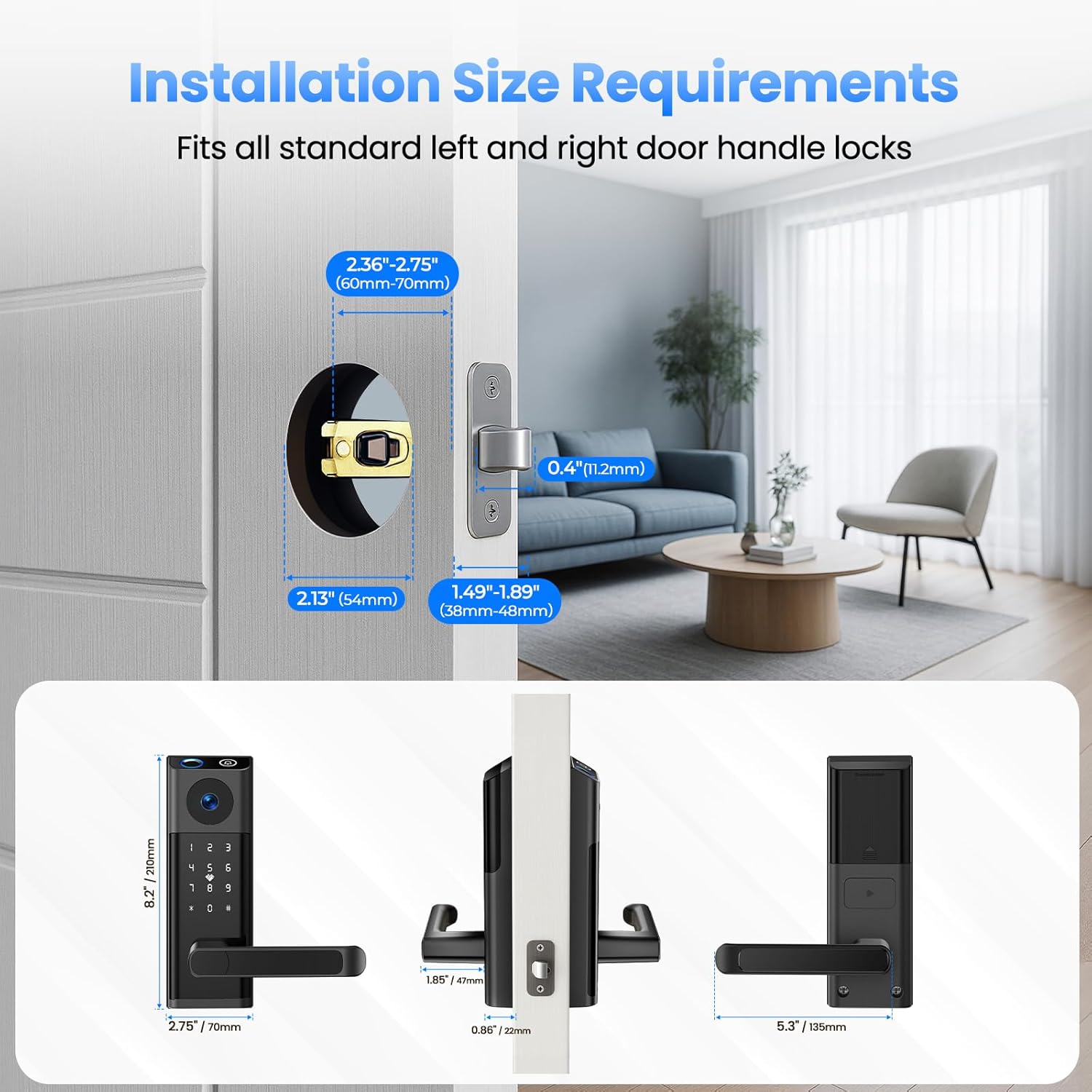
Image 4.1: Installation Size Requirements

Image 4.2: Compatibility with Left and Right Handed Doors
4.2. Installation Steps
Refer to the included instruction manual for detailed, step-by-step installation guidance. Generally, the process involves:
- Prepare the door by ensuring it meets the size requirements.
- Install the latch and strike plate into the door frame.
- Mount the exterior and interior lock assemblies, connecting the necessary cables.
- Secure the lock with the provided screws using the hexagonal screwdriver.
- Test the mechanical operation of the handle and deadbolt.

Image 4.3: Simple Installation Process
5. Setup
After physical installation, proceed with the electronic setup of your smart lock.
5.1. App Download and Connection
- Download the recommended mobile application (e.g., Tuya Smart app) from your device's app store (Google Play or Apple App Store).
- Create an account and log in.
- Follow the in-app instructions to add your CAMCAMP DL02 Smart Lock. This typically involves putting the lock into pairing mode and connecting it to your home Wi-Fi network.
5.2. User Registration and Access Management
Once connected to the app, you can register users and manage access methods:
- Fingerprints: Register up to 50 unique fingerprints for quick access.
- PIN Codes: Create and manage multiple PIN codes for different users.
- IC Cards: Pair the included IC cards with specific users.
- Temporary Passcodes: Generate time-limited or single-use passcodes for visitors or service providers.
6. Operating Instructions
The CAMCAMP DL02 Smart Lock offers various methods for unlocking and managing access.
6.1. Unlocking Methods

Image 6.1: Multiple Unlocking Options
- Fingerprint: Place your registered finger on the fingerprint sensor. The lock will unlock upon successful recognition (typically within 0.5 seconds).

Image 6.2: Fingerprint Recognition
- PIN Code: Enter your registered PIN code on the keypad. The lock supports an anti-peeping password feature, allowing you to enter random digits before or after your actual code to prevent others from guessing it.

Image 6.3: Anti-Peeping Password Feature
- IC Card: Present a registered IC card to the designated sensor area on the lock. The lock will unlock upon successful card recognition.

Image 6.4: IC Card Unlocking
- Mobile App: Use the connected mobile app to remotely unlock the door. The app also allows for two-way audio communication with visitors at your door.

Image 6.5: Video Door Lock Functionality

Image 6.6: Two-Way Audio Communication

Image 6.7: Remote Unlocking and Two-Way Audio
- Physical Key: In case of electronic malfunction or battery depletion, use the provided physical keys to manually unlock the door. The keyhole is discreetly integrated into the design.

Image 6.8: Hidden Physical Keyhole
6.2. Doorbell Functionality
When a visitor presses the doorbell button on the smart lock, you will receive a notification on your smartphone. You can then view the live video feed and engage in two-way audio communication.
6.3. Auto-Lock Feature
The smart lock is equipped with an auto-lock function that automatically secures the door a few seconds after it closes. This feature can typically be configured or disabled via the mobile app.
6.4. Access Log
The mobile app provides a comprehensive access log, detailing every entry and interaction with the lock. This includes timestamps, unlocking methods used (fingerprint, PIN, IC card), and visitor records from the doorbell.
Image 6.9: Digital Access Log
7. Maintenance
Proper maintenance ensures the longevity and reliable operation of your CAMCAMP DL02 Smart Lock.
7.1. Battery Replacement
The smart lock operates on standard AA batteries (not included). The system provides early low-power alerts to notify you when batteries need replacement. Replace all batteries simultaneously with new, high-quality alkaline AA batteries for optimal performance.

Image 7.1: Low Battery Warning

Image 7.2: Battery Compartment and Life
7.2. Emergency Power Supply
If the batteries completely deplete before replacement, the lock can be temporarily powered using a USB-C cable connected to an external power source (e.g., power bank). This allows you to unlock the door and replace the batteries.

Image 7.3: USB-C Emergency Power
8. Troubleshooting
This section addresses common issues you might encounter with your smart lock.
- Lock not responding: Check battery levels. If low, replace batteries or use the USB-C emergency power. Ensure the physical key is not engaged.
- Fingerprint not recognized: Ensure your finger is clean and dry. Try re-registering your fingerprint in the app.
- PIN code not working: Verify the correct PIN is entered. Ensure the anti-peeping feature is used correctly if enabled.
- App connectivity issues: Ensure your home Wi-Fi network is stable and the lock is within range. Restart the lock and your router. Re-pair the lock with the app if necessary.
- Doorbell not notifying: Check app notification settings on your smartphone. Ensure the lock is connected to Wi-Fi.
- Mechanical issues: If the handle or deadbolt feels stiff, check for obstructions in the door frame or ensure the lock is installed correctly and aligned.
For persistent issues, refer to the full instruction manual or contact CAMCAMP customer support.
9. Specifications
| Feature | Specification |
|---|---|
| Brand | Camcamp |
| Model Name | DL02 |
| Lock Type | Deadbolt |
| Material | Aluminum |
| Color | Black |
| Item Dimensions (L x W x H) | 11.4 x 8.7 x 3.5 inches |
| Item Weight | 4.17 pounds |
| Power Source | Battery Powered (4 x AA batteries, not included) |
| Connectivity Protocol | Wi-Fi |
| Control Method | App, Touch |
| Special Features | 180° Wide Angle Camera, Built-in Doorbell, Anti-Peeping Password, Built-in Wi-Fi, Auto-Lock, Anti-crash Handle, Back-Lit Keypad, Fingerprint, APP Remote Control |
10. Warranty and Support
For warranty information and customer support, please refer to the official CAMCAMP website or contact their customer service directly. Details regarding product protection plans may also be available from your retailer.