
1. Introduction
This manual provides essential information for the safe and effective installation, operation, and maintenance of your Cenroelon ZigBee TUYA Smart Life 2P/63A Circuit Breaker. This device integrates circuit protection with smart home connectivity, offering features such as earth leakage, over/under voltage, and over current protection, along with remote control via the Tuya Smart Life app.
The circuit breaker is designed for use in residential and commercial electrical systems to monitor and protect against various electrical faults. It also includes a metering function to display power consumption, voltage, and current.
2. Safety Information
WARNING: Electrical installation and maintenance should only be performed by qualified personnel. Failure to follow these instructions can result in electric shock, fire, or serious injury.
- Always disconnect power at the main circuit breaker before installing or servicing this device.
- The power input must be from the top terminals and must be a live line (L) + neutral (N) connection.
- This product does not have an isolating function or short circuit protection. A separate circuit breaker must be installed upstream (at the upper part) for complete circuit protection.
- Ensure all wiring connections are secure and comply with local electrical codes.
- Do not operate the device if it appears damaged.
3. Product Features
- Protocol: ZigBee 3.0 (requires a Tuya Zigbee hub/gateway).
- Control Modes: APP remote control (Tuya Smart Life app) and manual control.
- Protection Settings: Adjustable via APP or manually for temperature, power, over current, over voltage, under voltage, and electric leakage.
- Metering Function: Displays real-time power consumption, voltage, and current.
- Poles Description: 1P+N (N pole pass-through), occupies 2P.
- Voice Control: Compatible with voice assistants (e.g., for Google Assistant, for Yandex) when integrated with the Tuya ecosystem.
4. Setup and Installation
The circuit breaker is designed for installation on a 35mm standard DIN rail.
4.1 Wiring Diagram
Refer to the diagram below for correct wiring. Ensure the N (Neutral) and L (Live) poles are connected correctly to the IN (Inlet) terminals. The OUT (Outlet) terminals connect to your load.

Figure 1: Front Panel and Wiring Terminals
This image shows the front panel of the ZigBee Smart Reclosing Protector, highlighting the input (IN) and output (OUT) terminals for Neutral (N) and Live (L) connections. It also labels the digital display showing power consumption (kW), voltage (V), current (A), residual current/temperature, and the WiFi signal indicator. The control buttons for 'Set', 'Decrease/Configure network', 'Increase', and 'ON/OFF' are also clearly marked.
4.2 Installation with Upstream Circuit Breaker
As this device lacks isolating and short circuit protection, it must be installed downstream from a standard circuit breaker (e.g., NXB-63 C63) for comprehensive protection. The upstream breaker provides short-circuit and overload protection, while the ZigBee protector adds smart features and earth leakage, over/under voltage, and over current protection.

Figure 2: Typical Installation Diagram
This diagram illustrates the correct installation sequence: power flows from the main supply to a standard circuit breaker (e.g., NXB-63 C63), and then to the ZigBee Smart Reclosing Protector. From the protector, power is supplied to the electrical load. Both devices are shown mounted on a 35mm standard DIN rail, with clear red (Live) and blue (Neutral) wiring connections.
4.3 App Pairing
- Download the "Smart Life" or "Tuya Smart" app from your mobile device's app store.
- Ensure you have a Tuya Zigbee hub/gateway connected to your 2.4GHz Wi-Fi network.
- Open the app and add a new device. Follow the in-app instructions to pair the ZigBee circuit breaker with your Zigbee hub. This typically involves putting the device into pairing mode (often by long-pressing the 'Set' button for 3 seconds) and confirming in the app.
5. Operating Instructions
5.1 Manual Control
The device can be manually turned ON or OFF using the power button on the front panel.
5.2 App Remote Control
Once paired with the Tuya Smart Life app via your Zigbee hub, you can remotely control the circuit breaker from anywhere with an internet connection. This includes turning it ON/OFF, monitoring electrical parameters, and adjusting protection settings.
5.3 Time ON/OFF Scheduling
The app allows you to set schedules for the circuit breaker to automatically turn ON or OFF at specific times. This feature is useful for automating lighting, appliances, or other connected loads.

Figure 3: Time ON/OFF Scheduling via App
This image displays a smartphone screen showing the 'Add Schedule' interface within the Tuya Smart Life app. Users can select specific times (hours and minutes) to set an automated action for the circuit breaker, such as turning it 'On' or 'Off'. This demonstrates the smart scheduling capability of the device.
6. App Control and Connectivity
The Cenroelon ZigBee Circuit Breaker integrates into your smart home ecosystem through a Zigbee hub/gateway, which then connects to your Wi-Fi router. This setup enables control via the Tuya Smart Life app and voice commands through compatible smart speakers.
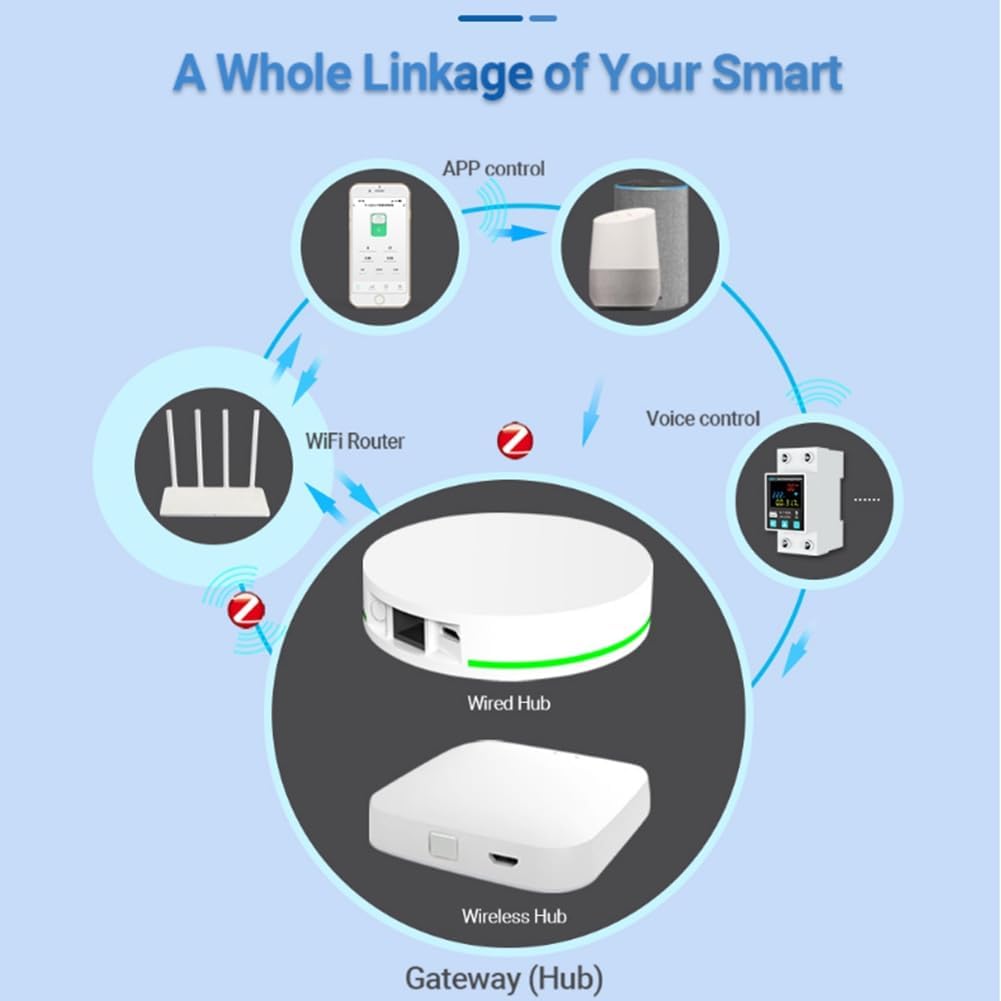
Figure 4: Smart Home Linkage Diagram
This diagram illustrates how the ZigBee Smart Reclosing Protector fits into a smart home network. A smartphone and voice control devices interact with a Wi-Fi router. The router connects to a Zigbee gateway (either wired or wireless), which then communicates with the circuit breaker. This setup allows for remote control and automation of the device within a smart home environment.
7. Protection Settings
The device offers adjustable protection parameters, configurable through the Tuya Smart Life app or manually via the front panel buttons. Long press the 'Set' button for 3 seconds to enter the settings mode for manual adjustments.
- Temperature Protection: 40-150°C (adjustable)
- Power Protection: 1KW-26KW (adjustable)
- Over Current Protection: 1A-63A (adjustable)
- Over Voltage Protection: 220V-265V (adjustable)
- Under Voltage Protection: 76V-240V (adjustable)
- Electric Leakage Protection: 10mA-100mA (adjustable)
Note: If your voltage is 110VAC, the protector's over voltage protection may activate upon first use if not adjusted to appropriate settings.
8. Specifications
| Parameter | Value |
|---|---|
| Rated Working Voltage Range | 90V-320V AC |
| Working Voltage | 100-240V AC |
| Rated Load (Ordinary Electrical Appliances) | ≤13000W |
| Rated Load (Motor) | ≤10400W |
| Protocol | ZigBee 3.0 (Wi-Fi 2.4GHz) |
| App Compatibility | "Smart Life" APP, "Tuya Smart" APP |
| Material | Plastic |
| Color | White |
| Manufacturer | 14CAI500809669 |
| Model Number | 14CAI500809669 |
| Country of Origin | China |
9. Troubleshooting
- Device not powering on: Check main power supply and ensure upstream circuit breaker is ON. Verify correct L+N wiring.
- Cannot pair with app: Ensure your Zigbee hub is powered on and connected to a 2.4GHz Wi-Fi network. Confirm the circuit breaker is in pairing mode (long press 'Set' button). Move the device closer to the Zigbee hub if necessary.
- Device trips frequently: Check protection settings in the app. Adjust over current, over voltage, under voltage, or earth leakage thresholds if they are too sensitive for your load or supply conditions. Ensure the load does not exceed the rated capacity.
- Inaccurate readings: Ensure proper wiring. If issues persist, contact support.
- App control unresponsive: Check internet connection of your phone and Zigbee hub. Ensure the hub is online in the app.
10. Maintenance
The Cenroelon ZigBee Circuit Breaker requires minimal maintenance. Periodically inspect the device for any signs of physical damage or loose connections. Ensure the area around the device is clean and free from dust or debris to prevent overheating. Do not attempt to open or repair the device yourself.
11. Warranty and Support
For warranty information or technical support, please refer to the documentation provided at the time of purchase or contact your seller. Keep your purchase receipt as proof of purchase.